Create a Bootable USB: Rescue and Install Drives, from Download to First Boot
A bootable USB is the one piece of hardware you hope never to need and always wish you had: a small drive that lets a computer start an operating system, a repair environment or a live session from outside its own disk. This guide covers the whole path in order — deciding whether you need installation media or rescue media, understanding what actually makes a USB bootable, choosing a drive that will not let you down, downloading images only from official sources and proving they are intact, creating the media with the right tool for your target firmware, finding the correct boot menu key for your specific computer, testing everything before any disk is touched, and using the result safely for rescue work.
The guide is deliberately OS-agnostic at the media level: the same USB discipline works for a Windows installation drive, a Linux live or install stick, and a recovery environment. Where the procedure genuinely depends on which operating system you are targeting, it says so — and where a deeper walkthrough already exists on this site (for example the full Windows 11 clean-install guide), it links there instead of repeating itself. Nothing in this page modifies your computer’s disks; the only thing that gets erased is the USB drive you deliberately select, and that warning repeats wherever it matters.
Prerequisites and safety notes
- A USB flash drive you are willing to erase completely. Creating bootable media overwrites every file on the selected drive. 8 GB is a common starting point, but section 3 sizes this from your actual image rather than guessing.
- A working computer with internet access for downloading images and tools — it does not need to be the machine you will eventually install or rescue; media made on one PC works on another of the same architecture (64-bit).
- An administrator account on the computer that writes the USB, so the creation tool can access the drive.
- About 30–60 minutes, depending on image size and USB speed — writing a ~6 GB image over USB 2.0 takes considerably longer than over USB 3.x.
- The BitLocker or device-encryption recovery key of the target machine, saved somewhere findable (section 8) if that machine is encrypted — you will need it before any disk operation, not after.
Creating installation or rescue media erases the selected USB drive
Every creation tool in this guide — Rufus, Ventoy, balenaEtcher — deletes everything on the drive you select before writing. Back up anything on that drive first (section 3) and confirm which physical drive it is before you start (section 6). The warning appears again right before the write step.
Start here
The bootable USB, end to end — and which kind of media you actually need
By the end of this guide you will have a USB drive that boots a computer into one of three things: a full operating-system installer (Windows or Linux), a live environment that runs entirely from the stick, or a recovery environment with repair tools. You will also understand why each step exists — what the firmware is checking when it accepts or rejects the drive, what the creation tool actually writes, and how to tell a successful boot from a failed one — so that when something goes wrong, you can diagnose it instead of guessing. The workflow in one line: decide the purpose → size and prepare the drive → download the image from an official source → verify it → write it with the right tool → boot from it → test before touching any disk.
The first decision is the one most guides skip, because it changes everything downstream: are you making installation media or rescue media? Installation media exists to put a new operating system on a machine — it runs a setup program that will eventually write your target disk, and its value is measured in "clean install completed". Rescue media exists to work on a machine that already has an operating system but cannot use it normally — it runs repair tools, file access or diagnostics without replacing anything, and its value is measured in "data recovered" or "system repaired". A single USB can sometimes serve both roles (a Linux live stick can install and rescue; Windows installation media includes a command prompt with recovery commands), but the settings you choose differ: an installer-focused drive optimizes for the setup program, while a rescue-focused drive often needs specific tools or drivers that an installer does not carry. If you are not sure which situation you are in, make the more conservative one: a live/rescue environment costs nothing to boot and lets you back up files before any irreversible decision.
Situations where a bootable USB is the right tool: installing Windows or Linux on a new machine or an empty drive; reinstalling after a failed update or a corrupted installation; recovering files from a PC that no longer boots into its own disk; running diagnostics (memory tests, disk health checks) outside the operating system that may be failing; and creating a known-good fallback so that "my PC won't start" becomes a 30-minute job instead of an emergency. Situations where it is not the whole answer: a machine with a physically failing drive (the USB helps you copy data out, but the fix is replacing the drive — section 9 covers when to stop and get professional help), hardware faults that prevent any boot (no POST, dead power), or license and driver problems that persist after a clean install. This guide also deliberately stops short of two adjacent topics: the detailed Windows 11 installation walkthrough — edition choice, partition decisions, first-run setup — lives in the Install Windows 11 from a USB Drive guide, and deeper firmware work (POST codes, BIOS updates) is covered by the Motherboard & BIOS/UEFI guide. Everything you need for the media itself — from download to first successful boot — is in this page.
Understand
How bootable media actually works — images, partitions and the two boot modes
An operating-system image is a packaged snapshot of everything an installer or live system needs: the setup program (or the whole running system), drivers for common hardware, and — crucially — a small bootloader that the firmware can load before any operating system exists. An .iso file is one packaging format: a single file containing a complete filesystem image plus the boot information the firmware needs to start it. Other formats exist too — raw .img files (common for Raspberry OS and some Linux images), WIM files, and vendor-specific bundles — and the creation tool you pick in section 5 depends partly on which format your image uses. The key mental model: the ISO is a shipping box, not the product installed on the stick. A bootable USB is what you get when a tool opens that box and lays its contents out in the specific partition layout the firmware expects.
That layout is where "bootable" actually lives. On a modern UEFI system, the drive must contain a small FAT32 partition — the EFI System Partition (ESP) — marked with a special partition type code; the firmware scans every boot-capable device for such a partition and looks inside it for a signed bootloader file at a defined path. On a legacy BIOS system, there is no partition scan at all: the firmware reads the first 512 bytes of the drive (the Master Boot Record), finds a pointer to boot code in one of the partitions, and hands over execution — so the drive needs an MBR-style layout with that boot record written correctly. The same ISO therefore produces two different physical drives depending on the target: GPT partition table + ESP for UEFI, MBR + boot record for legacy BIOS. Many computers support both modes (often called "CSM" or "compatibility support"), which is why a drive can boot on one machine and be ignored by another that has its firmware set differently.
UEFI adds a security layer legacy BIOS does not have: Secure Boot. When enabled, the firmware refuses to load a bootloader whose digital signature it cannot verify against its built-in key database. This is why official operating-system images work out of the box — Microsoft signs Windows bootloaders, and mainstream Linux distributions ship a signed "shim" that chains verification down to GRUB — while unsigned or home-built images fail with a cryptic signature error until Secure Boot is disabled in firmware (section 7 explains how to do that deliberately, with the trade-offs stated). Legacy BIOS mode has no equivalent check: it will happily boot anything, which is both its flexibility and its vulnerability. Knowing which mode your target machine uses — Settings > System > About on Windows shows "BIOS mode" via msinfo32, or the firmware screen itself — tells you which partition layout to ask the creation tool for, and it is one of the most common causes of "the USB appears but will not boot".
Finally, three kinds of media that all look similar on a stick but do different things at first boot:
| Media type | What first boot gives you | Typical purpose | Does it write your disks? |
|---|---|---|---|
| Installation media (Windows ISO, Linux install ISO) | A setup program or installer with a "Try" option on many Linux images | Putting an operating system on a machine — new build, replacement, clean reinstall | Only if you choose to install and select a target disk; the try/preview phase does not |
| Live media (Linux live ISO, some vendor rescue images) | A fully running operating system in RAM, with the option to install from it | Rescue work: file backup, diagnostics, malware scanning, driver testing — without touching the installed system | No, unless you deliberately start an installer or copy files to a disk |
| Recovery media (Windows Recovery Drive, vendor diagnostic disks) | A repair environment: startup repair, command prompt, system restore, factory-reset options | Fixing an existing installation that will not boot, or resetting it as a last resort | Only for the specific repair operation you choose; file access is read/write on accessible volumes |
The practical consequence of this table: when someone says "I need a bootable USB", the answer to "for what?" determines the image, the tool settings and even the drive size. A Windows installation ISO is not automatically good rescue media — it has no file browser for your old disk until you are deep in setup — while a Linux live stick can open your NTFS partitions, copy files out and run hardware tests before any installer ever runs. Section 9 returns to this distinction with concrete rescue workflows; for now, keep the question "install or rescue?" in front of you, because every later section uses it.
Prepare
Choose the right USB drive — capacity, speed and protecting what is on it
There is no universal minimum size for a bootable USB, and any guide that gives you one is rounding. The real calculation has two terms: the size of the image you actually downloaded, plus headroom for what the creation tool writes around it (partition metadata, and in Rufus’s case the space needed when it converts a large install.wim into an ESD stream). Current mainstream images are all in roughly the same band — a current Windows 11 ISO is about 6 GB, Ubuntu’s desktop LTS image about 5.8 GB, older or lighter distros between 1 and 4 GB — so an 8 GB stick technically fits most of them, but with almost no margin: some tools refuse to work on a drive whose free space is within a few hundred megabytes of the image size, and Ventoy needs extra room for its own boot manager and plugin files. The safe rule: take your downloaded file’s actual size, add 20%, and round up to the next common stick size (8 / 16 / 32 / 64 GB). For a ~6 GB Windows image that means 16 GB is the comfortable choice; for a 2 GB Linux image, 4–8 GB is fine. The table below gives typical bands so you can sanity-check your own numbers.
| Image | Typical size (verify your own download) | Practical drive size | Notes |
|---|---|---|---|
| Current Windows 11 ISO (e.g. 24H2-generation builds) | ~6 GB | 16 GB or more | Rufus may convert install.wim → install.esd to stay under FAT32’s 4 GB file limit; leave margin for that step. |
| Windows 10 ISO (current builds) | ~5–6 GB | 16 GB or more | Same FAT32 consideration applies to UEFI targets with large files. |
| Ubuntu Desktop LTS (e.g. 24.04-generation) | ~5.8 GB | 16 GB comfortable, 8 GB workable | Live + install in one image; "Try Ubuntu" needs no disk writes. |
| Other Linux distros (Fedora, Mint, openSUSE…) | ~1.5–6 GB depending on edition | 4–16 GB by actual size | Check the file size on the distribution’s download page before buying a stick. |
| Ventoy multi-boot drive | ~200 MB base + every ISO you add | 32 GB+ for several OSes | Ventoy writes its own layout once; each added ISO consumes its full size plus plugin space. |
Speed matters less than people expect, but it is not irrelevant. A USB 2.0 stick (the white or black interior, 480 Mbit/s theoretical) delivers roughly 30–35 MB/s in practice; a USB 3.x stick (blue or red interior, 5 Gbit/s and up) can sustain well over 100 MB/s on good hardware. For the write step that difference is minutes, not hours — a 6 GB image takes around three minutes over USB 3.x and ten to fifteen over USB 2.0. The bigger effect is at install time: Windows setup reads drivers and files from the stick throughout installation, so a slow stick makes every "gathering files" phase longer, and on an old machine with only USB 2.0 ports there is nothing you can do about it except be patient. Compatibility notes for older hardware: USB 3 ports accept USB 2 sticks without any problem (they simply run slower), but some pre-2015 motherboards have finicky USB port support during boot — if a stick will not appear in the boot menu, try a different port, preferably one on the rear of a desktop directly attached to the motherboard rather than a front-panel hub.
Before anything is written, protect the drive’s existing contents and make it impossible to confuse with another device. Three habits prevent almost every data-loss story in this domain: (1) Back up everything on the stick — every creation tool erases the selected drive without a second confirmation that names your files, so "I only had some documents on there" is not a recoverable situation after the fact; copy them to the computer or another drive first. (2) Identify the drive by more than its letter. Drive letters move between reboots and differ per machine; capacity plus manufacturer label (visible in File Explorer’s device properties or Disk Management) is what you will match against when a tool lists "removable devices". If two sticks of similar size are plugged in, unplug one. (3) Put a physical label on it — even a piece of tape reading "INSTALL USB" prevents the classic mistake of reaching for the wrong stick under time pressure, and later distinguishes your rescue media from backup drives when you need it at 2 a.m.
USB preparation checklist — before you create media
Prepare
Download operating-system images safely — and prove they are intact
The single most important security decision in this entire workflow happens before any tool is opened: where the image comes from. A bootable USB is, by definition, trusted code that runs before your operating system’s defenses exist — so an image obtained from a third-party "ISO download" site, a repack bundle or a link of unknown origin carries the same weight as installing software from a stranger. The official channels are unglamorous but complete: for Windows, Microsoft’s own Windows 11 download page offers both the Media Creation Tool (which can write the USB directly or save an ISO) and a direct "Download Disk Image (ISO)" flow for the current release; for Linux, each distribution publishes its images on its own domain — Ubuntu’s are at ubuntu.com/download, with official mirrors listed by the project itself. Two practical checks before you download: verify the URL is the vendor’s actual domain (typosquatting sites exist precisely to catch people searching for free Windows ISOs), and prefer HTTPS connections — the certificate check does not prove the file is what you want, but it rules out the cheapest tampering attacks.
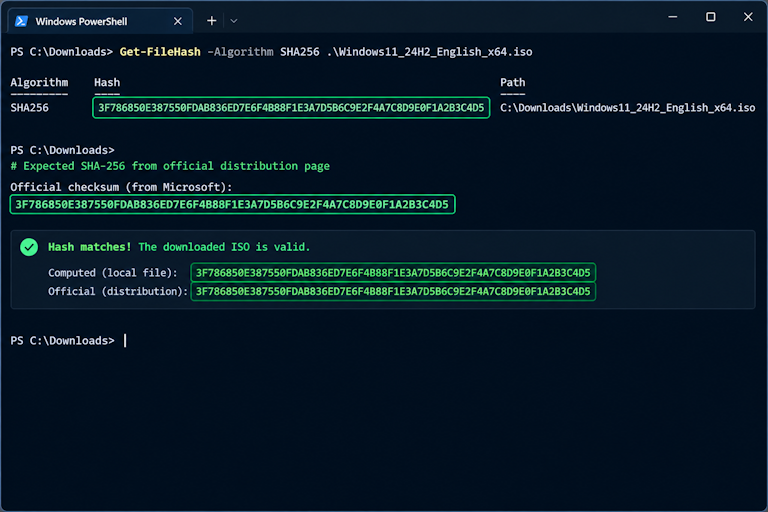
Downloading from the official source is necessary but not sufficient: files can be corrupted in transit (a dropped connection, a flaky mirror, an interrupted browser download), and corruption at this stage produces failures that look exactly like hardware problems later — black screens, boot loops, installers that die mid-copy. That is why every serious distribution publishes checksums: a SHA-256 hash is a 64-character fingerprint of the file’s exact contents, and any single changed byte produces a completely different fingerprint. The verification workflow is: (1) note the official SHA-256 value published alongside the image, (2) compute the hash of your downloaded file, (3) compare character for character. On Linux or macOS, sha256sum does it in one line; on Windows, certutil ships with the operating system. The commands below are read-only — they calculate a fingerprint and change nothing.
sha256sum ubuntu-24.04-desktop-amd64.iso
# macOS (same tool via Homebrew, or built-in shasum):
shasum -a 256 ubuntu-24.04-desktop-amd64.iso
Replace the filename with your actual file. The output’s first 64 hex characters are the hash — compare them against the value on the distribution’s official checksum page.
certutil -hashfile C:\downloads\ubuntu-24.04-desktop-amd64.iso SHA256Run in Command Prompt or PowerShell. Ignore the "Hashes of file ..." label line — the value directly beneath it is the hash to compare.
Where available, go one step further and verify the digital signature of the checksum file itself: Ubuntu publishes its SHA256SUMS files with a GPG signature from Canonical’s release key, so you can confirm not just that your file matches the list, but that the list genuinely came from the project — Ubuntu’s own verification tutorial walks through exactly this. Microsoft does not publish standalone hashes for its ISOs in the same way; the Media Creation Tool and the ISO download flow are the trusted path there, so your verification layer is "downloaded from microsoft.com over HTTPS" rather than a hash comparison. And when a check fails, the procedure is strict: do not use that file, delete it, re-download from the official source (ideally on a different network if you are on public Wi-Fi), and re-verify. If two independent downloads both fail verification against the published value, stop and report it to the project rather than trying to install — a mismatch means either your connection is being altered or something upstream changed, and neither is worth finding out about during an installation.
Prepare
Choose the creation tool: Rufus, Ventoy or balenaEtcher
All three tools below are free and from established sources, but they solve different problems, and picking wrong costs you a redo. Rufus (official site: rufus.ie; also distributed through the Microsoft Store) is a Windows-only utility built specifically around the "one image, one drive, target firmware known" workflow: it formats the drive with the partition scheme you choose (GPT for UEFI, MBR for legacy BIOS), writes the boot files correctly for that scheme, and handles the awkward cases — most notably converting an oversized install.wim so a large Windows ISO fits on FAT32. Its interface exposes exactly the settings section 6 needs. Ventoy (ventoy.net) inverts the model: you install its boot manager to the USB once, and from then on adding an operating system means nothing more than copying ISO files onto the drive — multi-boot by default, no reformatting per image. balenaEtcher (etcher.balena.io) is a cross-platform flasher that writes images byte-for-byte (the same operation as the classic dd command) and verifies the result; it is the natural choice for raw images and Linux distros on any operating system, but it offers no partition-scheme selection and no Windows-specific handling.
| Rufus | Ventoy | balenaEtcher | |
|---|---|---|---|
| Runs on | Windows only | Windows, Linux, macOS (installer) | Windows, Linux, macOS |
| Workflow | Per image: format + write, drive holds one OS at a time | Install once, then copy ISO/WIM/IMG files; multi-boot | Select image + target, flash raw, verify |
| Partition scheme control | Explicit: GPT/UEFI or MBR/BIOS per drive | Chooses at install time (UEFI+BIOS hybrid is default); ISOs boot in both modes | None — writes the image as-is |
| Best for | Windows installation media; any case where you know the target firmware mode and want full control | A permanent multi-OS rescue kit; trying several distros without reformatting | Linux live/install images and raw .img files from any host OS |
| Limitations to know | Windows-only; one image per drive (recreate for another OS) | Occasional plugin updates needed for brand-new Windows builds or old kernels; slightly more moving parts than a plain write | Not the recommended route for Windows installation ISOs — no UEFI/FAT32 handling, so results are unreliable for that use case |
The decision rules that follow from the table: making a Windows installation drive on a Windows PC → Rufus (or Microsoft’s own Media Creation Tool, which does the same job with fewer options — both are covered in section 6). Building a multi-boot rescue kit you will keep for years → Ventoy. Making a Linux live or install stick on macOS or Linux, or flashing a raw image → balenaEtcher. Two honesty notes: no tool supports every operating system and image format combination — Rufus is the strongest generalist on Windows, but if your image is an unusual vendor bundle, check that tool’s documentation before assuming it can handle it; and "free" tools from unofficial mirrors are not the same product as the ones at the official URLs above, so download only from those destinations. If you are choosing between Rufus and the Media Creation Tool for Windows specifically, either is fine — the MCT is Microsoft’s own path and always targets the current release, while Rufus gives you the partition-scheme controls that matter when the target machine’s firmware mode is unusual.
Build & boot
Create the bootable USB — the full procedure, tool by tool
The steps below are the same skeleton for every tool; the differences live in step 6, where each tool’s controls are covered specifically. One framing note before you start: exact control names and option layouts vary by tool version and by the operating system running the tool. Rufus 4.x, for example, shows a different set of advanced options than Rufus 3.x did, and a Linux-hosted Ventoy installer labels things slightly differently from its Windows build. Where this guide names a specific dropdown or button, treat it as "find the setting that does this" rather than "the pixel-exact location", and check the tool’s own documentation when in doubt — the intent of each setting is stable even when its label moves.
- Prepare the computer and the USB drive. Unplug every other removable drive so there is no ambiguity about which device you are about to erase. Confirm the target stick is the one from your preparation checklist (section 3) — match capacity and manufacturer label, not just the drive letter. Make sure the computer has stable power (a laptop plugged in) and that you have an account that can install software or approve administrator prompts.
- Download the correct image from its official source (section 4): the right operating system, the right edition family if the choice matters to you, and the architecture of the target machine — 64-bit for anything sold in the last decade or so. "Correct" also means current: an installation ISO from several generations ago will install an operating system that is already out of support before first boot.
- Verify the image where verification information exists (section 4). For Linux images with published SHA-256 values, run the comparison now — it takes under a minute and converts a later mysterious failure into a known-good starting point. For Windows ISOs obtained through Microsoft’s own tooling, note the download completed without error and move on.
- Launch the creation tool with administrator rights. Writing to a removable drive requires elevated access on most systems: run Rufus as administrator, or start Ventoy’s installer with elevated privileges. A tool that cannot see your drive in its device list is almost always an permissions problem before it is a hardware problem.
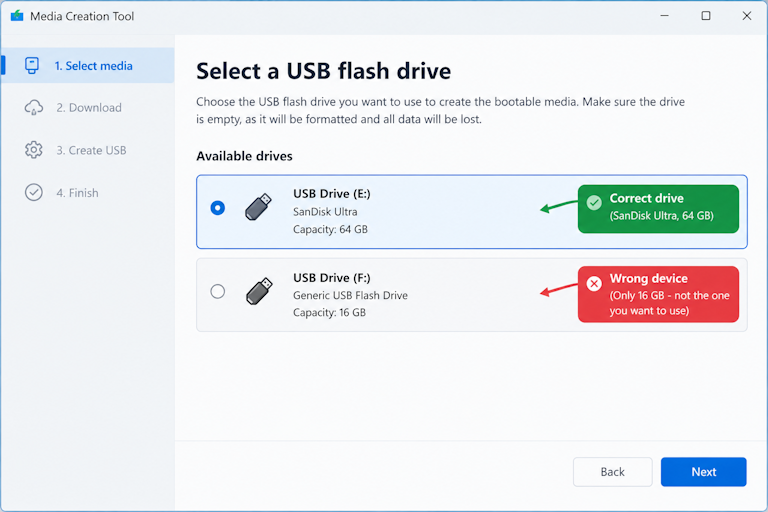
- Select the correct USB device — and verify the selection out loud. In the tool’s drive selector, confirm the entry shows the capacity and vendor label of your stick. If you see more than one removable device, stop and unplug the ones you do not mean to erase. This is the single highest-stakes click in the whole procedure: every tool on this page will happily format whatever you point it at.
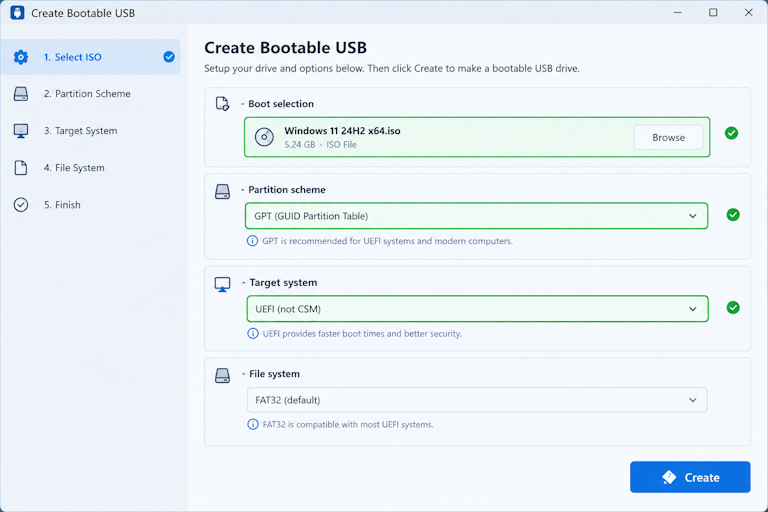
- Choose the image and the partition settings for your target machine. Point the tool at the downloaded file, then set the layout to match how the target computer boots: UEFI firmware wants GPT (with a FAT32 EFI System Partition on Windows media), legacy BIOS wants MBR. The tool-specific details for Rufus, Ventoy and balenaEtcher follow below.
- Start the write and wait for it to finish completely. Do not unplug the drive, sleep the computer or close the window while the progress bar moves — interrupting a write leaves a drive that is neither the old contents nor valid media. Expected times: roughly three minutes for a ~6 GB image over USB 3.x on a modern machine, ten to fifteen over USB 2.0, longer still on older hardware. Each tool signals completion differently (a "READY" status, a success dialog, a verification summary) — trust only that explicit signal, not the moment the progress bar first reaches the end.
- Eject safely and label the finished drive. Use the system’s safe-eject (or wait for the tool to finish its final sync), unplug, and apply the physical label from section 3. A completed, labeled stick is now a durable asset: it can be stored for months and still boot — the boot files do not expire, though the operating-system version it installs does age.
Before you click the final "Start" / "Install" / "Flash"
Read the tool’s warning dialog once, fully. It is telling you that every file on the selected drive will be destroyed. Confirm the drive name in that dialog matches your stick — capacity and label — then proceed. If anything about the selection looks different from what you expect (wrong size, an unfamiliar vendor name, a drive letter you do not recognize), cancel, unplug all other removable drives, and re-identify before retrying.
With Rufus (Windows host)
Rufus opens with the drive already selected — verify it is yours. Set Boot selection to "Disk or ISO image" and browse to your file (for Windows media, Rufus can also accept the extracted contents). Then the two settings that determine whether the target machine will accept the drive: Partition scheme — GPT for a UEFI target, MBR for a legacy BIOS target — and Target system, which Rufus derives from your choice (UEFI or CSM/Legacy BIOS). File system follows automatically in most cases (FAT32 for UEFI); if the image contains a file larger than 4 GB and you are on a UEFI/FAT32 target, Rufus offers to convert install.wim to an ESD stream — accept it, that is the standard fix. Click START; after the format completes, the status bar reads READY when the drive is done. Rufus also supports "DD image" mode for raw images — choose it only when your source is actually a raw .img, not a Windows ISO.
With Ventoy (any host OS)
Ventoy’s installer asks for the target disk and, on first install, formats it with its own layout — UEFI+BIOS hybrid by default, so the same stick can boot in either firmware mode. Confirm the disk selection the same way as everywhere else (capacity + vendor label), accept the format warning knowingly, and let the install finish; it takes under a minute because Ventoy writes only its small boot manager, not an operating system. After that, adding operating systems is just file copying: drag ISO, WIM, IMG or EFI files onto the drive like any folder. Two maintenance notes: when Microsoft ships a Windows build newer than Ventoy’s built-in support, the boot menu offers a plugin update — run it from the menu rather than reinstalling; and if you ever want to return the stick to ordinary use, reformatting it normally removes Ventoy completely.
With balenaEtcher (any host OS)
Etcher’s flow is three screens: Flash from file (choose your image), then target selection, then a write-and-verify run. The target screen shows each removable device with its label and size — click the one that matches your stick; Etcher deliberately makes you confirm the target explicitly, which is exactly the behavior you want. There are no partition-scheme options: Etcher writes the image byte-for-byte as it is, which is correct for Linux distribution ISOs (they carry their own boot layout) and raw images, but it is why Etcher is not the recommended path for Windows installation media — those need the scheme-specific handling Rufus or the Media Creation Tool provide. When the run finishes, Etcher reports the verification result; a completed verification means every byte on the stick matches the source image.
Build & boot
Boot from USB: the one-time boot menu, firmware settings and Secure Boot
To start from the stick, the firmware must be told to look at the USB device before the internal disk. Most computers offer a one-time boot menu — a list of bootable devices shown for one boot cycle, after which normal order resumes — and that is the cleanest way to test media without changing any permanent settings. Here is where this guide is deliberately specific: there is no universal key. The key differs by manufacturer and often by model year, and guessing through F8/F10/F11/F12/Esc at every power-on works sometimes but is not a method. The reliable way to find the correct one for your machine: (1) look at the brief splash screen during power-on — many systems print "Press <key> for Boot Options" there for a second or two, so power on and watch rather than stare at the logo; (2) search the manufacturer’s official support site for your exact model plus "boot menu" or "boot options" — vendor documentation names the key per model, and this is the source to trust over third-party key lists that go stale; (3) consult the firmware manual that shipped with the machine if you have it. Some brands use a two-step dance (an Esc-style "startup menu" that then offers the boot device list), which is why step 2 matters more than memorizing keys.
If no one-time menu appears, or you want to change the permanent order instead, the path is through UEFI firmware settings — commonly reached by a dedicated key at power-on (again: model-specific, find it the same way) or, on a machine that still boots into Windows, without any key at all: Settings > System > Recovery > Advanced startup > Restart now, then Troubleshoot > UEFI Firmware Settings. Inside firmware, look for a "Boot" section listing devices in order — move the USB entry above the internal disk to test permanently, or use its one-time-boot option if offered. When you are done testing, restore the original order so the machine behaves normally; leaving a dead stick at the top of the boot list is a classic cause of "my PC won’t start" confusion later.
Three firmware-level factors decide whether a valid drive boots at all. Boot mode: if the machine is set to UEFI-only, it will ignore MBR-formatted media (and vice versa on legacy-only systems) — a mismatch shows up as "USB present but not offered" or "not a bootable device", and the fix is either recreating the media with the matching scheme (section 6) or switching the firmware’s mode where it offers both. Secure Boot: official images carry signed bootloaders and should start with Secure Boot enabled; if you see a signature or policy error, section 10’s decision tree covers the safe order of checks before anyone disables anything — disabling Secure Boot is reversible but does lower the machine’s security posture while off, so it is a deliberate step, not a reflex. USB boot restrictions: some systems (corporate-managed machines in particular, and a minority of consumer laptops) hide USB devices from the boot list entirely by policy or firmware setting; if your stick is healthy and correctly made but never appears, check the firmware’s boot configuration for a disabled USB option before doubting the media — and on managed hardware, the restriction may simply be unchangeable by design. The deeper mechanics of all this live in the Motherboard & BIOS/UEFI guide.
Verify & act
Test before you install — recognizing a successful boot and what to check first
A successful boot has recognizable signatures, and knowing them separates "it is working, be patient" from "this is failing, stop and diagnose". From a Windows installation USB, expect the firmware to hand off within seconds to a black screen with a spinner or "Starting Windows", then a language-selection screen — on many images a "Press any key to boot from CD/USB" prompt appears first and expires after a few seconds, so be ready at power-on. From a Linux image, expect either a GRUB-style menu (with "Start Ubuntu" / "Try" and "Install" entries) or a direct fade into the live desktop; from a recovery environment, a repair menu with options like Troubleshoot, Startup Repair or Command Prompt. If instead you get a repeated "Reboot and select proper boot device" message, the firmware found no bootable code on the stick at all — that is a media or scheme problem (section 10), not a waiting game. And if the screen goes black with a still-active disk light for several minutes, remember that USB-based installs are genuinely slow on first load: give it ten minutes of actual disk activity before calling it hung.
When a live environment is available — every mainstream Linux install image provides one, and it is the best free test bench you will ever use — spend five minutes in it before any installation. Things worth checking while nothing is at risk: does the display run at the panel’s native resolution (a driver gap here usually resolves itself after install, but a total black screen on the live session predicts problems); does the network connect, wired or Wi-Fi (Wi-Fi failures in live mode often mean the distro lacks that adapter’s driver — know it before you commit to the OS); is the internal disk visible and readable from the file manager; does audio output work? The critical conceptual point: trying a live environment and installing are different operations. The live session runs in RAM and writes nothing to your disks by default — you can restart into your normal system with zero trace of it. Installing is the operation that modifies the target disk, and it should only start once the live check has answered the question "will this hardware actually run this operating system?"
Before any installation begins — Windows or Linux — four verifications prevent the disasters people describe in forums. (1) Disk selection: in the installer’s drive screen, match the target disk by capacity and label against what you intend to install on; on a machine with several disks, confirm which one holds your data before anything is formatted, because "Disk 0" means nothing without that cross-check. (2) Backups: if there is any chance the installer’s partition step could touch a disk you did not mean to format — including by mistake clicking the wrong entry — back up that disk first; the live environment from the previous paragraph exists precisely to make this backup possible when the installed system is the problem. (3) Encryption keys: if the target machine uses BitLocker or full-disk encryption, have the recovery key saved and testable before installation — an encrypted disk whose key you cannot produce becomes unreadable after any partition change, with no second chance. (4) What survives: know in advance which partitions the installer will leave untouched; a clean install of Windows on one disk does not by itself format your other disks, but it is the moment when that assumption should be verified, not assumed.
The point of no return is a specific screen
In every installer, the irreversible moment is confirming the partition/format step for the target disk — everything before it (language, edition, license, even reaching the drive list) can be abandoned with no changes made. If you reach that screen and anything about the listed disks looks different from what you expected, cancel out, re-read section 9’s rescue options or this section’s four checks, and only proceed when the disk identity is confirmed beyond doubt.
Verify & act
Rescue and recovery workflows — using the USB safely when the system is already broken
The most common rescue job is also the simplest: getting files off a machine that no longer boots into its own disk. Boot the target machine from a Linux live USB (section 8), open the file manager, and the internal drive’s partitions appear as mountable volumes — NTFS partitions from a Windows disk are readable out of the box on mainstream distros. Connect an external drive or network storage, and copy what matters: documents, photos, browser profiles, project folders. Two discipline rules make this safe. First, prefer read-only access: many file managers let you mount a partition read-only (or it can be done from a terminal), which guarantees the rescue session cannot alter the disk you are trying to preserve — with failing hardware especially, every unnecessary write is a coin flip. Second, copy in order of irreplaceability: unique documents and photos before anything re-downloadable, so that if the drive degrades mid-copy (it may), what you lost was the least painful. If a partition will not mount at all — corruption or an encryption layer you cannot open — stop writing to it and treat that as the "seek professional help" situation below, not a puzzle for more tools.
Beyond file rescue, bootable media supports three other safe workflows. Diagnostics outside the failing system: memory tests (MemTest86 from a live USB runs overnight and catches RAM errors that no in-OS test can see reliably), disk health readings (SMART attributes tell you whether a drive is statistically about to fail — the same data the Hard drives & SSDs guide explains), and driver/hardware probing from a live session. These are all read-oriented: they measure the machine without changing it, which is exactly what you want before deciding between repair and replacement. Windows recovery media: Windows can create its own kind of bootable USB — the Recovery Drive wizard (recoverydrive.exe, documented by Microsoft at support.microsoft.com) produces a drive that boots into the Windows Recovery Environment (WinRE) with Startup Repair, command prompt, system image restore and reset options (Microsoft’s WinRE overview). Note the distinction from section 1: a recovery USB repairs an existing Windows installation; it does not replace it unless you explicitly choose reset. A working reference system: a live USB also serves as a clean machine to check email, print documents or test peripherals while the real system is down — useful in ways that are easy to forget when everything else is broken.
The line between "safe rescue work" and "making it worse" is drawn by one question: does this operation write to the disk I am trying to save? Read-only diagnostics, file copies out, and running tests from RAM are all on the safe side; partitioning, formatting, reinstalling over the system volume or running aggressive repair tools that rewrite boot records are not — each of them narrows your remaining options and, on damaged media, can convert a recoverable situation into an unrecoverable one. That is why reinstalling the operating system is not the default answer to every boot failure: it destroys the evidence (logs, file state) that tells you what actually failed, and it is the wrong tool when the real problem is hardware, a missing driver or a corrupted update that a targeted repair would have fixed. The ordered repair procedures for a Windows machine that will not start — Startup Repair first, then targeted tools, with reinstallation last — are covered in the Startup & Boot guide and the recovery-tools library; this section’s job is to keep you on the safe side of the write line until those procedures have had their chance.
Finally, know when to stop and get professional help. The signals are physical, not software: a drive that clicks or grinds, repeatedly powers down and respins, disappears from the firmware’s device list intermittently, or shows SMART attributes in the failing range is degrading hardware — every additional power-on and retry session reduces the odds of full data recovery. If the data on such a drive is irreplaceable (the only copy of years of documents or photos), the proportionate move is: stop using the machine, keep the drive powered off if practical, and take it to a professional data-recovery service before running any further tools — even gentle ones. "It probably just needs a reinstall" is the most expensive sentence in computer repair when said about a failing disk with irreplaceable data.
Fix & confirm
Troubleshooting: a decision tree and a searchable symptom index
Almost every bootable-USB failure falls into one of eight families, and the correct first action differs between them — which is why guessing ("recreate it three times") wastes an afternoon while diagnosis takes ten minutes. Use the decision tree below for a guided walk: pick your symptom, answer two or three questions, and it ends with a concrete next step and the safety note that applies. Below that, the symptom index lists all eight families with their likely causes and safe diagnostics in one searchable place — filter by category or search for a keyword like "secure boot" or "black screen". Both cover the same ground; pick whichever shape you prefer. One rule applies to every branch: recreate the media before doubting the hardware, and verify the image before recreating — a corrupt source file will produce the identical failure however many times you rewrite it.
Boot troubleshooting decision tree
Choose the symptom that matches what you are seeing. Answer each question with the button that fits — the tree ends with a specific next action.
Select a symptom above to begin.
Symptom index — all eight failure families
8 of 8 symptoms shown
USB does not appear in the boot menu
Boot menu
Likely causes: the drive is not recognized by the firmware at all (port or power issue), the firmware hides USB devices without valid boot media, the one-time menu was missed, or USB boot is disabled by policy or firmware setting.
Safe diagnostics: confirm the PC sees the stick in its own OS (File Explorer / disk utility) and on another machine; try a different port — rear motherboard ports first on desktops; check the manufacturer’s documentation for your model’s boot-menu key (section 7); look for a disabled USB boot option in firmware settings.
Next action: fix recognition first (see the USB device isn’t recognized guide), then re-check the media was created successfully (section 6, step 7’s completion signal). If the stick is healthy and correctly made but never listed, the restriction is in firmware — check its boot configuration.
USB appears in the menu but will not boot
Boot process
Likely causes: partition scheme does not match the firmware mode (MBR drive on a UEFI-only system, or vice versa), the write was interrupted or incomplete, the image itself is corrupt, or the tool wrote an ISO where a raw write was needed (or the reverse).
Safe diagnostics: note exactly what happens — instant return to menu, "not a bootable device", or a brief logo then reboot; check the firmware’s reported boot mode against the scheme you chose in section 6; try selecting both the plain and the UEFI-prefixed USB entry if the menu lists two.
Next action: re-verify the source image (section 4), then recreate the media with the partition scheme matched to the target’s boot mode. If it still fails, recreate with a different tool — cross-tool failure usually points at the image or the firmware, not your technique.
Black screen or boot loop
Boot process
Likely causes: normal slowness mistaken for a hang (USB installs are slow, especially over USB 2.0), a display-handoff gap between firmware and OS, an incompatible or unsigned bootloader under Secure Boot, or a genuinely failing write.
Safe diagnostics: watch the drive’s activity light — steady intermittent blinking for several minutes means work is happening; check whether any output appears on a different monitor or cable; remove extra USB peripherals (docks and hubs can steal early input/display); note whether the loop returns to the same point each time.
Next action: give active-disk sessions ten minutes before calling them hung. If it loops, check the Secure Boot state against your media type (next entry), then recreate the media fresh. For a Windows machine that loops instead of booting its own disk, the ordered repair path is in the Startup & Boot guide.
Secure Boot or signature error
Firmware & security
Likely causes: an unsigned or home-built image on a Secure Boot machine, a mismatched image for the firmware mode (a legacy-mode image on UEFI), or — rarely — a corrupted key database in the firmware.
Safe diagnostics: read the exact error text (it usually names "signature", "policy" or "MOK"); confirm the image came from the official source and is the UEFI-capable build; check whether the same media boots on another machine to isolate firmware from media.
Next action: official Windows and mainstream Linux images should boot with Secure Boot enabled — if yours does not, suspect the image first. Only then consider disabling Secure Boot in firmware as a deliberate, reversible step (section 7), understanding it lowers security posture while off. The deeper mechanics are in the TPM 2.0 & Secure Boot guide.
Wrong partition scheme or unsupported filesystem
Media & tools
Likely causes: UEFI target with a FAT32 drive holding a file over 4 GB (the classic large-Windows-ISO case), legacy BIOS target given a GPT/ESP-only layout, or a tool that wrote the image in the wrong mode for its format.
Safe diagnostics: check the firmware’s boot mode; compare it against the partition scheme you selected in section 6; on Windows hosts, Disk Management shows the drive’s current layout (GPT vs MBR, partition types) for a quick sanity check.
Next action: recreate with the matching scheme — GPT + FAT32 handling for UEFI (Rufus offers the wim→esd conversion automatically), MBR for legacy BIOS. Ventoy avoids most of this class by installing a hybrid layout that boots in both modes.
ISO verification failure (checksum mismatch)
Media & tools
Likely causes: interrupted or corrupted download, a bit-flip in storage, a wrong comparison value copied from the wrong file’s row, or — rarely — an altered download path.
Safe diagnostics: re-run the hash calculation (a copy-paste slip in the 64-character comparison is common); confirm you are comparing against the value published for this exact filename and version; check the download completed fully (file size vs published size).
Next action: do not use a file that fails verification. Delete it, re-download from the official source — on a different network if you were on public Wi-Fi — and re-verify. Two independent failures mean stop and report to the project (section 4).
Creation tool reports an error
Media & tools
Likely causes: the drive is locked by another program (antivirus, Explorer preview, a previous crashed session), insufficient permissions, a failing stick or port, or leftover partitions from an earlier tool confusing the writer.
Safe diagnostics: read the specific error text — "device in use" and "access denied" have different fixes; unplug and replug the stick; try a different port; close antivirus temporarily for the write; on Windows, Disk Management shows whether the drive has stale partitions from earlier attempts.
Next action: run the tool as administrator on a freshly plugged-in stick at a rear port. If a specific stick errors repeatedly across ports and machines, suspect the stick itself — try another one before deeper intervention. Never clear partitions on a drive you have not re-identified as your working stick.
Installer cannot detect the target drive
Installer
Likely causes: missing storage drivers (notably some NVMe or RAID controller configurations on certain Windows media), a disk that is offline in the firmware or OS, a partition style the installer does not recognize for the current boot mode, or simply looking at the wrong physical disk.
Safe diagnostics: in the installer’s drive list (or its "load driver" option), check whether any disks appear at all; from a live USB on the same machine, list the disks to see what hardware actually sees — if the live session sees the disk but the installer does not, it is a driver gap, not a dead disk.
Next action: use the installer’s load-driver option with the storage driver from the hardware vendor where offered; confirm the disk is online and its partition style matches the boot mode (GPT for UEFI). If no disk is visible from any environment, that is a hardware problem — see section 9’s stop-and-escalate guidance before further attempts.
No symptoms match your current filters — try a different keyword or reset the category.
Fix & confirm
Verification checklist and frequently asked questions
The checklist below is the acceptance test for everything this guide produced: the first group confirms the media itself was created correctly, the second confirms the first boot actually succeeded. Tick items as you verify them — your progress is saved in this browser between visits, and the reset button starts over. A USB that passes both groups is a durable asset: store it labeled, keep the image’s version noted on the label (so you know what generation of operating system it installs), and re-verify the source image only when you need a current release.
The USB was created correctly
The first boot succeeded
Frequently asked questions
Can I reuse the USB drive after installing the operating system?
Yes — after installation, the stick is just a normal (very small) removable drive. Its media contents are no longer needed, and you can reformat it for everyday use without affecting the installed operating system in any way. The one exception is a Ventoy drive: if you want to keep using it as a multi-boot kit, leave its layout intact; formatting it normally converts it back into an ordinary stick.
Do I need to format the USB before creating bootable media?
No — and you should not try to pre-format it manually. Every creation tool formats or re-partitions the drive itself as part of the write: Rufus formats with the scheme you choose, Ventoy installs its own layout, and balenaEtcher overwrites the device raw. Pre-formatting only risks leaving a state (leftover partitions, an unfamiliar filesystem) that confuses the tool, which is one of the causes behind "creation tool reports an error" in section 10.
Can one USB hold multiple operating systems?
With Ventoy, yes — that is its core purpose: install the boot manager once, then copy as many ISO files as fit. A Windows image and several Linux images can coexist on the same stick and each boots independently. With single-image tools (Rufus, balenaEtcher, the Media Creation Tool), one drive holds one image at a time; switching operating systems means recreating the media from scratch, which is why a dedicated multi-boot rescue stick plus a separate install stick is a common setup for people who do this often.
What exactly is the difference between installation media and rescue media?
Installation media runs a setup program whose end goal is writing a new operating system to your disk — its value is a completed install. Rescue media runs repair tools, file access or diagnostics against a machine that already has an operating system — its value is recovered data or a repaired system, with nothing replaced unless you explicitly choose it. Some media overlap (a Linux live stick can do both; Windows installation media includes recovery commands), but section 1’s rule still holds: when unsure which situation you are in, boot the more conservative option first — trying costs nothing, installing is the point of no return.
Will creating a bootable USB erase files on my computer?
No. The creation process touches only the removable drive you select — your internal disks, other drives and the host operating system are not modified. The data-loss risk in this workflow is exclusively "selected the wrong removable device", which is why sections 3 and 6 build in identification by capacity and vendor label plus a physical label on the stick.
Why do large Windows ISOs cause problems on UEFI systems with FAT32?
UEFI firmware traditionally loads boot files from a FAT32 partition, and FAT32 has a hard 4 GB per-file limit. Current Windows installation ISOs contain an install.wim larger than 4 GB, so a naive "copy to FAT32" write cannot hold it. The tools handle this deliberately: Rufus offers to convert the WIM into an ESD stream (which compresses below the limit) during the write, and Ventoy sidesteps the issue by using NTFS for the data while its boot manager handles the UEFI handoff. If you see a file-size error mid-write on a UEFI/FAT32 target, this is the cause — accept the tool’s conversion offer or switch tools.
Can I create Windows bootable media from macOS or Linux?
For Linux images, comfortably — balenaEtcher runs on both and writes distro ISOs correctly. For Windows installation media it is possible but awkward: Rufus and the Media Creation Tool are Windows-only, and writing a Windows ISO raw from another OS does not produce reliably bootable media because of the partition-scheme handling described above. If you need a Windows install stick and only have a Mac or Linux machine, the practical routes are borrowing a Windows PC for the write, using a virtual machine running Windows to perform it, or — where your goal is actually rescue rather than installation — using a Linux live USB instead, which covers most recovery needs.
How do I keep the finished drive safe and reliable over time?
Treat it like a spare key: label it clearly (purpose plus OS version), store it somewhere you will remember under stress — a drawer with other cables is worse than a labeled spot near the machine it serves — and avoid leaving it in hot places like cars, where flash memory degrades faster. Bootable media does not expire on its own, but the operating-system generation it carries ages: a stick made for an older release still boots fine, it just installs something that may already be out of support. Re-create from a current official image when you next need it.
My PC ignores the USB entirely and boots straight into Windows — what now?
Work from the least invasive option: (1) power off completely (not restart), power on, and watch for the brief "press key for boot options" hint — many systems show it only at cold power-on; (2) if you catch no key, use the in-OS route: Settings > System > Recovery > Advanced startup, then Troubleshoot > UEFI Firmware Settings to reach firmware directly and either use its one-time boot option or reorder devices temporarily; (3) if the USB entry is absent from firmware’s device list entirely, check for a disabled USB boot option — and on managed hardware, accept that the restriction may be deliberate. Section 10’s first symptom covers this family in full.