What TPM 2.0, Secure Boot and Supported CPUs Really Mean: The Hardware Requirements Behind the Windows 11 Upgrade Check
A machine with a modern six-core processor, 32 GB of RAM and a fast NVMe SSD can still be told, flatly, that it cannot run Windows 11. That verdict is not about speed: the upgrade check does not benchmark your hardware. It asks whether specific security components exist and are active — a TPM 2.0 module, UEFI firmware with Secure Boot capability, and a processor on Microsoft's published support list — and any single “no” blocks the upgrade even when everything else would fly.
This guide explains what each of those requirements actually is and why it exists, shows you how to verify every one of them with tools that are already on your PC (tpm.msc, System Information, PowerShell, and Microsoft's PC Health Check), walks through the ordered diagnosis for the most common failures, and then separates the safe fixes — enabling firmware features that your hardware already has — from the risky ones — bypassing checks the hardware genuinely fails. You will finish with a verified picture of your own machine and a decision you can defend.
Start here
Why the compatibility check fails on apparently powerful computers
The Windows 11 upgrade experience performs a gate check, not a performance test. It does not measure how fast your processor is, how much RAM you have beyond the minimum line, or whether your SSD is quick — it verifies that a specific set of security and platform components is present and active, and it treats each item as an independent pass/fail condition. A 2019 gaming PC with a ninth-generation Core i7, 32 GB of RAM and a 1 TB NVMe drive can therefore be blocked by exactly one missing piece: a TPM module that Windows cannot see. The hardware is more than capable; the check simply does not ask “capable” — it asks “does this specific component exist, at this specific version, in this specific state?”
There are practical reasons for the gate. Windows 11 builds a larger share of its security model on hardware: features such as Virtualization-Based Security, Credential Guard and Pluton-based sign-in assume that keys can be created and used inside a tamper-resistant module (the TPM) and that the boot chain starts from firmware whose loaders were verified by signature (Secure Boot). Microsoft also ties its driver and feature-update support commitment to a published set of processor generations, because those chips ship with the instruction-set features Windows 11's mitigations rely on. The result is a requirements list where every line has an engineering rationale — which is why “my PC is fast” is not an answer to any line of it.
The second reason the check surprises people is that several failures are configuration problems, not hardware problems. The most common one: a machine that has a TPM in its processor firmware (Intel PTT or AMD fTPM) but with that feature switched off in the firmware settings. Windows then reports “no TPM”, even though the capability is physically present and would be available after a single firmware setting change — reversible, safe, and inside Microsoft's supported configuration. The same pattern applies to Secure Boot on boards that support it but ship with legacy/CSM boot enabled. Before you conclude that your hardware is too old, this guide shows how to tell those fixable cases from the ones where the component genuinely does not exist.
requirements · at a glance
- Processor64-bit, 1 GHz+, 2+ cores — and on Microsoft's supported listverify ↓
- TPMTrusted Platform Module, version 2.0verify ↓
- FirmwareUEFI, Secure Boot capableverify ↓
- Memory4 GB or greaterverify ↓
- Storage64 GB or greater — more in practice for upgradesverify ↓
- Graphics / displayDirectX 12 with WDDM 2.x; 720p, 9″ or largerverify ↓
Minimums per Microsoft's current Windows 11 requirements — check the live page, because storage needs can grow over time. Each row links to the section that verifies it on your machine.
How to use this guide: if you just want answers about your PC, jump straight to Part 2 (section 5 onward) and run the checks in order — TPM first, then Secure Boot/boot mode, then CPU, then RAM and storage — because those are the four lines that actually exclude machines. If a check fails, Part 3 maps the failure to its most likely cause and the safest next step. Part 4 is where decisions get made: which fixes are worth doing, what an unsupported install would cost you, and how to prepare (and how to recover) before touching anything that affects boot or encryption. The full 30-topic tutorial collection at the end links out to deeper dives for each subject.
Understand
The six requirements, one by one — and what each one actually tests
It is worth separating the six requirement lines from each other before checking them, because they fail in different ways and their fixes have very different risk profiles. The processor line is a membership test: your exact CPU model must appear on Microsoft's published support lists for Intel and AMD (with version-specific lists maintained for newer releases). It cannot be fixed by any setting — only by replacing silicon. The TPM line is a presence-plus-version test: a TPM 2.0 module must exist and be reachable, but it may be hiding as a disabled firmware feature. The firmware line has two halves — the system must boot in UEFI mode rather than legacy BIOS mode, and the firmware must be capable of Secure Boot; “capable” is the key word, because Windows 11 requires the capability even when Secure Boot itself is switched off. Memory (4 GB) and storage (64 GB) are simple thresholds, and the graphics/display line (DirectX 12 with a WDDM 2.x driver, 720p display) is the one that almost never fails on a machine new enough to be considered for Windows 11.
Two subtleties cause most of the confusion in practice. First, capability versus state: Secure Boot can be capable-but-disabled, and a firmware TPM can be present-but-off. Both are fixable from firmware settings without changing hardware; both are reversible; and both keep you inside Microsoft's supported configuration. Second, total versus available: the storage requirement is about the disk's capacity floor, but an in-place upgrade additionally needs tens of gigabytes of free space to stage its files — a 64 GB drive that technically passes can still fail the upgrade for lack of room. The table below pairs each requirement with how to verify it, the failure you are most likely to meet, and the safe next action when it fails.
| Requirement | What it actually tests | Verify with | Common failure | Safe next action |
|---|---|---|---|---|
| Supported CPU | Exact model on Microsoft's published Intel/AMD lists — a membership test, not a speed test | Section 7: Settings → System → About, Task Manager, or Win32_Processor |
Pre-8th-gen Intel / pre-Ryzen-2000-series (with list exceptions); vague labels like “i7” that cannot be checked | Confirm the exact model string against the official lists; then decide between staying on Windows 10, a platform upgrade, or an informed unsupported install (section 16) |
| TPM 2.0 | A TPM module exists, reports spec version 2.0, and is reachable by Windows | Section 5: tpm.msc, then Get-Tpm |
“No TPM” reported although a firmware TPM (PTT/fTPM) exists but is disabled in firmware settings | Check the firmware's PTT/fTPM menu (section 12) — enable it there; never clear the TPM casually |
| UEFI + Secure Boot capable | Boot mode is UEFI (not Legacy/BIOS) and firmware supports Secure Boot — capability required even if SB is off | Section 6: System Information (BIOS mode, Secure Boot state), Confirm-SecureBootUEFI |
Legacy/CSM boot still active on a UEFI-capable board; or older firmware with no Secure Boot support at all | For CSM: plan the switch (backup + BitLocker key first, section 17). For no capability: treat as a platform limit |
| 4 GB RAM | Total physical memory at or above the minimum | Section 8: Settings → System → About, or Win32_ComputerSystem |
Rare on machines from the last decade; mostly seen in very old netbooks | Add a memory module if the board supports it — cheapest possible fix, fully reversible |
| 64 GB storage | Disk capacity floor for the system volume — plus free space for staging an upgrade | Section 8: Settings → System → Storage, or Get-Volume |
A technically passing drive with too little free space for the upgrade to stage its files | Free up space (Settings storage sense, move large files) — or add/replace the disk; see the error table (section 11) if setup reports a space error |
| DirectX 12 GPU + 720p display | Graphics driver model WDDM 2.x with DirectX 12 support; display at least 720p | Section 8: dxdiag (Display tab), Device Manager |
Virtually never on a PC that runs Windows 10 smoothly; occasionally an outdated driver reports WDDM 1.x | Update the graphics driver from the vendor first — do not assume the GPU is the problem before checking the driver model line |
Notice the asymmetry in the last column: three of the six lines (TPM, Secure Boot/CSM, and RAM) have cheap, reversible fixes that do not change what hardware you own; one line (CPU) has no fix short of new silicon; and two (storage capacity, graphics) are usually non-issues. That asymmetry is the entire logic of this guide — section 14 makes it explicit as a rule for deciding what to do.
Understand
What TPM 2.0 actually does — and why version 2.0 specifically
A Trusted Platform Module (TPM) is a small cryptographic coprocessor whose defining property is that the keys it creates never leave it in usable form. When Windows asks the TPM to generate a key pair, the private half stays sealed inside the module: operations are performed on it internally, and only results — signatures, decrypted blobs, attestations — come out. That makes the TPM a root of trust: even software with full administrative rights cannot simply read the master keys off disk the way it can any other file. Windows 11 leans on that property for BitLocker drive encryption (the volume-encryption key is wrapped by a TPM-resident key), Windows Hello biometric and PIN data, device encryption on consumer editions, smart-card and certificate scenarios, and the platform attestation that Virtualization-Based Security uses to decide whether memory-integrity features can be trusted.
The version number matters because TPM 1.2 and TPM 2.0 are different specifications with different capabilities. TPM 2.0 supports the algorithms and key hierarchies Windows 11's security features expect (notably SHA-256-based operations and the attestation structures VBS uses), while TPM 1.2 — common on machines from roughly before 2016 — predates them. That is why the requirement reads “TPM version 2.0” rather than just “a TPM”: a machine with a working 1.2 module still fails this line, and no setting changes that. When you check your own machine in section 5, the spec version is the number that decides — not whether a chip exists at all.
On most PCs from the last several years, the TPM is not a separate chip soldered to the board but a firmware TPM implemented inside the processor: Intel calls it Platform Trust Technology (PTT), AMD calls it fTPM. Functionally they provide the same TPM 2.0 interface to Windows; they differ in where you find their on/off switch, which lives in the motherboard firmware under names that vary by manufacturer and firmware version — “Intel PTT”, “fTPM support”, “Security Device”, “TPM On/Off” are all seen on real boards. This is the single most important fact for diagnosis: when Windows reports that no TPM is present, the hardware may be fully capable and merely switched off in firmware. The distinction between physically absent, present but disabled, and present but not detected drives everything in section 12.
Do not clear the TPM casually
Clearing a TPM resets it to factory state. If BitLocker or device encryption is active, its keys may be sealed to the TPM's current state — clearing can make an encrypted drive demand its recovery key at next boot, and in the worst case render data unreachable without that key. Windows Hello credentials and other TPM-backed protections can also stop working until re-registered. Before any operation that touches the TPM: confirm your BitLocker/device-encryption recovery key is saved somewhere you can reach it (Settings → Privacy & security → Device encryption, or right-click C: → Manage BitLocker), and prefer enabling a disabled firmware TPM over clearing anything. Enabling does not fix every compatibility problem — see section 12 for the ordered diagnosis.
Understand
Secure Boot, UEFI and Legacy BIOS — the boot chain behind the second requirement
UEFI (Unified Extensible Firmware Interface) is the modern replacement for the decades-old BIOS firmware interface. Where legacy BIOS hands control to a small bootloader read from a fixed disk location with no verification, UEFI establishes a chain of trust: the firmware itself verifies that each stage of the boot process — its own drivers, the bootloader, and ultimately the operating system loader — carries a valid digital signature before executing it. That verification mechanism is Secure Boot. It works through a set of signed certificates stored in firmware variables (the platform key, key exchanges, and signature databases): only software whose signature chains to a trusted key gets executed. The practical effect is that very old boot-stage malware — the kind that infects the master boot record or bootloader before Windows ever loads — cannot survive a reboot on a machine with Secure Boot enabled, because the firmware refuses to run code it cannot verify.
Three consequences of this model matter for the compatibility check. First, Secure Boot only exists inside UEFI — there is no Secure Boot in legacy BIOS mode — which is why the requirement is written as “UEFI, Secure Boot capable”: a machine must boot in UEFI mode and its firmware must support the signature-verification feature. Second, “capable” and “enabled” are different states. Windows 11 can be installed on a UEFI machine with Secure Boot switched off, so a board that supports the feature but ships with it disabled still qualifies — enabling it later is a supported, reversible configuration change. Third, many boards from the transition era (roughly 2012–2018) include a CSM (Compatibility Support Module) that emulates legacy BIOS behaviour so older operating systems can boot; on some of those boards Secure Boot cannot be enabled while CSM is active, because the two boot models are mutually exclusive. That interaction — not any mystery in Windows itself — is why “Secure Boot unavailable” sometimes means “disable legacy/CSM boot first”, and it is the reason the switch deserves preparation rather than a quick toggle: changing boot mode on an existing installation can leave it unbootable if the disk's partition layout (MBR versus GPT) does not match the new mode, which is exactly what section 17 prepares for.
What Secure Boot does not do is worth stating plainly, because it stops people over-trusting it: it is a boot-time signature check, not antivirus. It verifies that the early boot chain is signed by trusted keys; it does not scan files you download, and it does not protect against malware that runs after Windows has started. And on modern machines the trust databases are maintained by the firmware vendor and Microsoft's certificate-servicing process, so there is nothing for a typical user to manage — your job in this guide is only to know which of the three states your machine is in: Secure Boot enabled, capable but disabled (fixable from firmware), or not supported by the firmware at all (a platform limit). Section 6 shows how to determine which one applies, and section 12's ordered diagnosis covers what to do in each case.
Verify
Check whether TPM 2.0 is present — and which version it reports
Start with the graphical tool, because it gives you the answer in plain language and also tells you whether Windows can talk to the module at all. Press Win+R, type tpm.msc and press Enter — this opens the Trusted Platform Module management console. In the left pane select your computer name, then read the right pane: “Spec version” is the number that matters (you need 2.0), and the status line should say the TPM is ready for use. If the console instead shows a message that no TPM was found, or that the service cannot be reached, do not conclude the hardware is absent — that is the “present but disabled / not detected” case, and section 12 walks through it in order.
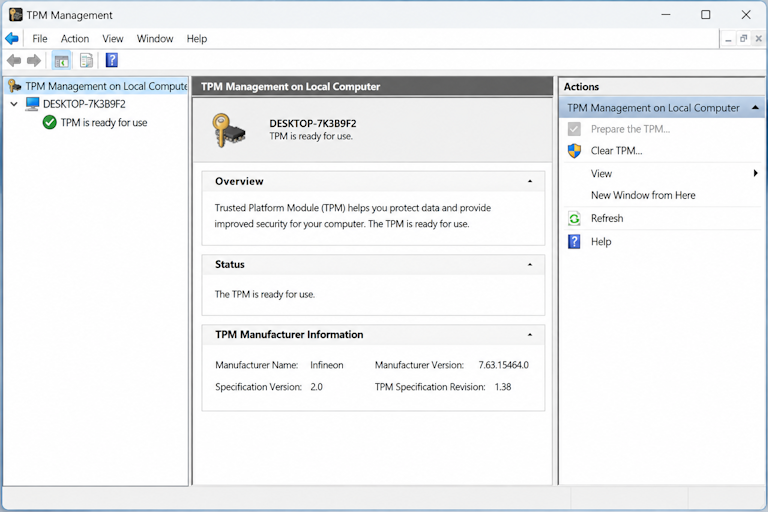
Confirm the same facts from PowerShell, because the command-line view is what scripts (and the report in section 10) will use, and it exposes one extra detail — whether the module is actually ready: open a normal PowerShell window (no administrator rights are needed for these read-only commands) and run:
Get-Tpm | Format-List TpmReady, TpmVersion, PhysicalPresenceRead-only: Get-Tpm only queries the TPM service. Sample output on a machine with an active firmware TPM 2.0:
TpmReady           : True
TpmVersion         : 2.0
PhysicalPresence   : NotPresent
Read TpmReady = True plus TpmVersion = 2.0 as “present, correct version, reachable”. If the command errors with something like “The Trusted Platform Module service is not running”, or returns no object at all, treat the TPM as not detected by Windows — a different diagnosis from “detected but wrong version”, and the starting point for section 12.
If Get-Tpm is inconclusive on your Windows version, the underlying WMI/CIM class gives the raw firmware-reported spec version directly from the TPM driver. Run this in the same window:
$t = Get-CimInstance -Namespace root\CIMV2\Security\MicrosoftTpm -ClassName Win32_Tpm
if ($t) { $t.SpecVersion; $t.IsEnabled_InitialValue } else { "No Win32_Tpm instance — TPM not exposed to the OS" }
Also read-only. A passing machine returns a spec version beginning with “2.0” (for example “2.0, 16, 0”) and True for enabled. If the query returns nothing, Windows is not seeing any TPM instance at all — again, section 12 covers what that usually means.
Interpret the three outcomes as distinct facts: (a) version 2.0 and ready — this requirement passes, move on; (b) a TPM is detected but reports version 1.2 — the module exists but is the wrong generation, no setting fixes that; (c) nothing is detected — either there is genuinely no TPM hardware, or there is one (often a firmware TPM) that is disabled in firmware settings or not yet handed to Windows. Only case (c) has a realistic fix path on many machines, and only after checking the firmware menu — which is why section 12 starts there rather than with any registry hack.
Verify
Check Secure Boot status and whether Windows boots in UEFI or Legacy mode
The single most informative screen for this requirement is System Information. Press Win+R, type msinfo32 and press Enter, then read the System Summary pane: the “BIOS Mode” line tells you which boot world your firmware is currently in (UEFI or Legacy), and the “Secure Boot state” line shows one of three values — Enabled, Disabled, or Unsupported. Those two lines together answer the whole requirement: UEFI mode plus Secure Boot enabled is a clean pass; UEFI mode plus Secure Boot disabled still meets Windows 11's bar (capability is what is required), and it is a safe firmware change to enable it later; Legacy mode fails the requirement outright, because Secure Boot cannot exist in that boot model at all. A board reporting “Unsupported” while in UEFI mode has firmware that simply lacks the feature — a platform limit, not a setting.
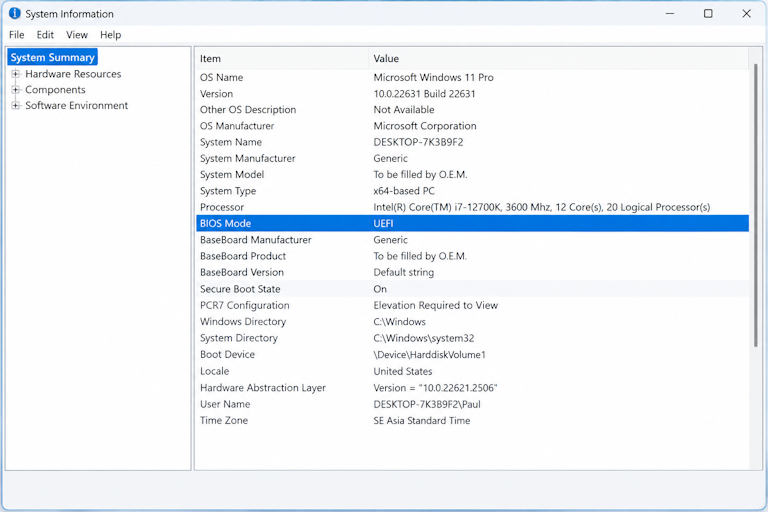
For a scriptable answer, PowerShell ships a dedicated cmdlet for exactly this question:
Confirm-SecureBootUEFIReturns True when Secure Boot is enabled, False when the firmware supports it but it is switched off. On a legacy-BIOS system the cmdlet is typically unavailable or returns an error — treat that result as “not a UEFI system” and confirm with msinfo32 rather than assuming Secure Boot is merely disabled.
Know the limits of each method before trusting them. msinfo32 reports the state Windows currently sees, which is authoritative for “what mode am I in right now” — but it cannot tell you whether a legacy-mode board would support Secure Boot if converted, because that capability lives in firmware menus, not in the running OS. Confirm-SecureBootUEFI answers only the enabled/disabled question and says nothing about boot mode. And both can look “fine” on a machine whose firmware is mid-change (for example, after a BIOS update that reset settings). So the practical rule: use msinfo32 as the primary source for the two lines above, use the cmdlet to confirm the enabled state from scripts, and when the two disagree — or when you are about to change anything in firmware — re-read both after the next reboot. The ordered diagnosis for each failure mode is in section 12, and the preparation required before touching boot mode is in section 17.
Verify
Identify your exact processor and verify it against Microsoft's supported lists
The CPU check is the one requirement you cannot fix with a setting, so get the identification exactly right before drawing conclusions. The trap is vague labels: “Intel Core i7” spans more than a decade of incompatible generations — a 2015 seventh-generation i7 fails while a 2019 eighth-generation i7 passes — and “AMD Ryzen 5” does the same across several families. What you need is the full model string, for example “Intel(R) Core(TM) i7-8700 CPU @ 3.20GHz” or “AMD Ryzen 5 2600 Six-Core Processor”. Three built-in places show it: Settings → System → About (the “Processor” line — the same screen also confirms RAM and system type); Task Manager → Performance → CPU (model name at the top, plus core and thread counts); or PowerShell, which gives the cleanest copyable string:
Get-CimInstance Win32_Processor | Select-Object Name, VendorName, MaxClockSpeed, NumberOfCores, NumberOfLogicalProcessors | Format-List
Get-CimInstance Win32_ComputerSystem | Select-Object Manufacturer, Model
Read-only. The second line is worth capturing too — the PC's make and model helps you find the right firmware documentation later (see section 12), and it is what support teams ask for first.
Now verify that exact string against Microsoft's official lists rather than any third-party round-up: the supported Intel processors page and the supported AMD processors page are the authoritative sources, and Microsoft also maintains version-specific lists (for example for Windows 11 25H2) that can extend coverage to additional parts. Search the list for your model number — not your marketing family name. Two honest caveats: first, these lists describe the minimum floor per generation up to the latest silicon at the time of publication, so a very new part may predate the page's last update even though it is supported — when in doubt, check the list again closer to upgrade day or use PC Health Check as a second opinion. Second, “technically compatible” and “officially listed” are not the same claim: this guide only treats a processor as eligible when it appears on Microsoft's own documentation.
If your model is on the list, this requirement passes — record the string you used, because you will want it in any support conversation. If it is not on the list, resist the temptation to infer eligibility from benchmarks or from a similar-sounding sibling SKU; the list is the test. What an off-list result actually means for your options — staying on Windows 10, upgrading the platform, or making an informed unsupported-install decision — is handled in section 14 and the decision tree (section 16), with the economics of a CPU/motherboard upgrade versus a new PC laid out in the planned companion article linked from the collection.
Verify
RAM, storage and the remaining checks — quick to verify, easy to misread
Memory is the simplest line: Settings → System → About shows installed RAM (4 GB or more passes), and PowerShell confirms it with Get-CimInstance Win32_ComputerSystem | Select-Object TotalPhysicalMemory — divide by 1,073,741,824 to get gigabytes. If you are below 4 GB, adding a module is the cheapest fix in this entire guide, fully reversible and with no interaction with any other requirement; check your board's maximum and slot count before buying. Above that, more RAM helps Windows 11 feel comfortable but is not part of the gate.
Storage has two numbers people conflate, and the confusion causes real upgrade failures. The requirement is a capacity floor: the system disk must be at least 64 GB. But an in-place upgrade additionally needs substantial free space on that drive — tens of gigabytes — to stage its files before it can complete, and Microsoft's own documentation notes that storage requirements may grow over time as updates and features expand. So check both: total capacity (Settings → System → Storage, or Get-Volume) against the 64 GB floor, and free space on C: against what an upgrade actually needs in practice. A 128 GB drive with 90 GB used technically passes the requirement yet will fail the upgrade with a space error — which is exactly the failure mode mapped in the error table (section 11). The read-only commands below show both at once:
$cs = Get-CimInstance Win32_ComputerSystem
[pscustomobject]@{ RAM_GB = [math]::Round($cs.TotalPhysicalMemory / 1GB, 1) }
Get-Volume | Where-Object DriveLetter | Select-Object DriveLetter, FileSystemLabel, @{n='Total_GB';e={[math]::Round($_.Size/1GB,0)}}, @{n='Free_GB';e={[math]::Round($_.SizeRemaining/1GB,0)}} | Format-Table
Read-only: it only reads memory and volume properties. Compare Total_GB against the 64 GB floor and Free_GB on your system drive against the staging space an upgrade needs — requirements can change, so treat Microsoft's current documentation as the reference.
The last two lines rarely fail on a machine new enough to be considered for Windows 11, but check them properly rather than assuming. For graphics: run dxdiag (type it in the Start menu search and press Enter), open the Display tab, and look at the “Driver Model” line — you need WDDM 2.x with DirectX 12 support; if an older driver reports WDDM 1.x, update the graphics driver from the vendor before concluding the GPU itself is the problem. For display: the requirement is a high-definition (720p) panel of 9 inches or greater at 8 bits per color channel — anything you are actually using to read this page almost certainly satisfies it. With all six lines checked, you have a complete, independently verified picture of your machine — which is more than the one-line verdict from most checkers gives you.
Verify
Microsoft's PC Health Check: run it, read the result, then verify independently
PC Health Check is Microsoft's free official app for the Windows 11 readiness question: you download it from Microsoft's PC Health Check page (or the Microsoft Store), run “Check your PC”, and it returns either “Your PC can run Windows 11” or “This PC can't run Windows 11” with a list of the specific requirements that failed. Its value is as a fast, authoritative first read — it is Microsoft's own assessment tool, so a pass from it carries more weight than a third-party checker, and a fail names the exact requirement lines that blocked you, which maps directly onto the sections above.
Treat it as a hypothesis to verify, not a final verdict. The app reports a general readiness result; it does not show you the underlying evidence (the spec version your TPM reports, the BIOS mode line, your exact CPU string), and on edge cases its reading can disagree with what the system tools show — for example when a firmware TPM exists but is in a state Windows has not fully enumerated. So use it in this order: run PC Health Check for the quick answer and the named failures; then confirm each named failure with the corresponding section above (TPM → section 5, Secure Boot/boot mode → section 6, CPU → section 7), because the system tools are what you will cite in any support conversation. If the two sources disagree, trust the system tools plus Microsoft's published processor lists — and note the discrepancy, since it is itself a diagnostic clue (usually a firmware state problem rather than missing hardware).
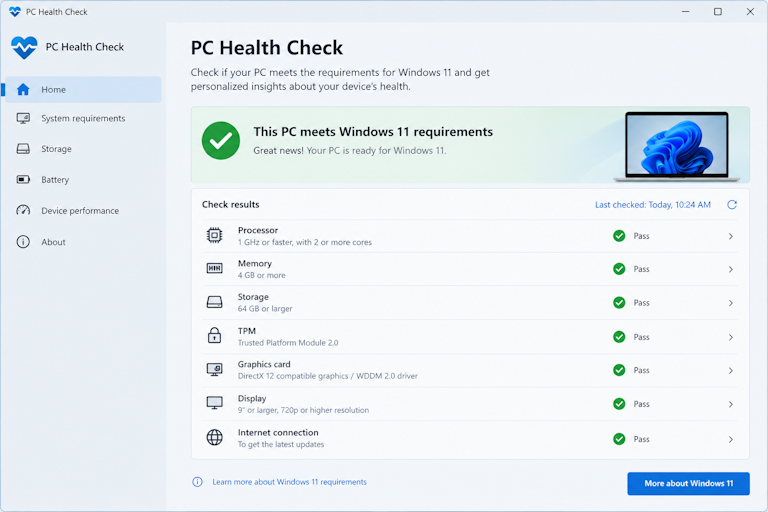
One practical note on scope: PC Health Check answers “can this hardware install Windows 11”, not “is this machine ready to upgrade safely”. It says nothing about your backup state, free space for staging, driver health, or application compatibility — those are the other half of readiness, covered by the preparation section (17) and the final checklist (section 19). A PC that passes every hardware line can still be a bad upgrade candidate if its data is not backed up; a PC that fails one fixable line can become a clean pass after a single firmware change.
Diagnose
Build a Windows 11 compatibility report in one PowerShell script
Running the checks one by one is fine for a single machine, but it is easy to lose track of which fact came from which tool — and even easier to misread an “unknown” as a failure. The script below consolidates every hardware check from Part 2 into one report with explicit states: PASS (verified against the requirement), FAIL (checked, does not meet it), UNKNOWN (the information could not be read — which is not a failure and must not be treated as one), and INFO (reported for your records, e.g. the exact CPU string you will look up on Microsoft's list). It is strictly read-only: it queries system properties and prints a report; it changes no settings, writes no files, needs no administrator rights, and never starts any upgrade.
# =============================================================
#  DiagMyPCHub - Windows 11 hardware compatibility report
#  READ-ONLY: queries system properties and prints a report.
#  Changes nothing, writes no files, needs no admin rights.
#  States: PASS / FAIL / UNKNOWN (not a failure) / INFO
# =============================================================

$ErrorActionPreference = 'Continue'
$results = New-Object System.Collections.ArrayList

function Add-Row {
    param([string]$Check, [string]$State, [string]$Detail)
    [void]$results.Add([pscustomobject]@{ Check = $Check; State = $State; Detail = $Detail })
}

Write-Host ''
Write-Host ('=== Windows 11 hardware compatibility report ===')
Write-Host ('Checked on {0} - {1}' -f (Get-Date).ToString('yyyy-MM-dd HH:mm'), $env:COMPUTERNAME)
Write-Host ''

# ---------- Processor (membership in Microsoft's list is manual) ----------
try {
    $cpu = Get-CimInstance Win32_Processor | Select-Object -First 1
    if ($cpu.Name) {
        Add-Row 'Processor' 'INFO' ($cpu.Name.Trim() + ' (' + $cpu.NumberOfCores + ' cores / ' + $cpu.NumberOfLogicalProcessors + ' threads)')
        Write-Host '  NOTE: verify the exact model string against Microsoft\'s supported'
        Write-Host '        Intel/AMD processor lists - this script cannot check list membership.'
    } else { throw 'empty name' }
} catch { Add-Row 'Processor' 'UNKNOWN' ('could not read Win32_Processor: ' + $_.Exception.Message) }

# ---------- Memory ----------
try {
    $cs = Get-CimInstance Win32_ComputerSystem
    $ramGB = [math]::Round($cs.TotalPhysicalMemory / 1GB, 1)
    if ($cs.TotalPhysicalMemory -ge (4GB)) { Add-Row 'Memory' 'PASS' ($ramGB.ToString() + ' GB installed (minimum 4 GB)') }
    else { Add-Row 'Memory' 'FAIL' ($ramGB.ToString() + ' GB installed (minimum 4 GB)') }
} catch { Add-Row 'Memory' 'UNKNOWN' ('could not read Win32_ComputerSystem: ' + $_.Exception.Message) }

# ---------- Storage (capacity floor AND free space are different things) ----------
try {
    $sysDrive = (Get-CimInstance Win32_OperatingSystem).SystemDrive
    $vol = Get-Volume -DriveLetter ($sysDrive.TrimEnd(':\')).ToCharArray()[0] -ErrorAction Stop
    if ($null -eq $vol) { throw 'no volume found' }
    $capOK = ($vol.Size -ge 64GB)
    $state = if ($capOK) { 'PASS' } else { 'FAIL' }
    Add-Row 'Storage capacity' $state (($vol.DriveLetter + ': total ' + [math]::Round($vol.Size/1GB,0) + ' GB (minimum 64 GB); free ' + [math]::Round($vol.SizeRemaining/1GB,0) + ' GB - upgrades also need staging space'))
} catch { Add-Row 'Storage capacity' 'UNKNOWN' ('could not read the system volume: ' + $_.Exception.Message) }

# ---------- TPM (Get-Tpm first, CIM Win32_Tpm as fallback) ----------
$tpmState = $null; $tpmDetail = ''
try {
    $tpm = Get-Tpm -ErrorAction Stop
    if ($tpm.TpmReady) {
        if ("$($tpm.TpmVersion)" -like '2*') { $tpmState = 'PASS'; $tpmDetail = 'TPM ready, spec version ' + $tpm.TpmVersion }
        else { $tpmState = 'FAIL'; $tpmDetail = 'TPM ready but spec version ' + $tpm.TpmVersion + ' (2.0 required)' }
    } else { $tpmState = 'UNKNOWN'; $tpmDetail = 'TPM detected but not ready (TpmReady=False) - see the TPM diagnosis section' }
} catch {
    try {
        $wtpm = Get-CimInstance -Namespace root\CIMV2\Security\MicrosoftTpm -ClassName Win32_Tpm -ErrorAction Stop
        if ($wtpm.SpecVersion -and "$($wtpm.SpecVersion)" -like '2*') { $tpmState = 'PASS'; $tpmDetail = 'CIM Win32_Tpm spec version ' + $wtpm.SpecVersion }
        elseif ($wtpm.SpecVersion) { $tpmState = 'FAIL'; $tpmDetail = 'CIM Win32_Tpm spec version ' + $wtpm.SpecVersion + ' (2.0 required)' }
        else { throw 'no spec version' }
    } catch {
        $tpmState = 'UNKNOWN'; $tpmDetail = 'no TPM visible to Windows (Get-Tpm and Win32_Tpm both empty) - present-but-disabled firmware TPM is a common cause; check the firmware menu before concluding hardware is absent'
    }
}
Add-Row 'TPM 2.0' $tpmState $tpmDetail

# ---------- Boot mode (heuristic: SecureBoot cmdlet exists only on UEFI systems) ----------
try {
    if (Get-Command Confirm-SecureBootUEFI -ErrorAction SilentlyContinue) {
        Add-Row 'Boot mode' 'INFO' 'UEFI system (SecureBoot module present) - confirm with msinfo32 "BIOS Mode"'
    } else {
        Add-Row 'Boot mode' 'FAIL' 'legacy BIOS system (no UEFI SecureBoot cmdlet) - confirm with msinfo32 "BIOS Mode"'
    }
} catch { Add-Row 'Boot mode' 'UNKNOWN' ('could not determine: ' + $_.Exception.Message) }

# ---------- Secure Boot state ----------
try {
    if (Get-Command Confirm-SecureBootUEFI -ErrorAction SilentlyContinue) {
        $sb = Confirm-SecureBootUEFI
        if ($sb) { Add-Row 'Secure Boot' 'PASS' 'enabled' }
        else { Add-Row 'Secure Boot' 'INFO' 'disabled but supported (capability meets the requirement; enabling is a firmware change)' }
    } else {
        Add-Row 'Secure Boot' 'UNKNOWN' 'not assessable in this boot mode - read msinfo32 "Secure Boot state" instead'
    }
} catch { Add-Row 'Secure Boot' 'UNKNOWN' ('cmdlet returned an error: ' + $_.Exception.Message) }

# ---------- Report ----------
$results | Format-Table Check, State, Detail -AutoSize -Wrap
Write-Host ''
Write-Host 'Summary: PASS = verified. FAIL = checked, does not meet the requirement.'
Write-Host 'UNKNOWN = could not be read - verify manually before treating it as a failure.'
Write-Host 'This report is a hardware readiness check only; it is not an official'
Write-Host 'Microsoft certification and does not cover backups, drivers or apps.'
Save the block as a .ps1 file (or paste it into a PowerShell window) and run it from a normal, non-administrator window. If your system policy restricts script execution, run the individual commands from sections 5–8 instead — they are the same checks without the wrapper.
Two design choices in that script matter for how you read its output. First, every check is wrapped so that one unreadable property degrades to UNKNOWN instead of aborting the whole report or silently printing a false failure — on older Windows versions some CIM properties behave differently, and an error there is an information gap, not evidence of incompatibility. Second, the CPU line deliberately reports INFO, never PASS: list membership can only be verified by you, against Microsoft's published pages, because no local command can answer it. A correct reading of a typical passing machine looks like this:
=== Windows 11 hardware compatibility report ===
Checked on 2026-10-24 09:15 - DESKTOP-EXAMPLE

Check              State   Detail
-----              -----   ------
Processor          INFO    Intel(R) Core(TM) i7-8700 CPU @ 3.20GHz (6 cores / 12 threads)
Memory             PASS    16 GB installed (minimum 4 GB)
Storage capacity   PASS    C: total 476 GB (minimum 64 GB); free 212 GB - upgrades also need staging space
TPM 2.0            PASS    TPM ready, spec version 2.0
Boot mode          INFO    UEFI system (SecureBoot module present) - confirm with msinfo32 "BIOS Mode"
Secure Boot        INFO    disabled but supported (capability meets the requirement; enabling is a firmware change)
Illustrative sample, not a test result from any specific machine. Note that “Secure Boot: disabled” is reported as INFO rather than FAIL — capability is what the requirement asks for, and enabling it later is a supported firmware change (sections 6 and 14).
What this report is not: it is not an official Microsoft compatibility determination (that role belongs to PC Health Check and the upgrade experience itself), and a clean sweep of PASS lines does not by itself make an upgrade safe — data protection, driver state and application compatibility are separate readiness dimensions, covered in section 17 and the final checklist (section 19). Use it as the single source of truth for the hardware facts, and let each FAIL or UNKNOWN row point you at the matching diagnosis section.
Diagnose
Diagnosing a Windows 11 upgrade blocker from its error message
When the upgrade experience or PC Health Check blocks you, the message names a requirement — and that name is more useful than it first looks, because each one maps to a specific set of likely causes in a specific order of likelihood. The table below pairs the common blocker messages with what they actually mean, the first safe step for each, and where in this guide the full diagnosis lives. Read the message literally before doing anything: “TPM not found” and “TPM version too low” are different machines in different states, and so are “Secure Boot must be enabled” and “UEFI required”.
| What you see | What it actually means | First safe step (low risk) | Full diagnosis |
|---|---|---|---|
| “This PC can't run Windows 11” with no detail (PC Health Check fail screen) | One or more requirement lines failed — the app lists them below the verdict | Read the named lines in the result panel; verify each with the matching section below | Section 9, then sections 5–8 per named line |
| “TPM not found” / “No TPM detected” | Windows cannot see any TPM — but a firmware TPM (PTT/fTPM) that is switched off in firmware settings is the most common real cause | Re-run tpm.msc and Get-Tpm; then check the firmware's PTT/fTPM menu before assuming hardware is absent | Section 12, step by step |
| “TPM version must be 2.0” / spec version 1.2 reported | A TPM exists but implements the older 1.2 specification — no setting changes the version | Confirm the spec version in tpm.msc; check whether the firmware offers a TPM firmware update (manufacturer support) | Section 5 for confirmation; section 16 for the decision it forces |
| “Secure Boot must be enabled” | Firmware supports Secure Boot but it is switched off — or the system boots in legacy mode where it cannot apply | Read “BIOS mode” and “Secure Boot state” in msinfo32 to tell which case you have | Section 6; enabling is covered in section 14 |
| “UEFI required” / “Legacy BIOS not supported” | The machine boots through legacy BIOS/CSM instead of UEFI — the disk layout (usually MBR) is tied to that mode | Do nothing yet: a mode switch on an existing installation needs backup + BitLocker-key preparation and a GPT check first | Section 17 before any change; section 18 for the recovery path if it goes wrong |
| “Processor not supported” / CPU line fails | The exact model is not on Microsoft's supported lists — a platform limit, not a configuration issue | Re-verify the exact model string (section 7) against the official lists, including version-specific lists, before accepting the verdict | Section 7; options in 14 and 16 |
| “Not enough disk space” during setup/upgrade | The system drive lacks the free space to stage the upgrade — distinct from the 64 GB capacity floor | Check free space on C: (section 8 command); free up space with Storage settings or move large files off the system drive | Section 8; retry only after staging room is confirmed |
| “DirectX 12 / WDDM 2.x driver required” | The graphics driver reports an old driver model — often just an outdated driver, not an incapable GPU | Update the graphics driver from the vendor, re-run dxdiag and check the Driver Model line again | Section 8 |
The pattern to internalise: every blocker message is a pointer to one requirement, and every requirement has a low-risk verification step before any consequential action. The messages that tempt people into risky moves — “UEFI required” (disk conversion), “TPM not found” (registry hacks) — are precisely the ones where the first safe step is reading, not changing. If your message is not in this table, capture its exact wording and run the consolidated report (section 10); the row that comes back as FAIL or UNKNOWN tells you which section owns your problem.
Diagnose · ordered by risk
When Windows says there is no TPM — but your PC has one
“No TPM” is the most misleading verdict in this whole guide, because it describes what Windows sees, not what the machine contains. On a large share of PCs from roughly 2016 onward, the TPM lives in the processor firmware (Intel PTT / AMD fTPM) and is simply switched off — either by factory default on some boards, by a previous owner, or reset after a firmware update. The diagnosis below is ordered deliberately: each step is cheaper and less consequential than the one after it, and you stop as soon as a step explains the result. Nothing in steps 1–4 changes any setting; only step 5 does, and only when the earlier steps have shown it is worth doing.
- Re-verify inside Windows before touching anything — re-run
tpm.mscandGet-Tpm(section 5). Confirm the failure is consistent across both tools, note the exact wording of any error, and reboot once: a TPM that was in a bad state after a driver or firmware change sometimes enumerates correctly on the next start. A reboot costs nothing and rules out the flakiest cause. - Check whether the firmware even exposes a TPM option — restart into the firmware settings (the key varies: Del, F2, F10 or Esc on many boards; the manufacturer's support page for your exact model says which). Look under Security, Boot, or Advanced menus for entries named Intel Platform Trust Technology (PTT), fTPM, AMD fTPM, Security Device, TPM On/Off, or similar — names vary by manufacturer and firmware version, so search rather than assume a fixed location. If you see the option set to Disabled/Off, that is your answer: the hardware is present and merely off. If there is no such option at all, note it — that points to step 4.
- Look for a firmware (BIOS) update from the manufacturer — some boards ship with PTT/fTPM hidden or buggy in early firmware releases, and manufacturers have published updates specifically to expose or fix the firmware TPM. Check the support page for your exact motherboard/laptop model for BIOS updates and their release notes before installing one; a firmware update is low-risk when done from the manufacturer's own tool, but it is still a firmware change — follow its instructions, do not power off mid-update, and note the current version first so you can reference it.
- Contact the manufacturer with the facts — if there is no TPM option in the firmware and no update exposes one, ask the vendor whether your specific board/model includes a discrete TPM header or firmware TPM at all. Bring the exact PC model (from section 7's command), the current BIOS version, and what Windows reports. This is the point where device-specific limitations become real: some budget boards genuinely have no TPM of any kind, and no amount of configuration will change that.
- Enable the firmware TPM — only now, and only if steps 2–4 showed it exists — set the PTT/fTPM option to Enabled, save and exit, then re-run section 5's checks in Windows. If
Get-Tpmnow reports version 2.0 and ready, the requirement passes and you changed exactly one setting. If it still does not appear, stop: do not start clearing TPMs, editing registry keys, or trying third-party “TPM fixer” utilities — at that point the remaining explanations (firmware bug, board without TPM) are manufacturer territory, and aggressive local fixes risk more than they return.
Before any step that touches the TPM's state
Enabling a disabled firmware TPM is normally safe and reversible — but “normally” is not “always”, and the exception is encryption. If BitLocker or device encryption is active, confirm you can reach its recovery key (Settings → Privacy & security → Device encryption, or right-click C: → Manage BitLocker) before changing TPM-related firmware settings, because a TPM state change can trigger a recovery-key prompt at next boot. Do not clear the TPM to “reset” a detection problem — clearing destroys the current TPM state and its sealed keys, which is the opposite of what a diagnosis needs.
Two further causes sit outside this ordered list but are worth naming so you do not waste time on steps 1–5 when they apply. First, organizational policy: on domain-joined or MDM-managed machines, Group Policy can block TPM access or force specific TPM behaviour — if your PC is managed by an IT department, ask them before changing anything, because a policy override in Windows does not fix a firmware-level absence and may be the reason a working TPM looks unusable. Second, virtual machines: a VM only has a TPM if its hypervisor was configured to attach one (a virtual TPM 2.0 in Hyper-V or equivalent); “no TPM” inside a VM is a configuration question about the VM settings, not the host hardware. If your situation matches either case, the relevant section of the collection or your IT documentation will be faster than any local fix.
Diagnose · interactive
Readiness helper: pick your verified states and get the next step
This small questionnaire turns the five facts you have now verified (or admitted not knowing) into a single recommended next step. Answer from what your own checks in sections 5–8 actually showed — use “not checked yet” freely, because an honest unknown changes the advice more than a guessed answer does. The helper is guidance built from this guide's own diagnosis logic: it is not an official Microsoft compatibility test, it cannot see your machine, and it never reports a guaranteed pass while any required fact is missing.
Guidance only — built from this guide's diagnosis logic. Not an official Microsoft compatibility test; it sees nothing about your machine and never guarantees a pass while required facts are unknown.
Decide
Enabling a firmware feature is not the same as bypassing a check — treat them that way
Every fix for a failed requirement falls into one of two fundamentally different categories, and the difference matters more than any individual step. Category 1 — enabling a supported capability: your hardware already contains the feature (a firmware TPM, Secure Boot support), it is merely switched off, and turning it on brings you inside Microsoft's supported configuration. These changes are reversible from the same firmware menu, they do not alter what Windows considers your hardware to be, and they carry no special update or support penalty — a machine that passes every requirement with Secure Boot enabled is a normally supported Windows 11 PC, full stop. Category 2 — bypassing a genuine eligibility failure: the hardware truly lacks something (an unsupported CPU, no TPM of any kind), and the workaround consists of tricks — registry edits that skip setup's checks, modified installers, third-party bypass utilities — that make the installer proceed anyway. These keep you outside the supported configuration: nothing about the machine has changed, so Microsoft's support and update commitments for unsupported hardware apply from day one.
The practical test for sorting any proposed fix: after doing it, would PC Health Check pass on this machine without any trick? If yes — you enabled a real capability (Category 1). If the check still fails but the installation was forced through anyway — you bypassed (Category 2). That single question removes most of the grey area that forum advice creates, because the two categories deserve completely different risk treatment: Category 1 fixes are worth doing whenever the underlying feature exists, and their main risks are procedural (a bad firmware update, a forgotten BitLocker key), which section 17 manages. Category 2 bypasses are decisions about living with permanent trade-offs — covered in the next section — not fixes to be applied casually.
| # | Approach | Category | Risk & reversibility | When it is the right move |
|---|---|---|---|---|
| 1 | Identify the actual blocker (sections 5–10) and re-verify with a second tool | Diagnosis | None — read-only. Reversible by definition. | Always first. Most “failures” are misread states, not hardware limits. |
| 2 | Check the manufacturer's documentation and firmware release notes for your exact model | Diagnosis | None — reading only. | Before any firmware change: confirms whether a feature exists on your board and whether an update exposes or fixes it. |
| 3 | Enable a disabled-but-present firmware feature (PTT/fTPM, Secure Boot) — one setting at a time, with the current state recorded first | 1 — supported capability | Low and reversible: revert the same menu entry. Main residual risk is BitLocker prompting for its recovery key — prepare per section 17. | Whenever step 1 showed the feature exists but is off, and your verification (sections 5–6) confirms the change took effect. |
| 4 | Update firmware from the manufacturer's tool when release notes justify it | 1 — supported capability | Low but not zero: a failed BIOS update can brick boot until vendor recovery is used. Follow the vendor's procedure exactly; do not combine with other changes. | When the vendor documents that the update exposes or fixes the missing feature (e.g. a hidden/buggy fTPM). |
| 5 | Add or upgrade hardware (RAM module, larger disk) to meet a threshold | 1 — supported capability | Low and reversible (remove the part). Disk swaps need the usual backup discipline. | When a simple threshold (4 GB RAM, 64 GB capacity) is the only failing line. |
| 6 | Convert legacy BIOS boot to UEFI on an existing installation (MBR→GPT, CSM off) | 1 — supported capability, high procedure risk | Moderate and reversible only with preparation: the old mode must be restorable (record settings, keep MBR intact until UEFI boots), BitLocker suspended/keys saved. A failed conversion leaves a machine that does not boot. | Only when the board is genuinely UEFI-capable, after section 17's preparation, and with section 18's recovery path understood. |
| 7 | Install Windows 11 despite a genuine eligibility failure (registry bypass, modified installer, third-party tool) | 2 — bypass | High and not cleanly reversible: the installation is outside the supported configuration from day one; update behaviour, support and driver coverage all change (next section). No method works on every machine. | Only as a deliberate, informed decision for hardware you intend to keep — after options 1–6 are exhausted and the trade-offs in section 15 are accepted. See the planned companion article in the collection for the full bypass landscape. |
| 8 | Replace the platform (new CPU where the socket allows, new motherboard+CPU set, or a new PC) | Hardware change | Cost is the risk; technically clean. Compatibility of the new part with existing RAM/cooling/power must be checked. | When the failing line is the CPU (or no TPM exists at all) and keeping the machine matters more than its replacement cost — see the decision tree, section 16. |
The ranking encodes two rules worth repeating. Never change multiple firmware settings at once: each change gets its own verification (reboot, re-run sections 5–6) and its own way back — if you flip TPM, Secure Boot and boot order in one session and the machine misbehaves, you no longer know which setting caused it. And never reach for a Category 2 bypass while a Category 1 option is unexplored: the bypass's permanent trade-offs are only worth taking when the hardware genuinely cannot meet the requirement, which is exactly what the ordered diagnosis in Part 3 establishes.
Decide
What an unsupported Windows 11 installation actually costs you
If the ordered diagnosis ends with a genuine eligibility failure — most often an unsupported CPU, sometimes a machine with no TPM of any kind — the remaining option is installing Windows 11 anyway through a bypass. That is a legitimate decision for hardware you want to keep in service, but it deserves its costs stated precisely rather than waved away. The core trade-off is support and update commitment: Microsoft's position, as documented for unsupported devices, is that such installations are not covered by the normal support commitments — feature updates may not be offered to them at all, and even where security updates do arrive in practice, there is no guarantee they will continue. Update behaviour can change over time and with each Windows release, so treat any specific “it still gets updates” claim as true only until proven otherwise, and check Microsoft's current documentation before relying on it for a machine you cannot afford to lose.
Three further costs are less visible but real. Compatibility problems: some Windows 11 components and features assume the hardware floor exists — Virtualization-Based Security, Credential Guard and related platform-security features may be unavailable or behave differently without a usable TPM, and certain driver packages target only supported platforms, so you may find yourself on older drivers for longer. No support recourse: when something breaks in an unsupported configuration, Microsoft Support's answer is that the configuration is not supported — troubleshooting falls entirely on you, which is exactly why this site exists, but it changes the risk calculation for a machine that does real work. And security trade-offs: the bypass removes a gate that was there to protect the update pipeline; an installation that cannot receive feature updates will, over time, accumulate distance from the current release, and every skipped release is one more layer of change to absorb (or never absorb) later.
None of this means an unsupported install is reckless — for a five-year-old office PC with a seventh-generation i5 that runs everything you need, it is often the rational choice, made knowingly. What it means is that the decision belongs in Part 4, not in a hurry: confirm the diagnosis (Part 3), prepare properly (section 17 applies to bypass installs too — arguably more, since you have less room for error), and accept the update/support trade-off explicitly. The full landscape of bypass methods — which ones exist, what each one actually does, and their failure modes — is the subject of a planned companion article in the collection; this guide deliberately stops at describing the decision rather than walking through any specific workaround step by step, because no registry edit or installer trick works on every machine, and publishing one as if it did would be the kind of promise this guide does not make.
Decide · interactive
The decision tree: from verified facts to a defensible next move
This is the guide's logic as a walkable path. Answer each question with your verified state — the same states the readiness helper (section 13) asks about — and follow the branch. Every branch ends in an outcome card that names the risk level, whether the move is reversible, and exactly where to go next. The “not sure” option exists at every question on purpose: an unverified fact routes you to verification, not to a guess, because the cost of acting on a wrong assumption here is measured in bootability, not inconvenience.
Q1 · Is your exact processor model on Microsoft's supported list? (verified in section 7)
Q2 · What does your TPM check show? (verified in section 5)
Q3 · What are the BIOS mode and Secure Boot state? (verified in section 6)
Q4 · Do you have a verified backup and a saved BitLocker/device-encryption key? (section 17)
Platform limit Genuine CPU eligibility issue
risk: decision-level · reversible: n/a (hardware)
No setting changes this line. Weigh three honest options: (a) keep the current OS — note that Windows 10 reached end of support in October 2025, so “staying” means running an OS without current security updates unless you pay for extended coverage; (b) upgrade the platform where the cost makes sense (a supported CPU on a compatible board, or a new PC — the economics are the subject of the planned companion article in the collection); (c) accept an unsupported Windows 11 install with its permanent trade-offs (section 15). Whichever you choose, prepare per section 17 first.
Fixable in firmware Enable PTT/fTPM
risk: low · reversible: yes (same menu entry)
Your hardware already has the capability — this is a Category 1 fix (section 14). Before touching firmware: save your BitLocker/device-encryption recovery key (section 17, step 2) and record the current setting. Then enable the PTT/fTPM option exactly as section 12, step 5 describes — one setting, reboot, re-verify with section 5's checks. If it still does not appear after a clean enable, stop and follow section 12's remaining steps rather than escalating to clearing or registry tricks.
Diagnose first TPM not detected — do not assume it is absent
risk: none yet (diagnosis) · reversible: yes
“Not detected” has three possible meanings — physically absent, present-but-disabled, or present-but-undue-to-Windows — and only the ordered diagnosis tells which. Work through section 12 in order: re-verify in Windows, check the firmware's PTT/fTPM menu, look for a firmware update from your manufacturer, then ask the vendor whether your board has any TPM at all. Only when those steps show a present-but-off module does enabling become the move; only when they show no module at all does this join the CPU line as a platform limit (back to Q1's outcome logic).
Fixable in firmware Enable Secure Boot (capability already met)
risk: low–moderate · reversible: yes (same menu entry)
A capable-but-disabled Secure Boot still meets Windows 11's requirement — so enabling it is optional, not mandatory, and it is a Category 1 change (section 14, row 3). Do the preparation in section 17 anyway (BitLocker key first — Secure Boot changes are one of the operations that can trigger a recovery prompt), record the current firmware settings, and change only the Secure Boot option. If the board requires CSM/legacy boot to be disabled first, treat that as its own prepared change with its own verification step — never flip both in one session without understanding why.
Platform decision Legacy BIOS boot — the conversion is the risky part
risk: moderate (procedure) · reversible: only with preparation
Windows 11 needs UEFI boot, and legacy-mode machines usually sit on MBR disk layouts that the new mode does not read. Converting an existing installation (MBR→GPT plus CSM off) is a real procedure with a real failure mode — a machine that no longer boots — which is why it ranks row 6 in section 14's risk table: it is only appropriate after the full preparation in section 17 (verified backup, BitLocker key, recorded settings, recovery media) and with the recovery path in section 18 understood beforehand. If the board is old enough to be legacy-only in practice, replacing the platform or accepting an unsupported install (section 15) may be the saner branch — the decision tree's whole point is that both are legitimate outcomes, reached knowingly.
Ready All hardware lines pass and your data is protected
risk: standard upgrade risk · reversible: recovery media prepared
This is the clean path. Upgrade through the supported route using the site's guides: in-place upgrade from Windows 10 (keeps files and apps) or clean install from USB (full reset on the target disk). Run through the final checklist (section 19) before you start — passing this tree covers hardware readiness, and the checklist covers the operational half: backup verification, application inventory, and the post-upgrade confirmation steps.
Prepare first Hardware may pass — your safety net does not exist yet
risk: blocked until prepared · reversible: n/a
No upgrade, firmware change or bypass is worth starting without a verified backup and a reachable BitLocker key — this holds even when every hardware line passes. Do section 17 in order: back up and verify by opening files from the backup, locate or export the device-encryption/BitLocker recovery key, record current firmware settings, and create Windows recovery media. The full backup procedure itself is covered by the site's backup & restore guide. Then return here and answer Q4 again — honestly.
Verify first An unverified fact cannot support a decision
risk: none (verification is read-only) · reversible: n/a
Stop guessing and run the checks that produce the missing fact: TPM in section 5, Secure Boot/boot mode in section 6, CPU identification and list lookup in section 7 — or the whole set at once with the consolidated report (section 10). Note that “unknown” is a legitimate state, not a failure: it means the next action is reading, and every reading in Part 2 is read-only. Come back to this tree once each answer comes from your own machine rather than from memory of what it should be.
Decide · before any risky change
Prepare before any change that can affect boot, encryption or data
Everything in this section applies before three kinds of action: an upgrade (in-place or clean install), a firmware change that touches TPM, Secure Boot or boot mode, and an unsupported installation. The principle is the same for all three: the operation should be reversible, or at least recoverable, before you start it. Five preparations make that true. Do them in this order — each later step assumes the earlier ones are done, and a backup command that was executed is not a verified backup until you have opened files from it.
- Back up — then verify by opening files from the backup — copy the data that matters (Documents, Desktop, Downloads, Pictures, browser profiles, mail data, work projects) to at least one destination that is not the system disk; two copies on separate devices is materially safer before anything irreversible. Then the step most people skip: open five to ten representative files from the backup destination. If they open correctly, the backup is real — that check converts “I think I backed up” into “the backup works”. The full backup procedure (File History, image backups, robocopy-based copies) is covered by the site's backup & restore guide; do not assume a backup exists merely because a command ran without an error.
- Locate and store your BitLocker / device-encryption recovery key — if drive encryption is active, the key is your only path back in after a TPM or Secure Boot change that alters what the drive expects. Check Settings → Privacy & security → Device encryption (or right-click C: → Manage BitLocker), and confirm where the key is already stored — Microsoft account, work/school account, printed copy, USB. A quick read-only status check from PowerShell shows whether encryption is on at all.
manage-bde -statusRead-only: it reports encryption status per volume without changing anything. If C: shows “Fully Encrypted” or “Encryption Required”, treat the recovery key as critical for any firmware change in this guide — and if you cannot find where it is stored, export or print it now (Manage BitLocker → Back up recovery key) before doing anything else in this section.
- Record the current firmware settings you are about to touch — before entering the firmware setup, note (or photograph) the exact current values of: the PTT/fTPM option, Secure Boot, CSM/legacy boot support, and the boot order. One line per setting is enough. This record is what makes every change individually reversible — you can restore exactly what was there — and it is also the first thing a support team will ask for if something goes wrong.
- Create Windows recovery media — a bootable USB that can start Windows Recovery Environment even if the disk stops booting: Settings → System → Recovery → Advanced startup (or the Recovery Control Panel page) offers “Create recovery drive”, and the full bootable-media procedure is in the Install Windows 11 from a USB Drive guide. Having this stick exists before the risky step is the difference between “recoverable” and “rebuild from scratch” if section 18's scenarios ever apply.
- Confirm the space your operation actually needs — for an upgrade: tens of GB free on the system drive (section 8's command shows it). For a clean install: the target disk identified by model and capacity, with everything worth keeping already off it. For a firmware-only change: nothing extra — but re-check that the BIOS update file (if step 4 of section 12 applies) is downloaded and verified before you enter setup.
The preparation checklist is a gate, not a formality
If any of the five steps above cannot be completed — no reachable backup destination, no findable BitLocker key, no way to enter firmware setup, no spare USB for recovery media — then the honest state is “not ready”, and the correct next action is fixing that gap, not starting the operation anyway. The final checklist (section 19) makes these same items tick-box verifiable before you commit.
Decide · when it goes wrong
Recover if a TPM or Secure Boot change prevents Windows from booting
The failure you are preparing for here has a specific shape: after a firmware change (TPM enabled, Secure Boot toggled, CSM disabled, boot order changed), the machine no longer reaches your desktop — it may show a BitLocker recovery screen, a “no bootable device” message from the firmware, or loop into automatic repair. The recovery options below are ordered from least to most invasive, and each has a condition that makes it the right choice. Read them once before you make any change — deciding under pressure is how people pick the wrong option.
- The BitLocker recovery screen (48-digit key prompt) — condition: the boot chain works but the drive will not unlock. This is the most common outcome of a TPM-related change, and it is the one your preparation in section 17, step 2 exists for. Enter the recovery key from where you stored it (Microsoft account page, printout, USB). If the key unlocks the drive and Windows boots, the encryption layer is fine — the remaining issue (if any) is a firmware setting to review, not data loss. Do not attempt other recovery options while this screen is showing; they will not get past an unlocked-drive requirement.
- Firmware-setting reversal — condition: you changed exactly one or two settings (recorded in section 17, step 3) and the machine fails to boot or finds no device. Reboot into firmware setup and restore the recorded values. Because each change was made individually with verification, you know which entry to revert. This is why “one setting at a time” from section 14 matters: a multi-setting session has no clean reversal path.
- Windows Recovery Environment (WinRE) — condition: Windows starts but fails during boot (blue screen, automatic repair loop), or the firmware boots to its own menu without finding Windows. Reach it by holding Shift while choosing Restart from the sign-in screen or power menu, or by booting your recovery USB (section 17, step 4). From there: Troubleshoot → Advanced options gives you Startup Repair (appropriate for a damaged boot configuration — let it run before touching anything manually), UEFI Firmware Settings (to make the reversal in the previous bullet without needing a working OS), System Image Restore (if you made an image backup), and Command Prompt for targeted fixes. WinRE is the right tool for boot-configuration damage; it is not the tool for encryption problems (that is bullet 1) or wrong firmware values (that is bullet 2).
- Reinstall over the existing installation — condition: WinRE options have been exhausted and the OS itself is unusable, but your data is safe in backups. Boot the recovery/installation media and run setup over the existing Windows (the in-place-upgrade path described in the in-place upgrade guide, or a clean install per the USB installation guide if you accept re-partitioning). This is invasive by design: it replaces system files and, in the clean-install form, erases the target disk — which is precisely why steps 1–3 come first, and why a verified backup is what makes this step acceptable rather than desperate.
Two boundaries keep this section honest. First, a failed firmware update is not in this list: if the machine stops POSTing (no display, no boot menu) after a BIOS flash, the remedy is vendor-specific — many boards have a dual-BIOS or USB-recovery procedure documented by the manufacturer, and that documentation, not any generic Windows procedure, is what applies. Second, nothing here guarantees data recovery: every option above preserves data only to the extent your backups and keys actually exist. That is the entire argument for section 17 — recovery plans are only as strong as the preparation they assume, which is why the final checklist in section 19 verifies both halves before any operation starts.
Reference
Final verification checklist — tick only what you have actually confirmed
This checklist separates the four readiness dimensions that a passing hardware check does not cover on its own: hardware facts (verified, not assumed), data protection (a backup that works and keys you can reach), operational readiness (recovery media, recorded settings, space), and the decision itself (which path you chose and why). Tick a box only when the corresponding section's procedure was completed on your machine — the progress bar below counts real confirmations, and it persists in this browser between visits. A full bar does not certify anything to Microsoft; it certifies that you did not skip a step this guide asked for.
Hardware facts (Part 2)
Data protection (section 17)
Operational readiness (sections 12, 14, 17)
The decision (Part 4)
Progress is stored only in this browser (localStorage) and never sent anywhere.
Reference
Frequently asked questions
My PC is fast — why does Windows 11 care about a TPM at all?
Because the requirement is not about performance. Windows 11's security model (Virtualization-Based Security, Credential Guard, BitLocker key protection, Windows Hello) assumes keys can live in a tamper-resistant module that even administrators cannot read directly. The TPM check verifies that assumption exists on your hardware; no amount of CPU speed substitutes for it. See section 3 for what the module actually does.
Does Windows 11 require Secure Boot to be enabled, or just supported?
Supported (capable) is what the requirement asks for; enabled is not mandatory. A UEFI machine with Secure Boot switched off still meets the bar — you can enable it later as a normal, reversible firmware change if you want the extra boot-chain protection. The states that fail are: legacy BIOS boot mode, and firmware that has no Secure Boot support at all. Section 6 shows how to tell which state you are in.
Is a firmware TPM (PTT/fTPM) as good as a discrete TPM chip?
For Windows 11's purposes, yes — both implement the TPM 2.0 interface the OS checks for, and the compatibility requirement does not distinguish them. They differ in physical security properties (a discrete chip is harder to probe than firmware running on the main processor) and in where their settings live, but a properly enabled fTPM satisfies the requirement exactly like a discrete module. Section 3 covers the distinction; section 12 covers finding the setting.
My CPU is not on Microsoft's list. Can I still install Windows 11?
Technically, workarounds exist — but they place you outside the supported configuration with permanent trade-offs: no commitment to feature updates, no support recourse, and possible driver/feature gaps (section 15). Whether that is worth it depends on what the machine does for you. The full landscape of bypass methods is a planned companion article in the collection; this guide's position is that the decision should be made with those costs stated, not discovered.
Will enabling Secure Boot or PTT/fTPM delete my data?
Enabling a disabled feature does not erase anything — it changes what the firmware verifies at boot and whether Windows can see the TPM. The realistic risk is different: if BitLocker/device encryption is active, the change can cause the drive to demand its recovery key at next boot because the state the keys were sealed to has changed. That is why section 17, step 2 (locate the key first) comes before any firmware change — with the key in hand, the prompt is an inconvenience; without it, it can be a data-access emergency.
PC Health Check says my PC can run Windows 11. Am I done?
You are done with the hardware gate — which is most of it. You are not done with readiness: free space for staging, a verified backup, a reachable BitLocker key, driver state and application compatibility are separate dimensions (sections 8, 17, 19). And if you want the underlying evidence rather than the app's verdict, re-run sections 5–7 — they take minutes and give you facts you can cite.
I'm on Windows 10. Is there still time to upgrade before support runs out?
Windows 10 reached end of support in October 2025 for mainstream editions, so the question is no longer “before the deadline” but “how long will I run an OS without current security updates?” If your hardware passes (or can be made to pass via a Category 1 firmware fix), upgrading is the straightforward answer. If it cannot, the honest options are extended-support coverage where available, a platform upgrade, or an informed unsupported Windows 11 install — section 16's tree walks that decision.
Does this guide's PowerShell script change anything on my system?
No. Every command in this guide is read-only: it queries TPM, memory, volume, processor and boot-state properties and prints results. It writes no files, changes no settings, touches no registry keys, and needs no administrator rights. The only operations in this entire guide that change anything are the ones you perform deliberately in firmware setup or Windows Settings — each preceded by its preparation section.
Reference · the tutorial collection
The Windows 11 hardware compatibility collection: 30 topics in six categories
This hub covers the verification, diagnosis and decision logic for every topic below — but a hub is a map, not the territory. The collection organizes the full subject area into six categories of companion tutorials. Topics marked in this guide are covered in the sections above (the card links you there); topics marked planned will be published as their own pages with the depth their subject needs — per-manufacturer firmware procedures, full bypass landscape, fleet automation — and are listed here so you can see exactly what is coming. Use the search box and category filters to find a topic; they filter the cards below in real time.
No topics match that search in this category — try a shorter term, or reset the filters.
A · TPM 2.0 tutorials
The TPM is where most Windows 11 compatibility problems actually live — not because the chip is missing, but because its state is misunderstood. This category builds the complete picture: what a Trusted Platform Module is and why Windows 11 requires version 2.0 specifically (the specification's key hierarchies and attestation structures are what Virtualization-Based Security and BitLocker rely on), how to verify presence and version with tpm.msc, PowerShell and the underlying CIM interface, and how to enable Intel PTT or AMD fTPM in firmware — where menu names vary by manufacturer and firmware version, so the articles teach you to recognize the option rather than memorize one board's layout.
The diagnostic depth matters because “Windows says no TPM” has three distinct meanings with three different fixes: a physically absent module (no fix short of new hardware), a present-but-disabled firmware TPM (one setting, reversible), and a present-but-undetected one (firmware state, outdated firmware, or — on managed machines — organizational policy). The category's troubleshooting articles walk those branches in order, explain when a firmware update or manufacturer support is the appropriate escalation, and cover device-specific limitations honestly: some boards simply have no TPM of any kind, and knowing that early saves hours.
Every article in this category carries the same safety boundary, and it is worth stating once for all six: do not clear the TPM casually. Clearing resets a module whose state BitLocker keys, Windows Hello credentials and other protections may be sealed to — with recovery-key prompts at best and unreachable data at worst. The articles therefore require that your recovery key and necessary credentials are located before any action that could affect TPM-backed data, and they never promise that enabling a TPM automatically resolves every compatibility issue: it resolves the TPM line, nothing more.
- What TPM 2.0 Is and Why Windows 11 Requires It
The hardware root of trust explained: what the module does with your keys, why version 2.0 specifically, and which Windows security features depend on it.
in this guide - How to Check Whether TPM 2.0 Is Present in Windows
tpm.msc and the console's status lines, step by step — including what each failure message actually says about the module's state.
in this guide - How to Enable Intel PTT or AMD fTPM in BIOS/UEFI
Where the firmware TPM switch actually lives on real boards: the menu names manufacturers use, how to recognize the option on your exact model, and the before/after checks that prove the change worked.
planned - Why Windows Says TPM Is Missing When Your PC Has It
The three meanings of “no TPM” — absent, disabled, undetected — and how to tell which one you have before choosing a fix.
in this guide - How to Fix TPM 2.0 Detection Errors Step by Step
The ordered repair path: re-verify, firmware menu, firmware update, manufacturer support — each step cheaper and less consequential than the next, with stopping points.
in this guide - How to Check TPM Status and Version Using PowerShell
Get-Tpm and the Win32_Tpm CIM class: what each property means, sample outputs for passing and failing machines, and how to read errors as information gaps.
in this guide
B · Secure Boot and UEFI tutorials
This category covers the boot chain — the part of your computer that runs before Windows does, and that Windows 11's second requirement inspects from two directions at once. It starts with what UEFI is relative to legacy BIOS (the Compatibility Support Module being the wildcard that lets older boards emulate the old world), what Secure Boot actually verifies (signed boot-stage software checked against firmware trust databases — a signature check, not antivirus), and why the requirement's phrasing “UEFI, Secure Boot capable” creates four real-world states: enabled, capable-but-disabled, legacy-mode, and genuinely unsupported. Each state has its own diagnosis and its own risk profile, and confusing them is how people break bootable machines.
The practical articles cover verification with System Information's BIOS mode and Secure Boot state lines plus the Confirm-SecureBootUEFI cmdlet — including the limits of each method, since the OS can report its current boot world but cannot see whether a board would support Secure Boot after conversion. They then move to enabling: finding the setting under its many manufacturer names, handling the CSM prerequisite that blocks Secure Boot on some boards, and confirming from Windows that the firmware change took effect. The troubleshooting article is the category's centerpiece: an ordered path through boot failures caused by Secure Boot changes — reading what broke (firmware value, disk layout, encryption state), recovering from WinRE, and knowing which setting to revert first.
The category's safety rules are stricter than any other here, because a wrong move can leave a machine that does not boot at all. No article advises changing multiple firmware settings simultaneously without a clear reason and a way to reverse each change; no conversion from legacy BIOS to UEFI is recommended without first verifying the current installation's disk layout (MBR versus GPT) and preparing BitLocker/device-encryption suspension with the recovery key in hand. Where a board cannot meet the requirement at all, the articles say so plainly — that is a platform limit, and the honest next step is the decision framework in category F, not a heroic conversion.
- What Secure Boot Does and How It Protects Windows
The UEFI trust chain from power-on to the OS loader: signature databases, what gets verified at each stage, and what Secure Boot does not protect against.
in this guide - How to Check Secure Boot Status in Windows
msinfo32's two decisive lines plus the PowerShell cmdlet — what each reports, where they can disagree, and how to re-verify after firmware changes.
in this guide - How to Enable Secure Boot on Common Motherboards
The setting under its many names across manufacturers, the CSM/legacy-boot prerequisite that blocks it on some boards, and verification from Windows that the change took.
planned - Why Secure Boot Is Unsupported, Disabled, or Unavailable
Three different diagnoses with three different meanings: firmware without the feature, a supported feature that is off, and CSM occupying the slot — told apart in minutes.
in this guide - How to Check Whether Windows Uses UEFI or Legacy BIOS
The BIOS mode line, the SecureBoot-cmdlet heuristic and its limits, and why the answer determines whether any Secure Boot path exists at all.
in this guide - How to Troubleshoot Secure Boot Without Breaking Your Boot Setup
When a Secure Boot change causes failure: reading what broke, the ordered recovery moves from WinRE back to a working installation, and which settings to revert first.
planned
C · Supported CPU tutorials
The processor requirement is the one that cannot be fixed by configuration, which makes this category about getting the facts exactly right before making a decision with real money behind it. Its first lesson is the separation of performance from eligibility: clock speed, core count and benchmark scores are irrelevant to the check, while generation, architecture, platform security features and — above all — membership in Microsoft's published support lists decide everything. That is why a fast CPU can fail the compatibility check outright: the requirement tests whether your silicon ships with the instruction-set and platform characteristics Windows 11's mitigations assume, and whether Microsoft has validated that generation for its support commitments. The categories articles explain each of those factors so a “no” from the list stops feeling arbitrary.
The second lesson is precision: eligibility is decided at the exact-SKU level, and vague labels (“Intel Core i7”, “AMD Ryzen 5”) span incompatible generations on both vendors. The identification articles show how to extract the full model string from Settings, Task Manager and PowerShell/CIM — and why that string, not a marketing family name, is what you search for in Microsoft's official Intel and AMD lists (including the version-specific lists Microsoft maintains for newer releases). A recurring honesty rule runs through all five: no article claims that every technically compatible processor is officially supported, and none treats a third-party list or a benchmark result as evidence of eligibility.
The final article turns diagnosis into economics. When the CPU line fails, the real question is cost versus value: a supported CPU upgrade where the socket allows (and what it drags along — board compatibility, possibly a new RAM generation, power and cooling), a full motherboard-and-CPU platform change, or simply replacing the computer. The decision framework weighs each against your workload, the machine's remaining useful life, warranty status and total cost — because for many people the honest answer is that a new PC is cheaper than a “cheap” CPU upgrade once the platform costs are counted.
- How to Check Whether Your Processor Supports Windows 11
Identify the exact model, search Microsoft's official lists, and read the result correctly — including what version-specific lists add.
in this guide - Why a Fast CPU Can Still Fail the Windows 11 Compatibility Check
Generation, architecture and platform features versus raw speed: the engineering reasons behind the support floor, explained without jargon.
in this guide - How to Identify Your Exact Intel or AMD Processor Model
Settings, Task Manager and PowerShell/CIM side by side — getting the full model string you can actually search for, plus your PC's make and model.
in this guide - How to Verify CPU Eligibility Against Microsoft's Supported Lists
The official Intel and AMD pages, how to read them, the version-specific list caveat for very new parts, and why third-party round-ups are not the authority.
in this guide - Is It Worth Upgrading Your CPU or Replacing Your PC?
The honest economics: what a supported upgrade actually costs once board, RAM and power are counted, when a new PC wins, and how workload and lifespan change the math.
planned
D · Hardware verification and diagnostic tools
This category is about evidence quality: the difference between a general readiness verdict and a specific, independently verifiable fact. Microsoft's PC Health Check app is the official first read — fast, authoritative in origin, and good at naming which requirement line failed — but it reports conclusions, not the underlying measurements, and on edge cases its reading can disagree with what the system tools show. The category's first article teaches you to run it, interpret both outcomes, and then verify each named failure independently with tpm.msc, System Information and PowerShell, because the system tools are what survive a disagreement and what any support conversation will accept.
The scripting articles go further: building a proper compatibility report in PowerShell that checks processor identification, RAM, storage (with the total-capacity-versus-free-space distinction made explicit), TPM presence and version, Secure Boot state and boot mode — with strict discipline about what each result means. A good report distinguishes verified passes from failed checks from unknown or inaccessible information, handles administrator permissions gracefully, tolerates CIM properties that behave differently across Windows versions, and never prints an unknown as a failure. The consolidated one-script checker is the practical core of this category; the Python readiness checker extends it for people who want a reusable, stdlib-only program with input validation, readable output and honest error handling — with explicit instructions for its Windows-specific dependencies.
The category closes with interpretation: reading common upgrade error messages and selecting the next diagnostic step from them (the mapping table in this guide's section 11 is the starting point), and a set of boundaries that keep tools honest. No article claims a custom script is an official Microsoft certification, none treats a partial check as proof of complete compatibility, and every unknown result is treated as “verify manually” rather than as evidence either way — because in diagnostics, the cost of a false pass is a broken upgrade, and the cost of a false failure is an unnecessary replacement.
- How to Run Microsoft's PC Health Check and Understand the Results
Downloading the app, reading both outcomes, and knowing exactly when its verdict is a hypothesis to verify rather than a conclusion to accept.
in this guide - How to Build a Windows 11 Compatibility Report Using PowerShell
A complete read-only report script with PASS/FAIL/UNKNOWN semantics, per-check error handling and sample outputs for passing and failing machines.
in this guide - How to Check TPM, Secure Boot, UEFI, RAM, and Storage in One Script
The consolidated checker: every hardware line in one run, with the storage subtleties (total vs free) and boot-mode heuristics explained as you go.
in this guide - How to Diagnose a Windows 11 Upgrade Blocker from Its Error Message
The common blocker messages mapped to what they actually mean, the first safe step for each, and where the full diagnosis lives.
in this guide - How to Create a Reusable Windows 11 Readiness Checker in Python
A working stdlib-only implementation: WMI/CIM queries, input validation, PASS/FAIL/UNKNOWN reporting and clean output — plus what it can and cannot certify.
planned
E · Safe workarounds and unsupported upgrades
This category lives at the point where diagnosis becomes a decision, and its organizing principle is the distinction every other section builds toward: enabling a supported-but-disabled firmware capability (safe, reversible, inside Microsoft's support envelope) versus bypassing a genuine hardware eligibility requirement (registry edits, modified installers, third-party tools — outside it, with permanent trade-offs). The articles rank remediation approaches by risk and reversibility, starting from identifying the actual blocker and checking manufacturer documentation, through enabling an appropriate firmware feature, to the last-resort unsupported installation — so that a bypass is reached only when every safer option has been genuinely exhausted, never as a shortcut.
The unsupported-installation articles are deliberately precise about costs rather than dramatic: support limitations and update uncertainty (with the reminder that policy can change over time, so current Microsoft documentation governs any time-sensitive claim), driver coverage gaps on unsupported platforms, compatibility problems with features that assume the hardware floor, and the security trade-off of running an installation that sits outside the normal update pipeline. No article promises that a registry modification, installer command or third-party utility will work on every machine — each workaround has failure modes, and the honest presentation includes them.
The preparation and recovery articles give the category its safety net. Before any risky upgrade: a verified backup (verified by opening files from it — never assumed because a command ran), suitable Windows recovery media, BitLocker/device-encryption recovery keys preserved where you can reach them, current firmware settings recorded so each change is individually reversible, available storage checked against what the operation needs, and essential files confirmed restorable. And when a TPM or Secure Boot change does prevent boot: the ordered recovery options — Windows Recovery Environment, Startup Repair, firmware-setting reversal, recovery-key entry, boot-configuration repair, and finally reinstallation — with the conditions under which each is the appropriate choice, and the honest boundary that none of them guarantees data recovery beyond what your preparation secured.
- What Happens When You Install Windows 11 on Unsupported Hardware?
The real costs, stated precisely: update and support commitments, driver coverage, feature gaps and the security trade-off — with current-policy caveats.
in this guide - Which Windows 11 Compatibility Workarounds Are Risky?
Every common workaround ranked by risk and reversibility — from a one-line firmware enable to registry bypasses — with the failure mode of each.
in this guide - How to Prepare a Full Backup Before an Unsupported Upgrade
The verified-backup procedure: where the copy goes, how to prove it works, recovery media, BitLocker keys and firmware records — before anything risky runs.
in this guide - How to Decide Whether to Enable Firmware Features or Bypass a Check
The two-category test — “would PC Health Check pass afterwards without tricks?” — applied as a walkable decision with explicit stopping points.
in this guide - How to Recover If a TPM or Secure Boot Change Prevents Your Windows from Booting
WinRE, Startup Repair, firmware reversal, recovery-key entry and reinstallation — each with the condition that makes it the right choice, in order of invasiveness.
in this guide
F · Decision-making and advanced tutorials
The final category answers the question the first five create: now that you know your machine's verified state, what do you actually do? Its core framework separates four readiness dimensions that a passing hardware check does not cover on its own — hardware readiness, data protection, application compatibility and operational readiness — because a PC that passes every line can still be a bad upgrade candidate (no backup, no reachable BitLocker key) while one that fails a single fixable line can become a clean pass after one firmware change. The decision articles weigh confirmed requirements against firmware configuration, recoverability, security needs, device age, business constraints and the real cost of each path, so the outcome is a defensible choice rather than a hope.
The decision-tree article makes that framework walkable: explicit branches for supported hardware, a disabled-but-available firmware feature, a genuine CPU eligibility issue, an uncertain diagnostic result and an unsupported installation — with every branch leading to a sensible next step (a verification to run, a prepared change to make, or a trade-off to accept knowingly) and none dead-ending. The interactive version in this guide's section 16 is the same logic as a working tool; the planned article extends it with worked examples for common machine profiles, from a 2019 gaming desktop down to a 2013 office laptop.
The advanced article scales the whole process from one PC to many: gathering an inventory of machines, running the readiness checks with appropriate permissions and least privilege, recording unknown results as unknowns rather than guessing them away, producing consistent reports per device, and handling errors without halting the assessment. It treats authorization and privacy as first-class concerns — whose machines are being checked, who may see the results, what data a collection script may touch — because a fleet readiness check that ignores those questions is an audit problem waiting to happen. And it repeats the category's central boundary at scale: no PC is “completely safe to upgrade” merely because it passed a small collection of checks.
- How to Decide Whether Your PC Is Safe to Upgrade to Windows 11
The four readiness dimensions — hardware, data protection, applications, operations — turned into a framework that ends in a defensible yes, no or not-yet.
in this guide - How to Build a Windows 11 Compatibility Decision Tree
Explicit branches for every outcome state — supported, fixable, CPU-limited, uncertain, unsupported — each leading to its next step, with worked machine profiles.
in this guide - How to Automate Windows 11 Readiness Checks Across Multiple PCs
Fleet-scale assessment: scripted collection with least privilege, consistent per-device reports, honest handling of unknowns and errors, and the authorization questions that come with checking other people's machines.
planned
Reference
Sources and related guides
The technical claims in this guide are grounded in Microsoft's current documentation, linked below near the topics they support. Where a requirement, list or policy can change over time — storage needs, processor list coverage, update behaviour for unsupported hardware — the live page is the reference and this article states its scope rather than making absolute claims.
- Windows 11 requirements — Microsoft Learn (the minimum hardware requirements this guide verifies against, including the note that storage needs may grow over time)
- Windows 11 system requirements — Microsoft Support
- Windows 11 supported Intel processors and supported AMD processors (Microsoft's official eligibility lists; version-specific lists for newer releases are maintained alongside them)
- How to use the PC Health Check app and the PC Health Check download page
- Trusted Platform Module (TPM) fundamentals — Microsoft Learn, with the consumer-facing summary at What's a TPM? — Microsoft Support
- Get-Tpm cmdlet reference and the Win32_Tpm WMI/CIM class (namespace
root\CIMV2\Security\MicrosoftTpm) used by the fallback query in section 5 - Confirm-SecureBootUEFI cmdlet reference and Windows 11 and Secure Boot — Microsoft Support