Software · Windows troubleshooting
Windows updates, crashes, recovery tools and day-to-day fixes
Windows problems cluster into a small number of failure families, and each family has an evidence-first diagnostic path: read the error code before retrying, capture the stop code before replacing hardware, check what changed before blaming anything. This library is that collection of paths — sixty distinct tutorials, each built around one observable problem, with the steps, commands, decision points and verification you need to fix it rather than guess at it.
Every tutorial follows the same shape on purpose: problem and symptoms (what you see, and how it differs from look-alike failures), likely causes and diagnosis (the plausible causes and the checks that separate them), a step-by-step solution with real settings paths and commands, and verification and next steps (how to confirm the fix held and where to go if it did not). Cross-links connect related problems, so a blue screen after a driver update routes you from category B to category F instead of starting over.
Use the index below to search by symptom or filter by category and difficulty; each card links to its full tutorial further down this page. If your machine is in crisis right now (won’t boot, data at risk), start with category C for startup failures or G52 for recovering files from a failed boot — everything else can wait an hour.
Reading guide
How to use this library
Three ways in, depending on your situation:
- You have a specific problem right now. Search the index by what you see — “stuck at 0%”, “black screen after login”, “disk 100 percent”. Open the matching tutorial and work its steps in order; each step tells you what to expect and what it means if the result differs.
- You are investigating a pattern. Start with the evidence tutorials: B11 (stop codes), B12/B13 (restarts and Reliability Monitor), H57 (Event Viewer). Establish what changed and what the logs say, then follow the cross-links to the matching fix tutorial.
- You want the machine to stop needing this library. Read category G in order — backup plan, restore expectations, pre-repair preparation, key management, post-update checklist. An hour there is the highest-leverage reading in the whole set.
Difficulty labels are honest about prerequisites: Beginner needs only comfort with Settings and right-click menus; Intermediate assumes you can open an elevated Command Prompt and read Event Viewer; Advanced involves command-line work against system components or decisions with data-loss implications. Commands that modify the system say so in their block notes; steps with real risk carry a warning callout.
Tutorial index
Search across titles, summaries and symptoms, or filter by category and difficulty. The list below and the full tutorials further down this page stay in sync — filtering hides both.
Showing 60 of 60 tutorials
Diagnose Windows Update failures using the displayed error code
Stop guessing: the eight-digit hex code Windows shows after a failed update maps to a specific failure class, and each class has a correct first test.
Troubleshoot Windows Update downloads stuck at 0%
A progress bar frozen at 0% is almost always a delivery problem — metering, bandwidth limits, proxy, or a wedged download cache — not a broken Windows installation.
Resolve updates stuck at Pending Install or Pending Restart
A 'restart to finish installing' prompt that survives several reboots means a component is holding the finalization step open — here is how to find and release it safely.
Diagnose repeated Windows Update installation failures
When the same update fails identically on every attempt, the cause is stable and findable: work from the servicing stack down through the component store, one layer at a time.
Repair Windows Update download-cache problems safely
The SoftwareDistribution folder is a rebuildable cache, not your data: renaming (never deleting) it with the right services stopped clears most stubborn download and install faults.
Investigate insufficient disk space preventing updates
Major updates need more free space than most people expect — and the space check is not just 'how much is free on C:'. Here is what to measure and where to reclaim it safely.
Troubleshoot update failures caused by proxy, DNS, or connectivity issues
When the web works but Windows Update does not, the fault is usually in a layer browsers do not use: WinHTTP proxy state, stale DNS, or a clock that breaks certificate validation.
Investigate Windows Update errors following a restart
Errors that appear only after a reboot have a short, specific list of causes — and the post-reboot screen itself tells you which branch to take.
Safely recover from an update that repeatedly rolls back
A rollback is Windows telling you the new state is not bootable-healthy on this machine. Break the loop by finding the failing component — not by re-applying the same update.
Determine when to pause updates, retry installation, or escalate troubleshooting
Not every failed update deserves the same response. A short decision framework: what the evidence says, what is safe to defer, and what should never be deferred.
Collect and interpret Windows blue-screen stop codes
The stop code is the first line of diagnosis: it classifies the failure, points at a subsystem, and — combined with the failing driver name when present — often names the culprit directly.
Diagnose unexpected restarts using Event Viewer
A restart with no visible blue screen leaves a fingerprint in the System log — Kernel-Power 41 says 'I died without telling you why', and the events around it say how.
Investigate recurring crashes using Reliability Monitor
Reliability Monitor turns the raw event log into a dated timeline where crashes, warnings, and — crucially — the updates and installs that preceded them sit side by side.
Troubleshoot crashes that begin after a driver update
When crashes start within days of a driver update, the new driver is guilty until proven innocent — and Windows gives you two clean ways to prove it: roll back, or compare behavior with the previous version.
Investigate freezes and crashes under heavy CPU or memory load
Load-triggered failures have a short suspect list — heat, power delivery, memory marginality, and driver limits — and each has a cheap discriminating test before any hardware is replaced.
Diagnose application crashes versus full system crashes
A frozen app and a frozen PC look alike from the chair but live in completely different diagnostic worlds. One two-minute observation tells them apart — and routes you to the right logs.
Investigate crashes following sleep, hibernation, or resume
Sleep and hibernate are state-restoration operations, and their failures cluster around two things: the components that must re-initialize on wake, and the stored state itself. Both are testable without guessing.
Use minidumps and crash logs to narrow down the cause
A minidump is the kernel's own report of a crash: which thread faulted, in which module, with what context. Reading it well turns 'a driver probably' into 'this function in this driver under this condition'.
Troubleshoot Windows stuck on the spinning startup indicator
The dots can mean 'normal slow start', 'update in progress', or 'boot genuinely stuck' — the duration and history decide which, and each has a different correct response.
Diagnose a Windows black screen before sign-in
A black screen at the login stage means the shell that draws the sign-in UI failed — almost always a display-driver or logon-process problem, and it has a specific test order that avoids unnecessary reinstalls.
Troubleshoot a black screen after signing in
Signed in but no desktop: the shell (explorer.exe) failed to start or crashed. It is recoverable from Task Manager in most cases — and the pattern of recurrence tells you whether it is a one-off or a corrupted component.
Recover from a recurring Automatic Repair loop
When Windows cannot start three times in a row it enters Automatic Repair — and when that fails repeatedly, you get a loop. The loop is not the disease; it is Windows telling you every automatic attempt has failed. Work the Advanced options ladder deliberately.
Use Startup Repair and interpret its limitations
Startup Repair is a narrow tool with a specific scope: boot files and BCD. Knowing exactly what it checks — and what it silently does not — tells you when its failure means 'try the next thing' rather than 'the system is hopeless'.
Enter Windows Recovery Environment when normal startup fails
The Recovery Environment is the front door to every repair tool in this library. There are five ways in — know which one works when, because some methods only exist on specific builds or hardware.
Diagnose sign-in failures, temporary profiles, and repeated login loops
Sign-in failures split into three distinct problems — authentication rejected, session created but unusable (temporary profile), and the loop between them. Each has its own evidence source and fix path; conflating them is how people reset passwords that were never the issue.
Use System Restore and understand its limitations
System Restore reverts system state — drivers, updates, installed programs, and settings — to an earlier point, without touching your documents. Knowing exactly what it does and does not cover is what makes it a precision tool instead of a gamble.
Uninstall a problematic update through recovery options
A bad update does not have to be lived with: Windows 11 exposes update uninstall directly in Settings and in the Recovery Environment, and Windows 10 through Update history. The paths differ by update type — know which one you are removing.
Use Safe Mode to isolate startup and driver problems
Safe Mode loads Windows with minimal drivers and no third-party startup — making it the definitive test for 'is this a driver or software problem?' and the working environment for fixes normal mode cannot reach.
Run System File Checker and interpret its results
SFC verifies that every protected Windows file matches its known-good version and repairs mismatches from the local cache. Its three possible outcomes each mean something specific — and 'found corrupt files but could not fix' has a defined next step, not a dead end.
Use DISM to investigate and repair component-store corruption
The component store (WinSxS) is the reference library every repair tool draws from — when it is corrupted, SFC fails and updates break. DISM's three commands check and repair that store directly, in a defined order.
Decide between repair installation, Reset this PC, and clean installation
Three tools can rebuild a broken Windows with different amounts of what they preserve. The choice is a data-risk decision — map what you must keep against what each path guarantees before starting any of them.
Create and use a Windows recovery drive
A recovery drive is a small bootable USB that carries the Recovery Environment — and optionally the full Windows system files — so you can repair a machine even when its own disk cannot cooperate. Ten minutes of setup now saves an afternoon of scrambling later.
Diagnose BitLocker recovery prompts before attempting recovery
A BitLocker recovery prompt is a protection working as designed — the machine detected a change it cannot verify and is demanding proof of ownership. The first move is never 'try to get around it'; it is finding your key, which you stored (or should have) in specific places.
Diagnose slow Windows startup using Task Manager
Most slow starts are a startup-load problem, not a hardware one — and Task Manager's Startup tab plus a timed observation separate the usual suspects from the real ones in about five minutes.
Investigate sustained high CPU usage
Sustained CPU usage has a named owner — Task Manager shows it per process and per core. The skill is reading that view correctly: separating legitimate work from runaway processes, services from apps, and one-off spikes from a persistent condition.
Diagnose persistent high memory usage
High memory usage splits into legitimate demand (you actually have that much open), a specific consumer you can name, and true leaks — and the distinction between them decides whether the fix is behavior, configuration, or hardware.
Investigate 100% disk utilization without assuming a single cause
A pegged disk has at least five distinct causes — and the classic 'disable SysMain' fix only addresses one of them on old HDDs. Diagnose which component owns the I/O before changing anything.
Troubleshoot File Explorer hangs and crashes
Explorer is a host process: third-party shell extensions run inside it, so a bad extension crashes the whole file manager. The diagnosis separates 'one folder hangs' from 'all of Explorer hangs' — and each has a different fix path.
Diagnose applications that freeze or stop responding
'Not responding' is Windows saying the app stopped processing input — but whether that is a one-off stall, a resource problem, an app bug, or a conflict depends on four observations you can make in the moment.
Troubleshoot Windows Search indexing problems
Search misses fall into three buckets — the file was never indexed, the index is stale or corrupt, or the search service itself is failing. Each has a distinct check, and 'rebuild the index' is the last resort, not the first.
Investigate insufficient storage and safely reclaim disk space
A full drive degrades everything — updates, performance, even reliability. Reclaiming space safely means knowing which holders are disposable (temp, caches, superseded Windows) and which never are, in a fixed order that starts with measurement.
Recover from a problematic device driver update
When a driver update breaks a device, the recovery ladder is fixed: roll back if a previous version exists, install the vendor's known-good version if it does not, and only then consider clean removal. Each rung has specific prerequisites.
Diagnose missing or malfunctioning devices in Device Manager
Device Manager is the map of every component Windows sees. A missing device, a yellow warning triangle, or an 'Unknown device' entry each means something specific — and the first checks (scan for changes, enable, update) clear most cases in minutes.
Troubleshoot Wi-Fi that disappears after an update
The most common post-update network failure: the Wi-Fi adapter vanishes from Device Manager entirely. The cause is almost always the adapter's driver — and the recovery path runs through Ethernet or USB tethering, because you will need a connection to fix the lack of one.
Diagnose Bluetooth connectivity and pairing failures
Bluetooth failures cluster at three points — the radio itself, the pairing/bond state, and the driver/service stack. Working through them in that order (radio → bond → stack) resolves most problems without touching settings that were never the issue.
Troubleshoot USB devices that repeatedly disconnect
USB disconnect loops have a short cause list — power management putting ports to sleep, failing ports/cables, and driver state — and the Event Viewer record of each disconnect tells you which class you are in.
Investigate audio devices that stop working after an update
Post-update silence has a specific check order — default device, services, then driver state — because most 'no sound' cases are configuration (a changed default device) rather than damage, and the checks cost seconds each.
Diagnose display-resolution and graphics problems after a driver change
Display problems after GPU driver changes cluster into three states — Windows fell back to the basic display adapter, the driver loaded but with wrong capabilities (resolution/refresh), or the driver faults under load. Each state has a distinct visible signature and a matching fix path.
Create a practical Windows backup and recovery plan
A backup plan is not a product choice — it is a decision about which data classes you have, where each class lives, and how fast you must get it back. The 3-2-1 rule organizes the rest.
Understand what System Restore does and does not protect
System Restore is a system-state time machine, not a file backup: it reverts drivers, updates, programs, and settings while leaving your documents alone. Confusing the two leads to both false comfort and unnecessary fear.
Prepare personal files before a major Windows repair
Before any repair-install, Reset, or clean install, a fixed preparation sequence protects the things that no tool will save for you: files in unusual locations, app licenses, account access details, and encryption keys.
Recover files safely after a failed Windows startup
When Windows will not start but the disk is readable, your files are usually still there — accessible from the Recovery Environment's Command Prompt or a live USB. The method is fixed; the traps (wrong drive letters, BitLocker prompts) are specific and avoidable.
Troubleshoot backup failures and verify backup integrity
Backup failures have a short cause list — drive connectivity, schedule conflicts, permissions, space — and the only proof that any backup works is a restore. Both halves matter: a failing backup discovered at failure-time beats one discovered at disaster-time.
Prepare for recovery-key loss and BitLocker-related data-access risks
A BitLocker recovery key you cannot find when needed is a data-loss event waiting to happen. Key management is a small, specific practice: know where the key lives in at least two independent places, and test that you can actually retrieve it.
Create a post-update verification and maintenance checklist
Most update-caused problems are caught within hours if anyone checks — and the check is a fixed, five-to-ten-minute list: critical apps, devices, encryption state, and update health. Running it every cycle turns silent regressions into visible, fixable events.
Diagnose DNS and network connectivity problems
Connectivity failures have a fixed layer structure — link, IP, gateway, DNS, internet. A six-step probe walks those layers in order and names the failing one instead of guessing.
Use Event Viewer to identify relevant system errors
Event Viewer contains thousands of entries a day, most of them noise. The skill is filtering to the events that explain <em>your</em> problem: by time window, level, and a short list of sources that actually carry diagnostic weight.
Troubleshoot Windows services that fail to start
A failing service rarely fails alone: the Service Control Manager's events name the failure code, the service's own events often name the cause, and the Dependencies tab reveals whether a prerequisite service is the real culprit. Work that chain before changing any setting.
Investigate corrupted system settings and profile-specific failures
When a problem follows one user account but spares another, the fault is in that profile — and the new-account test is the cleanest discriminator in Windows diagnosis. This tutorial covers proving it, then repairing or migrating without losing data.
Build a repeatable Windows troubleshooting report with symptoms, logs, and results
The difference between a productive support conversation and 'it's just broken' is a written record: symptoms with dates, the changes that preceded them, the tests run with their outputs, and the current state. A fixed template makes this a ten-minute habit instead of an archaeology project.
No tutorials match that combination. Try a shorter search term (a stop code, an error fragment like “0x8007”, or a single symptom word), or clear the filters.
Category A · 10 tutorials
Windows Update errors and installation
Update failures have a handful of recurring shapes: a download that never starts, an install that fails with the same code every time, a restart that never finishes, or an update that silently rolls itself back. These ten tutorials work each shape from the visible symptom to the fix that actually addresses its cause — error codes first, caches and services second, destructive resets last.
Diagnose Windows Update failures using the displayed error code
Stop guessing: the eight-digit hex code Windows shows after a failed update maps to a specific failure class, and each class has a correct first test.
Problem and symptoms
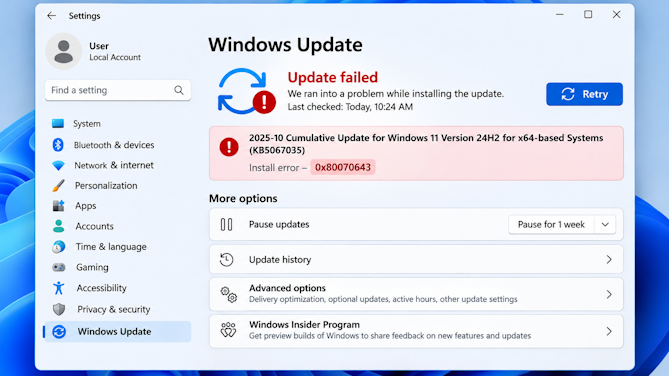
When Windows Update fails, it usually ends on a settings screen that names the update, shows an eight-digit hexadecimal code such as 0x80070005, and offers a Retry button. That code is not decorative — it identifies where in the download-and-install pipeline the operation broke, and two failures that look identical from the chair (a red X on the same screen) can have completely different causes. The first diagnostic job is therefore to record the exact code, the KB number of the update if one is shown, and whether the failure happens at download or install, because a download-stage code points at connectivity or caching while an install-stage code points at the servicing stack, disk space, or a conflicting driver.
Likely causes and diagnosis
Common codes cluster into predictable families. 0x80070005 (access denied) usually means a service or file permission is blocking the installer; 0x80244015 and similar 0x8024xxxx codes mean the download was interrupted, which tracks back to network drops, metered connections, or an exhausted cache; 0x800f0922/0x800f0923 indicate missing servicing files and are typically resolved by the servicing stack update first; 0x80073712 and 0x80070057 point at corrupted content in the component store. Before changing anything, open Settings → Windows Update → Update history to confirm which update failed and when, and note whether other machines on the same network fail with the same code — a shared code across machines is a strong signal that the cause is network-side rather than local.
Step-by-step solution
- Open Settings → Windows Update (Windows 10: Update & Security → Windows Update) and record the exact error code and KB number. If the screen has already been dismissed, open Update history on the same page to find the failed attempt. \n
- Search for the full code (including the
0xprefix) in Microsoft Support documentation or the Windows release-health notes for your build. Note which stage it describes — download, staging, or install — because that decides which checklist below applies. \n ![Windows Update settings page showing a failed update with its eight-digit error code and the Retry button]()
Step 3 — Windows Update settings showing the failed update, its error code, and the Retry button · img/a-01-s3.png \n - If the code is a download-stage failure (0x8024xxxx family): check that the connection is not metered (Settings → Network & internet → Wi-Fi/Ethernet → Properties), restart the router, and retry. See tutorial 7 in this category for the full proxy/DNS path. \n
- If the code is an install-stage failure: run the built-in troubleshooter — Settings → System → Troubleshoot → Other troubleshooters → Windows Update (on older builds it sits under Update & Security). Let it apply fixes, then retry the update once. \n
- If the same code returns after a clean retry, move to the matching deeper tutorial: cache problems (tutorial 5), servicing-stack codes like 0x800f0922 (tutorials 4 and 30 in category D), or disk space (tutorial 6). Do not cycle through unrelated fixes — one identified cause, one test at a time.
Verification and next steps
Success looks like the update completing without an error code and appearing under Update history as installed. If the retry fails with a different code, that is useful information: it means the first fix moved the failure downstream, so record both codes and continue from the new one. If the original code persists after the matching checklist, the next step is to collect evidence — the CBS log at C:\Windows\Logs\CBS\cbs.log (the last ~200 lines around the failure time) and the System event log filtered on source WindowsUpdateClient — and bring those to a support conversation rather than escalating to a reset.
Troubleshoot Windows Update downloads stuck at 0%
A progress bar frozen at 0% is almost always a delivery problem — metering, bandwidth limits, proxy, or a wedged download cache — not a broken Windows installation.
Problem and symptoms
The most common form of this failure is the update screen showing Downloading… 0% for an hour or more, sometimes with no error at all. Because no error appears, it is tempting to assume Windows is simply slow and wait indefinitely. In practice a stuck-at-zero state means the download pipeline never got moving: the client could not open a usable connection to the update delivery network, or it opened one but every request is being dropped or throttled. Distinguishing those two cases matters because the first needs connectivity work (proxy, DNS, firewall) while the second needs cache and service work — and waiting through both wastes an evening.
Likely causes and diagnosis
The recurring causes are: a metered connection, which Windows honors by deferring or limiting update downloads; a bandwidth limit set inside Windows Update settings (Windows 11 lets you cap background bandwidth, and a very low cap can look like zero progress); a corporate proxy that the system is not configured for; a failing or mismatched DNS configuration; third-party security software intercepting the update services; and finally a wedged local download cache in C:\Windows\SoftwareDistribution. Check the cheap ones first — metering and bandwidth limits take seconds to rule out — before touching services, because changing service state on a machine that is only network-blocked will not help and adds a variable you now have to remember.
Step-by-step solution
- Open Settings → Network & internet and confirm the active connection is not marked Metered. On Wi-Fi: select your network → Properties → turn off Metered connection. If you genuinely need metering for a data plan, expect updates to be deferred — that is correct behavior, not a fault.
![’Open Settings -> Network & internet and confirm the active connection is not marked Metered. On Wi-Fi: select your...]()
Step 1 — capture: ’Open Settings -> Network & internet and confirm the active connection is not marked Metered. On Wi-Fi: select your... · img/a-02-s1.png \n - Check Windows Update's own bandwidth settings: Settings → Windows Update → Advanced options → Delivery Optimization (Windows 10: Delivery optimization under Update & Security). If a download-speed limit or a very low percentage is set, raise it to the default for testing. \n
- Restart the router and the PC, then retry. A fresh DHCP lease clears stale proxy or DNS entries that accumulate after network changes. Wait at least ten minutes before declaring the test failed — first attempts often sit at 0% while the client negotiates with content delivery endpoints. \n
- If the machine sits behind a corporate or school network, verify the system proxy: Settings → Network & internet → Proxy. A manual proxy that no longer exists will block update downloads even though web browsing may still work through a different path (for example, a browser with its own proxy settings). \n
- Temporarily disable third-party antivirus or firewall protection (Windows Security only: leave it on — it is not the cause by default) and retry. Re-enable it immediately after the test either way; do not leave extra protection off. \n
- If none of that moves the bar, reset the download cache as described in tutorial 5 of this category (stop the update services, rename
SoftwareDistribution, restart the services). This is a local-state fix and it is safe: Windows rebuilds the folder automatically.
Verification and next steps
The fix worked when progress leaves 0% and advances at a plausible rate for your connection — a few percent in the first minutes, not necessarily fast. If progress starts and then stalls at a fixed percentage (say 80%), that is a different problem: an interrupted transfer, which the same cache reset usually clears on the next retry. If the bar still never moves after the cache reset with protection software re-enabled, collect the System event log entries from source WindowsUpdateClient around the attempt — they name the specific endpoint or HTTP status that is failing — and treat persistent 0% as a network-environment issue to raise with whoever manages your connection.
Resolve updates stuck at Pending Install or Pending Restart
A 'restart to finish installing' prompt that survives several reboots means a component is holding the finalization step open — here is how to find and release it safely.
Problem and symptoms
Windows Update shows Restart to finish installing, you restart, and the same message returns — sometimes for days. The update itself has largely completed; what is stuck is the finalization stage, where Windows applies leftover file replacements, updates the component store, and confirms the new servicing state. A reboot should complete that stage in a few minutes of post-boot work. When it does not, one of three things is true: a driver or service is blocking a pending file operation, the update orchestration task that schedules finalization has failed, or the system ran out of space mid-finalization. Each cause has a different correct fix, which is why 'just restart again' stops working and a structured check begins.
Likely causes and diagnosis
The usual suspects, in order of likelihood: pending file renames queued from an earlier operation that a loaded driver keeps holding (a GPU or storage driver is the classic offender); the Scheduled Task under \Microsoft\Windows\UpdateOrchestrator that drives restart-and-finalize cycles failing silently; insufficient free space on the system drive so finalization cannot write its intermediate files; and, less commonly, a corrupted update state that only a cache reset or System Restore clears. A useful early observation: if the machine is slow to log in for several minutes after each reboot before returning to normal, finalization is running and merely failing at the end — that pattern favors driver or file-lock causes over total orchestration failure.
Step-by-step solution
- Restart once more and let the machine sit unattended for up to 30 minutes after the desktop appears. Some finalization work runs in the background after sign-in, and a first reboot after a long idle period can legitimately take longer than usual. \n
- Open Task Scheduler (search for it from the Start menu), expand Task Scheduler Library → Microsoft → Windows → UpdateOrchestrator, and look for tasks with a failed last-result code. If you see repeated failures, right-click the task UpdateSessionWorker (or the similarly named restart worker) and choose Run. Watch whether the pending-restart message clears within a few minutes. \n
- Check free space on the system drive: Settings → System → Storage. Finalization needs several GB of headroom; if you are below roughly 10 GB free, reclaim space first (tutorial 41 in category E) and restart.
Step 3 — capture: ’Check free space on the system drive: Settings -> System -> Storage. Finalization needs several GB of headroom; if you... · img/a-03-s3.png \n - Look for a held file operation: open an elevated Command Prompt and run
reg query "HKLM\SYSTEM\CurrentControlSet\Control\Session Manager" /v PendingFileRenameOperations. A long list of entries that survive multiple reboots indicates something is repeatedly failing to replace files. Note the paths — they usually name the driver or component involved. \n - If a specific driver path keeps appearing, update or roll back that driver via Device Manager (category F, tutorial 42) and restart. For stubborn cases, boot into Safe Mode (category D, tutorial 28), run the pending operation once from there where most third-party drivers are not loaded, then reboot normally. \n
- As a last local resort before considering recovery tools: reset the update cache (tutorial 5) and retry. If the pending state still survives a clean restart cycle, create a restore point, then use System Restore to return to a time before the update was applied (category D, tutorial 26).
Verification and next steps
You are done when Settings → Windows Update no longer shows the restart prompt and Update history lists the update as installed. Confirm with winver that the build number matches what you expected, and watch the next two reboots: if finalization was genuinely fixed, subsequent restarts return to the desktop at normal speed. If the pending state returns after a System Restore, do not immediately re-apply the same update — check the Windows release-health notes for your build first, because a repeat failure across restore points suggests the update itself is incompatible with something on this machine (usually a driver), and that needs the driver-side fix before any further update attempts.
Diagnose repeated Windows Update installation failures
When the same update fails identically on every attempt, the cause is stable and findable: work from the servicing stack down through the component store, one layer at a time.
Problem and symptoms
A single failed update is an event; the same update failing three or more times with identical behavior is a diagnosis. Reproducibility means the cause is deterministic — a specific file, service state, driver, or configuration that fails the same way every run. The trap with repeated failures is treating each attempt as fresh: retrying, rebooting, and retrying again while the underlying condition never changes. The productive shift is to stop re-running the update and start reading what it leaves behind — the component-store logs, the servicing stack version, and a clean-boot baseline that rules out software interference before you touch system files.
Likely causes and diagnosis
In order of how often they are the actual cause: an outdated servicing stack (the SSU is a prerequisite update; feature and quality updates frequently fail until it lands); component-store corruption, where files DISM reports as inconsistent block every install that touches them; third-party software interference, most often security suites or virtualization tools hooking file operations during install; insufficient space in WinSxS (the component store grows and can exhaust the drive even when the C: root looks fine); and genuine update-content problems, which are rarer but real — Microsoft publishes known-issue lists per build, and a specific KB may be broken for everyone on that build. The clean-boot test is what separates causes 3 from causes 1, 2, and 4: if the update succeeds in clean boot, the interference was software; if it still fails, the problem is in Windows itself and belongs to the DISM/SFC path.
Step-by-step solution
- Check Microsoft's Windows release-health page for your build (search 'Windows release health' plus your build number). If the failing KB is listed as a known issue with a fix or workaround, follow that note — it will save every generic step below. \n
- Install the current Servicing Stack Update first. It appears in Windows Update like any other update but takes priority; on Windows Server it is also available via the catalog site. If Windows Update cannot install anything at all, download the SSU for your exact build from Microsoft Update Catalog and run the installer manually. \n
- Run a component-store health check in an elevated Command Prompt:
dism /online /cleanup-image /checkhealth, then if it reports corruption,dism /online /cleanup-image /restorehealth. The restore step needs internet access to fetch reference files. Follow withsfc /scannowand let it finish fully (tutorial 29 in category D covers interpreting the results).Step 3 — capture: ’Run a component-store health check in an elevated Command Prompt: dism /online /cleanup-image /checkhealth, then if it... · img/a-04-s3.png \n - Test from a clean boot: run
msconfig, under Services hide all Microsoft services and disable the rest, under Startup open Task Manager's Startup tab and disable everything. Restart and attempt the update once. Re-enable everything afterward (Services tab back to normal, startup items re-enabled) — a permanently half-disabled machine will create new problems. \n - Check component-store size pressure: in an elevated prompt run
dism /online /cleanup-image /startcomponentcleanup. This removes superseded files from WinSxS and is safe; it can free several GB on machines that have taken many feature updates. \n - If the update still fails identically, gather evidence for escalation: the last 200 lines of
C:\Windows\Logs\CBS\cbs.logaround the failure time, plus System log entries from sources WindowsUpdateClient, WaaSCpl and MsiInstaller. These logs name the failing file or operation, which turns an endless retry loop into a specific question.
Verification and next steps
The update is fixed when it installs to completion, survives one normal reboot, and appears in Update history without an error. After success, run sfc /scannow once more as a confirmation pass — if the store was corrupted before, you want to see it report no integrity violations now. If the clean-boot test succeeded but a normal boot fails again after re-enabling services and startup items, do not guess which item caused it: re-disable in halves (half the third-party services, then half the startup apps) until the interfering component is isolated — that discipline takes two or three reboots at most and identifies the real culprit instead of leaving you with a machine that only updates in clean boot.
Repair Windows Update download-cache problems safely
The SoftwareDistribution folder is a rebuildable cache, not your data: renaming (never deleting) it with the right services stopped clears most stubborn download and install faults.
Problem and symptoms
Windows stores every partially downloaded update, its metadata, and installation state under C:\Windows\SoftwareDistribution. When that cache becomes inconsistent — a truncated file from an interrupted download, a stale lock after a crash mid-update — Windows Update can fail in ways that look unrelated to storage: downloads stuck at 0%, the same error code on every retry, or updates that appear then vanish from the list. The fix is to make Windows rebuild the cache from scratch. Because the folder is pure cache (no personal files, no settings), it is safe to reset — but only with the services that hold it open stopped first, and by renaming rather than deleting, so you can restore the original state if anything goes wrong.
Likely causes and diagnosis
Caches corrupt most often after an interrupted update: a power loss or forced shutdown mid-download, a network drop that truncated a file while the client believed it complete, or a crash of the wuauclt/Update Orchestrator processes while writing state. Less commonly, disk errors on the system drive produce partially written files that pass casual inspection but fail when the installer verifies them. The signature that this is your problem: the failure pattern changed after a specific bad event (a crash, an outage), multiple different updates now misbehave rather than one, and simple retries plus reboots have not altered the behavior. If only one KB fails while everything else installs fine, suspect that update's content or a driver instead of the cache.
Step-by-step solution
- Open an elevated Command Prompt (Start menu, type
cmd, right-click → Run as administrator). Stopping these services releases their locks on the folder — attempting to rename it while they run will fail with 'access denied'.Step 1 — capture: ’Open an elevated Command Prompt (Start menu, type cmd, right-click -> Run as administrator). Stopping these services... · img/a-05-s1.png \n - Command Prompt (admin) — stop update services
net stop wuauserv
net stop cryptsvc
net stop bits
net stop msiserver
\n - Rename the cache folders. Renaming preserves the originals as a fallback; deleting them outright is unnecessary and removes your only rollback path. \n
- Command Prompt (admin) — rename update caches
ren C:\Windows\SoftwareDistribution SoftwareDistribution.old
ren C:\Windows\SoftwareDataStore DataStore.old 2>nul
\n - Restart the services in dependency order. Windows recreates
SoftwareDistributionautomatically on first use; the empty folder will begin refilling as updates download. \n - Command Prompt (admin) — restart update services
net start wuauserv
net start cryptsvc
net start bits
net start msiserver
\n - Open Settings → Windows Update and click Check for updates. Expect the first pass to be slow while the client re-registers with the delivery service. If the previously failing behavior is gone, the cache was the cause. \n
Before you start Do not run this on a machine mid-update — wait for any in-progress operation to finish or fail first. The renamed
.oldfolders can be deleted after two or three successful update cycles; until then they are your rollback evidence.
Verification and next steps
Success is functional, not cosmetic: the specific failure you came for (stuck download, repeating error code) no longer reproduces on a fresh check-for-updates cycle. Give it at least one complete download-and-install of an available update before declaring victory — cache problems often reappear only when a real payload transfers. If failures continue after a clean cache, the cause is upstream of the cache: run the DISM/SFC sequence (tutorials 29–30 in category D) and check disk health, because a drive that silently corrupts writes will simply corrupt the new cache again.
Investigate insufficient disk space preventing updates
Major updates need more free space than most people expect — and the space check is not just 'how much is free on C:'. Here is what to measure and where to reclaim it safely.
Problem and symptoms
Updates fail from low disk space in two distinct ways. The blunt one shows an explicit error (often 0x80070001, 'not enough disk space') when the drive cannot hold the update payload plus its staging copies. The subtler one fails without a clear message because Windows needs headroom in places you never look: the component store (WinSxS) must copy files before replacing them, and a full-ish drive can pass a casual 'there is 8 GB free' check while still failing finalization. Feature updates (the big yearly upgrades) need roughly 20–30 GB of free space on the system drive at peak; quality updates are smaller but still stage full copies. Measuring correctly — and knowing which folders are safe to shrink — is the whole game.
Likely causes and diagnosis
Space pressure accumulates from predictable sources: the component store growing with every feature update until cleanup runs, delivery-optimization files cached for other machines on your network (Windows can act as a peer distribution point), old Windows installations left behind after an upgrade (Windows.old), temporary files and crash dumps, and simply too many applications installed on the system drive. The diagnostic question is not 'is the drive full' but 'where did the space go, and which of those holders is safe to release'. Some answers are obvious (temp folders), some need a tool pass (Storage Sense or disk cleanup with system-file options), and one — deleting things you do not recognize inside C:\Windows — is the answer that bricks machines.
Step-by-step solution
- Measure first: Settings → System → Storage shows the breakdown by category (apps, temporary files, system). Note how much free space exists and what dominates. For feature updates, aim for at least 20 GB free before retrying.
Step 1 — capture: ’Measure first: Settings -> System -> Storage shows the breakdown by category (apps, temporary files, system). Note how... · img/a-06-s1.png \n - Run Storage Sense (same Storage page): enable it and run a one-time clean of temporary files. This removes files in %TEMP%, the recycle bin contents past their retention, and similar — nothing personal. \n
- Use the full disk cleanup: search for Clean up system files (cleanmgr with elevated scope), select the system drive, and let it scan. Check Previous Windows installation(s), Windows Update Cleanup, and Temporary files. The previous-installation entry alone can free 15–25 GB after a feature upgrade — but only remove it once you are certain the upgraded system is stable (tutorial 31 in category D covers why rolling back through Windows.old has limits). \n
- If Windows Update Cleanup shows little, force component-store cleanup from an elevated Command Prompt:
dism /online /cleanup-image /startcomponentcleanup. This removes superseded WinSxS files that the GUI cleanup sometimes misses. \n - Check Delivery Optimization caching: Settings → Windows Update → Advanced options → Delivery Optimization. If your PC has been sharing updates with other PCs, its cache can hold several GB; disable sharing or clear the cache there. \n
- Move large applications off the system drive where possible (Settings → Apps → choose install location for new apps; some installed apps can be moved via their properties). Do not delete unrecognized folders under C:\Windows, and do not use third-party 'cleaner' utilities to touch system areas.
Verification and next steps
After reclaiming space, retry the update and watch it pass the point where it previously failed — for space issues that is usually the staging or install phase, well past download. Confirm with Storage settings that free space recovered to a comfortable margin after the update completed (updates consume their headroom back down as cleanup runs). If the drive fills up again within days of each update, something on this machine is generating large files — check crash dumps in C:\Windows\Minidump and C:\Windows\MEMORY.DMP, and review Storage's category breakdown monthly. A system drive that permanently lives under 10% free space will keep failing updates no matter how well any single one is fixed.
Troubleshoot update failures caused by proxy, DNS, or connectivity issues
When the web works but Windows Update does not, the fault is usually in a layer browsers do not use: WinHTTP proxy state, stale DNS, or a clock that breaks certificate validation.
Problem and symptoms
A confusing and common pattern: websites load fine in the browser, yet Windows Update fails with connection errors, download interruptions, or TLS/certificate complaints. The explanation is that Windows Update does not always use the same network path as your browser. It relies on the system-level proxy configuration (and historically WinHTTP's own proxy state), resolves update endpoints through DNS like everything else, and — critically — validates Microsoft's delivery certificates against the system clock. A machine where any one of those three layers is misconfigured will browse normally while updates fail, which is why 'the internet works' is not evidence that connectivity is fine for update purposes.
Likely causes and diagnosis
Work through the three layers. Proxy: a manual proxy left configured after leaving a network, or a WinHTTP proxy state that drifted from the system setting (common on machines that moved between corporate and home networks). DNS: stale cached entries, or a resolver that cannot reach Microsoft's update endpoints — testable by flushing the cache and trying a public resolver. Clock: if the system time is off by more than a few minutes, TLS validation fails in ways that look like network errors; this shows up after battery changes on laptops or VMs with drifted clocks. A fourth, quieter cause: firewall or security software that permits browser traffic but not the update services' traffic — checkable by watching whether disabling third-party protection temporarily changes the outcome.
Step-by-step solution
- Check the system proxy: Settings → Network & internet → Proxy. If 'Use a proxy server' is on and you are not actually behind a proxy, turn it off. If you are behind one, confirm the address and port with whoever manages the network — update traffic must be allowed through it.
Step 1 — capture: ’Check the system proxy: Settings -> Network & internet -> Proxy. If 'Use a proxy server' is on and you are not... · img/a-07-s1.png \n - Check and reset WinHTTP's separate proxy state from an elevated Command Prompt:
netsh winhttp show proxyto see what it holds, thennetsh winhttp reset proxyto clear it back to auto-detection. This layer is invisible in Settings but real. \n - Flush the DNS cache and test resolution: run
ipconfig /flushdns, thennslookup windowsupdate.microsoft.com. If name resolution fails or returns odd results, temporarily set a public resolver (for example 1.1.1.1 or 8.8.8.8) on the active adapter — Network & internet → your connection → IP settings → Edit — and retest. Restore your original DNS afterward if it was intentional. \n - Verify the system clock: Settings → Time & language → Date & time — confirm correct time zone and that 'Set time automatically' is on. For a manual sync from an elevated prompt, run
w32tm /resync. If the clock was significantly wrong, also check that TLS-dependent operations (not just updates) had been failing — that confirms the diagnosis. \n - Test with third-party protection disabled: turn off any non-Microsoft antivirus/firewall for a single update attempt and re-enable it immediately. If updates succeed only with protection off, the fix is an allow-list rule for Windows Update traffic in that product, not leaving it off. \n
Corporate networks On managed machines, proxy and DNS changes are often enforced by policy and will revert or be blocked. In that case the correct action is to report the failure with the specific error code to IT rather than fighting configuration — the fixes above are for machines you control.
Verification and next steps
The fix is proven when a full check-for-updates cycle completes: download, install, reboot, and the update listed as installed. Because network-layer fixes can mask themselves (a flush 'works' until the stale entry re-caches), repeat the update check once more the next day. If failures return in exactly the same form, capture the specific error code and any TLS status shown, and include the outputs of netsh winhttp show proxy and nslookup windowsupdate.microsoft.com in whatever support conversation follows — those two outputs immediately tell a competent reader which layer is still broken.
Investigate Windows Update errors following a restart
Errors that appear only after a reboot have a short, specific list of causes — and the post-reboot screen itself tells you which branch to take.
Problem and symptoms
A distinct failure class appears only after the restart that an update demands: the PC reboots, spends an unusual time on the 'Finishing updates' or 'Don't turn off your computer' screen, then lands on an error — sometimes a generic 'There were problems installing some updates', sometimes a specific code, occasionally a rollback to the previous build. What happened in that reboot window is the diagnostic record: Windows was applying files, updating the component store, and confirming the new state, and something in that sequence failed hard enough to report or roll back. The immediate job is to capture what the screen said (photo it if it passes quickly), then check Update history, because the post-reboot state of the update — installed, failed, or rolled back — decides everything that follows.
Likely causes and diagnosis
Three branches dominate. Install failure after reboot: a file replacement or store operation failed mid-sequence; the CBS log will name it, and the usual culprits are the same as tutorial 4 (servicing stack, store corruption) plus drivers that load too early to be updated in place. Rollback: Windows detected the new state was not healthy — a critical driver failed to start, or a required component could not initialize — and restored the previous build; this is protective behavior and usually means an incompatibility on this machine rather than a broken update for everyone. Harmless cosmetic errors: some optional or driver updates fail after reboot while the core quality update succeeds; if the system is stable, these may simply need to be retried once or ignored per the release-health notes. Distinguishing 'my Windows is now degraded' from 'one optional KB failed' is the first decision.
Step-by-step solution
- Open Settings → Windows Update → Update history. Identify what actually happened: which KBs show as installed, which show a failure with a code, and whether the build number changed (run
winver). If you were rolled back, the build number will be your previous one. \n - If a specific KB failed after reboot, note its code and follow the matching path from tutorial 1 (this category) — post-reboot failures with download-stage codes are rare; install-stage codes point at store or driver issues. \n
- Check the System event log for the reboot window: Event Viewer → Windows Logs → System, filter by level Error/Critical for the time range around the restart. Sources to look for: WindowsUpdateClient (update state changes), Service Control Manager (a service that failed to start post-update), and disk/Ntfs (storage errors during the file-heavy phase). \n
- If you were rolled back, do not immediately retry the same update. Check the Windows release-health notes for your build for known issues, look at the System log for which component failed to start (that is usually the incompatible driver or service), and fix that specific thing before re-attempting. \n
- For a single optional/driver KB failure on an otherwise stable system: retry it once from Update history (right-click the entry → Uninstall, then check for updates again). If it fails again with the same code, consult its release-health entry — some driver KBs are known-problematic and Microsoft will either fix or withdraw them. \n
Step 6 — Event Viewer System log filtered to the post-reboot error window · img/a-08-s6.png
Verification and next steps
Verification depends on the branch: after an install failure, the KB must show as installed in Update history with the system stable across two normal reboots; after a rollback, the previous build must be fully functional (check your critical apps, devices, and BitLocker status) before you even consider the update again. In all cases, treat 'no more error screens' as necessary but not sufficient — run sfc /scannow once as a post-incident integrity check, because post-reboot failures sometimes leave partial state that an integrity pass cleans up quietly.
Safely recover from an update that repeatedly rolls back
A rollback is Windows telling you the new state is not bootable-healthy on this machine. Break the loop by finding the failing component — not by re-applying the same update.
Problem and symptoms
The worst update failure pattern: install, reboot, 'Preparing to roll back', and a return to the previous build — repeated every time you try again. Each rollback is Windows doing its job: it detected that the updated system would not reach a healthy state (a required driver or component failed during early boot) and restored what worked. But when the trigger is a machine-specific incompatibility, re-attempting the identical update produces the identical failure in a loop that can span days. Escaping the loop requires finding what fails in the new state — information that exists in the logs of the failed attempt — and fixing that specific component before the next attempt. Blind retrying is not just slow; each cycle re-rolls back your recent changes, which erodes confidence in the system's state.
Likely causes and diagnosis
Rollback triggers concentrate in a few places: a third-party driver (GPU, storage, virtualization middleware) that is incompatible with the new build and fails to start during early boot; a disk with latent errors whose file operations fail under the heavier I/O of an update; component-store corruption severe enough that the new state cannot be committed; and, on virtual machines, integration-service or snapshot-state problems. The failed attempt leaves a record: the System log of the rolled-back session names services that failed to start, and the CBS log captures store operations. One highly effective early test — booting into Safe Mode after the update (before rollback completes is not possible, but checking whether the machine can reach Safe Mode at all during the updated state) — separates driver-level blockers from deeper corruption, because Safe Mode loads minimal drivers.
Step-by-step solution
- Before the next attempt, export the evidence: Event Viewer → Windows Logs → System → right-click → Save All Events As (from the most recent failed session), plus a copy of
C:\Windows\Logs\CBS\cbs.log. You will need these if the pattern continues.Step 1 — capture: ’Before the next attempt, export the evidence: Event Viewer -> Windows Logs -> System -> right-click -> Save All Events... · img/a-09-s1.png \n - Create a System Restore point now (search 'create a restore point' → Create) and verify your backups are current (category G, tutorial 51). If the next attempt fails and rollback misbehaves, this is your local fallback. \n
- Attempt the update with eyes on the failure: when it rolls back, open Update history — the failed entry carries a code. Then open the System log for the window of the updated session (between reboot and rollback) and find the first service or driver that failed to start. That component is your prime suspect. \n
- If the suspect is a third-party driver: update it to the vendor's latest version from the manufacturer's site (not just Windows Update's copy), or roll back to the previous driver version via Device Manager → Properties → Driver → Roll Back Driver. Virtualization tools (VMware/Virtual Box/Hyper-V third-party middleware) should be updated to versions explicitly supporting your target build before retrying. \n
- Check disk health from an elevated prompt:
chkdsk C: /scan(online scan, no reboot needed). If it reports errors that need offline repair, schedule it and let it run — a drive failing writes will keep breaking updates regardless of software fixes. \n - If logs show store-level failures, run the full DISM restore plus SFC sequence (tutorials 29–30 in category D) before retrying. Only after those pass should you attempt the update again — and if it rolls back a second time with the same failing component, stop: that is a case for the repair-installation path (tutorial 31 in category D), which replaces system files while keeping yours.
Verification and next steps
The loop is broken when an update attempt reaches the updated build and stays there: confirm with winver that the new build number persists across two full reboots, check that every device in Device Manager is working (no yellow triangles), and run your critical applications. If the system is stable for 48 hours, the fix held. Keep the exported logs from the failed sessions until then — if a later update misbehaves, they document a pattern that turns 'it rolled back again' into a precise, supportable report.
Determine when to pause updates, retry installation, or escalate troubleshooting
Not every failed update deserves the same response. A short decision framework: what the evidence says, what is safe to defer, and what should never be deferred.
Problem and symptoms
Faced with a failing update, people swing between two bad habits: retrying endlessly for days, or pausing updates indefinitely and drifting months behind security fixes. Both are wrong because the correct action depends on what kind of failure you have, which is only knowable after a bounded amount of diagnosis. This tutorial is the decision layer that sits on top of the other nine: it defines the evidence thresholds — how many attempts, which log findings, which error families — that justify pausing, justifying another retry, or escalating to repair tools and support. Used consistently, it prevents both update fatigue and silent security drift.
Likely causes and diagnosis
The decision inputs fall into three groups. Failure character: download-stage errors (connectivity/cache) are usually quick to fix and worth an immediate retry after the fix; install-stage errors with a stable code deserve the structured diagnosis of tutorials 1, 4, and 5 before any further attempts; rollback loops (tutorial 9) should not be retried at all until the failing component is identified. System character: a machine that is otherwise healthy can afford to wait days for a fixed update path; a machine already showing unrelated instability (crashes, file errors) needs its stability problems addressed first, because updates will amplify them. Risk character: security-critical patches on an internet-facing machine compress the acceptable pause window; a home PC with no sensitive workload has more latitude. Windows allows pausing for up to five weeks at a time — that is the hard outer boundary, not a target.
Step-by-step solution
- Give each distinct failure one structured diagnostic pass before judging it: identify the error code and stage (tutorial 1), run the matching checklist, and retry once after the fix. Two attempts with the same unexplained result is the threshold for changing strategy — not for attempt three of the identical procedure.
Step 1 — capture: ’Give each distinct failure one structured diagnostic pass before judging it: identify the error code and stage... · img/a-10-s1.png \n - Use pause deliberately, not as a default: Settings → Windows Update → Pause updates. Legitimate pauses: while you work through a diagnosed install failure (days), before a major personal event where an update-reboot is unwelcome (a day or two), or when release-health notes flag your build's current quality updates as problematic. Record why you paused and when it ends. \n
- Use retry only after a change: a fixed network path, a reset cache, an updated driver, a completed DISM/SFC pass. Retrying with nothing changed is how loops form. If you must wait for Microsoft to fix a known-bad update (release-health notes), pause until the notes clear rather than attempting the broken KB repeatedly. \n
- Escalate to recovery tools (category D) when: the same install failure survives cache reset plus DISM/SFC plus clean boot; rollbacks repeat after the failing component was addressed; or Windows Update is so broken that no update — including a trivial one — can complete. The escalation ladder is System Restore → repair installation → Reset, in that order, with backups verified before each rung. \n
- Escalate to external support (Microsoft support, vendor, or IT) when: logs point at a component you cannot safely change yourself (firmware, domain policy), the machine is business-critical and has been unstable for more than a few days, or BitLocker recovery prompts appear during any of this (category D, tutorial 33 — stop and find the key before touching anything else). \n
The one-week rule A healthy system should not spend a week on a single update. If after seven days of structured work an update still fails, the problem is no longer 'this update' — it is this system's health, and the correct next step is the category-D repair ladder or professional help, with evidence gathered along the way.
Verification and next steps
You have applied this framework correctly when your actions follow a visible logic you can state out loud: 'the code was X, I did Y, it failed twice, so I escalated to Z.' Write that sentence down as you go (tutorial 60 in category H shows the full report format) — it is what converts a week of flailing into a coherent story, whether the audience is your future self or a support engineer. The end state to check for: updates either flow again with no recurring errors across two monthly cycles, or the system is on a documented repair path with backups verified and pause dates set. Indefinite pausing with no plan is the failure mode this whole category exists to prevent.
Category B · 8 tutorials
Blue screens, crashes, and restarts
A crash is a message, not a mystery: the stop code names the failure class, the event logs name the timing, and the minidump names the component. These eight tutorials build the evidence chain in order — capture the stop code, correlate it with recent changes, separate application crashes from kernel crashes, and use dumps to narrow the suspect list before anyone replaces hardware.
Collect and interpret Windows blue-screen stop codes
The stop code is the first line of diagnosis: it classifies the failure, points at a subsystem, and — combined with the failing driver name when present — often names the culprit directly.
Problem and symptoms
A blue screen (BSOD) ends with a stop code like IRQL_NOT_LESS_OR_EQUAL or CRITICAL_PROCESS_DIED, usually followed by the name of a file that Windows believes is implicated. Two misconceptions waste time here. First, the named file is a suspect, not a verdict — kernel bugs can misattribute blame to an innocent driver. Second, the same stop code means different things in different contexts: IRQL_NOT_LESS_OR_EQUAL from a network driver during heavy traffic points at that driver's interrupt handling, while the same code after a fresh GPU driver install points at the new driver. Reading a stop code correctly means pairing it with when it happened (after what change, under what load) and whether it repeats, then checking the structured record rather than relying on the screen alone.
Likely causes and diagnosis
Stop codes cluster into families that map to subsystems. Driver-family: DRIVER_POWER_STATE_FAILURE, DPC_WATCHDOG_VIOLATION, and many IRQL_* variants — a driver misbehaving in interrupt or power context, overwhelmingly the most common BSOD class on desktop systems. Memory-family: MEMORY_MANAGEMENT, PAGE_FAULT_IN_NONPAGED_AREA, DATA_BUS_ERROR — can be a bad driver corrupting memory or genuinely failing RAM; the pattern (random vs reproducible) separates them. Hardware-error-family: WHEA_UNCORRECTABLE_ERROR reports a machine-check exception from CPU/memory/interconnect — that one is hardware until proven otherwise. Critical-process-family: CRITICAL_PROCESS_DIED, SYSTEM_THREAD_EXCEPTION_NOT_HANDLED — a process the kernel depends on was terminated or faulted; often driver- or malware-induced, sometimes disk corruption. The family decides which evidence to collect next.
Step-by-step solution
- When a BSOD occurs, photograph the screen if you can — it shows the stop code and, when present, the implicated file name. On Windows 10/11 the machine usually restarts automatically; the code is also recorded afterward (next step), so a photo is useful but not mandatory. \n
- Find the recorded crash: Settings → System → About shows 'Startup and recovery' details in some builds, but the reliable source is Event Viewer — Windows Logs → System, filter by source EventLog, event ID 1001 (BugCheck). The event text contains the stop code parameters and the faulting module.
Step 2 — capture: ’Find the recorded crash: Settings -> System -> About shows 'Startup and recovery' details in some builds, but the... · img/b-01-s2.png \n - Open Reliability Monitor (search 'reliability') to see the crash on a timeline. Note what happened in the days before: Windows Updates, driver installs, new hardware or software. A crash that starts within 48 hours of a change is attributed to that change until evidence says otherwise. \n
- Look up the stop code in Microsoft's stop-code documentation (search 'stop code' plus the exact name). Note its stated cause class and whether it commonly names drivers. Cross-check the implicated file: is it a
ntoskrnl.exe/system file (points at memory or deeper corruption) or a vendor driver (points at that vendor's stack)? \n - Check for dumps to analyze: minidumps live in
C:\Windows\Minidump. If the folder is empty, enable them — System properties → Advanced → Startup and failure recovery → Write debugging information: Automatic memory dump (tutorial 18 covers analysis). \n - Build the one-line record: date/time, stop code, parameters, implicated module, recent changes, load conditions. Two or more crashes with the same code and module is a pattern worth acting on; a single crash after an unrepeatable event may need no action beyond watching.
Verification and next steps
You have 'interpreted' the code when you can state which subsystem it implicates and what test discriminates that hypothesis — for example, 'DRIVER_POWER_STATE_FAILURE naming nvlddmkm.sys (NVIDIA driver) after a driver update → roll back the driver and watch for 48 hours.' The verification is behavioral: after acting on the interpretation, the specific stop code should stop recurring. If a different code appears instead, treat it as new information, not regression — the old cause may be fixed while a second latent problem surfaces. Keep the one-line records in a notes file; a column of dates and codes is what turns 'my PC keeps crashing' into a diagnosis.
Diagnose unexpected restarts using Event Viewer
A restart with no visible blue screen leaves a fingerprint in the System log — Kernel-Power 41 says 'I died without telling you why', and the events around it say how.
Problem and symptoms
The PC just restarts: no blue screen seen (or one that flashed by too fast to read), files open, work lost. From the user's chair this looks like random instability, but Event Viewer almost always records what happened — or records the absence of a normal shutdown, which is itself diagnostic. The key event is Kernel-Power 41: 'The system has rebooted without cleanly shutting down first.' That event means Windows lost power or crashed so hard it could not write its shutdown record. Distinguishing those two cases — power loss versus crash — is the entire first step, because a crash will have neighboring BugCheck events while a power loss will have clean logs up to the moment of death.
Likely causes and diagnosis
Three branches follow from what surrounds Kernel-Power 41. Crash without visible BSOD: a BugCheck (event 1001) at or just before the restart timestamp means a blue screen did occur and auto-restart hid it — you can disable 'Automatically restart' in Startup and failure recovery to make the next one readable, and tutorial 11 applies. Genuine power loss: no BugCheck nearby; check whether other devices on the same circuit dropped (phone chargers, router reboots) — if yes, the cause is upstream of the PC (outlet, UPS, building power). Power-delivery failure inside the PC: no external evidence, but a pattern under load (always during gaming/rendering, never idle) points at the PSU or thermal shutdown; fan noise history and temperature logs are the evidence. A fourth quiet cause: Windows Update restarts scheduled while you were away — check the update history timestamps against the restart times before suspecting hardware.
Step-by-step solution
- Open Event Viewer → Windows Logs → System. Click Filter Current Log, add event ID
41(source Kernel-Power), and list the recent unexpected-shutdown events with their exact timestamps.Step 1 — capture: ’Open Event Viewer -> Windows Logs -> System. Click Filter Current Log, add event ID 41 (source Kernel-Power), and list... · img/b-02-s1.png \n - For each timestamp, look at the 5–10 minutes before it in the same log. Search for source EventLog ID 1001 (BugCheck) — if present at that moment, this was a crash: open the event, read the stop code, and follow tutorial 11. If absent, continue here. \n
- Check for power-loss corroboration: did the router or other devices also drop? Look in the System log for volmgr/disk events at the timestamp (a sudden 'disk not responding' before death suggests storage or power). On laptops, check battery health and whether the event correlates with unplugging from AC. \n
- Test the load hypothesis: if restarts cluster under heavy CPU/GPU work, record temperatures during a workload (Task Manager's performance tab shows utilization; vendor utilities show temps). Thermal shutdowns usually hit a threshold consistently — a pattern of 'always around the same load' is strong evidence. \n
- Rule out scheduled Windows restarts: Settings → Windows Update → Update history, and compare install times with your restart times. If they match, adjust active hours or pause (category A, tutorial 10) rather than chasing hardware. \n
- If no crash record, no external power evidence, and no load pattern emerge after several events, the remaining suspects are PSU degradation and motherboard-level faults — both warrant professional diagnosis with proper equipment (load testing, voltage measurement) rather than parts-swapping at home.
Verification and next steps
The diagnosis is confirmed when the identified cause predicts the next event: a crash-with-hidden-BSOD case stops after the driver fix; a power-quality case stops after the outlet/UPS fix; a scheduled-restart case disappears after adjusting Windows Update timing. For each Kernel-Power 41 you investigate, write down which branch it fell into — after three or four events with consistent classification, you have either fixed the problem or built an unambiguous report for a technician. If restarts continue with no classifiable pattern and no BugCheck records, that is the honest stopping point for home diagnosis: the evidence does not support a software fix, and the next step is professional hardware testing.
Investigate recurring crashes using Reliability Monitor
Reliability Monitor turns the raw event log into a dated timeline where crashes, warnings, and — crucially — the updates and installs that preceded them sit side by side.
Problem and symptoms
Event Viewer is authoritative but undifferentiated: hundreds of events a day, no visual sense of what changed when. Recurring crash investigation needs exactly that sense — a timeline where each red 'critical' marker (a crash) can be read against the yellow and blue entries around it: Windows Update installations, driver changes, application installs, service failures. Reliability Monitor (under the hood, the same data as the System log, rendered as a 60-day chart) gives you that view in seconds. Its value is not discovering new facts but forcing the question 'what changed immediately before this started?' — which is where most recurring-crash causes live.
Likely causes and diagnosis
The timeline typically reveals one of four patterns. Step change: crashes begin within a day or two of a specific entry (an update KB, a driver install) and continue — the cause is that change; the fix is rollback or vendor update. Drift: crash frequency grows over weeks with no single correlated event — favors accumulating causes: thermal paste aging, failing storage, memory marginality, or disk fragmentation of the page file on old drives. Clustered by condition: crashes only after long sessions or specific workloads (visible because you annotate your own usage) — favors thermal or power-delivery limits. App-specific: 'critical' entries that are actually application crashes (source .NET Runtime, Application Error) rather than system failures — those belong to the application-crash path (tutorial 16), not hardware suspicion. Reading which pattern fits is half the diagnosis; the monitor makes it visible instead of requiring log archaeology.
Step-by-step solution
- Open Reliability Monitor: search for View reliability history (or run
perfmon /rel). The chart shows days across the top with red X's for critical events and yellow warnings; the overall 'stability index' is a useful trend indicator but not a diagnostic by itself. \n - Click the leftmost red marker — the first crash in a recurring pattern. Read its detail pane: exact time, source, description. Then scan the entries in the 48 hours before it: look for Windows Update activity (blue 'Windows Update' entries), driver installs, and application installs. \n
- Work through each subsequent crash the same way, but faster — you are now checking whether the same preceding change repeats or whether the pattern is drift. Three crashes sharing a common recent change is a strong attribution; three crashes with no common neighbor shifts suspicion to hardware or accumulated corruption. \n
- For update-correlated crashes, identify the exact KB from the Update history (Settings → Windows Update) and check its release-health notes before uninstalling anything. For driver-correlated crashes, Device Manager shows installed driver dates per device — match them against the timeline. \n
- Annotate your own usage in a parallel note: what you were running when each crash hit. Reliability Monitor records system events, not your workload; pairing the two (crash at 23:40 + 'was rendering video') is what produces the load/thermal hypothesis that tutorial 15 tests. \n
Step 6 — Reliability Monitor timeline with the first crash and its preceding changes · img/b-03-s6.png
Verification and next steps
The investigation has produced a result when every crash in the pattern is classified: attributed to a specific change (and that change rolled back or updated, after which crashes stop), or unattributed (in which case you have ruled out the software-change class and the next step is the hardware-leaning tests — memory diagnostics, dump analysis, thermal logging). Write the classification down per crash. If you roll back a suspected driver or update and the crash pattern ends for two weeks, re-apply that change deliberately (one variable) to confirm causation before moving on — confirming the cause prevents the same problem silently returning with the next automatic update.
Troubleshoot crashes that begin after a driver update
When crashes start within days of a driver update, the new driver is guilty until proven innocent — and Windows gives you two clean ways to prove it: roll back, or compare behavior with the previous version.
Problem and symptoms
A recognizable sequence: a driver updates (often automatically via Windows Update or a vendor's background updater), everything seems fine for a day or two, then crashes begin — BSODs naming that driver's file, freezes under load, or display-related failures. The attribution is usually correct, but 'usually' is doing work: the update may be coincidental with a hardware problem starting to show, and rolling back a driver that was actually fine wastes time while the real cause (failing RAM, overheating) progresses. The discipline here is to treat the rollback as a test with a predicted outcome — if crashes stop after rollback, the driver is confirmed; if they continue, the update was coincidence and you now have one suspect eliminated.
Likely causes and diagnosis
Drivers crash systems through specific mechanisms, which help predict the symptoms. A GPU display driver fault typically produces display freezes, black screens, or BSODs naming nvlddmkm.sys/amdkmdag.sys/iigd.dll-family files, often under graphics load; a network driver fault shows as disconnects, DPC watchdog violations during traffic, or crashes with the NIC's driver file named; a storage driver fault is the most dangerous class — file-system corruption alongside crashes, because the driver mediating disk access is failing. Automatic updates make this more common than manual installs: Windows Update regularly replaces vendor drivers with its own catalog versions, which are stable-but-not-latest and occasionally regression-prone for specific hardware. Knowing which device's driver changed (Device Manager shows install dates) narrows the mechanism list immediately.
Step-by-step solution
- Confirm what actually updated: Device Manager — for each suspect device, Properties → Driver tab shows the driver date and version. Compare against your crash timeline (Reliability Monitor, tutorial 13). Also check Settings → Windows Update → Update history for 'Driver' entries around that date — Windows Update driver installs appear there.
Step 1 — capture: ’Confirm what actually updated: Device Manager — for each suspect device, Properties -> Driver tab shows the driver... · img/b-04-s1.png \n - Roll back: Device Manager → device → Properties → Driver → Roll Back Driver (available if a previous version is retained). If the button is greyed out, no previous version is stored — download the prior driver version from the hardware vendor's support site (identify your exact model) and install it. \n
- For GPU drivers specifically, prefer the vendor's clean-install path: run the vendor installer (NVIDIA/AMD/Intel) with its 'clean install' option after removing the current driver. This clears leftover configuration that a plain rollback does not — a common reason GPU 'rollbacks' appear to fail. \n
- Run the behavioral test: use the machine normally for 48–72 hours, including the workload that previously crashed it. Record any freezes or BSODs with timestamps. Crashes stopped → driver confirmed as cause; proceed to find a working version (often one generation back). Crashes continued → the update was coincidence; document that and move to memory/dump analysis (tutorials 15 and 18). \n
- If a specific older driver version is confirmed stable, prevent automatic replacement: in Device Manager for that device, check 'Do not automatically install the driver software' is NOT what you want long-term — instead, disable auto-driver updates via Windows Update Advanced options (Settings → Windows Update → Advanced options → Delivery Optimization / 'Get the latest updates even if...') where available, or simply re-apply the known-good version after each Windows Update cycle and note it in your maintenance log. \n
Do not delete drivers indiscriminately Removing a driver package (Device Manager → Uninstall device, 'delete driver software') is a last resort that can leave devices non-functional until you reinstall. Roll back first; uninstall only when the vendor's clean-install tool does not cover the situation, and have the replacement installer ready before you remove the old one.
Verification and next steps
Verification has two parts. First, the test result: crashes absent for 48–72 hours of normal-plus-load use after rollback is a pass; any recurrence of the same stop code or freeze pattern is a fail that reopens the diagnosis. Second, the long-term state: you should end with a documented 'known-good driver version' per critical device (GPU, network, storage) in your maintenance notes, because automatic updates will try again next month. A machine whose crashes are confirmed-driver-caused and whose known-good versions are pinned is stable; one that merely stopped crashing after a reboot has not been verified at all.
Investigate freezes and crashes under heavy CPU or memory load
Load-triggered failures have a short suspect list — heat, power delivery, memory marginality, and driver limits — and each has a cheap discriminating test before any hardware is replaced.
Problem and symptoms
The machine is fine browsing, but under sustained heavy load — rendering, gaming, compiling, large file operations — it freezes, blue-screens, or shuts down. Load-dependence is the most informative symptom in PC diagnosis because it directly implicates the physical layer: components that pass light use fail when pushed to their thermal, electrical, or timing margins. The working method is to reproduce the failure deliberately (you already have a reproducible condition — use it), instrument what you can (temperatures, utilization), and eliminate suspects with the cheapest test first: software limits, then memory, then thermals, then power. Each elimination narrows the remaining hardware list meaningfully.
Likely causes and diagnosis
The suspect list in typical order: thermal throttling into instability — CPU/GPU hitting temperature limits; modern parts throttle before dying, but dust-clogged cooling or dried thermal paste can push past safe margins, and some systems are configured to shut down at a hard limit. Power delivery — a PSU that supplies enough for light load but sags under transient GPU/CPU demand; the signature is clean shutdowns (no BSOD) at peak load moments. Memory marginality — RAM that passes casual use but fails at high bandwidth; produces memory-family stop codes (tutorial 11's classification) and is testable with extended memory diagnostics. Driver limits under load — GPU drivers with bugs in specific code paths (a particular game, a particular render engine); the signature is the same crash repeating for one workload but not another. Distinguishing these four is the entire investigation; parts replacement before this step is how people buy new PSUs that were never the problem.
Step-by-step solution
- Reproduce deliberately and record: run the failing workload, and in Task Manager → Performance watch CPU/GPU utilization and temperature (Temperature column where shown) up to the failure. Note the last stable temperatures and whether utilization was at ceiling. A screenshot or short video of the performance tab during a repro is evidence worth keeping.
Step 1 — capture: ’Reproduce deliberately and record: run the failing workload, and in Task Manager -> Performance watch CPU/GPU... · img/b-05-s1.png \n - Check cooling before anything else: power down, open the case (desktop), and inspect fan operation and dust accumulation on heatsinks and intakes. Reseat any loose fans; clean with compressed air. On laptops, check that vents are not blocked and consider a professional repaste if the unit is several years old. Re-run the workload after cleaning — thermal fixes are free and frequently decisive. \n
- Run extended memory diagnostics: search Windows Memory Diagnostic, choose Restart now and check for problems, and in the next screen select Extended (multiple passes). This takes a while; let it complete. Failures here point at RAM directly; a clean pass does not fully exonerate marginal modules, but it removes the common case. \n
- Test the power-delivery hypothesis with behavior, not equipment: if failures are instant shutdowns (not BSODs) at peak-load moments, and other devices on the same circuit are unaffected, PSU sag is the leading suspect. A definitive test needs a known-good replacement PSU of adequate wattage — this is the one case where a swap is justified as a test, so borrow or buy with return in mind rather than committing. \n
- Narrow driver involvement by workload specificity: does the same crash happen across different games/apps, or only one? One-workload-only strongly favors that workload's driver code path — update the GPU driver to the latest stable (or a known-good older version per tutorial 14) and retest. Cross-workload failures favor hardware. \n
- If all four tests point nowhere and the pattern persists, capture a minidump during a crash (tutorial 18) and analyze it — the faulting module in a load-crash dump frequently names the exact driver or kernel component, converting 'something physical' into 'this specific software layer under these conditions'.
Verification and next steps
The investigation closes when the identified cause is fixed and the previously failing workload runs to completion twice in a row with temperatures and utilization recorded — that recording is your new baseline for future comparison. For thermal fixes, verify the temperature ceiling dropped (e.g., from 97°C to 82°C under the same load); for driver fixes, verify across two different workloads, not just the original one; for PSU replacement, verify with the same sustained-load session that previously caused instant shutdowns. If failures continue after all four suspect classes are tested, state that plainly in your notes — at that point the remaining possibilities (motherboard, CPU) require professional bench diagnosis, and the evidence you have collected is what makes that diagnosis fast.
Diagnose application crashes versus full system crashes
A frozen app and a frozen PC look alike from the chair but live in completely different diagnostic worlds. One two-minute observation tells them apart — and routes you to the right logs.
Problem and symptoms
Something 'crashed': a window is frozen, an app closed on its own, or the whole screen went still. Before opening any log, establish which layer failed, because the evidence sources do not overlap. The test is simple: when the problem occurs, can you move the mouse to other windows? Can Task Manager be brought up (Ctrl+Shift+Esc) and respond? If other applications still work and only one window is stuck, that is an application crash — a fault inside that program's process, recorded in the Application log. If the entire desktop is unresponsive, the keyboard shortcuts do nothing, or the screen blue-screens, that is a system-level failure — kernel, driver, or hardware territory (the rest of this category). Misrouting wastes hours: hunting an app's bug in the System log finds nothing; hunting a driver fault in the Application log also finds nothing.
Likely causes and diagnosis
Application crashes have their own short cause list: a bug in the application hit by specific data or actions (the crash repeats with the same file/opened document); incompatible updates — the app, a runtime it depends on (.NET, Visual C++ redistributables), or a plugin updated independently; resource exhaustion — the app grows until memory runs out (visible as steadily rising memory usage in Task Manager before the crash); and conflicting software — most often screen-recording, input-enhancement, or security tools that hook into other applications. The Application log records these with sources like Application Error (faulting module + offset), .NET Runtime, and WerFault (Windows Error Reporting's handling of the crash). The faulting module name in an Application Error event is the key datum: if it names the app's own files, the bug is in the app; if it names a third-party DLL (a codec, a hook library, a driver shim), that dependency is the suspect.
Step-by-step solution
- At the next occurrence, run the two-minute test: can other windows be used? Does Ctrl+Shift+Esc bring up a responsive Task Manager? Record the answer — it decides which log to read. If only one app is affected, proceed here; if the whole system is stuck, go to tutorial 12 or 11 instead.
Step 1 — capture: ’At the next occurrence, run the two-minute test: can other windows be used? Does Ctrl+Shift+Esc bring up a responsive... · img/b-06-s1.png \n - Open Event Viewer → Windows Logs → Application. Filter by level Error around the crash time and look for source Application Error: it lists the faulting application, the faulting module (DLL), and a fault offset. Note all three. \n
- Interpret the faulting module: app's own files → application bug (report to vendor with the event details); a runtime DLL (mscoree, clr, vcruntime) → update or repair that runtime; a third-party plugin/codec/hook DLL → disable or update that component; a Windows system DLL → rarer, run
sfc /scannow(category D, tutorial 29) and check for conflicting software. \n - Check the resource pattern: during normal use, watch the app in Task Manager's Details tab — is its memory usage climbing steadily hour after hour? A leak that exhausts RAM produces crashes that look random but are actually 'after N hours of use.' Restarting the app regularly is a workaround; reporting the leak with the growth curve is the fix. \n
- Test the conflict hypothesis in clean boot (msconfig: disable third-party services and startup items, tutorial 4's method). If the app stops crashing in clean boot but crashes in normal boot, re-enable halves of the disabled set until the conflicting component appears — usually a screen recorder, overlay tool, or security suite. \n
- For recurring single-app crashes, check the vendor's channels (release notes, support forums) for the specific faulting module + version combination. Many app crashes are known bugs fixed in the next patch; updating the app (or its runtime) is often the entire fix.
Verification and next steps
The diagnosis holds when the crash stops after acting on the identified cause — app update applied, conflicting tool disabled, runtime repaired — across several days of normal use including the conditions that previously triggered it. Keep the Application Error event details (module + offset) in your notes even after the fix: if the same app crashes again later with a different module, you have a comparison; with the same module, the previous fix did not address the real cause. And maintain the routing discipline going forward — every future 'crash' gets the two-minute layer test first, because it is the single cheapest diagnostic in this entire category.
Investigate crashes following sleep, hibernation, or resume
Sleep and hibernate are state-restoration operations, and their failures cluster around two things: the components that must re-initialize on wake, and the stored state itself. Both are testable without guessing.
Problem and symptoms
A distinct crash family: the PC sleeps or hibernates normally, then fails on resume — a blue screen at wake, a black screen with a working machine behind it, an instant shutdown, or (for hibernate) a failure to restore at all. What makes this class special is that the failure happens during state restoration: Windows re-initializes drivers, reconnects network adapters, restores GPU display state, and (for hibernate) reads the entire memory image back from disk. Any component that misbehaves during that specific sequence produces crashes that never appear in normal use — which is why 'it works fine until I wake it up' is a complete diagnosis of where, even though it says nothing about what. The wake sequence is also the most common trigger for network-adapter driver faults, because adapters are power-cycled and re-bound on every resume.
Likely causes and diagnosis
The recurring culprits, in order: network adapter drivers failing to re-initialize (produces DPC/IRQL-class stop codes at wake, or a system that resumes but with no network and an unstable state); GPU drivers failing display-state restore (black screen on resume while the machine is actually up — testable by moving the mouse and pressing Ctrl+Shift+Esc); hibernation file problems — pagefile.sys-sized hiberfil.sys corrupted or on a failing disk, producing restore failures that look random; and power-management settings that put devices into aggressive low-power states the drivers cannot recover from (USB selective suspend is the classic). A useful early discriminator: does the failure happen after sleep only, hibernate only, or both? Sleep-only failures favor driver re-initialization; hibernate-specific failures add the disk-read path to the suspect list.
Step-by-step solution
- Capture the wake-crash record: Event Viewer → System log around the resume timestamp. Look for BugCheck (1001) events — if present, read the stop code and faulting module (tutorial 11); network-adapter driver files in that position are the most common finding. Also note Power-Troubleshooter events from source Power-Troubleshooter, which record resume anomalies.
Step 1 — capture: ’Capture the wake-crash record: Event Viewer -> System log around the resume timestamp. Look for BugCheck (1001) events... · img/b-07-s1.png \n - Test the black-screen-on-resume case specifically: after a 'dead' resume, move the mouse and press Ctrl+Shift+Esc. If Task Manager appears, Windows is up and only the display shell failed — end and restart
explorer.exe(File → Run new task) to confirm, then treat it as a GPU-driver display-restore problem. If nothing responds, it is a full system failure and the BugCheck record applies. \n - Update or roll back the implicated driver: for network adapters, get the vendor's current driver (not just Windows Update's catalog version) and install; if crashes began after an automatic driver update, roll back per tutorial 14. For GPU drivers, use the vendor's clean-install path. \n
- Test the hibernation-file path: from an elevated Command Prompt run
powercfg /hibernate off, reboot, and use sleep (not hibernate) for a week. If failures stop, hiberfil.sys or its disk location was implicated — re-enable withpowercfg /hibernate onafter checking disk health (chkdsk C: /scan). Note this disables Fast Startup's hibernate-based component as well, which is a useful side signal. \n - Review power-management aggressiveness: Settings → System → Power & battery (or Power Options) — set the sleep timeout sensibly and check USB selective suspend (Power Options → Plan settings → Change advanced power settings → USB settings → USB selective suspend setting: try Disabled as a test). Wake-on-LAN and similar features that force adapter activity during sleep can also destabilize resume. \n
- If wake failures persist across driver updates with no BugCheck record (clean logs, dead machine), the remaining suspects are firmware-level (UEFI power-state bugs — check for BIOS/UEFI updates from the motherboard or OEM vendor) and PSU behavior under the wake power transient. Both warrant vendor support rather than further home testing.
Verification and next steps
The fix is verified by the resume cycle itself: sleep and wake at least five times over several days (including once after an overnight sleep), with network, display, and USB all confirmed working after each resume — not just 'the screen came on.' For hibernate-specific fixes, run two or three full hibernate-and-restore cycles, confirming that open applications restored correctly. Log any recurrence with timestamp and what you were doing before sleep; a wake-crash that survives driver updates, a clean hiberfil test, and power-setting changes is at the firmware/support boundary, and your log of five successful resumes plus the failure details is exactly what the vendor needs.
Use minidumps and crash logs to narrow down the cause
A minidump is the kernel's own report of a crash: which thread faulted, in which module, with what context. Reading it well turns 'a driver probably' into 'this function in this driver under this condition'.
Problem and symptoms
Stop codes and event-log entries tell you the failure class; a memory dump tells you the mechanism. A minidump (typically 1–10 MB, written to C:\Windows\Minidump at each crash) captures the kernel's state at the fault: the instruction that failed, the register context, the module boundaries, and enough stack data for automated analysis to name the most likely faulting component. The catch is interpretation discipline: the dump's top suspect can be wrong (an innocent module present at the fault site), and a single dump proves little — but three dumps with the same faulting function across different sessions is close to a verdict. This tutorial covers getting dumps reliably, running the standard automated analysis, and reading its output without over-trusting it.
Likely causes and diagnosis
Dumps are most decisive in three situations: driver-attribution disputes — the stop code names one module but behavior suggests another; the dump's stack walk shows which module actually owned the faulting context. Recurring identical crashes — same stop code, same parameters, across days; comparing dumps confirms whether it is truly the same fault (same function + offset) or merely the same class. Crashes with no named module — some failures record a code but no file; the dump's stack often reveals the responsible driver anyway. Dumps are least useful for pure hardware faults (memory corruption, power loss), where the 'faulting' module is essentially random from crash to crash — that randomness is itself the diagnostic: consistent fault location = software cause; wandering fault location = suspect the physical layer. Knowing which situation you are in before opening a dump sets correct expectations for what it can tell you.
Step-by-step solution
- Ensure dumps are being written: System properties (search 'Advanced system settings') → Advanced → Startup and failure recovery → Write debugging information: choose Automatic memory dump (or Kernel memory dump for smaller files). Confirm the path is
C:\Windows\MEMORY.DMP/C:\Windows\Minidump. After the next crash, verify a new .dmp file appeared in Minidump — if not, check that the drive has space and that 'Overwrite any existing file' is set.Step 1 — capture: ’Ensure dumps are being written: System properties (search 'Advanced system settings') -> Advanced -> Startup and... · img/b-08-s1.png \n - Install the analysis tool: WinDbg Preview from the Microsoft Store (free, official Microsoft debugger). Open it, then File → Open crash dump and select one of your .dmp files. On first open it may prompt to download symbol files — allow it; symbols are what convert raw addresses into module names and function names. \n
- Run the automated analysis: in the Command window type
!analyze -vand press Enter. Read the output top to bottom: FAULTING_MODULE (the module Windows believes), STACK_TEXT (the call chain at fault — read it bottom-up toward the user-mode/driver boundary), and the final BUGCHECK_STR/followup lines. The 'causal module' line, when present, is the analysis engine's best attribution. \n - Interpret with skepticism: if FAULTING_MODULE is a vendor driver and STACK_TEXT shows that driver's functions at the top of the stack, the attribution is strong — pair it with the behavioral evidence (tutorials 13–15) before acting. If the faulting module is
ntoskrnl.exe(the kernel itself), look at the first non-kernel module in the stack — that is usually the real culprit calling into kernel code incorrectly. If dumps from different crashes show wildly different modules, stop reading software causes and move to the hardware tests. \n - Compare across dumps when you have several: same function + same offset across multiple files = one stable bug (report it to the vendor with the dump attached — vendors can act on this); same module, different functions = a problem area in that driver; different modules each time = physical-layer suspicion. This comparison is more diagnostic than any single analysis. \n
Sharing dumps safely Memory dumps can contain fragments of sensitive data (password fields, tokens, file contents) because they capture live memory. Before sending a dump to anyone — vendor support included — review the situation: for personal machines, prefer sending only the
!analyze -vtext output plus the faulting-module name, and send the full dump only to trusted official support channels that state how they handle it.
Verification and next steps
The dump work has paid off when it changed your action: a driver named with stack confirmation gets rolled back or updated (and crashes stop — behavioral verification per tutorial 14); a wandering-fault pattern redirects you to memory/thermal/power testing instead of endless driver churn; a stable-bug identification gets reported with evidence. Keep the dumps and their !analyze -v outputs in a dated folder alongside your one-line crash records (tutorial 11) — together they form the complete case file that either closes the diagnosis at home or makes professional/vendor support fast and specific instead of a guessing game.
Category C · 7 tutorials
Startup, boot, and sign-in
When Windows fails to arrive, the failure sits at one of three gates: the boot loader handing off to the kernel, the kernel reaching a usable desktop, or the sign-in process producing a working session. These seven tutorials work each gate in order — from the spinning dots through black screens and repair loops to profile failures — with the Recovery Environment as the common tool.
Troubleshoot Windows stuck on the spinning startup indicator
The dots can mean 'normal slow start', 'update in progress', or 'boot genuinely stuck' — the duration and history decide which, and each has a different correct response.
Problem and symptoms
The screen shows the Windows logo with spinning dots and nothing else. The first question is always how long, because the same visual covers three very different states. A few minutes after a fresh boot or after an update is normal — disk-heavy work (update finalization, storage checks) runs before the sign-in screen. Twenty to thirty minutes with no progress on a machine that normally starts in under two minutes is not normal. And if this is the third consecutive boot that has hung here, it is a failure state, not a slow one. The distinguishing evidence is history: what happened just before (an update? a power loss? a new drive?), whether the machine ever completes eventually, and whether other storage activity is visible (drive LED behavior). That history decides between waiting, interrupting, and entering recovery.
Likely causes and diagnosis
The common causes map to the boot stages. Update finalization: a quality update applied its files overnight and now runs post-boot work that has wedged — usually clears on one more reboot or finishes after 30+ minutes; check whether an update landed just before the problem started (you may not be able to sign in to see, but the pattern is recognizable if updates were pending). Boot-file or BCD damage: a corrupted boot configuration data store or missing loader files — often follows a power loss or disk error; this class eventually leads to 'Automatic Repair' rather than infinite dots. Failing storage: the drive cannot keep up with read requests during boot; evidence is a drive LED that blinks erratically or goes dark, and the hang getting longer over successive boots — the most urgent cause because it precedes data loss. Driver fault at kernel load: a driver (storage or GPU) fails to initialize, hanging the boot path; correlates with a recent driver change. The progression of hang length across attempts is a real diagnostic: steadily worsening hangs favor hardware; identical hangs each time favor software state.
Step-by-step solution
- Set the patience threshold deliberately: if the machine normally starts in under 3 minutes, wait up to 30 minutes with the drive LED visible. If it completes and signs in normally, note what update or task likely caused the delay (check Update history immediately after sign-in) and move on.
Step 1 — capture: ’Set the patience threshold deliberately: if the machine normally starts in under 3 minutes, wait up to 30 minutes with... · img/c-01-s1.png \n - If 30+ minutes pass with no sign-in screen: hold the power button for 10 seconds to force shutdown, wait 30 seconds, and power on again. One forced cycle is safe and sometimes clears a wedged post-boot task. Do not repeat this more than twice in a row without entering recovery — three consecutive failed boots is what triggers Windows' own repair path anyway. \n
- On the next boot attempt, watch for the transition to Automatic Repair ('Diagnosing your PC…'). If it appears, let it run its first pass, then follow tutorial 22 in this category if it cannot fix the problem. \n
- If boots simply return to the dots without ever reaching repair or sign-in, enter the Recovery Environment manually: at the Windows logo with dots, hold the power button to force off; repeat this force-off-on cycle two or three times until 'Automatic Repair' or 'Preparing Automatic Repair' appears (tutorial 24 covers all entry methods). From there: Troubleshoot → Advanced options → Startup Repair first. \n
- From the Recovery Environment's Command Prompt, check the disk's health without modifying it: run
chkdsk C: /scan(the system drive letter may differ in WinRE — verify withdiskpart,list volume). Errors reported here on a machine with worsening hangs are a strong failing-drive signal: copy your important files to external storage immediately (tutorial 52 in category G covers extracting files from a failed boot). \n - If Startup Repair and chkdsk find nothing, run System File Checker against the offline system from WinRE Command Prompt:
sfc /scannow /offbootdir=C:\ /offwindir=C:\(adjust drive letters to match your actual layout). Repaired files plus a successful next boot confirm boot-file corruption was the cause.
Verification and next steps
Success is a normal, timely boot to sign-in — and then confirmation that it holds: three consecutive boots at normal speed, with Update history checked for what finally completed. If the machine boots but slowly every time (5–10 minutes), that is a different, milder problem pointing at storage wear or a stuck background task (category E, tutorial 34), not this failure class. If the dots return within days after a 'fix', the original cause was not addressed — go back to the evidence (hang progression, chkdsk results, update correlation) rather than re-running the same repair pass. A drive that shows chkdsk errors is on a replacement clock regardless of whether Windows boots: schedule the swap and verify backups first.
Diagnose a Windows black screen before sign-in
A black screen at the login stage means the shell that draws the sign-in UI failed — almost always a display-driver or logon-process problem, and it has a specific test order that avoids unnecessary reinstalls.
Problem and symptoms
The PC powers on, fans run, possibly the Windows logo appears briefly, then: black screen. No sign-in box, sometimes not even a mouse cursor. Crucially, in most of these cases Windows has actually started — the kernel is up, services are running; what failed is the display output path or the logon UI process. That distinction drives everything: if Windows is up behind the black screen, the fix lives in driver and process territory (recoverable without reinstalling anything); if it is not up, the failure is earlier in boot and belongs to tutorial 19's path. The classic field test — moving the mouse and trying Ctrl+Shift+Esc or Ctrl+Alt+Del — discriminates the two in seconds, and it should always be run before any hardware suspicion.
Likely causes and diagnosis
The dominant cause is the display driver: a GPU driver that updated (often via Windows Update) and fails to initialize its display output at logon. The signature: problem began after an update cycle, the black screen appears right where the sign-in UI should draw, and Safe Mode shows a normal desktop (Safe Mode uses basic display drivers). Second: the logon process itself (winlogon/ci!d) failing due to system-file corruption or a bad policy — rarer, and it usually also affects Safe Mode. Third: an external display or cable problem masquerading as a Windows fault — the internal panel works but the external monitor's handshake failed after a driver change; testing on a different display or removing externals clears this in minutes. Fourth (least common): genuine GPU hardware failure, which typically shows additional evidence — artifacting before the black screen, beeps, or failure even in Safe Mode.
Step-by-step solution
- Run the field test: at the black screen, wait a full minute, move the mouse, then press Ctrl+Alt+Del. If the security screen (lock/change password/shutdown options) appears, Windows is fully up — the failure is purely display/logon-UI. Press Ctrl+Shift+Esc next; if Task Manager opens, end and restart
explorer.exevia File → Run new task and see if the desktop returns.Step 1 — capture: ’Run the field test: at the black screen, wait a full minute, move the mouse, then press Ctrl+Alt+Del. If the security... · img/c-02-s1.png \n - If no response to keyboard at all: disconnect all external monitors and peripherals except keyboard and power (laptop: remove dock/USB-C adapters). Power-cycle once. If the internal display now shows sign-in, an external-display handshake or dock was the cause — reconnect one device at a time to find the trigger. \n
- Boot into Safe Mode (Recovery Environment → Troubleshoot → Advanced options → Startup Settings → restart → press 4; tutorial 28 in category D covers entry paths). If Safe Mode shows a normal desktop, the display driver is confirmed as the cause — proceed to roll it back from there. \n
- In Safe Mode: Device Manager → Display adapters → your GPU → Properties → Driver → Roll Back Driver. If unavailable (no previous version stored), uninstall the device with 'delete driver software', reboot normally, and let Windows install its basic display adapter first — confirm sign-in works — then install the vendor's current or one-generation-older driver from the manufacturer's site. \n
- If Safe Mode is also black: the failure is deeper than the display driver. From the Recovery Environment run Startup Repair, then offline SFC (
sfc /scannow /offbootdir=C:\ /offwindir=C:\), and check for a System Restore point before the problem began (tutorial 26 in category D). A black screen that survives Safe Mode plus restore is the point where GPU hardware testing (known-good display in another machine, or the reverse) becomes justified. \n Before driver surgery If the machine is BitLocker-encrypted and you are working from the Recovery Environment, have your recovery key available before running repairs — some WinRE operations can trigger a BitLocker prompt on next boot (category D, tutorial 33). The key lives in your Microsoft account or wherever you stored it.
Verification and next steps
The fix is verified at the sign-in screen itself: a normal login UI appears after reboot, you sign in, and the desktop renders with correct resolution. Then test the conditions that trigger display-driver faults: plug in the external monitor that was disconnected, run a graphics-heavy app for 15 minutes, and sleep/wake once (tutorial 17's wake path stresses the same driver code). If the black screen returns under any of those conditions, the rolled-back or basic driver was only a partial fix — install the vendor's latest stable driver deliberately (not via Windows Update) and retest. A sign-in screen that appears reliably across three days of normal use, including external displays, is closed.
Troubleshoot a black screen after signing in
Signed in but no desktop: the shell (explorer.exe) failed to start or crashed. It is recoverable from Task Manager in most cases — and the pattern of recurrence tells you whether it is a one-off or a corrupted component.
Problem and symptoms
You sign in successfully — the welcome screen works, your avatar appears — and then instead of the desktop you get a black (or dark) screen: no taskbar, no icons, sometimes a wallpaper with nothing on it. This is the most benign 'black screen' because the operating system is demonstrably healthy: authentication worked, the session started; what failed is explorer.exe, the process that draws the desktop, taskbar, and file-manager shell. The immediate recovery is well known (restart explorer from Task Manager), but the diagnostic question is why it failed: a one-off crash (memory pressure, a bad update to a shell extension), a recurring startup failure (a corrupted shell component or a conflicting startup program), or something deeper in the user profile. The frequency and reproducibility of the black screen — every boot, or occasionally — is the first branch.
Likely causes and diagnosis
Three cause classes dominate. Shell-extension conflicts: third-party programs install extensions that run inside explorer.exe (context-menu handlers, preview handlers, icon overlays from cloud-sync tools); a bad update to any of them can crash the shell at startup. This class is testable in clean boot and often names itself via the Application log (the faulting module is the offending DLL). Corrupted user profile: the profile's shell state (registry keys under HKCU\Software\Classes, pinned items, taskbar configuration) is damaged — the signature is that a new local account signs in with a perfect desktop while your account gets the black screen. System-file or update damage: explorer.exe itself or its dependencies were corrupted by a bad update or disk error; SFC/DISM (category D, tutorials 29–30) address this class. A useful early observation: does the black screen appear immediately at sign-in, or does the desktop appear for seconds and then die? Immediate failure favors profile or extension loading; delayed death favors an extension crashing under load.
Step-by-step solution
- At the black screen, press Ctrl+Shift+Esc to open Task Manager (if it opens in compact view, click 'More details'). Under the Processes tab, look for Windows Explorer — if absent or marked 'Not responding', that confirms the shell is the failure.
Step 1 — capture: ’At the black screen, press Ctrl+Shift+Esc to open Task Manager (if it opens in compact view, click 'More details').... · img/c-03-s1.png \n - Restart the shell: File → Run new task → type
explorer.exe→ check 'Create this task with administrative privileges' → Run. The desktop should appear within seconds. If it does, you are back to work — now find out why it died. \n - Check the Application log for the shell's death: Event Viewer → Windows Logs → Application, filter Error around the sign-in time. Source Application Error naming
explorer.exewith a faulting module tells you the culprit: explorer's own files → system-file class (run SFC); a third-party DLL → that program's shell extension is the suspect. \n - Test for extension conflicts in clean boot (msconfig per tutorial 4's method). If the desktop survives repeated reboots in clean boot but dies in normal boot, re-enable startup items and services in halves until the crashing program appears — cloud-sync overlay tools and context-menu utilities are the usual findings. Update or disable that program's shell integration. \n
- Test the profile hypothesis: create a new local account (Settings → Accounts → Other users → Add account, choose local account), sign in to it, and check the desktop. A perfect desktop in the new account with failure in yours confirms profile corruption — then migrate your files (not profile registry state) to a rebuilt profile: tutorial 59 in category H covers the full profile-repair path. \n
- If SFC reports repairs or you suspect update damage, run the DISM + SFC sequence from an elevated Command Prompt (
dism /online /cleanup-image /restorehealththensfc /scannow, tutorials 29–30 in category D), reboot, and retest across three sign-in cycles.
Verification and next steps
Verification is behavioral and repeated: the desktop appears at sign-in for five consecutive boots with no manual explorer restart needed, including one boot after a full shutdown (not just a restart — cold starts load more). Confirm your taskbar layout, pinned items, and file associations survived; if you rebuilt the profile, verify that your Documents/Pictures/Desktop paths point at your real files. If the black screen returns weeks later after an update, the recurrence timestamp plus the Application log entry from that moment will usually name the same or a new offending extension — keep that log habit, because shell problems love to come back with the next third-party update.
Recover from a recurring Automatic Repair loop
When Windows cannot start three times in a row it enters Automatic Repair — and when that fails repeatedly, you get a loop. The loop is not the disease; it is Windows telling you every automatic attempt has failed. Work the Advanced options ladder deliberately.
Problem and symptoms
The cycle: boot fails, 'Diagnosing your PC…', 'Automatic Repair', a brief wait, 'Your PC didn't start correctly', and back to the beginning — rebooting into the same screen again and again. Automatic Repair runs a limited set of checks (boot-file integrity, BCD entries) and, when they do not resolve the failure, returns you to the loop. The important reframe: by now Windows has already attempted its own fixes and failed, so repeating the loop gains nothing. Your job is to take over from where Automatic Repair stopped, using the Advanced options menu it hands you — a ladder of increasingly invasive tools (Startup Repair → System Restore → Command Prompt → Uninstall updates) that should be climbed one rung at a time, with the cheapest effective rung winning.
Likely causes and diagnosis
The loop's underlying causes are the same classes as other boot failures, now filtered through 'automatic repair could not fix them': boot configuration or loader damage beyond Automatic Repair's repair scope (a corrupted BCD store, missing EFI system partition entries after a disk operation); a bad update whose files Automatic Repair will not touch (updates need explicit uninstall — the loop is common in the first 10 days after a feature update); system-file corruption that offline SFC can fix but Startup Repair's narrower checks miss; and failing storage, where every repair attempt reads bad sectors and fails — recognizable because the loop gets slower over attempts and chkdsk from WinRE reports errors. The decision input you need before climbing: what changed right before the first failed boot (update? power loss? disk warning?), because a post-update loop has a direct exit (uninstall the update) that the others do not.
Step-by-step solution
- From the Automatic Repair screen choose Advanced options. Note the menu you get — this is your working environment for the rest of this tutorial: Troubleshoot, Start-up settings, Command Prompt, and (on Windows 11) Uninstall updates.
Step 1 — capture: ’From the Automatic Repair screen choose Advanced options. Note the menu you get — this is your working environment for... · img/c-04-s1.png \n - If a feature or quality update preceded the loop: use Troubleshoot → Advanced options → Uninstall updates (Windows 11 offers 'Uninstall latest quality updates' / 'Uninstall latest feature update'). This is the single most effective fix for post-update loops and is far less invasive than anything else on the ladder. Reboot and test before doing anything further. \n
- Otherwise run Startup Repair (Troubleshoot → Advanced options → Startup Repair) once — it performs boot-file repairs beyond Automatic Repair's scope. If it reports success, reboot and verify a normal start; if it fails or the loop returns, move on (its failure is information: the problem is not in its repair scope). \n
- Try System Restore (same menu): choose the most recent restore point before the problem began. Restore points are created automatically before updates and driver installs, so one usually exists for the relevant window. This reverts system state without touching personal files — but verify what date you are restoring to; a restore point from months ago means you will lose newer app installations. \n
- From Command Prompt (Advanced options), run the offline integrity checks: first confirm your drive letter in WinRE (
diskpart,list volume, exit — the system drive is often not C: here), thensfc /scannow /offbootdir=X:\ /offwindir=X:\replacing X with the actual letter. If SFC reports it could not fix everything, run DISM offline against a known-good source is not available in WinRE without media — note that and proceed to boot records:bootrec /fixmbr(legacy BIOS systems only),bootrec /fixboot,bootrec /rebuildbcd. On UEFI systems the equivalent repair isbcdboot X:\Windows /s S: /f UEFIafter identifying the EFI partition (diskpart list volume shows it, typically ~100–360 MB FAT32). \n - If none of the ladder works and chkdsk from WinRE reports disk errors, stop repairing and start protecting data: copy important files to external storage per tutorial 52 in category G, then plan a repair installation (tutorial 31 in category D) or reinstall — a failing drive will keep breaking every repair attempt.
Verification and next steps
The loop is broken when the machine boots past the Windows logo to a sign-in screen without returning to 'Diagnosing your PC' — and holds across three consecutive cold boots. After recovery, do two things immediately: check Update history (if an update was uninstalled, note which KB so you can track its fixed re-release) and run sfc /scannow online as a confirmation pass. If the loop returns within days, the cause was masked not fixed — typically storage wear or a recurring update problem — and the next round should start from the evidence gathered this time (chkdsk output, which ladder rung failed) rather than from rung one again.
Use Startup Repair and interpret its limitations
Startup Repair is a narrow tool with a specific scope: boot files and BCD. Knowing exactly what it checks — and what it silently does not — tells you when its failure means 'try the next thing' rather than 'the system is hopeless'.
Problem and symptoms
Startup Repair (reached via Recovery Environment → Troubleshoot → Advanced options) runs for a few minutes, then reports either success or 'Startup Repair couldn't repair your PC.' That failure message invites a misreading: it sounds total, but the tool is actually narrow. It checks and repairs a defined set of boot-path components — the Windows Loader files, the BCD (Boot Configuration Data) store, and related startup records. It does not repair system files in C:\Windows, it does not touch drivers or updates, it does not check disk health, and it will not fix a failing drive. When it fails, the correct interpretation is 'the fault is outside the boot-file scope' — which is a useful elimination, not a dead end. This tutorial defines its exact scope so you can read its results correctly and route to the right next tool.
Likely causes and diagnosis
Startup Repair succeeds when the loop's cause is inside its scope: a corrupted BCD entry (common after a disk operation that touched the EFI partition, or a failed dual-boot experiment), missing or damaged loader files (winload.efi/bootmgr) after a power loss mid-update, or mismatched boot records after a drive letter change. It fails — correctly — when the real cause is elsewhere: a bad update's system files (needs Uninstall updates), broad system-file corruption (needs offline SFC/DISM), driver-level faults that hang boot after the loader hands off (needs Safe Mode work), or failing storage (needs replacement, not repair). A practical reading pattern: if Startup Repair fails and the machine previously showed signs of update trouble, route to uninstall; if it fails with no recent changes and chkdsk is clean, route to offline SFC; if chkdsk reports errors, route to data protection first. The tool's result plus your change-history gives you the routing decision.
Step-by-step solution
- Enter the Recovery Environment (tutorial 24) and run Startup Repair once: Troubleshoot → Advanced options → Startup Repair. Let it complete fully — interrupting it mid-repair can leave boot records half-written. Record exactly what it reports.
Step 1 — capture: ’Enter the Recovery Environment (tutorial 24) and run Startup Repair once: Troubleshoot -> Advanced options -> Startup... · img/c-05-s1.png \n - If it reports success: reboot and verify a normal start across two boots before declaring victory, then run
sfc /scannowonline to confirm the rest of the system is consistent with the repaired boot path. \n - If it fails, establish the routing facts in Command Prompt (Advanced options): identify your drive letters (
diskpart,list volume), runchkdsk X: /scanon the system volume, and check when the last Windows Update or driver change occurred (the WinRE command line cannot read update history, so rely on what you know from before the failure). \n - Route by evidence — no recent changes + clean chkdck + Startup Repair failed → offline SFC:
sfc /scannow /offbootdir=X:\ /offwindir=X:\. Post-update failure → Uninstall updates (tutorial 22's rung one). Chkdsk errors → data protection (tutorial 52) before any further repair. \n - If you suspect the BCD specifically (dual-boot experiments, partition operations, 'bootmgr is missing' messages), rebuild it deliberately rather than relying on Startup Repair's pass: for UEFI systems, from WinRE Command Prompt identify the EFI partition (diskpart → select volume →
assign letter=Z), then runbcdboot X:\Windows /s Z: /f UEFI. For legacy BIOS systems use the bootrec sequence (tutorial 22). Rebuilding BCD from a known-good Windows folder is deterministic where Startup Repair's checks are not. \n Scope discipline Do not run Startup Repair repeatedly 'to be sure' — it is idempotent and its second run adds nothing. One run, read the result, route by evidence. Repeated identical repair attempts are how a one-hour recovery becomes an all-day one.
Verification and next steps
Verification is the same as for any boot repair: a clean boot to sign-in, held across three cold starts. But also verify the interpretation worked: your notes should state which scope the failure was in ('BCD damage — rebuilt with bcdboot' or 'outside Startup Repair scope; offline SFC repaired 4 files'). That statement is what makes the next incident faster. If the machine boots but later shows instability (crashes, missing features), the boot path was fixed while a second problem remains — treat that as a new diagnosis starting from the current evidence, not as a failure of this repair.
Enter Windows Recovery Environment when normal startup fails
The Recovery Environment is the front door to every repair tool in this library. There are five ways in — know which one works when, because some methods only exist on specific builds or hardware.
Problem and symptoms
Every repair tool in categories C and D lives inside the Windows Recovery Environment (WinRE): Startup Repair, System Restore, Command Prompt with offline access to your system files, Safe Mode settings, update uninstall. So the ability to enter WinRE reliably is a prerequisite skill — and it is where people get stuck, because the entry methods differ between Windows 10 and 11, between UEFI and legacy systems, and between machines that can still boot to Settings and machines that cannot boot at all. This tutorial maps the five entry paths in order of preference: from the working-Settings path (easiest) through the forced-failure path (works on any broken machine) to installation media (the universal fallback). Knowing all three categories — software, hardware-interrupt, and external-media — means you are never blocked by which one your situation allows.
Likely causes and diagnosis
Why multiple paths exist: Shift+Restart from Settings works only when Windows reaches sign-in or the lock screen — useless in a boot loop. The forced-failure method (interrupting startup three times) works on any machine that powers on, because Windows counts consecutive failed boots and offers recovery automatically — it is the workhorse for broken systems. F8 at startup, the classic 'advanced boot options' key, is disabled by default in modern Windows 10/11 (it can be re-enabled with bcdedit if you have a working command prompt) — do not waste time hammering F8 on a modern system. A recovery drive or installation media works regardless of the local disk's state, which makes it the only option when the internal drive is failing or the OS partition is damaged beyond local repair. The practical rule: try Settings first if you can sign in; use forced-failure for boot loops; reach for media when local paths are exhausted or the disk is suspect.
Step-by-step solution
- Path 1 — from Settings (when you can sign in): Settings → System → Recovery (Windows 10: Update & Security → Recovery) → Advanced startup → Restart now. The machine reboots directly into the WinRE blue menu. This is also how you pre-create a recovery drive (same page, 'Recovery drive' section).
Step 1 — capture: ’Path 1 — from Settings (when you can sign in): Settings -> System -> Recovery (Windows 10: Update & Security ->... · img/c-06-s1.png \n - Path 2 — from the sign-in screen: at the password/PIN screen, hold Shift and click the power icon → Restart. Same destination, for when you cannot get past sign-in but the screen itself appears. \n
- Path 3 — forced failure (broken machines): power on; the moment the Windows logo (or manufacturer logo followed by dots) appears, hold the power button for 10 seconds to force shutdown. Repeat this cycle two more times. On the third or fourth power-on, Windows shows 'Preparing Automatic Repair' and then offers Troubleshoot — that is WinRE. If your machine has a fast manufacturer splash, interrupt during the Windows logo phase specifically. \n
- Path 4 — recovery drive: if you created one (Settings path above, with 'Back up system files to the recovery drive' checked), boot from it: BIOS/UEFI boot menu (common keys F12, F11, F8-at-UEFI-menu, Esc — model-specific) → select the USB → 'Repair your computer'. A pre-made recovery drive is the fastest entry on a dead system. \n
- Path 5 — installation media (universal fallback): create Windows installation media on a USB (8 GB+) with the Media Creation Tool from Microsoft's site, boot from it via the UEFI boot menu, and at the setup screen click Repair your computer (bottom-left) instead of Install. This path works even when the internal drive is failing, and its WinRE has the full toolset including offline SFC/DISM. \n
- Once in WinRE: Troubleshoot → Advanced options is where every tool in this library lives (Startup Repair, System Restore, Uninstall updates, Command Prompt, Startup Settings for Safe Mode). Note that drive letters can differ inside WinRE — always confirm with diskpart before running offline commands.
Verification and next steps
You have mastered entry when you can reach the Advanced options menu from your current machine state using the correct path for it — and when you know in advance which path each future scenario requires (boot loop → forced failure; dead disk → media). Two habits make this pay off long-term: create a recovery drive now while the system is healthy (it takes ten minutes and costs one old USB stick), and note your motherboard's boot-menu key in your maintenance notes, because UEFI boot menus are not standardized. If Path 3 never triggers after several attempts on a specific machine, the firmware may count failures differently — Path 5 with installation media always works and is worth having ready as a physical fact, not just a plan.
Diagnose sign-in failures, temporary profiles, and repeated login loops
Sign-in failures split into three distinct problems — authentication rejected, session created but unusable (temporary profile), and the loop between them. Each has its own evidence source and fix path; conflating them is how people reset passwords that were never the issue.
Problem and symptoms
Three presentations share the label 'can't get in'. Authentication failure: the password/PIN is rejected, sometimes with a specific message ('password is incorrect', 'your organization's security policies...'). Temporary profile: you sign in successfully but land on a bare desktop — 'Windows was unable to create a new profile' or simply a generic user with no files — because your real profile failed to load. Login loop: sign-in succeeds, the session starts, then drops back to the sign-in screen repeatedly, often within seconds. These are different failures at different layers: the first is in credential validation, the second in profile loading after authentication, the third in session initialization. The routing evidence is immediate: were you authenticated at all (did your avatar appear?), and what does the System log show at the failure timestamp — sources Microsoft-Windows-User Profile Service for profile failures, Netlogon/Kernel-General for session drops.
Likely causes and diagnosis
Authentication failures have a short list: forgotten or changed password (obvious but check the basics first — keyboard layout, Caps Lock, and whether a PIN was set that now conflicts), a corrupted local SAM database entry (rare; produces 'password incorrect' for the correct password on local accounts), or domain policy issues on work machines (account locked, expired, or MFA challenge failing — those belong to IT). Temporary profiles are almost always profile corruption: the profile's registry hive (NTUSER.DAT) or its folder permissions were damaged — by a bad shutdown mid-profile-write, disk errors, or aggressive third-party cleaner tools. Windows' designed behavior on an unreadable profile is to load a temporary one rather than fail sign-in entirely, which is why the machine 'works' but nothing is there. Login loops point at session-initialization failures: a mandatory policy or group policy that cannot be applied, a failing userland service that the session depends on, or (on domain machines) a broken trust relationship — the loop happens because each new session dies the same way during initialization.
Step-by-step solution
- For authentication failure on a local account: try the password from a different keyboard input path (on-screen keyboard via Ctrl+Win+O at sign-in rules out layout issues). If still rejected and you set a PIN, try the Microsoft account password instead — PIN and password are separate credentials. As a designed recovery path, use the password-reset options on the sign-in screen ('I forgot my password') for Microsoft accounts; local accounts rely on a password-reset disk if one was made, or an admin account to reset it.
Step 1 — capture: ’For authentication failure on a local account: try the password from a different keyboard input path (on-screen... · img/c-07-s1.png \n - For a temporary profile: do not create files in it — anything saved there is discarded at logout. Sign out and back in once (a second attempt sometimes loads the real profile after a transient lock). If the temporary profile returns, open an elevated Command Prompt (possible from the temp session if you have admin rights) and check your profile folder:
dir C:\Users— your real folder should exist with contents. Then check its registry state:reg query "HKLM\SOFTWARE\Microsoft\Windows NT\CurrentVersion\ProfileList"and look for entries with a State value of 0x3 (temporary) or duplicate S-1-5-21-...-#### entries with .bak suffixes — duplicates are the classic signature of profile corruption. \n - Fixing duplicate profile entries is delicate registry surgery: merge the correct hive reference so your real SID points at your real NTUSER.DAT, backing up the ProfileList key first (
reg export). Because one wrong value can make the profile permanently unloadable, do this only with a backup of HKLM\SOFTWARE\Microsoft\Windows NT\CurrentVersion\ProfileList exported to a file, and consider the cleaner alternative first: create a new admin account, verify it signs in cleanly, then migrate files from the old folder (tutorial 59 in category H covers migration). \n - For login loops: open Event Viewer from any session you can reach (including Safe Mode) and read the System log at each loop's timestamp. Source Microsoft-Windows-User Profile Service events name profile-load failures; Service Control Manager errors naming a user service that fails repeatedly point at the session killer; on domain machines, Netlogon errors indicate trust/credential problems for IT. The pattern across two or three loops (same failing component each time) is your diagnosis. \n
- If Safe Mode signs in cleanly to your real profile but normal mode loops or temp-profiles: the difference between the two modes is loaded software — run the clean-boot bisection (tutorial 4's method) from within Safe Mode's configuration, re-enabling halves of startup items and services until normal-mode sign-in breaks again. The component that breaks it is your culprit. \n
Data risk with temporary profiles A temporary profile discards everything created in it at the next sign-out — including files you may have just saved believing they were on 'your' desktop. If you land in one, your first action is to confirm where your real files are (C:\Users\YourName) before doing anything else, and your second is to avoid saving new work until the profile question is resolved.
Verification and next steps
Verification differs by class: authentication — you sign in with the intended credential method (password or PIN, whichever you intend to keep) three times in a row, including after a full shutdown; temporary profile — you sign in and see your real desktop, files, and settings, across two consecutive logins (the second login is the real test, because profile-load issues sometimes pass once); login loop — a normal session survives 30 minutes of use without dropping to sign-in. In every case, write down what actually fixed it ('reset PIN after layout issue', 'merged duplicate ProfileList entry', 'disabled conflicting startup service') — sign-in problems are chronic repeaters on machines with the underlying trigger (disk wear, aggressive cleaners), and your record is what makes round two a ten-minute job instead of a fresh mystery.
Category D · 8 tutorials
Windows recovery and repair tools
These are the tools that stand between a broken system and a reinstall: System Restore, update uninstall, Safe Mode, SFC, DISM, the repair-install/Reset ladder, recovery drives, and BitLocker recovery prompts. Each has a precise scope — what it can and cannot fix — and using them in the right order is what keeps recoveries fast and data safe.
Use System Restore and understand its limitations
System Restore reverts system state — drivers, updates, installed programs, and settings — to an earlier point, without touching your documents. Knowing exactly what it does and does not cover is what makes it a precision tool instead of a gamble.
Problem and symptoms
System Restore is the fastest 'undo' Windows offers for problems that began after a known good moment: a driver update that broke audio, a program install that started crashes, an update that wedged updates. You pick a restore point from before the change, and Windows reverts the system-state components to that snapshot. The confusion that makes people distrust it (or misuse it) is scope: they do not know whether their files are safe, whether it will remove a specific program, or why no suitable restore point exists. This tutorial defines the scope precisely — what is in a restore point, what is not, and when the tool is the right first move versus a wasted hour.
Likely causes and diagnosis
A restore point captures: the Windows component store state (installed updates and drivers), installed/removed programs, system registry hives, and system files. It does not capture: documents, photos, or any user-created files in your profile folders; emails; browser data; or most application data stores. Two practical consequences follow. First, restoring is safe for your personal files in the normal case — but 'normal' excludes edge cases (some backup tools and virtual-machine software take system-wide snapshots that behave differently), so a current file backup before any restore is still correct hygiene. Second, System Restore cannot undo things that leave no trace in system state: a corrupted user profile, a deleted document, or hardware failure — if your problem is in those classes, no restore point will help and the appropriate tool is elsewhere in this library. Restore points are created automatically before Windows Updates and driver installs, manually on request, and (if enabled) on a schedule — which is why 'no suitable point exists' usually means the system has not had an auto-triggering event since the problem began.
Step-by-step solution
- Check what restore points exist before committing: search Create a restore point (System Properties → System Protection tab) → System Restore. The wizard lists available points with dates and descriptions ('Windows Update', 'Installation of X'). Pick the most recent point before the problem began — not the oldest, and not one created after the bad change.
Step 1 — capture: ’Check what restore points exist before committing: search Create a restore point (System Properties -> System... · img/d-01-s1.png \n - Before running it: verify a current backup of personal files exists (external drive or cloud, category G tutorial 49), and note any unsaved work. The restore takes 10–30 minutes and reboots the machine; programs installed after the chosen point will be removed, which is usually exactly what you want but worth knowing in advance. \n
- Run the restore and let it complete without interruption — do not power off mid-restore, as that converts a reversible operation into a boot problem. Windows reboots into the restored state automatically. \n
- After restoration, verify systematically: the specific problem you are restoring for is gone (the broken driver works, the crashing program no longer crashes, updates install); your personal files are intact (open a few folders and recent documents); and check Update history to see which updates were removed — that list tells you what the restore actually changed. \n
- If the problem persists after a correct restore: either the cause is outside System Restore's scope (user profile, data, hardware — route to the matching tutorial) or the restore point itself postdates the real trigger. In the second case, look for an earlier point; if none exists, the next tools are update uninstall (tutorial 27) or the SFC/DISM sequence (tutorials 29–30). \n
Restore points are not backups A common and expensive confusion: System Restore cannot recover a document you deleted last week, because documents were never in any restore point. If your goal is file recovery, this tool will not get you there — use file-history/backup restore (category G) instead. If your goal is 'undo the driver update that broke my GPU', this is exactly the right tool.
Verification and next steps
Verification has two layers. The specific layer: the problem that motivated the restore is confirmed gone under the conditions that previously triggered it (GPU works under load, the app runs, updates install). The state layer: System Properties → System Protection shows the restore completed (the timeline now reflects the restored date as the effective system state), and a fresh restore point was created automatically for this operation. If the machine is stable for a week, the recovery is closed. Note in your maintenance log which KBs or drivers the restore removed — if Windows Update later re-applies the same driver and the problem returns, you know to pin that driver version (category F, tutorial 42) rather than restoring again.
Uninstall a problematic update through recovery options
A bad update does not have to be lived with: Windows 11 exposes update uninstall directly in Settings and in the Recovery Environment, and Windows 10 through Update history. The paths differ by update type — know which one you are removing.
Problem and symptoms
When an update causes problems — crashes that began after it installed, a feature that broke, updates that no longer work — the cleanest fix is often to remove that specific update rather than restore the whole system state or reinstall Windows. The paths exist in two places: Settings (when you can sign in normally) and the Recovery Environment (when you cannot). What complicates the topic is that 'an update' is not one thing: quality updates (monthly security patches, uninstallable individually on recent builds), feature updates (the big version upgrades, uninstallable within their support window via a specific path), and driver updates (removed through Device Manager or Update history, not the update-uninstall UI). Identifying which type you are dealing with determines which path works — and attempting the wrong one wastes time and can remove something you did not mean to.
Likely causes and diagnosis
Why updates get uninstalled: a specific KB correlates with new crashes (Reliability Monitor timeline, category B tutorial 13), a feature update changed behavior your workflow depends on, or an update broke Windows Update itself (a recurring pattern where the fix is removing the offending servicing component). The decision inputs are the same as elsewhere in this library: correlation strength (did the problem start within days of this KB?), release-health notes (is this KB known-broken for your build — if so, Microsoft may have already withdrawn it and re-released a fixed version, making uninstall unnecessary), and reversibility (can you live without this update's security fixes while troubleshooting? For home machines, days; for business-critical internet-facing systems, usually not — that asymmetry should push you toward fixing around the update rather than removing it). The one case where uninstall is clearly right: a feature update that made the system unusable and no workaround exists — Windows keeps the previous version restorable for a defined window after each feature upgrade.
Step-by-step solution
- Identify the update precisely: Settings → Windows Update → Update history. Note the KB number, type (quality/feature/driver), and install date. Cross-check the problem's start date against it — if the correlation is weak, stop and diagnose first (removing an innocent update does not fix your problem and costs you a security patch).
Step 1 — capture: ’Identify the update precisely: Settings -> Windows Update -> Update history. Note the KB number, type... · img/d-02-s1.png \n - Windows 11: Settings → Windows Update → Advanced options → Uninstall updates. This screen lists recent quality updates with uninstall buttons, and (within the support window) an entry to uninstall the latest feature update. Select the target KB and confirm; the machine reboots into the pre-update state. \n
- Windows 10: Settings → Update & Security → Windows Update → Update history → Uninstall updates, which opens the classic Control Panel view: select the KB in the list → Uninstall. Feature-update removal on Windows 10 uses the same Recovery Environment path as below. \n
- From the Recovery Environment (when you cannot sign in): Troubleshoot → Advanced options → Uninstall updates — Windows 11 shows 'Uninstall latest quality updates' and 'Uninstall latest feature update'. This is the path for post-update boot loops (category C, tutorial 22) and is the most common use of this tool in practice. \n
- After uninstall: reboot twice (some components settle over two cycles), verify the original problem is gone under its triggering conditions, and check Update history to confirm the KB is listed as removed. Then decide the forward path: if release-health notes show a fixed re-release of that KB, let it reinstall on the next cycle; if the KB is withdrawn, nothing more is needed; if you must stay on the previous feature version permanently, understand that it exits support on a published date — note that date in your maintenance log. \n
Feature-update uninstall window The option to roll back a feature update exists only for a limited period after installation (typically around a month). After that window, the previous version's files are cleaned up and rollback is no longer possible — the path then becomes repair-installation or reinstall. If you suspect a feature update is problematic, act within the window; do not wait to see if it 'sorts itself out'.
Verification and next steps
Verification: the problem that motivated the removal is absent across two days of normal use including its original trigger conditions; Update history shows the KB removed (or the feature version reverted — confirm with winver); and the system accepted at least one subsequent small update successfully, proving Windows Update itself is healthy after the surgery. If the problem returns after the next update cycle, the correlation was wrong or the cause is a driver that updates re-apply — in that case pin the known-good driver (category F) rather than repeating uninstall cycles, which will not outlast the automatic update system.
Use Safe Mode to isolate startup and driver problems
Safe Mode loads Windows with minimal drivers and no third-party startup — making it the definitive test for 'is this a driver or software problem?' and the working environment for fixes normal mode cannot reach.
Problem and symptoms
Safe Mode answers the single most useful question in PC diagnosis: does the problem survive a minimal configuration? If a crash, black screen, or misbehaving device disappears in Safe Mode, the cause is in the set of components that Safe Mode excludes — third-party drivers, startup programs, non-essential services. If the problem persists in Safe Mode, those are exonerated and suspicion shifts to core system files, hardware, or (for display problems) the basic display path. That binary result is worth more than an hour of guessing in normal mode, which is why 'boot into Safe Mode and observe' is the first move for a long list of symptoms in this library. The secondary value: Safe Mode is a working environment — you can roll back drivers, uninstall programs, run scans, and edit configuration while the offending components are not loaded.
Likely causes and diagnosis
What Safe Mode changes (and therefore what it tests): only Microsoft's core drivers load (basic display, basic audio, mass-storage), third-party startup items do not run, most non-essential services stay stopped, and shell extensions are largely inert. Consequently: driver-caused crashes vanish in Safe Mode (the faulting driver is absent); software-conflict problems vanish (the conflicting program is not running); user-profile problems persist (your profile loads in Safe Mode too — a useful discriminator); hardware problems persist (failing RAM fails in every mode); and core system-file corruption usually persists, though some file-dependent faults behave differently under minimal load. The 'Safe with Networking' variant adds network drivers and services — use it when you need to download a driver or definition updates while isolated; use plain Safe Mode when the network stack itself is a suspect. Knowing which components each variant includes lets you read the test result precisely instead of just 'it worked there'.
Step-by-step solution
- Entry method 1 (recommended, from a working system): Settings → System → Recovery → Advanced startup → Restart now → Troubleshoot → Advanced options → Startup Settings → Restart → press 4 (Safe Mode) or 5 (Safe Mode with Networking).
Step 1 — capture: ’Entry method 1 (recommended, from a working system): Settings -> System -> Recovery -> Advanced startup -> Restart now... · img/d-03-s1.png \n - Entry method 2 (from msconfig, for repeated testing): run
msconfig→ Boot tab → check Safe boot (select 'Minimal' or 'Network') → OK → reboot. You will be in Safe Mode on next start. To leave: run msconfig again and uncheck Safe boot, then reboot. This method suits multi-boot isolation tests because entering/exiting is a setting change, not a recovery-environment trip. \n - Entry method 3 (broken systems): Recovery Environment (category C, tutorial 24) → Troubleshoot → Advanced options → Startup Settings — same keys. This is the path when normal sign-in is impossible. \n
- Run the isolation test deliberately: reproduce the problem's conditions in Safe Mode as closely as the mode allows (launch the app that crashes, run the workload that freezes, check the device that misbehaves). Record the result explicitly: 'crash did not reproduce in Safe Mode' or 'audio still absent in Safe Mode'. This sentence is your diagnostic result — write it down. \n
- If the problem vanished: you have proven a software/driver cause. Use Safe Mode as your fix environment: roll back the suspect driver (Device Manager works fully here), uninstall the conflicting program, or run antivirus scans with hooks disabled. Then exit Safe Mode and verify the fix under normal conditions. \n
Leaving Safe Mode The classic foot-gun: fixing everything in Safe Mode via msconfig and forgetting to uncheck 'Safe boot' — the machine then boots into Safe Mode forever, which looks like a new failure. If your machine suddenly 'only starts in Safe Mode', check msconfig's Boot tab first; it is the most common cause by far.
Verification and next steps
The Safe Mode work is complete when: (1) the isolation result is recorded and acted on — the exonerated components are off your suspect list for good, and the implicated ones have been fixed or identified; (2) the machine returns to normal mode cleanly (three consecutive normal boots); and (3) the original problem does not reproduce under its triggering conditions in normal mode. If the problem only ever appears in normal mode and survives driver rollback plus clean-boot bisection, Safe Mode has done its job by elimination — the remaining suspects are core files (SFC/DISM) or hardware, and you proceed there with a shorter list. That narrowing is the entire value of the tool: it converts 'anything could be wrong' into 'it is in this specific set of components'.
Run System File Checker and interpret its results
SFC verifies that every protected Windows file matches its known-good version and repairs mismatches from the local cache. Its three possible outcomes each mean something specific — and 'found corrupt files but could not fix' has a defined next step, not a dead end.
Problem and symptoms
System File Checker (sfc /scannow) is the first-line integrity tool for a class of problems that share a signature: random instability, update failures, missing or misbehaving system components, no single identifiable cause. It compares every protected Windows file against reference copies and replaces mismatches automatically. The confusion around SFC is interpreting its results — the command ends with one of several messages, each carrying different implications, and people either stop at 'it ran' (ignoring what it found) or panic at 'could not fix' (when that outcome has a well-defined follow-up). This tutorial defines each outcome's meaning and the exact next step for each, so SFC becomes a decision point in your diagnosis rather than a ritual.
Likely causes and diagnosis
What SFC finding corruption actually means: protected files on disk differ from their verified reference versions. The causes behind that state are themselves diagnostic — disk errors (bad sectors corrupting files over time; SFC will 'fix' them, they corrupt again, and chkdsk is the real fix), failed updates (an interrupted update leaves partial file sets; SFC repairs what it can from the component store), component-store corruption (the reference cache itself is damaged — this is the case where SFC reports 'could not fix', because its source material is unreliable and DISM must repair the store first), and malware or tampering (modified system files; SFC restores them, but the modifying agent may still be present). The outcome-to-cause mapping matters: a clean scan does not prove your system is healthy (SFC only covers protected files, not drivers, apps, or user data), and a 'repaired' result identifies that corruption existed — worth correlating with when problems began. Running SFC is cheap and non-destructive; its main risk is time (a full scan takes 10–30 minutes) and the false comfort of a clean result on a system whose problem lives outside protected files.
Step-by-step solution
- Open an elevated Command Prompt (Start → type cmd → Run as administrator) and run:
sfc /scannow. Let it complete fully — do not close the window at 99%; the final verification pass is where the result message appears.Step 1 — capture: ’Open an elevated Command Prompt (Start -> type cmd -> Run as administrator) and run: sfc /scannow. Let it complete... · img/d-04-s1.png \n - Command Prompt (admin)
sfc /scannowTypical duration: 10–30 minutes. The scan percentage stalls near the end while it verifies; this is normal.
\n - Read the final verdict and route by it. 'Windows Resource Protection did not find any integrity violations' → protected files are consistent; your problem (if software-related) lives elsewhere — drivers, apps, user state, or hardware; continue diagnosis with the matching category. '...found corrupt files and successfully repaired them' → corruption existed and is now fixed; reboot and retest your original problem; if it persists, run SFC once more to confirm a clean second pass, and check disk health (
chkdsk C: /scan) because recurring repairs point at storage. '...found corrupt files but was unable to fix some of them' → the component store is likely damaged; proceed to DISM (next step) before re-running SFC. \n - For the 'unable to fix' outcome, run DISM first:
dism /online /cleanup-image /restorehealth(needs internet access to fetch reference files), let it complete, then re-runsfc /scannow. A second SFC pass that reports successful repairs confirms the store was the problem and is now healthy. Tutorial 30 covers DISM's own output interpretation. \n - From the Recovery Environment (offline system): the same tool works against a non-booting Windows with
sfc /scannow /offbootdir=C:\ /offwindir=C:\— adjust drive letters to match WinRE's layout (verify with diskpart first). This is the path for systems that cannot boot far enough to run SFC online. \n - Track recurrence: if SFC reports repairs on this machine more than once in a few weeks, stop treating each scan as an isolated event — the system is actively corrupting files, and the causes are disk wear or a modifying process. Run
chkdsk C: /scan, review storage health (category E, tutorial 41), and consider SMART data from your drive vendor's utility before doing anything else.
Verification and next steps
Verification is outcome-specific: after 'repaired' — a second clean SFC pass plus the original problem retested under its triggering conditions; after 'no violations' — no verification needed from SFC itself, but record that protected files were exonerated so future diagnosis skips that class; after the DISM-then-SFC sequence — both tools reporting clean/fixed states in the same session. The deeper check is behavioral: whatever instability prompted the scan (crashes, update failures) should improve or stop within a few days. If SFC keeps finding fresh corruption on a healthy drive with no malware indicators, escalate to professional storage diagnostics — at that point the disk is the suspect, not the files.
Use DISM to investigate and repair component-store corruption
The component store (WinSxS) is the reference library every repair tool draws from — when it is corrupted, SFC fails and updates break. DISM's three commands check and repair that store directly, in a defined order.
Problem and symptoms
Some system problems resist SFC with a specific signature: 'found corrupt files but unable to fix', repeated update failures with store-related errors, or components that misbehave in ways file-level repair cannot reach. The reason is structural: SFC repairs files from the component store, so when the store itself is inconsistent, SFC's source material is untrustworthy and it correctly reports failure. DISM (Deployment Image Servicing and Management) operates on the store directly — checking its consistency and rebuilding damaged components from Windows Update or local sources. The practical relationship to remember: DISM fixes the library; SFC fixes the books. When SFC says 'cannot fix', DISM is not an alternative — it is the prerequisite. This tutorial covers the three commands in their correct order and what each result means.
Likely causes and diagnosis
Component-store corruption accumulates from: interrupted updates (power loss or forced shutdown while the store is being committed — the store writes in multi-step transactions, and interruption leaves partial state); disk errors (bad sectors under WinSxS corrupt store files silently); failed servicing operations (a previous DISM/SFC run that was interrupted); and, less commonly, aggressive third-party 'optimization' tools that modify system areas they do not understand. The symptoms of store corruption are characteristically diffuse — multiple unrelated things slightly wrong: an update fails, a feature toggle misbehaves, SFC finds unfixable files, Windows optional features report errors. When several mild oddities coexist with no single cause, the store is a prime suspect. The check commands are read-only and safe; the repair command modifies system components (from verified sources) and needs internet access — it is the most invasive of the 'safe' tools, which is why the order check → scan → restore exists: never repair a store that checks out clean.
Step-by-step solution
- Start with the fast consistency check in an elevated Command Prompt:
dism /online /cleanup-image /checkhealth. This is a quick structural check (seconds to a couple of minutes). If it reports the component store is healthy, stop — corruption is not your problem class; route elsewhere. If it reports inconsistency, continue.Step 1 — capture: ’Start with the fast consistency check in an elevated Command Prompt: dism /online /cleanup-image /checkhealth. This is... · img/d-05-s1.png \n - Command Prompt (admin)
dism /online /cleanup-image /checkhealthFast structural check only. 'No component store corruption detected' = done, look elsewhere.
\n - Run the deeper scan:
dism /online /cleanup-image /scanhealth— a full scan of every component (10–30 minutes). Its result confirms or refines the quick check's finding and identifies whether corruption is present but recoverable. Use scanhealth when checkhealth's result is ambiguous or you need the definitive answer before committing to a repair. \n - Repair:
dism /online /cleanup-image /restorehealth. This rebuilds corrupted components, downloading reference files from Windows Update as needed — so it requires an internet connection (or a mounted install image via the /Source parameter on advanced setups). Progress is reported in percentage; stalls at odd percentages are common and usually resolve. Let it finish even if it appears stuck for several minutes. \n - Command Prompt (admin)
dism /online /cleanup-image /restorehealthRequires internet. After completion, re-run sfc /scannow — SFC can now repair from a healthy store.
\n - Complete the sequence: after a successful restorehealth, run
sfc /scannow(tutorial 29) to fix any files that were corrupted downstream of the store. Reboot, then retest the original problem and attempt any previously failing update. If restorehealth itself fails with an error code, note it — persistent restorehealth failure usually indicates the source path is blocked (corporate WSUS environments) or disk-level problems under WinSxS; both have specific remedies rather than retry loops. \n What DISM does not do DISM /online operates on your running Windows. It does not upgrade, downgrade, or replace the OS, and it does not touch user files, apps, or settings — only the component store and its dependent system components. The 'image' in its name refers to servicing the installed system as if it were an image; nothing about this command resembles a reinstall.
Verification and next steps
The sequence is verified by its own tools: checkhealth reports clean after restorehealth, SFC completes with successful repairs or no violations, and the machine reboots normally. Then verify the original problem: the update that failed now installs, the oddities that coexisted settle, and a second full DISM scanhealth a week later reports consistency — that second scan matters because store corruption from disk errors will simply return if the drive is failing. If restorehealth succeeds but problems persist unchanged, the store was not (or not only) the cause — you have eliminated one class cleanly, which is progress, and diagnosis continues with the remaining suspects (drivers, apps, hardware) on a shorter list.
Decide between repair installation, Reset this PC, and clean installation
Three tools can rebuild a broken Windows with different amounts of what they preserve. The choice is a data-risk decision — map what you must keep against what each path guarantees before starting any of them.
Problem and symptoms
When repair tools (Restore, SFC/DISM, update uninstall) have been exhausted and the system remains unstable, the remaining options all involve rebuilding Windows itself — and they differ in exactly one dimension that matters: what survives. A repair installation (in-place upgrade from installation media) replaces all system files while keeping apps, settings, and files. Reset this PC rebuilds the OS with a choice of keeping or removing personal files, but removes installed programs either way. A clean installation wipes the target drive entirely — nothing survives except what you backed up. Choosing wrong is costly in both directions: Reset when a repair install would have preserved your app ecosystem, or clean-installing on a machine whose 'broken' state was actually one driver away from health. This tutorial is the decision framework: what each path guarantees, what it destroys, and the evidence thresholds that justify each rung.
Likely causes and diagnosis
The justification for each rung follows an escalation logic. Repair installation is right when: the OS is broadly unstable (crashes, failed updates, missing components) but your application set matters (professional workflow, licensed software, configured tools), and no targeted fix has held — it is the 'replace everything Windows is, keep everything you are' option. Reset (keep files) is right when: app-level state is suspect (a tangle of half-broken installs) but your documents/photos must stay in place with minimal effort; accept that all installed programs go. Reset (remove everything) or clean install are right when: the system has been compromised (confirmed malware that survived removal), the disk is being re-partitioned, or you simply want a factory-state machine and have verified backups of everything that matters — clean install additionally lets you reformat the drive, which Reset cannot do. The common error is skipping rungs: jumping to Reset on a problem a repair install would solve with more preservation, or staying on rung one indefinitely when the evidence (repeated failures across repairs) says the OS state itself is the problem.
Step-by-step solution
- Before any rung: verify backups — not 'backups exist' but 'I restored a test file from them this week'. Category G, tutorial 53 covers verification. Also export: BitLocker recovery keys (if enabled), browser profiles, email account details, and a list of installed programs with their license keys (Settings → Apps gives the list). This preparation is identical for all three paths and is where recoveries actually fail.
Step 1 — capture: ’Before any rung: verify backups — not 'backups exist' but 'I restored a test file from them this week'. Category G,... · img/d-06-s1.png \n - Create installation media: download the Media Creation Tool from Microsoft's site for your Windows edition, and write it to a USB drive (8 GB+). All three paths use this media — having it ready collapses the decision into 'which button'. \n
- Rung 1 — Repair installation: boot the running system, run the media's setup.exe from within Windows (do not boot from the USB), choose 'Upgrade this PC now', keep personal files and apps, and let it run (1–3 hours). The result: fresh system files, same apps/settings/files. If setup refuses to run (severe corruption), that itself is evidence the system state is worse than rung 1 assumes — move to rung 2. \n
- Rung 2 — Reset this PC: Settings → System → Recovery → Reset this PC. Choose 'Keep my files' (programs removed, files kept) or 'Remove everything' (factory state). Choose 'Cloud download' for a fresh OS copy or 'Local reinstall' to use existing files — cloud is more reliable when the local store is suspect. This path cannot be run if Windows cannot start; from the Recovery Environment it appears as 'Reset this PC' under Advanced options. \n
- Rung 3 — Clean installation: boot from the USB media (UEFI boot menu), at setup choose Install → 'Custom: install Windows only', select the target partition, and delete/recreate it if starting from scratch. This is the only path that reformats — and the only one where an unbacked-up file is truly gone. After install: Windows Update to current, then reinstall applications deliberately (a good moment to drop the ones you no longer use). \n
The irreversible line Reset with 'Remove everything' and clean installation both destroy installed programs; only clean install (with partition deletion) destroys the drive's data layout. Before crossing into either: your backup has been test-restored, your BitLocker key is stored somewhere you can reach without this machine, and your program list with license keys exists. These three facts are the difference between a two-hour recovery and a data-loss incident.
Verification and next steps
Post-rebuild verification is systematic because the baseline is new: Windows Update fully current; sfc /scannow clean; every critical application installed and functional (test the ones that do real work, not just launch); devices all present in Device Manager without warnings; BitLocker status confirmed (re-enabled if it was on); and one week of normal use as the stability window. Record what the rebuild fixed and — importantly — what you reinstalled differently (skipped bloat, updated drivers from vendor sites). That record converts a three-hour ordeal into institutional knowledge: next time the machine degrades, you know the floor it degraded from and the exact steps that rebuilt it.
Create and use a Windows recovery drive
A recovery drive is a small bootable USB that carries the Recovery Environment — and optionally the full Windows system files — so you can repair a machine even when its own disk cannot cooperate. Ten minutes of setup now saves an afternoon of scrambling later.
Problem and symptoms
Every repair path in this library assumes you can reach the Recovery Environment — but on a seriously broken system, the local entry paths (Settings, forced failure) can fail: a failing disk may not let Windows count its failed boots, and a corrupted OS partition may not host WinRE at all. A recovery drive removes that dependency: it is external boot media carrying WinRE (and optionally everything needed to reinstall), so 'how do I get into repair mode' stops being a question when the machine is worst. The cost of having one is an old 8–16 GB USB stick and ten minutes; the cost of not having one, when you need it, is hunting for installation media, learning UEFI boot menus under stress, and sometimes discovering the local disk cannot be read at all. This tutorial covers creating the drive correctly (the 'back up system files' option matters) and using it when local paths fail.
Likely causes and diagnosis
Why the drive's contents matter: without the 'Back up system files to the recovery drive' checkbox, you get a minimal startup disk that can reach basic recovery tools but cannot reinstall Windows — useful for diagnostics, insufficient for the worst cases. With it checked, the drive carries the full WinRE plus system image components (the drive needs 16 GB+ and creation takes longer), making it a genuine rescue stick: repair, offline SFC/DISM, and — combined with the ability to download current installation media — full reinstall capability. The scenarios that make this distinction matter: disk failure where the OS partition is unreadable (local WinRE gone — only external media works), firmware-level boot problems where you need to confirm whether the issue is the disk or the platform (booting from USB proves the platform can run Windows at all), and corporate machines where IT policy blocks local recovery features. If your machine has ever shown storage warnings, slow degradation, or a failed chkdsk, a full recovery drive moves from nice-to-have to essential — those are exactly the machines whose local repair paths will fail first.
Step-by-step solution
- Get a USB flash drive of 16 GB or more (8 GB works for the minimal variant). Back up anything currently on it — creation erases the drive completely. A drive you keep dedicated to recovery afterward is ideal; a drive you reuse for photos will lose its purpose.
Step 1 — capture: ’Get a USB flash drive of 16 GB or more (8 GB works for the minimal variant). Back up anything currently on it —... · img/d-07-s1.png \n - Create it: search for Create a Recovery Drive (or Settings → System → Recovery on Windows 11 / Update & Security → Recovery on Windows 10). Select your USB drive, and — critically — check 'Back up system files to the recovery drive'. Let the process complete (20–45 minutes with system files); do not unplug mid-creation. \n
- Verify it works before you need it: restart, enter the UEFI boot menu (common keys: F12, F11, Esc, F8-at-UEFI — model-specific; note yours in your maintenance log), select the USB drive, and confirm you reach the Windows recovery menu ('Choose an option' with Troubleshoot). Then reboot normally. This one test converts 'I have a stick' into 'I have a working rescue path'. \n
- Using it on a broken machine: power on, enter the boot menu, select the recovery drive, choose Troubleshoot → Advanced options — the full toolset is available (Startup Repair, System Restore, Command Prompt with offline SFC/DISM, Uninstall updates). Drive letters differ from normal operation — confirm with diskpart before offline commands, exactly as in category C. \n
- Keep it current: after a major feature update, recreate the drive (recovery media reflects the OS version it was made from; a recovery drive from two feature versions ago may lack current repair components). A yearly recreation habit coincides nicely with backup verification (category G). If you also keep current Windows installation media (a separate stick or the same one recreated), your external rescue capability covers both repair and full reinstall. \n
Two sticks, complete coverage The combination that removes every 'how do I get in' problem from this library: one recovery drive with system files (repair + diagnostics) and one current installation media stick (full reinstall capability). Both fit in a drawer; together they cover every scenario in categories C and D where local entry paths fail.
Verification and next steps
The recovery drive is verified by the test boot: it reaches the 'Choose an option' menu from UEFI, and one tool works from it (open Command Prompt, list volumes, exit). That single successful operation proves the chain: firmware boots USB → WinRE loads → tools execute. After any major Windows update, repeat a quick test boot if you recreated the drive. The ongoing verification is situational awareness: when your machine next shows storage warnings or repair loops, your first action should be 'boot the recovery stick' — reflexive, not researched. If a test boot ever fails (drive not seen in UEFI), recreate it on a different USB stick; some drives have firmware that specific motherboards refuse to boot from, and swapping the stick is the fix.
Diagnose BitLocker recovery prompts before attempting recovery
A BitLocker recovery prompt is a protection working as designed — the machine detected a change it cannot verify and is demanding proof of ownership. The first move is never 'try to get around it'; it is finding your key, which you stored (or should have) in specific places.
Problem and symptoms
The screen is unmissable: a blue BitLocker Recovery screen asking for a 48-digit recovery key, usually after an event that changed something low-level — a firmware/BIOS update, a driver change, a disk-controller setting shift, work done from the Recovery Environment, or (on some systems) a TPM reset. The instinct to treat this as an error to be cleared is dangerous in both directions: forcing past it (reinstalling, reformatting) destroys access to encrypted data you may not have backed up, and assuming 'it will go away on reboot' can waste the window where a simple key entry solves everything. The correct framing: BitLocker has detected that the platform state no longer matches what it recorded when encryption was enabled, so it is demanding explicit authorization before releasing the disk. That demand is satisfiable — you have a key, stored in one or more of several designed locations — and finding it is the entire first phase of this problem.
Likely causes and diagnosis
Why the prompt appears: BitLocker ties disk unlock to a measured platform state (TPM contents plus PCR values covering firmware and boot components). When that measurement changes beyond tolerance — UEFI/BIOS updates are the most common trigger, followed by storage-driver changes, TPM operations, and some Recovery Environment activities — automatic unlock is suspended and the full-strength recovery key is required. This is protection against exactly the right threat (someone with your disk but not your authorization), which means the response must go through the designed path: present the key. The practical sub-question is where the key lives: for personal Microsoft-account machines, it is stored in the account's device page (account.microsoft.com → devices → the PC in question → BitLocker recovery key); for work/school machines, in the organization's portal or with IT; and ideally — because both of those require internet and account access you may not have in a crisis — on paper or a USB stick you chose at activation time. If you never stored it anywhere beyond the default, the prompt is also an urgent reminder that key management (tutorial 54 in category G) was incomplete.
Step-by-step solution
- Do not attempt any workaround: no reformat, no reinstall, no 'just try booting again' cycles beyond one. One reboot to confirm the prompt persists is fine; further attempts at circumvention risk the only copies of your data. Read the screen carefully — it states which disk is locked and shows the key package ID (the last seven digits), which helps you match the right key if you have several devices.
Step 1 — capture: ’Do not attempt any workaround: no reformat, no reinstall, no 'just try booting again' cycles beyond one. One reboot to... · img/d-08-s1.png \n - Find the key, in order of reliability: (1) Your own storage — printed copy or USB stick from activation time. (2) Microsoft account: sign in at account.microsoft.com (from any device, including a phone) → Devices → your PC → BitLocker recovery key. (3) Work/school portal or IT department if the machine is organization-managed. (4) Azure AD/Entra ID admin console for IT admins. Note that accessing (2) requires internet on another device — plan for that before you need it. \n
- Enter the key: type all 48 digits at the prompt (grouped in fours; the screen accepts them as typed). The disk unlocks, Windows continues, and BitLocker typically re-records the new platform state — the prompt should not return after this reboot unless another low-level change occurs. If you entered the key correctly and are asked again on the next boot, a second change is happening (often a driver still settling) — enter the key once more and then check what changed (firmware update history, recent driver installs). \n
- After access is restored, verify rather than assume: confirm your files open normally, check BitLocker status (Settings → Privacy & security → Device encryption, or Control Panel → BitLocker Drive Encryption — 'BitLocker is on' with no pending recovery state), and run
manage-bde -statusfrom an elevated prompt for the full picture including percentage encrypted and protection level. \n - Close the key-management gap immediately (tutorial 54 in category G covers this in depth): store a fresh copy of the key in at least two independent places you control — one offline (printed, stored away from the machine) and one online (your Microsoft account). If the key was only ever in the default location and you have no other copy, treat finding-and-storing it as urgent: the next prompt may arrive when your account access is inconveniently unavailable. \n
If the key is truly lost Be clear-eyed about the worst case: without the recovery key (or the original password/TPM state), an encrypted disk's data is not recoverable by any tool, vendor, or service — that is the design. If you are at a recovery prompt with no accessible key and unbacked-up data on the disk, stop all further attempts and consult a professional data-recovery service about the specific situation before doing anything else; some edge cases (TPM state partially recoverable) exist, but they require specialized handling and every additional boot attempt reduces the odds.
Verification and next steps
Verification has three parts. Access: the disk unlocked and your files open normally — test several, including recent ones. State: manage-bde -status shows the drive protected with no pending recovery action, and a full reboot cycle completes without another prompt. Management: you now hold the key in at least two independent locations, and you can state where both are without looking it up — that last test is the real one, because key management only works if retrieval is possible under stress. If prompts recur after firmware updates (common on some platforms), check with your OEM whether a BitLocker-aware firmware update process exists — some vendors document pausing protection or pre-staging the key before BIOS updates, which converts a recurring crisis into a routine step.
Category E · 8 tutorials
Everyday performance and system fixes
Slowness is a symptom with many causes, and the wrong fix for one cause can mask or create another. These eight tutorials diagnose performance problems the way the rest of the library diagnoses crashes: observe first (Task Manager, event logs), form a specific hypothesis per resource (CPU, memory, disk), test it cheaply, and only then change the system — with verification that the change did what it claimed.
Diagnose slow Windows startup using Task Manager
Most slow starts are a startup-load problem, not a hardware one — and Task Manager's Startup tab plus a timed observation separate the usual suspects from the real ones in about five minutes.
Problem and symptoms
'Windows takes forever to start' usually means one of three different things: the boot itself (logo to sign-in) is slow, the sign-in-to-desktop handoff is slow, or the desktop appears but everything feels sluggish for ten minutes afterward because a pile of programs is launching at once. Each has a different cause profile and fix — and conflating them leads to disabling startup items that were never the problem while the real bottleneck (a disk doing heavy background work) goes unaddressed. The diagnostic foundation is measurement: time an actual boot on your machine (logo → usable desktop), note where the delay sits, then read Task Manager's Startup tab to see what Windows is loading at sign-in and how much it costs. That combination — observed timing plus startup inventory — resolves most slow-start cases without touching anything else.
Likely causes and diagnosis
The startup-load class dominates: too many startup items, each with its own 'startup impact' rating in Task Manager (High/Medium/Low) — a dozen High-impact items (chat apps, cloud clients, updater tools, vendor utilities) can add minutes to the usable-desktop time even on fast hardware. Background work at first login: Windows Update finalization, Defender's first-scan-of-the-day, Search indexing resuming, and Delivery Optimization peer transfers all cluster around sign-in and tax CPU/disk for their first minutes — this class feels like slowness but is scheduled maintenance; it settles on its own within a window. Hardware limits: an HDD instead of an SSD is the single biggest startup-time factor in existence (a mechanical drive's random reads during boot are orders of magnitude slower), and a nearly full drive slows everything including boot. Update or repair state: a system mid-update-repair cycle boots slowly by definition until it finishes. The measurement tells you which class you are in: consistently slow every boot favors load or hardware; slow only after certain events favors background work.
Step-by-step solution
- Measure the baseline honestly: shut down fully (not restart), time from power-on to a usable desktop where you can launch an app without lag. Note the number and where the delay sits — logo phase, sign-in wait, or post-login sluggishness. Repeat once; use the worse of two runs as your baseline. \n
- Open Task Manager → Startup apps (or Startup tab). Sort by Status and by Startup impact. You are looking for: items you do not recognize (identify them — right-click → Open file location reveals what they are), High-impact items from software that does not need to launch at boot, and duplicates (the same vendor's updater plus its app both starting).
Step 2 — capture: ’Open Task Manager -> Startup apps (or Startup tab). Sort by Status and by Startup impact. You are looking for: items... · img/e-01-s2.png \n - Disable the clearly unnecessary: right-click → Disable for chat apps, store updaters, vendor utilities, and media players — anything whose absence at boot costs you nothing. Keep disabled: security software, audio drivers' control panels if you use them immediately, cloud-sync clients if your workflow needs files ready at login. Disabling startup is reversible at any time from the same list — this is a safe experiment, not a commitment. \n
- Reboot and re-time. If your usable-desktop time dropped meaningfully (30+ seconds), startup load was a real contributor and you can stop or refine (disable in halves if you over-trimmed). If it barely changed, the delay lives elsewhere — continue. \n
- Check the hardware factor: Settings → System → Storage shows your drive type indirectly (Settings → System → About lists storage; Task Manager's Performance tab identifies SSD vs HDD). If you are on an HDD with a multi-minute boot, no software tuning will fix it — an SSD upgrade is the fix, and it is the single highest-impact improvement available to an older machine (category G, tutorial 49 covers planning it alongside backups). \n
- If the drive is an SSD but boots remain slow: check free space (under ~10% free slows SSDs), run
chkdsk C: /scanfor disk errors, and observe a boot with Task Manager's Performance tab open from the moment of sign-in — if disk usage pegs at 100% for minutes post-login, follow tutorial 37 in this category (disk utilization), because your 'slow start' is actually a slow first-ten-minutes caused by background disk work.
Verification and next steps
Verification is numeric: re-time three consecutive cold boots after your changes and compare against the recorded baseline — a real fix shows up as a consistent reduction, not one lucky fast boot. Confirm you did not break anything you depend on: every app you keep enabled appears at login; anything you disabled still launches fine on demand (test the ones you are unsure about). If slowness persists despite a lean startup list and an SSD, the diagnosis has moved from 'startup' to 'system under load' — route to tutorials 35–37 in this category with your timing data as evidence. Write down your final startup list (enabled/disabled) in your maintenance notes; it is the reference for when future software additions creep back in.
Investigate sustained high CPU usage
Sustained CPU usage has a named owner — Task Manager shows it per process and per core. The skill is reading that view correctly: separating legitimate work from runaway processes, services from apps, and one-off spikes from a persistent condition.
Problem and symptoms
The machine is hot, the fans are loud, things feel sluggish — and Task Manager's CPU column sits at 60–100% with no app you launched to blame. The first discipline is distinguishing sustained high usage (minutes to hours, system idle) from burst usage (a scan, an update, a render — legitimate and self-clearing). Sustained idle-high is the diagnostic condition; it means some process or kernel activity is continuously consuming cycles for no user-visible reason. Task Manager's Processes view names the top consumers; its Performance tab shows per-core behavior (one pegged core vs all of them tells you single-threaded runaway vs system-wide load); and the Details view breaks process trees apart so a 'Windows' entry can be traced to its actual service or driver. Reading those three views in order usually produces a named suspect within two minutes.
Likely causes and diagnosis
The recurring owners of sustained CPU, in rough frequency order: Windows Update and its ecosystem (the update client, Delivery Optimization, and the servicing stack doing background work — real but bounded; check whether it clears within an hour or runs for days); Defender scanning (full scans and on-access scans over large folders — bounded, schedulable); a misbehaving application or its helper processes (a sync client stuck in a retry loop, a browser tab with a runaway script, an indexer chasing a huge folder); service loops (a Windows or third-party service that fails and retries in a tight cycle — the System log shows the failures; the CPU is the symptom); driver-level activity (rare but real: a GPU driver spinning its scheduler, visible as high usage attributed to 'System' or a specific kernel process); and thermal throttling feedback (an overheating CPU running inefficiently at low clock speeds — check temperatures; the cause is cooling, not software). The per-core pattern helps: one core pegged favors a single-threaded loop (app or service); all cores busy favors system-wide work (scans, updates) or kernel activity.
Step-by-step solution
- Open Task Manager → Processes, sort by CPU. Identify the top consumer and note: is it a named app you recognize, a 'Windows' process, or 'System'? Watch for 30–60 seconds to confirm the usage is sustained, not a passing spike. If a recognizable app owns it, end its task (after saving work) and see if usage drops — that both fixes the moment and confirms attribution.
Step 1 — capture: ’Open Task Manager -> Processes, sort by CPU. Identify the top consumer and note: is it a named app you recognize, a... · img/e-02-s1.png \n - For 'Windows' processes: switch to the Details tab, find the same process (names like svchost.exe are generic hosts for many services), right-click → Go to service(s). That reveals which actual service the host is running — the name usually tells the story (wuauserv = updates, SearchIndexer = search, MsMpEng = Defender). \n
- Cross-reference with the System log: if a service looks like it is looping, Event Viewer → Windows Logs → System filtered to Error/Critical will show repeated failures from that service's source — a service failing every few seconds both explains the CPU and names the configuration problem (tutorial 58 in category H covers service failures). \n
- For update/Defender background work: confirm it is bounded — check whether usage drops after an hour or two. If Windows Update activity runs for days continuously, that is not normal background work; route to category A (update stuck) with this CPU evidence attached. For Defender, schedule full scans outside working hours (Windows Security → Virus & threat protection → Scan options) and check whether a specific large folder triggers on-access scan storms. \n
- Check temperatures before blaming software further: Task Manager's Performance tab shows the CPU temperature on most modern systems. Sustained high usage with high temperatures (90°C+) under no user load points at cooling failure — clean dust, verify fan operation, reapply thermal paste if the machine is old (category B, tutorial 15 covers the thermal test path). A CPU that is hot and loud but doing nothing identifiable in Task Manager is a hardware-thermal problem, not a software one. \n
- If 'System' or an unnamed kernel process owns sustained usage: capture the moment with Task Manager's Performance tab screenshot (per-core view) plus the System log around it, and check for recent driver changes (Reliability Monitor, category B tutorial 13). Driver-level CPU spin is best diagnosed from that evidence; a known-good driver rollback (tutorial 14) is the usual fix.
Verification and next steps
The investigation closes when: the named cause is addressed (runaway app closed/updated, service failure fixed, scan rescheduled, driver rolled back, cooling repaired) and idle CPU returns to its normal baseline for a full day of typical use — verify by checking Task Manager at random moments, not just right after the fix. Record the baseline number ('idle is 2–8% on this machine') in your notes; future high-CPU incidents are then measured against it instead of against vague impressions. If usage returns to sustained-high within days with a different owner each time, that pattern (rotating culprits) points at something systemic — a failing disk generating I/O storms, malware evading casual inspection, or a broken scheduled task — and the next step is a deeper audit (Defender full scan, chkdsk, scheduled-task review) rather than whack-a-mole per process.
Diagnose persistent high memory usage
High memory usage splits into legitimate demand (you actually have that much open), a specific consumer you can name, and true leaks — and the distinction between them decides whether the fix is behavior, configuration, or hardware.
Problem and symptoms
'My RAM is full' feels alarming, but Windows memory behavior confuses it: the OS deliberately uses free RAM for cache (standby memory) and will show 70–80% 'in use' on an idle healthy system — that cached memory is released instantly when apps need it and is not a problem. The diagnostic question is therefore not 'is usage high' but 'is usage growing without bound, or concentrated in a process that should not have it, or actually starving applications?' Task Manager's Performance → Memory tab shows the committed-vs-available picture; its Processes view sorted by Memory names consumers; and the commit charge (in Details) reveals whether the system is spilling to the page file — which is when high memory stops being a number and becomes felt slowness. Reading those views separates the three real problems from the cosmetic one.
Likely causes and diagnosis
The three real patterns: legitimate demand — modern browsers with many tabs, virtual machines, IDEs, and video tools genuinely consume 8–16 GB; the fix is behavior (close what you do not use) or hardware (more RAM), not diagnosis. A specific runaway consumer — one process holding gigabytes it should not: a browser tab with a memory leak in a web app, a sync client that cached everything, an application bug. Named and endable/updatable; the growth curve (watch it over 30 minutes) confirms it. Systemic pressure — many moderate consumers plus Windows' own working set plus cache filling a small RAM configuration (8 GB on a modern desktop is legitimately tight); here no single process is guilty, the commit charge grows through the day, and the fixes are configuration (fewer background apps, browser tab discipline) or the RAM upgrade. A fourth, rarer pattern: kernel-level leaks — 'Memory Committed' growing with no user-process owner, often driver-related; this one shows as unattributable growth and needs the dump-analysis path (category B, tutorial 18) if it recurs. The discriminator across all of them is the growth curve over time: flat-high = demand or cache (usually fine); steadily rising = leak or accumulation (act); sawtooth (rises then drops on restart) = normal daily accumulation.
Step-by-step solution
- Read the real state: Task Manager → Performance → Memory. Note 'in use' vs available, and open Details for the commit charge. If commit is well under your RAM+pagefile total and apps are responsive, high usage alone is not your problem — confirm what actually feels slow before chasing memory.
Step 1 — capture: ’Read the real state: Task Manager -> Performance -> Memory. Note 'in use' vs available, and open Details for the... · img/e-03-s1.png \n - Sort Processes by Memory. Identify: (a) one dominant consumer → the specific-consumer path; (b) a long tail of moderate consumers → the systemic-pressure path. For (a), watch the process for 30 minutes while using the machine normally: does its memory climb steadily (leak pattern — restart it, note when growth resumes, update or replace the app) or sit flat (it simply needs that much — behavior/hardware decision)? \n
- For browser-driven consumption specifically: use the browser's own task manager (Chrome/Edge: Shift+Esc) to find the leaking tab or extension. A single tab holding 4+ GB is a web-app or extension bug — close it, identify the site/extension, and report or disable it. Browser memory is the most common 'mystery RAM' on modern desktops. \n
- For systemic pressure on limited RAM: reduce the background baseline — disable unneeded startup items (tutorial 34), close idle heavy apps, and consider the browser's memory-saver features (Edge/Chrome 'Sleeping tabs'). Then re-measure the daily curve: if end-of-day commit still forces pagefile spillage regularly, the configuration has outgrown the hardware — a RAM upgrade is the fix, and it is cheap relative to the slowness it removes. \n
- For unattributable growth (commit rising with no owning process): capture two Task Manager screenshots an hour apart showing the delta, check for recent driver changes (Reliability Monitor), and if the pattern persists across reboots, collect a memory dump for analysis (category B, tutorial 18) — kernel leaks are diagnosable from dumps but not from the Processes view, which by definition cannot show them. \n
Do not 'optimize' your page file to fix this A common bad advice loop: reducing or disabling the page file to 'free memory'. The page file is what keeps a memory-pressured system alive instead of crashing; disabling it converts slow-but-stable into out-of-memory failures. If commit charge is the problem, the fixes are the ones above — fewer consumers, more RAM, fixing leaks — never removing the safety net.
Verification and next steps
Verification depends on the pattern you diagnosed: specific consumer — that process no longer grows unboundedly (re-check its curve after a day) or is replaced/updated; systemic pressure — end-of-day commit stays within RAM for a full workday with your new habits, and pagefile spillage stops being regular; kernel leak — the dump analysis identified a component, it was updated/rolled back, and the unattributable growth stopped across several days. In all cases, record your machine's normal profile ('8 GB RAM, commit peaks at 9 GB on heavy days, fine after disabling X') — that baseline makes next month's 'RAM is full again' a ten-minute comparison instead of a fresh investigation.
Investigate 100% disk utilization without assuming a single cause
A pegged disk has at least five distinct causes — and the classic 'disable SysMain' fix only addresses one of them on old HDDs. Diagnose which component owns the I/O before changing anything.
Problem and symptoms
Task Manager shows Disk at 100% for long stretches, and the machine feels frozen even though CPU and memory look idle. The folklore fix — disable the SysMain (Superfetch) service — solved a specific Windows 8/10-era problem on mechanical drives, and applying it blindly to every pegged-disk case has made this symptom harder to diagnose: it can mask or miss the real owner. The modern reality is that 'disk at 100%' is a resource-contention report with several distinct causes — background services doing legitimate work, a failing drive drowning in retries, an SSD under sustained writes, a search index rebuilding, or a driver issue — and each responds to a different fix. The diagnostic move is attribution: which process is generating the I/O during the pegged period, because that answer routes you correctly while guessing does not.
Likely causes and diagnosis
The cause list, with its tell-tales: SysMain on an HDD — the classic case; preloads frequently used apps and can saturate a mechanical drive's queue, worst on systems with little RAM (it caches aggressively to compensate); disabling it helps exactly this configuration and nothing else. Windows Search indexing — a rebuild or large-folder index operation pegs disk for hours; the tell is the indexer process owning the I/O and the activity correlating with 'I just added a big folder / reinstalled Windows'. Defender scanning — full scans and on-access storms over large/network folders; bounded but long. Failing storage — the dangerous one: a drive with bad sectors retries reads, queues back up, and shows 100% utilization alongside system-wide sluggishness that worsens over weeks; chkdsk errors and SMART warnings are the evidence, and this cause ends in drive replacement regardless of software fixes. SSD-specific patterns — sustained heavy writes (video editing to the system drive, large pagefile thrashing) can saturate even good SSDs; the fix is workload placement, not service tweaks. Attribution via Resource Monitor (per-process disk activity with read/write split) separates all five in a few minutes.
Step-by-step solution
- Capture the attribution: press Ctrl+Shift+Esc → Task Manager → Performance → Open Resource Monitor (or run resmon). In the CPU tab's 'Disk activity' section, watch during a pegged period: which process owns the I/O, and is it reads or writes? Note the top 2–3 owners. This single observation routes everything that follows.
Step 1 — capture: ’Capture the attribution: press Ctrl+Shift+Esc -> Task Manager -> Performance -> Open Resource Monitor (or run resmon).... · img/e-04-s1.png \n - If SearchIndexer owns it: check whether an index rebuild is in progress (Settings → Search → Searching Windows → Indexing options → Advanced). A one-time rebuild will finish; recurring heavy indexing means your indexed scope is too broad — remove large media/work folders from the index in the same Advanced dialog (tutorials 40 covers the full search path). \n
- If MsMpEng (Defender) owns it: confirm whether a scan is running (Windows Security shows active scans). If on-access scanning pegs the disk during normal file work, check whether you are working from network shares or unusually large folders — exclude genuinely safe working directories per Microsoft's guidance rather than disabling protection. \n
- If SysMain owns it and your system drive is an HDD with limited RAM: disable it as a test (services.msc → SysMain → Disable), reboot, and re-measure. If the pegged periods end, keep it disabled — that is its legitimate use case. If you are on an SSD, do not bother: SysMain's behavior there is not the classic problem; look for another owner. \n
- If no single process owns much but the disk still pegs, or if sluggishness has been worsening over weeks: test drive health immediately. Run
chkdsk C: /scanfrom an elevated prompt and check your drive's SMART status (vendor utilities — Samsung Magician, Western Digital Dashboard, Crucial Storage Executive — show health percentages and reallocated-sector counts). Errors or a poor health score means replacement planning starts now, with backups first (category G, tutorial 49); no software fix outlasts a failing drive. \n - For SSDs under sustained write load: move the workload's working files to a second drive if available, and check that pagefile thrashing is not the hidden writer (tutorial 36's commit-charge view). An SSD pegged by its own legitimate workload needs capacity or placement changes — verify with Resource Monitor's per-process write rates over an hour.
Verification and next steps
Verification is per-cause: SysMain-disabled HDD → pegged periods gone across a day of normal use (re-check Resource Monitor, not just the Task Manager number); indexing → rebuild completes and steady-state I/O returns to low levels; Defender → scan finishes and on-access behavior settles; failing drive → replaced, with the new drive showing clean chkdsk and good SMART for two weeks; workload placement → write rates off the system drive drop and pegging stops. The meta-verification that applies to all: your machine's responsiveness during previously-frozen windows is restored, because 100% disk utilization is a queue — whatever you fix, the user-visible effect is the queue draining. If pegging returns with a new owner after one cause was fixed, run the attribution step again; multi-cause systems exist, and each cause gets its own fix in its own verification.
Troubleshoot File Explorer hangs and crashes
Explorer is a host process: third-party shell extensions run inside it, so a bad extension crashes the whole file manager. The diagnosis separates 'one folder hangs' from 'all of Explorer hangs' — and each has a different fix path.
Problem and symptoms
File Explorer misbehaves in two distinct patterns that must be separated before any fix is chosen. Local hangs: one specific folder (or class of folders — say, all network shares, or all folders with many images) freezes the window, takes minutes to open, or shows blank thumbnails, while other folders work fine. Global failures: Explorer crashes outright ('Windows Explorer has stopped working'), the desktop shell dies with it (black screen — category C, tutorial 21), or every folder is sluggish. The local pattern points at content: what is in that folder (file count, thumbnail generation over a network path, a corrupt file confusing the preview handler). The global pattern points at the process's environment: shell extensions loaded into explorer.exe, its configuration state, or system files. Running the wrong fix for the wrong pattern — disabling extensions when one network folder is slow, or re-indexing thumbnails when an extension is crashing the process — wastes the session.
Likely causes and diagnosis
For local hangs: thumbnail generation over slow paths (network shares, external drives) where Explorer previews every image/video before showing the list; very large folders (tens of thousands of files) where directory enumeration itself is slow; a corrupt file in the folder whose preview handler faults repeatedly; and network path issues (a mapped drive that hangs on timeout). For global failures: shell extensions are the dominant cause — context-menu handlers, icon overlays (cloud-sync tools add several), preview handlers, and property-sheet extensions all load into explorer.exe, and one bad update to any of them can crash the entire shell; corrupted Explorer configuration (view settings, pinned items stored per profile); and system-file damage to Explorer's own components. The discriminator for extension problems: crashes that begin after installing/updating a specific program (check Reliability Monitor), or that do not happen in a fresh user account (profile-specific extension state). Clean boot is the definitive test — if Explorer is stable in clean boot, an extension or startup component is guilty.
Step-by-step solution
- Classify first: does one folder hang, or all of Explorer? Try opening three different folders on different drives (local, network if present, a small system folder). One bad → local path below. All bad or crashing → global path below. \n
- Local path: for the problematic folder — open it in details/list view instead of large-icons (skips thumbnail generation) and see if it loads; if yes, thumbnails are the cost: change that folder's view to Details permanently (View → Details), or for media folders on slow drives, disable thumbnail caching for that location. If the folder is enormous, consider splitting it or using a dedicated file-browsing tool for that location. If one specific file seems to trigger hangs when selected/previewed, isolate it (move it aside, retest) — a corrupt media file with a faulting preview handler is a known pattern. \n
- Global path, step one: restart Explorer cleanly and watch the Application log (Event Viewer → Application, source Application Error) at the crash moment. The faulting module names the guilty component: explorer.exe's own files → system-file class (run SFC, category D tutorial 29); a third-party DLL (especially from cloud-sync, backup, or context-menu utilities) → that program's shell extension. \n
- Global path, step two: test in clean boot (msconfig per tutorial 4's method). If Explorer is stable across several sessions in clean boot, re-enable startup items/services in halves until the crash returns — the component that breaks it is your culprit; update or disable its shell integration. If it crashes even in clean boot, the cause is core: run SFC/DISM (category D, tutorials 29–30) and check for a new local account test (Settings → Accounts → Other users) to separate profile corruption from system corruption. \n
- Reset Explorer's own state before deeper surgery: clear its history and view settings — Settings → Privacy → Activity history / or the classic path: File Explorer → … menu (three dots) → Options → 'Clear File Explorer history', plus resetting folder views (Options → View → 'Reset Folders'). Corrupted per-folder view state is a quieter cause of odd Explorer behavior than crashes, and this reset is safe. \n
Step 6 — Application log entry naming the faulting module behind an Explorer crash · img/e-05-s6.png
Verification and next steps
Verification matches the pattern: local — the previously hanging folder opens promptly (test it five times, including right after boot when caches are cold), and thumbnail behavior is acceptable for that location; global — Explorer survives a full day of normal file work with no crashes, verified by the absence of new Application Error entries for explorer.exe in the log. After any extension-related fix, note which program was implicated in your maintenance log — that vendor's next update may reintroduce the problem, and you will want to check its shell integration first next time. If Explorer instability persists after SFC/DISM clean plus a fresh-account test showing the problem follows your profile, the remaining path is profile migration (category H, tutorial 59) — at that point the profile's extension state is the suspect, not Windows itself.
Diagnose applications that freeze or stop responding
'Not responding' is Windows saying the app stopped processing input — but whether that is a one-off stall, a resource problem, an app bug, or a conflict depends on four observations you can make in the moment.
Problem and symptoms
The title bar reads 'Not Responding' and the window will not move, resize, or accept clicks. The immediate decision — wait, restart the app, or end the task — is actually a diagnostic one, because the right choice depends on what is causing the stall, and the cause is visible if you look at four things while it happens: what the app is doing (Task Manager shows its CPU/memory — a frozen app at 0% CPU is waiting on something; one at 100% is spinning), whether other apps are affected (one app only vs everything sluggish points at app-level vs system-level causes), when it happens (always with a specific file/action = data-triggered bug; randomly after hours of use = accumulation/leak; immediately on launch = conflict or corruption), and whether it has been happening since a change (an app update, a Windows update, new software). Those four observations, made once during a real occurrence, usually identify the cause class without any deeper tooling.
Likely causes and diagnosis
The cause classes map cleanly to the observations. Waiting on I/O: the app is blocked reading/writing something slow — a network share that dropped, an external drive that disconnected mid-operation, a file lock held by another process; 0% CPU while frozen is the signature, and the fix is restoring the resource (reconnect the drive, restore the share) rather than killing the app. App bug on specific data: freezes reliably with one document/file/project — the data triggers a code path that hangs; the workaround is opening without that content where possible, updating the app (vendors fix these), or repairing the file. Resource exhaustion: freezes that come later and later in a session as memory fills (tutorial 36's leak pattern) or as temporary files accumulate — restart resets it, which is the tell. Conflicts: an overlay/recording/security tool hooking into the app, or a bad app update interacting with a runtime; clean-boot testing separates this class. Corruption: the app's own files or its configuration damaged — repair/reinstall of the app fixes it, and 'it started after X' narrows what X touched.
Step-by-step solution
- During the freeze, open Task Manager (Ctrl+Shift+Esc) and find the app: note its CPU% and memory. Then check the other apps — can you use a browser or text editor normally? Write down both facts; they are your first diagnostic result ('frozen at 0% CPU, other apps fine' vs 'everything sluggish, app at 100%').
Step 1 — capture: ’During the freeze, open Task Manager (Ctrl+Shift+Esc) and find the app: note its CPU% and memory. Then check the other... · img/e-06-s1.png \n - If the app is at ~0% CPU and others are fine: it is waiting on something. Think about what that app was touching — a network folder? an external drive? a file another program has open? Restore or reconnect the resource (replug the drive, reconnect the share, close the locking program) and see if the app recovers on its own. If it does not recover within a couple of minutes, save-what-you-can is no longer possible — end the task and reopen; the lost work may be recoverable from the app's autosave (check its recent-files/backup locations). \n
- If the freeze repeats with a specific file or action: reproduce it deliberately once, confirm the trigger, then test the app's update status (vendors ship fixes for data-triggered hangs constantly). Try opening the same content in the app's 'safe' mode if it has one (most professional apps do), and check the vendor's support channels for that exact symptom — a named bug with a known fix beats local surgery. \n
- If freezes drift later into each session: watch the app's memory growth over an hour (Task Manager, sorted by Memory). Steady climb to multi-GB before freezing = leak pattern — report it with the growth curve, use restarts as the interim workaround, and check whether a newer version fixed it. If the growth is in the whole system rather than one app, route to tutorial 36. \n
- If the app froze right after an update (its own or Windows'): roll back that specific change — the app's previous version if available from the vendor, or System Restore to before the Windows update (category D, tutorial 26) — and retest. If it started after installing other software, run the clean-boot bisection (tutorial 4's method) with the freezing app as your test case: stable in clean boot means a conflict, and halving finds it. \n
Ending tasks safely 'End task' on a frozen application is safe for the system — Windows isolates process failures by design. The risk is unsaved work inside that app. Before ending: try the app's own save shortcut (Ctrl+S) once — some apps accept it during partial stalls; check its autosave location if you know it. Then end the task, reopen, and use the app's recovery dialog (most office/design apps offer 'recover unsaved documents' on relaunch).
Verification and next steps
Verification is per cause: I/O-wait freezes — the resource (drive/share) is restored and the app completes operations that previously stalled, tested twice; data-triggered — the specific file/action no longer hangs after the app update or file repair, retested deliberately; leak — the session length before freeze extended meaningfully or the updated version eliminated it over a week of normal use; conflict — the implicated software is updated/disabled and the app runs a full day without freezes. In every case, keep the four-observation note from the first occurrence in your records: if the same app freezes again months later with a different pattern, comparing the two notes tells you immediately whether it is the old cause returning or a new one.
Troubleshoot Windows Search indexing problems
Search misses fall into three buckets — the file was never indexed, the index is stale or corrupt, or the search service itself is failing. Each has a distinct check, and 'rebuild the index' is the last resort, not the first.
Problem and symptoms
'I can see the file in its folder but Search does not find it' is one of the most common Windows complaints — and 'rebuild the index' is the folklore answer that takes hours while often fixing nothing, because rebuild only helps when the index data itself is corrupt. The actual failure space has three layers with different causes: scope (the file's location was never in the indexed set — network drives, external drives, and many user subfolders are excluded by default), state (the index exists but is stale or partially corrupt — files added/renamed/deleted not reflected, specific folders missing from results while others work), and service (the SearchIndexer service itself failing or being disabled — search returns nothing new at all, sometimes after an update). Identifying which layer you are in takes two minutes of checking and saves the multi-hour rebuild when it is not needed.
Likely causes and diagnosis
Scope problems are configuration, not damage: Windows indexes a defined set of locations (by default your profile's Documents/Pictures/Music/Libraries plus certain system locations), and everything else — mapped network drives, USB drives, D:\ work folders — is invisible to Search unless explicitly added. Renaming or moving an indexed folder can also drop it from scope silently. State problems accumulate: the index is a database that updates as files change, and interruptions (power losses mid-update, a drive disconnecting while indexed) leave it inconsistent; heavy churn (thousands of small file changes — build outputs, sync folders) can keep the index perpetually catching up, which looks like 'search never works' but is actually 'search always shows yesterday'. Service problems are rarer and usually post-update: the SearchIndexer service fails to start (check its status and the System log), or an update changed its configuration — this class produces total failure (no results for anything, even files you know are indexed) rather than selective misses. The pattern of misses is the diagnostic: one folder's files missing → scope; recent changes missing but old files found → state/catch-up; nothing found at all → service.
Step-by-step solution
- Check scope first: Settings → Privacy & security → Searching Windows (Windows 10: Search → 'Searching Windows' → Indexing options) → Indexing options. The listed locations are what Search can find. If your missing files live outside that list, add the folder (Modify → Add an index location) — this is the fix for the most common case, and it takes effect over the following hours as the new location indexes. \n
- Check service health: run
services.msc, find Windows Search. Its status should be Running (startup type Automatic). If it is stopped or set to Disabled, set it to Automatic and start it — then check Event Viewer → System for its failure events (source 'Windows Search' / 'WSearch'), which name the error. A service that keeps failing after an update may need the update uninstalled (category D, tutorial 27) or a repair pass (SFC/DISM). \n - For selective staleness (old files found, new/changed ones missing): check whether the index is perpetually catching up — in Indexing options → Advanced → Indexing Settings, note the 'Total number of indexed items' and whether it is still growing. If your folder churn is the cause (a sync or build folder inside the index), exclude that specific folder (Advanced → Modify → uncheck or use 'Exclude' for the churning subfolder) rather than rebuilding — exclusion stops the bleeding; rebuild does not. \n
- For genuine index corruption (weird partial results, files found that were deleted, errors in the System log from WSearch): now is the time to Rebuild (Advanced → Rebuild). Expect hours for large libraries and degraded search quality until it completes — this is a repair operation, not a routine one. Before rebuilding on a large library, confirm the service is healthy (step 2), because rebuilding with a failing service wastes the hours. \n
- Verify specific behavior after fixes: search for files you know exist in each previously-failing category (the added location, the recently renamed file, the churning folder's neighbors). Test with different query types — filename, and (if content indexing is on) text inside documents. 'Found by name but not by content' points at content-indexer configuration for that file type, a subtler setting in the same Advanced dialog (File Types tab → which extensions have content indexed). \n
Step 5 — Indexing options showing scope and item counts · img/e-07-s5.png
Verification and next steps
Verification is behavioral per layer: scope — files in the added location appear in results after indexing completes (check the item count grew); service — Windows Search stays Running across reboots with no new failure events, and fresh files are findable within minutes of creation; staleness — recently added/renamed files are found without a rebuild, and the churning folder's exclusion stopped the catch-up spiral. The long-term check: over the following week, search behaves as you use it — that is the real test, because index problems often re-present subtly (a new sync folder starts churning, an update hits the service). Keep your indexing configuration noted (what is in scope, what is excluded and why) so future 'search broke' incidents start from a known baseline instead of rediscovery.
Investigate insufficient storage and safely reclaim disk space
A full drive degrades everything — updates, performance, even reliability. Reclaiming space safely means knowing which holders are disposable (temp, caches, superseded Windows) and which never are, in a fixed order that starts with measurement.
Problem and symptoms
When the system drive fills up, the consequences cascade: updates fail (category A, tutorial 6), performance degrades (SSDs slow dramatically under 10% free; pagefile cannot grow), and some apps stop working outright. The temptation when space runs out is to delete things fast — and that is exactly when 'delete the big folder I don't recognize' mistakes happen, because pressure makes unfamiliar folders look like targets. The safe method is ordered: measure what is actually consuming space (Windows shows the breakdown), then work down a fixed list of known-safe holders (temporary files, caches, superseded system files) while explicitly never touching anything you cannot name and justify. The goal state is not 'empty' but 'comfortable margin' — 15–20% free on the system drive is the working target that keeps the cascade from re-forming.
Likely causes and diagnosis
Space fills from predictable sources, in rough order of size: the operating system's own growth — the component store (WinSxS) accumulates every version of every system file across updates until cleanup runs; old Windows installations (Windows.old after a feature upgrade, 15–25 GB); update caches and delivery-optimization files. User content — downloads folders accumulating installers, media libraries, 'files to sort later' that never get sorted; this is legitimately yours and the decision is keep/move/delete per file, not bulk action. Application data — browser caches (multi-GB), game installs (the single largest category on gaming machines), virtual-machine disks, container images, video project scratch files. System working files — pagefile and hibernation file sized to RAM (together they can be 16–32 GB on a 16 GB machine), crash dumps. The diagnostic question for each holder is the same: is it regenerable (caches, temp — safe to clear), superseded (old Windows versions, old store files — safe after confirming stability), or live data (user content, app data — decisions only, no bulk deletion)? That triage is the entire skill; the tools just execute it.
Step-by-step solution
- Measure: Settings → System → Storage. Read the category breakdown (system and reserved, apps, temporary files, other) and expand the top categories to see what dominates. Note your current free space and set a target (free at least 15–20% of the drive). This measurement decides which holders below matter — if temporary files are 3 GB on a 100 GB deficit, they are not your answer.
Step 1 — capture: ’Measure: Settings -> System -> Storage. Read the category breakdown (system and reserved, apps, temporary files,... · img/e-08-s1.png \n - Run Storage Sense (same page): enable it for automatic maintenance and trigger a one-time clean. It clears temp files, empty recycle bin per its retention setting, and browser cache per settings — all regenerable content, nothing personal. Re-check free space. \n
- Use the full disk cleanup for system-level holders: search Clean up system files, select the drive, let it scan, then review the checkboxes with knowledge: Previous Windows installation(s) (Windows.old — remove only after you are confident the current install is stable; it is your fallback for rolling back a recent feature upgrade), Windows Update Cleanup (superseded update files — safe once updates have settled), Temporary files. Deselect anything you do not recognize rather than checking it. \n
- Force component-store cleanup from an elevated Command Prompt:
dism /online /cleanup-image /startcomponentcleanup. This removes superseded WinSxS files that the GUI sometimes under-reports; on machines with many feature updates it can free several GB. It is safe — DISM only removes files that are no longer referenced. \n - Address application-level holders deliberately (decisions, not bulk deletes): browser settings → clear cache (regenerable); Downloads folder → sort into keep/move/delete per file (this is the one category where manual judgment is required and worth doing — installers you will never run again are prime movers to trash); large apps/games → move to another drive if you have one (app properties → move, or reinstall with a different location); VM/container disk images → check for unused ones with their tools. \n
- Review system working files only with understanding: the hibernation file can be disabled (
powercfg /hibernate off, elevated) if you do not use hibernate — it frees RAM-sized space but removes Fast Startup's benefit; the page file should generally stay (tutorial 36 explains why disabling it is wrong). Crash dumps in C:\Windows (MEMORY.DMP, Minidump folder) can be deleted after analysis. These are configuration decisions with trade-offs, not free space — make them knowingly. \n Never delete what you cannot name The folders that brick machines are the unfamiliar ones under C:\Windows and C:\Program Files — system components, driver stores, app dependencies. No legitimate space-recovery step requires deleting an unrecognized system folder; if a 'guide' tells you to, it is wrong. The safe list in this tutorial (temp, caches, superseded system files via the named tools) is complete for normal situations — anything beyond it belongs to a professional or a reinstall decision (category D, tutorial 31).
Verification and next steps
Verification is numeric and behavioral: free space at or above your target (Storage settings), updates install successfully (the original cascade broken — test with the next available update), and system responsiveness normal. Then set the maintenance that prevents recurrence: Storage Sense enabled on its schedule, a monthly glance at the Storage breakdown (two minutes), and a rule for Downloads (process it weekly). If the drive fills again within weeks despite these habits, something is generating volume you have not identified — re-run the category breakdown and find what grew; repeat-growth in one category names the generator (a sync folder churning, a game auto-downloading updates, a log-filling application), and fixing the generator beats recurring cleanup.
Category F · 7 tutorials
Drivers, devices, and connectivity
Device problems after updates follow a predictable logic: something changed in the driver or device stack, the device stopped behaving, and the fix is either to restore the previous state or move to a better one — deliberately, with the vendor's software rather than Windows Update's catalog copies. These seven tutorials cover the recovery paths and the per-device diagnostics for the devices people actually lose: network, audio, display, USB, Bluetooth.
Recover from a problematic device driver update
When a driver update breaks a device, the recovery ladder is fixed: roll back if a previous version exists, install the vendor's known-good version if it does not, and only then consider clean removal. Each rung has specific prerequisites.
Problem and symptoms
A device that worked — network adapter, GPU, audio card, USB controller — starts misbehaving after an update cycle: disconnects, crashes, wrong resolution, silence. The first question is always what changed, because 'driver problems' also arise from hardware failure and configuration drift, and the driver-recovery path only helps when a driver actually changed recently. Device Manager shows each device's driver date and version; Update history shows driver installs Windows performed; Reliability Monitor places both on the crash timeline. Once a specific driver change is confirmed as the trigger, the recovery options are well defined — and they have an order, because the cleanest fix (rollback) is only available while the previous version is still stored on the machine, and that storage can be lost by subsequent updates.
Likely causes and diagnosis
Why drivers break when updated: regressions in the new version — vendor or Microsoft catalog drivers with bugs affecting specific hardware configurations (the most common case; vendors fix these in follow-up releases); version mismatch with the device — Windows Update installing a generic or wrong-variant driver for your exact model (common with Wi-Fi cards and audio, where one chipset ships in many products with different firmware expectations); conflict with dependent software — the vendor's control app (audio mixer, GPU overlay) built against the old driver API breaking when the driver updates underneath it; and incomplete update state — an interrupted driver install leaving mixed-version components. The recovery ladder addresses these in order of cleanliness: Roll Back Driver (restores the stored previous version — available only if one exists and has not been purged); vendor known-good install (download the specific version for your exact model from the manufacturer — this is also how you move forward when rollback is unavailable or the previous version had its own problems); clean removal + reinstall (uninstall with driver-package deletion, then fresh install — for mixed-version states that neither of the first two fixes). Knowing which rung applies saves time; attempting clean removal when rollback would have worked destroys the one artifact (the old version) that makes future comparison possible.
Step-by-step solution
- Confirm the change: Device Manager → the affected device → Properties → Driver tab. Note the driver date and version. Cross-check Settings → Windows Update → Update history for a 'Driver' entry matching that date, and Reliability Monitor (category B, tutorial 13) for the problem's start time. If no driver change correlates with the problem's start, stop — this is not a driver-update problem; diagnose the device itself (tutorials 43–48).
Step 1 — capture: ’Confirm the change: Device Manager → the affected device → Properties → Driver tab. Note the driver date and version.... · img/f-01-s1.png \n - Try Roll Back Driver on that same Driver tab. If the button is enabled: click it, confirm, reboot, and test the device under its normal use. If the button is greyed out with 'There are no earlier drivers available', no previous version is stored — go to step 3. After a successful rollback, verify over 48 hours of normal use (the problem may be load-dependent) before considering the matter closed. \n
- Install the vendor's known-good version: identify your exact model (Device Manager shows it; for laptops/desktops also check the OEM's support page with your machine's model number), download the driver from the manufacturer's site (not third-party driver utilities — they are a leading source of wrong-version installs), and install it. Choose deliberately: the latest stable version, or one generation back if the latest is the one that broke things and the vendor has not yet released a fix. Reboot and test. \n
- For mixed-version or stuck states (device misbehaves after both rollback and fresh install): use the clean-removal rung — Device Manager → device → Uninstall device, tick 'Delete the driver software for this device' if offered, reboot (Windows reinstalls its basic driver), then install the vendor's version fresh. For GPU drivers specifically, the vendor's installer offers a 'clean install' option that also removes leftover configuration — prefer that path over manual removal. \n
- Prevent recurrence knowingly: after you have a confirmed working version, note it in your maintenance log (device, version, date, source). Windows Update will try to replace it again on future cycles — when the device misbehaves after an update, your log tells you exactly what to restore. For critical devices, check whether your OS build offers the option to let Windows choose drivers vs. blocking automatic driver updates (Settings → Windows Update → Advanced options varies by build); pinning via documentation plus fast rollback is more reliable than fighting the update system. \n
Avoid third-party 'driver updater' utilities Programs that scan your PC and offer to 'update all drivers' are a common cause of the very problems this tutorial fixes: they install generic, wrong-variant, or outdated drivers from their own catalogs. The reliable sources are exactly two — your hardware manufacturer's support site (for the device) and Windows Update (as a fallback). If a driver problem starts after using an updater utility, treat its installs as untrusted and reinstall from the vendor directly.
Verification and next steps
Verification is per-rung and behavioral: rollback — the device performs its full function under normal conditions for 48+ hours (network: sustained connection plus a bandwidth test; audio: all your usual sources; GPU: a graphics workload); vendor install — same 48-hour window plus confirmation in Device Manager that the driver date/version matches what you installed (a later Windows Update may have silently replaced it — check). If the device degrades again after a future update, your maintenance log makes the recovery a twenty-minute rollback instead of a fresh diagnosis. The meta-verification: you can now state which version of which driver is your known-good baseline for each critical device — that statement is what converts this from a recurring crisis into a routine.
Diagnose missing or malfunctioning devices in Device Manager
Device Manager is the map of every component Windows sees. A missing device, a yellow warning triangle, or an 'Unknown device' entry each means something specific — and the first checks (scan for changes, enable, update) clear most cases in minutes.
Problem and symptoms
Three presentations in Device Manager need separating because their meanings differ. A device is absent entirely from the list that should be there (no network adapter after an update, no audio device) — Windows lost sight of it, which can mean the driver was removed, the device failed electrically, or (for internal devices) a connection issue. A device is present with a yellow warning triangle and a code number in its properties — Windows sees the hardware but cannot operate it correctly; the code (Device Manager's 'This device cannot start, code 10' style messages) is diagnostic gold and should always be read before guessing. An 'Unknown device' appears under Other devices — hardware is present that Windows has no driver for; this follows new hardware installs, fresh OS installs, or driver removals. In all three cases the working method is the same: read the specific status first (never guess from the icon), then work the standard checks in order — scan for hardware changes, enable if disabled, update/reinstall the driver — because each check addresses a distinct common cause.
Likely causes and diagnosis
The causes map to the presentations. Absent devices: driver removal (a failed update or an uninstall that took the driver with it — check Update history and recent changes); device disabled (Device Manager's Action menu can disable devices; some utilities do this); electrical failure (the hardware stopped presenting itself — external devices: test power/cable/port first; internal: reseating, then hardware suspicion); post-update enumeration problems (a bad chipset or parent-bridge driver can make whole device classes disappear — the fix is the parent driver, not the missing child). Warning-triangle devices: the code tells you which — code 10 ('cannot start') is usually driver-state or resource conflict; code 28 (no driver) follows removals; code 43 (Windows stopped this device) means Windows itself disabled it after detecting a problem — its event log entry names the reason and is the key evidence. Unknown devices: simply missing drivers, most often after new hardware or a fresh install — the fix is the vendor's driver for that specific component, with the chipset driver first on desktops (chipset drivers define how the platform's buses enumerate, and their absence causes cascading 'unknown device' entries).
Step-by-step solution
- Open Device Manager (right-click Start → Device Manager). For a warning-triangle device: Properties → the status/code message — read it fully and note the code number. For code 43 specifically, check Event Viewer → System around the time it appeared for the driver's error event; that entry states why Windows stopped the device.
Step 1 — capture: ’Open Device Manager (right-click Start → Device Manager). For a warning-triangle device: Properties → the status/code... · img/f-02-s1.png \n - Run Action → Scan for hardware changes. This re-enumerates the bus and is the first fix for devices that vanished after a change — Windows often finds them on rescan. If the absent device appears, its driver state is next (update/rollback per tutorial 42). If it does not appear, continue. \n
- Check whether the device (or its parent) is disabled: expand each relevant category, look for devices with a down-arrow icon → Properties → General tab shows 'Device is disabled' if so → Enable device. Also check the parent hierarchy: a disabled or failing parent (PCI bridge, USB root hub, network controller) makes all its children disappear — fix the parent, not the children. \n
- For missing drivers (code 28, Unknown devices): try Windows' own path first — device → Update driver → 'Search automatically'. If that fails or finds nothing, go to the hardware vendor's support page: identify the exact component (Device Manager shows it for known devices; for Unknown devices, the Hardware Ids in its Properties → Details tab are the lookup key — copy the top PCI\VEN_... string and search it), download the correct driver, and install. \n
- For desktop PCs with multiple unknown devices or whole categories missing: install the chipset driver package from the motherboard vendor first (one package covering the platform's buses and controllers), reboot, then rescan. This single step resolves cascading enumeration problems more often than any per-device fix. \n
- If an external device does not appear at all: work the physical path — different port, different cable, different power source, another test machine if available. A device that appears in none of those is failing electrically; a device that works in another port/machine has a port or connection problem on this one. Internal devices that survive rescan + driver reinstall but still do not enumerate point at hardware (seating, then component failure) — at that stage, professional diagnosis is the honest next step.
Verification and next steps
Verification per presentation: absent device — it appears in Device Manager with no warning, and functions under normal use for a day (network connects and sustains; audio plays all sources; storage mounts); warning device — the triangle is gone after the driver fix and the device passes its functional test (a network card that enumerates but drops connections is not fixed); unknown device — it now has a proper name and no warnings, with its function working. For code-43 devices specifically, verify the stopping reason did not recur: check the System log after a day of use for new stop events from that driver — if Windows keeps stopping it, the underlying problem (often hardware or a fundamentally wrong driver) is still present regardless of the icon. Record any driver version that fixed things in your maintenance log (tutorial 42's habit) — device problems love to return with the next automatic update.
Troubleshoot Wi-Fi that disappears after an update
The most common post-update network failure: the Wi-Fi adapter vanishes from Device Manager entirely. The cause is almost always the adapter's driver — and the recovery path runs through Ethernet or USB tethering, because you will need a connection to fix the lack of one.
Problem and symptoms
A recognizable scenario: after an update (Windows Update, or the laptop OEM's background updater), the Wi-Fi icon is gone, no wireless networks are visible, and Device Manager shows either no network adapter at all or a warning-triangle entry. The immediate practical complication shapes everything: to fix a missing network adapter you usually need to download a driver, which needs a network — so the first decision is establishing an alternate connection (Ethernet cable, USB tethering from a phone, or a USB Wi-Fi dongle) before any software work. Beyond that, the diagnosis is specific: in the large majority of cases Windows Update replaced the adapter's vendor driver with its own catalog version that does not work correctly with this hardware, and the fix is restoring the vendor's driver — not generic network troubleshooting.
Likely causes and diagnosis
Why updates specifically break Wi-Fi: wireless adapters are among the most frequently auto-updated components (Windows Update treats them as regular drivers), and the update can land in three bad ways: a regression in the new driver version (the vendor's or Microsoft's catalog version has a bug for this adapter generation); a wrong-variant install (one Wi-Fi chipset ships in dozens of laptop models with different firmware/antenna configurations; a generic catalog driver may not match yours); and an interrupted install leaving the adapter half-configured. A fourth cause to rule out early: the adapter is present but disabled — Windows' quick settings, a physical Wi-Fi switch (some laptops have one), or an airplane-mode state can all hide it, and these take ten seconds to check before any driver work. The tell that this is driver-caused rather than hardware: the problem began precisely at an update boundary, the adapter was working fine before it, and (when visible in Device Manager) it shows a driver-state error rather than a hardware-failure code. Hardware Wi-Fi failures do happen but rarely announce themselves exactly at update time — correlation that precise points at software.
Step-by-step solution
- Establish alternate connectivity first: plug in Ethernet if available; otherwise use USB tethering from a phone (phone settings → Personal hotspot → connect via USB — Windows recognizes it as a network adapter) or a spare USB Wi-Fi dongle. You need this before driver downloads; do not skip it. \n
- Check the cheap states: Settings → Network & internet → Wi-Fi — is the Wi-Fi toggle on? Airplane mode off? Laptops with a physical wireless switch or Fn-key radio toggle: check both. Then Device Manager → Network adapters: is the Wi-Fi adapter listed (with warning?), absent, or present-and-disabled? Each state routes differently — disabled: Enable it; warning: read the code (tutorial 43); absent: continue here.
Step 2 — capture: ’Check the cheap states: Settings → Network & internet → Wi-Fi — is the Wi-Fi toggle on? Airplane mode off? Laptops... · img/f-03-s2.png \n - With the adapter absent or erroring after an update: open Update history and confirm a driver entry for your network adapter around the problem's start. Then go to the laptop/motherboard vendor's support page (your machine's model number, not the chipset's generic page) and download the current Wi-Fi driver for that exact model. Install it, reboot, and test — in most cases this single step restores Wi-Fi, because it replaces the bad catalog version with the vendor-matched one. \n
- If the vendor's latest driver does not fix it (or was already installed): install one generation back from the vendor's driver archive (support pages usually list previous versions). This addresses the 'latest has a regression' case. Reboot and test under real conditions — connect, browse for 30 minutes, sleep/wake once (the wake path re-initializes the adapter; tutorial 17 covers why that matters). \n
- If driver swaps do not restore the adapter: check Device Manager's hidden devices (View → Show hidden devices) for ghost entries of old adapters — uninstall any stale ones, then Action → Scan for hardware changes. Run the network troubleshooter (Settings → Network & internet → Troubleshoot) as a state-reset pass. If the adapter still does not appear with known-good drivers and clean device state, the remaining possibilities are firmware-level (check for BIOS/UEFI updates from your OEM — they sometimes carry wireless firmware fixes) or hardware failure (the radio itself) — the latter is a repair decision, and an external USB Wi-Fi dongle is a functional bridge in the meantime. \n
Do not 'reset network settings' as a first move Windows' network reset (Settings → Network & internet → Advanced → Network reset) removes and re-adds all network adapters and their drivers, clears Wi-Fi profiles, and reboots. It can help with adapter-state problems, but it also wipes your saved Wi-Fi passwords and VPN configurations — run it only after the driver path above has failed, and know that you will re-enter every saved network afterward.
Verification and next steps
Verification is sustained, not momentary: Wi-Fi connects to your network, sustains a real workload (streaming or a file download at expected speeds) for 30+ minutes, survives a sleep/wake cycle, and — because this problem was update-induced — survives the next Windows Update cycle. That last point is the real test: after the next monthly update, check Device Manager's driver date for the adapter; if Windows replaced your vendor version again and Wi-Fi still works, you have learned which versions are compatible (note them); if it breaks again, the fix is to re-apply your known-good vendor version and note in your maintenance log that this adapter needs post-update attention. A month of stable Wi-Fi across at least one update boundary closes the case.
Diagnose Bluetooth connectivity and pairing failures
Bluetooth failures cluster at three points — the radio itself, the pairing/bond state, and the driver/service stack. Working through them in that order (radio → bond → stack) resolves most problems without touching settings that were never the issue.
Problem and symptoms
Bluetooth misbehaves in several distinct patterns that must be separated before fixes are chosen: the adapter is gone (no Bluetooth in Device Manager or quick settings — same driver-update logic as the Wi-Fi tutorial, since many laptops share one combo radio); pairing fails (a device that paired fine before will not re-pair, or a new device cannot be discovered); connections drop (devices pair and connect, then disconnect randomly or under distance/movement); and one specific device fails while others work (points at that device's state or compatibility, not your PC). The order of investigation follows the stack from bottom up: radio hardware/state first (if the radio is down, nothing above it matters), then the bond/pairing layer (per-device state that can be cleared and rebuilt), then the driver/service layer (the Windows side of the stack). Skipping ahead — reinstalling drivers when a single device's bond is corrupt — wastes time; starting too high — blaming the earbuds when your radio is disabled — wastes more.
Likely causes and diagnosis
Per layer: Radio problems — the adapter disabled (quick settings, Fn radio key, or Device Manager), its driver broken by an update (combo Wi-Fi/BT adapters inherit all of tutorial 44's failure modes), or the radio hardware failing (rare; usually shows additional evidence like the whole combo card degrading). Bond/pairing problems — the pairing state between your PC and a device is stored on both sides, and corruption on either side produces 'was paired, now won't connect': firmware updates on the device side, Windows updates on the PC side, or simply accumulated stale bonds (Windows keeps old pairings that can interfere). The fix at this layer is always the same shape: remove the pairing on both devices completely, then re-pair fresh. Driver/service problems — the Bluetooth support services (Bluetooth Support Service, the radio service) failing to start after an update; a driver regression; or (on some systems) power-management settings that put the radio to sleep aggressively, producing random disconnects that look like hardware faults. Distance/interference is a real but usually obvious factor for drop patterns — 2.4 GHz congestion from Wi-Fi and other devices affects range measurably, and testing with the device close versus far apart separates interference from stack problems quickly.
Step-by-step solution
- Check the radio state: Settings → Bluetooth & devices (Windows 10: Devices → Bluetooth) — is Bluetooth toggled on? Check your laptop's Fn radio key / physical switch if it has one. Then Device Manager → Bluetooth: is the adapter present, warning-free, and enabled? Absent or erroring → this is the driver path (tutorial 42/44 logic: vendor driver for your exact machine model). Disabled → enable and retest before anything else.
Step 1 — capture: ’Check the radio state: Settings → Bluetooth & devices (Windows 10: Devices → Bluetooth) — is Bluetooth toggled on?... · img/f-04-s1.png \n - For a specific device that will not connect: do the full unpair on both sides — on Windows: Bluetooth settings → the device → Remove device; on the peripheral: its own pairing-reset procedure (most have one: hold the pairing button until it flashes, or its manual's 'forget all devices' step). Then pair fresh from a clean state. This rebuilds the bond and clears the most common corruption class — do not skip the device-side reset, because a stale bond on the peripheral alone reproduces the failure. \n
- For random disconnects: test the distance variable deliberately — use the device at arm's reach for an hour versus across the room. If it holds close but drops far, the cause is range/interference (2.4 GHz congestion): move the PC away from routers/microwave sources, try a different USB port if using a dongle (front-panel ports add loss), and accept that 2.4 GHz Bluetooth has real range limits in congested environments. If it drops even at arm's reach, continue to the stack checks. \n
- Check the service layer: run
services.msc— Bluetooth Support Service should be set to Manual (its designed default) and startable; if it is Disabled or failing to start, set it to Manual and start it, then check Event Viewer → System for its failure events. Do not set it to Automatic 'to be safe' — the designed startup type exists because starting it unnecessarily can itself cause problems; fix failures, don't override design. \n - Update the stack deliberately: install the latest combo-radio (Wi-Fi + Bluetooth) driver from your machine's vendor page (one package usually covers both — tutorial 42), and check for BIOS/UEFI updates from your OEM (Bluetooth firmware often ships inside them). Reboot, re-pair your devices fresh (step 2), and test over a day of normal use including sleep/wake cycles. \n
- If one specific device fails across all of the above while other Bluetooth devices work fine: the problem is that device or its compatibility — test it on another machine if possible. A device that works elsewhere has a pairing/compatibility issue with your stack (sometimes solved by the device's own firmware update — check its vendor); a device that fails everywhere is failing and needs replacement. This cross-test is what converts 'my Bluetooth is broken' into an accurate statement about which component actually is.
Verification and next steps
Verification per pattern: pairing failure — the re-paired device connects reliably across several connect/disconnect cycles and a sleep/wake; random disconnects — a full day of normal use (including the conditions that previously dropped it) with no unexpected disconnects, checked in the Bluetooth settings' connection history where available; adapter-level fixes — Device Manager shows the radio healthy after the driver work and all your devices function. The long-term check for update-induced regressions: after the next Windows Update, confirm Bluetooth still works (combo-radio drivers get auto-updated just like Wi-Fi's) — if it degrades again, your maintenance log's known-good version is the restore target. Note in that log which of your devices are 2.4 GHz-only versus dual-band where relevant; range complaints on congested networks are often physics, not faults, and knowing which side of that line each device sits on prevents misdiagnosis next time.
Troubleshoot USB devices that repeatedly disconnect
USB disconnect loops have a short cause list — power management putting ports to sleep, failing ports/cables, and driver state — and the Event Viewer record of each disconnect tells you which class you are in.
Problem and symptoms
A USB device — external drive, keyboard, mouse, camera, hub — repeatedly drops: Windows shows 'device disconnected' notifications, the drive's files vanish and reappear, peripherals stop responding until replugged. The pattern details matter diagnostically: does it drop on a schedule (after inactivity → power-management class), under load (during heavy data transfer → power-delivery or cable class), randomly (port, hub, or driver-state class), and only in one port or all of them (isolates the port from the system)? Each pattern points at a different part of the USB stack. The Event Viewer record is the objective evidence: each disconnect generates events (USB-Hub events naming the port/device that went away) that timestamp the drops and show whether Windows initiated the disconnect (power management) or the device simply vanished (electrical). Reading those events converts 'it keeps dropping' into a classified problem.
Likely causes and diagnosis
The four cause classes: Power management — USB selective suspend (Windows' power plan feature that puts idle USB ports to save energy) failing to wake devices properly; the signature is drops after inactivity periods, and it affects multiple devices/ports. The fix is disabling selective suspend as a test (Power Options → Change plan settings → Advanced → USB settings → USB selective suspend setting → Disabled). Power delivery — the port or hub cannot supply what the device draws: high-power devices (spinning external drives, some cameras) on underpowered hubs or front-panel ports; the signature is drops under load or with multiple devices on one hub. The fix is power routing: direct rear-motherboard ports, powered hubs for multi-device setups. Physical — failing port contacts, worn cable connectors (the classic 'works when I hold the connector at this angle'), damaged hub; the signature is a specific port or cable that always fails while others work. Driver/state — USB root-hub or chipset driver problems after updates, or a device whose driver state wedges; the signature is drops with driver errors in the System log, often following an update boundary. The Event Viewer pattern (initiated vs vanished, which port, under what conditions) separates all four without guesswork.
Step-by-step solution
- Capture the evidence: Event Viewer → Windows Logs → System, filter for source USB-Hub (and check for 'usbccgp'/'USB' related errors) around your disconnect times. Note per event: which port/device disconnected, and whether there is a preceding power-management event (indicating Windows initiated it) or the device simply vanished (electrical). This classification drives everything below.
Step 1 — capture: ’Capture the evidence: Event Viewer → Windows Logs → System, filter for source USB-Hub (and check for 'usbccgp'/'USB'... · img/f-05-s1.png \n - Test the power-management class: Power Options → Choose what the power buttons do → Change current plan settings → Change advanced power settings → USB settings → USB selective suspend setting → set to Disabled (for both battery and plugged-in on laptops). Reboot and use normally for a day. If inactivity-correlated drops stop, that was the cause — keep it disabled (the energy saving is negligible) and note it in your maintenance log. \n
- Test the physical class with deliberate isolation: move the device to a different port (rear motherboard ports on desktops, not front panel; a different USB controller if your board has separate ones). If it follows the device (drops in every port), the device or its cable is suspect — try a known-good cable first (cable failures are more common than device failures); if it stays with one port, that port is failing and should be avoided (and checked for physical damage — bent pins, debris). \n
- For power-delivery patterns (drops under load, multi-device hubs): re-route power — connect high-draw devices directly to the machine's rear ports, use a powered USB hub for setups with multiple devices (a powered hub supplies its own current instead of drawing it all from one port), and avoid daisy-chained unpowered hubs. Re-test under the load that previously caused drops. \n
- For driver/state patterns (post-update, errors in System log): update the chipset driver package from your motherboard/OEM vendor (it covers the USB controller drivers), and check Device Manager → Universal Serial Bus controllers for warning entries — roll back or reinstall per tutorial 42. If a specific device's driver is implicated, handle it there. Reboot and re-test. \n
- If drops persist across all four tests with clean logs showing devices simply vanishing: the remaining suspects are the USB controller hardware (a failing controller affects its whole port group — test whether all ports on one controller fail together) or a deeper power issue on the board. At that stage, professional diagnosis is appropriate; in the meantime, route critical devices to the known-good ports you identified during testing.
Verification and next steps
Verification per class: power management — a full day of normal use including idle periods with no disconnects (check the System log for new USB-Hub events as objective confirmation, not just absence of notifications); physical — the device/cable/port swap held across days, and you have identified which ports to trust going forward; power delivery — the load that previously caused drops now runs cleanly on the re-routed setup; driver — chipset update applied, no new controller errors in the log over a week. The durable outcome is a known-good configuration: which ports are reliable, which devices need direct connections or powered hubs, and (if selective suspend was the culprit) that setting documented so it is not 'optimized' back on by future maintenance. Write that configuration down — USB problems return when setups change (new hub, new port), and your notes make the re-diagnosis a lookup instead of a repeat.
Investigate audio devices that stop working after an update
Post-update silence has a specific check order — default device, services, then driver state — because most 'no sound' cases are configuration (a changed default device) rather than damage, and the checks cost seconds each.
Problem and symptoms
Audio dies after an update: no sound from speakers or headset, sometimes with the speaker icon showing a red X, sometimes with the device simply absent. The diagnostic order matters because the causes are layered from cheap to expensive: the output device changed (an update re-registered devices and Windows now routes audio to a different, disconnected, or muted endpoint — the most common and most trivially fixed case); the audio services failed (Windows Audio and its endpoint builder not running after the update — a service-state problem with a standard fix); the driver broke (the update replaced your audio driver with a non-working version — the tutorial 42 path); and, least common, hardware failure coinciding with the update (correlation is not causation; audio hardware does fail, and updates are frequent enough that coincidence happens). Each layer has a check that takes under a minute, and working top-down means the trivial fix is found before the invasive one is attempted.
Likely causes and diagnosis
Per layer: Default-device changes — Windows assigns a default playback device per user; updates that re-enumerate audio devices (driver reinstalls are the usual trigger) can change which endpoint is default, or leave the default pointing at a device that is not currently connected (headset plugged into USB that re-registered with a new ID). The result is 'no sound' while an actual output exists but is not selected — visible in the volume mixer's device list. Service failures — Windows Audio (Audiosrv) and Windows Audio Endpoint Builder must be running for any audio to work; an update can leave them stopped or failing, with the System log recording why (often a driver dependency that failed first). Driver regression — onboards audio (Realtek is the common vendor) gets auto-updated by Windows Update regularly; a bad catalog version produces silence, crackling, or a device that enumerates but outputs nothing. The vendor's driver for your exact machine model is the restore target, exactly as in tutorial 42. Genuine hardware failure — speaker amplifiers and codec chips do fail; the tell is that the problem persists across every driver version tried, every output tested (speakers, USB headset, HDMI audio), and ideally on a different OS state — at which point it is a repair decision, not a software one. Testing multiple independent output paths before suspecting hardware is what separates these cases.
Step-by-step solution
- Check the device selection first: click the speaker icon (or Settings → System → Sound) and look at the output device list. Is your intended device there? Select it explicitly. Is its volume unmuted and not at zero — check both the master slider and the per-app volumes in the volume mixer (right-click speaker icon → Open Volume Mixer). If a disconnected device is set as default, select a connected one; Windows will remember the choice.
Step 1 — capture: ’Check the device selection first: click the speaker icon (or Settings → System → Sound) and look at the output device... · img/f-06-s1.png \n - Run the built-in troubleshooter once: Settings → System → Sound → Troubleshoot (or the 'Troubleshoot' link on the sound page). It checks service state and common configuration automatically. If it fixes things, done; if not, its findings still tell you which layer to check manually. \n
- Check the services: run
services.msc— Windows Audio and Windows Audio Endpoint Builder should both be Running (their designed startup type is Automatic). If stopped: start them. If they fail to start, read their error in Event Viewer → System (source Service Control Manager) — the failure usually names a dependency, and that dependency (frequently the audio driver itself) is your real target. \n - Check the driver state: Device Manager → Sound, video and game controllers. Is your audio device present with no warning? If it has a warning triangle, read the code (tutorial 43). If it is absent or erroring after an update: install the audio driver from your machine's vendor support page (laptop OEM or motherboard vendor — they ship the exact Realtek/Conexant package for your model), reboot, and retest. If a recent Windows Update broke a previously working version, roll back via Device Manager first if available (tutorial 42's ladder). \n
- Test independent output paths before suspecting hardware: try a USB headset (bypasses the onboard codec entirely), HDMI/DisplayPort audio to a monitor or TV if available, and Bluetooth audio. If all paths are silent with healthy services and drivers, the problem is upstream of the outputs — check the volume mixer for a globally-muted state and run SFC/DISM (category D) as a system-state pass. If USB/BT audio works but onboard does not specifically, the onboard codec path (driver or hardware) is isolated. \n
- If every software path is exhausted and onboard audio alone remains dead: the evidence supports hardware failure of the codec/amplifier stage. Confirm with one final check — boot a Linux live USB if you have one; if audio works there with generic drivers, the problem was Windows-side all along (revisit driver versions); if it is silent there too, the hardware is at fault and the fix is repair or an external solution (USB sound adapter), which is a perfectly workable permanent setup for many people.
Verification and next steps
Verification is per layer and sustained: default-device fix — audio plays from your intended device across reboots and after plugging/unplugging other audio devices (the condition that originally scrambled the default); service fix — both services stay Running across reboots with no new failures in the System log; driver fix — all your usual audio sources work (system sounds, streaming, calls if you use them) for a week, including after sleep/wake. Because this problem was update-induced, add the check to your post-update routine (category G, tutorial 55): after each major Windows Update, confirm audio still works and note in Device Manager which driver version is installed — when the next auto-update breaks it again, you will know exactly which version to restore and how long the fix lasted.
Diagnose display-resolution and graphics problems after a driver change
Display problems after GPU driver changes cluster into three states — Windows fell back to the basic display adapter, the driver loaded but with wrong capabilities (resolution/refresh), or the driver faults under load. Each state has a distinct visible signature and a matching fix path.
Problem and symptoms
After a graphics driver change (Windows Update's automatic GPU driver installs are frequent), displays misbehave in three recognizable states. Fallback state: Windows shows 'Microsoft Basic Display Adapter' in Device Manager, resolution options are limited (often capped at 1024×768 or the monitor's minimum), and acceleration is gone — the real GPU driver failed to load and Windows installed its universal placeholder. Degraded-capability state: the GPU driver loads but the display runs at wrong resolution, wrong refresh rate, no HDR, or flickers — the driver is present but misconfigured or partially faulty. Fault-under-load state: the desktop looks normal until graphics workloads (games, video, even some UI animations) produce freezes, artifacts (visual corruption), crashes, or black screens — the driver works for basic display but fails under its actual job. The visible signature tells you which state you are in within seconds of looking at Device Manager and trying a resolution change, and each state's fix path is different — so classify before acting.
Likely causes and diagnosis
Per state: Fallback happens when the GPU driver fails to initialize at boot — usually a bad driver version for your GPU (regression or wrong variant), an interrupted install leaving mixed components, or (rarely) the GPU hardware failing to initialize. The tell is the Basic Display Adapter entry plus limited resolution options. Degraded capability follows driver installs that loaded but did not restore your display configuration: resolution/refresh settings are per-driver-configuration and can reset to defaults on driver change; flickering at a refresh rate the monitor does not actually support points at a wrong EDID read or a cable limitation being exposed by the new driver's stricter behavior. Fault under load is the classic driver-bug territory: specific code paths in the new driver (a game engine, a video decode path) hit bugs that basic desktop use never reaches — vendors track and fix these per release, which is why 'one version back' or 'the next release' so often resolves load faults. A cross-cutting factor: Windows Update's catalog drivers versus vendor drivers — Windows installs its own catalog versions of GPU drivers regularly; they are stable-minimum, not current, and mismatches between the Windows-installed driver and the vendor's control software (GeForce Experience, Adrenalin, Intel Graphics) cause a share of these problems. The fix philosophy is consistent: get to a known-good, consistently-sourced driver version for your exact GPU model.
Step-by-step solution
- Classify the state: Device Manager → Display adapters. Microsoft Basic Display Adapter listed (with or without your GPU) → fallback state. Your GPU listed, no warning but wrong capabilities → degraded state. Your GPU listed, warning triangle → read the code (tutorial 43) and treat as a driver-load failure. Try changing resolution in Settings → Display: limited options confirm fallback; available-but-wrong options confirm degraded.
Step 1 — capture: ’Classify the state: Device Manager → Display adapters. Microsoft Basic Display Adapter listed (with or without your... · img/f-07-s1.png \n - For fallback state: install the GPU driver from the vendor's site for your exact model (NVIDIA/AMD/Intel — identify your GPU via Device Manager or the system info it shows). Use the vendor installer's clean-install option if offered. Reboot and confirm your GPU appears with full resolution options. If fallback persists across two different driver versions, check for a BIOS/UEFI update (GPU initialization issues are occasionally firmware-side) before suspecting the card itself. \n
- For degraded capability: first restore the display settings deliberately — Settings → Display → Advanced display → set your monitor's native resolution and its maximum stable refresh rate (check the monitor's spec; do not chase a higher rate the panel does not support). If flickering persists at the correct settings, test the cable: a marginal cable exposes itself when drivers change their timing behavior — swap to a known-good DisplayPort/HDMI cable before deeper work. Then update or roll back the GPU driver per your version notes (tutorial 42) and re-verify. \n
- For fault-under-load: identify the failing workload precisely (which game/app, what visual settings), check the vendor's release notes for that GPU generation — load-fault bugs are frequently named and fixed in specific releases. Install the latest stable driver (or one back if the latest is the regression), with clean install, and retest the exact workload. If the fault follows you across three different driver versions, collect a minidump during a crash (category B, tutorial 18) — the dump will show whether the faulting module is the GPU driver (confirming software) or something else (pointing at the card or memory). \n
- Align your driver source going forward: decide deliberately whether this machine uses vendor-site drivers or Windows Update's catalog versions, and stick to one. The common breakage pattern is a mix — vendor control software expecting its own driver while Windows silently installs a catalog version underneath. Note your chosen source and current version in your maintenance log (tutorial 42's habit), and after each Windows Update check Device Manager's GPU driver date; if it changed against your choice, re-apply your version. \n
On 'display driver uninstaller' utilities Third-party tools that promise to fully purge GPU drivers exist and can help with deeply stuck states — but they require safe-mode operation and carry real risk of leaving the display unconfigured if interrupted. The vendor's own clean-install option covers the vast majority of cases; reach for a third-party purger only when vendor clean installs have failed twice, run it from Safe Mode exactly as its documentation says, and have your driver installer ready to run immediately afterward.
Verification and next steps
Verification per state: fallback — your GPU is listed (no Basic Display Adapter), full native resolution and refresh available, and a graphics workload runs for 30 minutes without artifacts; degraded — the display holds its correct resolution/refresh across reboots and cable moves with no flicker over a day of use; load faults — the specific previously-failing workload completes twice in a row (games: full sessions; video: a full encode/render), and no new GPU-driver-related events appear in the System log. Because GPU drivers auto-update, the durable verification is the post-update check from your maintenance routine: after the next Windows Update, confirm the display still behaves and the driver version matches your chosen source — that one habit is what keeps this problem from returning as a mystery months later.
Category G · 7 tutorials
Backup, data, and prevention
Every repair tool in this library works faster and safer on a machine whose data is protected and whose state is documented. These seven tutorials build that foundation: a practical backup plan, honest expectations for System Restore, pre-repair preparation, file recovery from failed boots, backup verification, BitLocker key management, and the post-update routine that catches problems while they are still small.
Create a practical Windows backup and recovery plan
A backup plan is not a product choice — it is a decision about which data classes you have, where each class lives, and how fast you must get it back. The 3-2-1 rule organizes the rest.
Problem and symptoms
'I should back up' is not a plan; a plan answers four questions with specifics: what data classes exist on this machine (documents/photos distinct from app settings distinct from the OS itself), where each class is copied (which drives, which cloud services), how often copies refresh (continuously for active work, weekly for libraries), and how recovery actually happens (the steps you would follow at 2 a.m. with a failed drive — because backups are only real if the restore path is known and tested). The organizing principle that fits almost everyone: the 3-2-1 rule — three copies of anything irreplaceable (original plus two backups), on two different media types, with one copy off-site (cloud or another location). Most personal machines violate at least one of those dimensions without knowing it: one external drive that lives in the same drawer as the PC is one fire, one theft, and one drive-failure away from total loss.
Likely causes and diagnosis
Why backups fail in practice (and therefore what a plan must prevent): scope gaps — backing up 'documents' while the irreplaceable data actually lives in Downloads, desktop folders, app-specific directories (camera exports, design project files, game saves), and browser profiles; unverified copies — backups that were never restored-test, so corruption or exclusion errors go unnoticed until the day they matter; co-location — both 'backups' on drives in the same room (fire/theft correlation); lapse — manual backup habits that decay within weeks without automation; and system-state neglect — files backed up perfectly while the machine's configuration (installed apps, licenses, network settings) exists only in people's heads, so a drive failure means rebuilding from memory. A practical plan addresses each: automated scopes that cover the real data locations, a quarterly restore test, at least one off-site copy for irreplaceables, and a written page of 'how I rebuild this machine' (app list with license sources, accounts, network config) that costs an hour to write and saves days when needed.
Step-by-step solution
- Inventory your data classes honestly: open your profile folders and note where the irreplaceable stuff actually is — Documents, Pictures, Desktop, Downloads, plus app-specific locations (check your camera's export folder, design apps' project directories, any work files stored outside standard locations). Write the list; it becomes your backup scope. Classify each: irreplaceable (personal photos, original documents, family content — 3-2-1 applies), valuable-but-recreatable (work projects with version history elsewhere, downloaded media you can re-acquire — at least one good copy plus the source), disposable (caches, temp, installers — do not back up). \n
- Set up automated file backup for the irreplaceable classes: Windows 10/11's built-in options are File History (Settings → Update & Security → Backup, or System → Backup on Win11) pointing at an external drive — it versions your folders continuously while the drive is connected — or the newer Windows Backup app experience on Windows 11. Configure it to include your inventoried locations (the defaults cover standard profile folders; add the rest explicitly). Connect the drive regularly enough for the schedule you chose — a File History drive that plugs in monthly gives you monthly protection, which is fine if you know that is what you are buying.
Step 2 — capture: ’Set up automated file backup for the irreplaceable classes: Windows 10/11's built-in options are File History... · img/g-01-s2.png \n - Add the off-site copy: for irreplaceables, enable cloud sync on at least one location (OneDrive's document-folder integration is the built-in path; any reputable cloud service works). The off-site copy is what survives the scenario that kills local drives together — fire, theft, and (for co-located external drives) a single bad event. You do not need everything in the cloud; you need your irreplaceable class present somewhere that cannot fail with your house. \n
- Cover system state deliberately: for the OS itself, your options are a recovery drive (category D, tutorial 32 — repair capability), a system image via Control Panel's Backup and Restore (Windows 7) tool on Windows 10 (creates a full disk image to external drive — useful for exact-restore scenarios, less so for file recovery), and the always-available path of reinstall + restore files from backup, which is faster than people expect when your app list is documented. Choose based on what 'recovery' means for you: most people are best served by files-from-backup plus a documented rebuild page; image backups add value mainly for machines with complex, hard-to-recreate configurations. \n
- Write the rebuild page (one document, stored outside the machine): installed applications and where each license/key lives, accounts and how you access them (email, Microsoft account, two-factor method), network configuration specifics (router model, any custom DNS, VPN details), BitLocker recovery key location, and the step list for rebuilding from scratch. This page is the difference between a drive failure costing an afternoon and costing a week. \n
- Schedule the verification: quarterly, restore one random file from each backup layer (external drive, cloud) to prove the copies are readable and current — a five-minute test that converts 'I have backups' into 'my backups work'. Note the date of each test in your rebuild page. Annual: recreate the recovery drive after major updates, review the data inventory (new apps mean new data locations), and confirm the off-site copy is current.
Verification and next steps
A plan is real when its verification has been performed: at least one successful restore-test from each layer (the quarterly test above — if you have never restored a file from your 'backup', you do not have a backup, you have an unverified hope), the off-site copy confirmed present and current (open a recent file in the cloud from a different device), and the rebuild page complete enough that a stranger could follow it. The ongoing verification is behavioral: backups happen without your involvement (automation), their drives connect on schedule, and the quarterly test date advances. When the plan next matters — and it will, at some drive failure or theft — the experience should be executing a known procedure, not improvising under stress. That difference is the entire point of doing this work now, while the machine is healthy.
Understand what System Restore does and does not protect
System Restore is a system-state time machine, not a file backup: it reverts drivers, updates, programs, and settings while leaving your documents alone. Confusing the two leads to both false comfort and unnecessary fear.
Problem and symptoms
Two persistent misconceptions about System Restore cause real harm in opposite directions. The first: treating restore points as backups — discovering after a data loss that no restore point contains the deleted document, because user files were never in scope. The second: fearing restore points as data-destroyers — refusing to use System Restore for a driver problem because of a belief that it will wipe personal files, when in fact that is precisely what it does not do. Both errors come from not knowing the boundary: a restore point captures system state (the component store with its updates and drivers, installed programs, system registry configuration, system files) and deliberately excludes user content (documents, photos, emails, browser data, most application data). Knowing that boundary exactly tells you when System Restore is the right tool (undo a bad driver/update without touching your work) and when it is irrelevant to your problem (recovering deleted files — route to actual backups instead).
Likely causes and diagnosis
Why the scope is what it is: restore points are designed for system rollback — reverting the OS configuration to a known-good state after a bad change — and user files are excluded both for design reasons (rolling back your documents to last Tuesday would destroy legitimate work) and practical ones (versioning every user file continuously would make restore points enormous). The practical consequences worth internalizing: files created between two restore points survive a restore — restoring to an older point does not delete newer documents; files deleted before the restore point are not recovered by it — they were never captured; program data is mostly excluded — restoring removes programs installed after the point but leaves most of their data folders behind (orphaned data is a known wart); and edge cases exist — some software (backup tools, virtual machines) takes whole-system snapshots that behave differently from restore points, and a few system-integrated apps store state in system locations that do roll back. For everyday purposes the boundary holds cleanly: system things revert, your files stay. The one habit this knowledge should produce: before any System Restore operation, confirm your file backup is current — not because the restore will hurt your files, but because the same instability that made you want to restore might also be threatening them.
Step-by-step solution
- Check your restore-point configuration: search 'Create a restore point' → System Properties → System Protection tab. Confirm protection is On for your system drive (if it is Off, no restore points are being created at all — turn it on and set the disk space slider to a reasonable value, 10–50 GB depending on drive size). The 'Configure' button shows the current settings; the protection status per drive is the first thing to verify. \n
- See what points you actually have: System Properties → System Protection → System Restore → Next lists every restore point with its date and description (Windows Update, driver installs, manual points). Read them like a timeline — this list is also your evidence for 'when did the problem start' questions across this whole library. If the list is empty or stale, protection was recently turned off or points were deleted; enable it and let new points accumulate (they are created automatically before updates and driver installs).
Step 2 — capture: ’See what points you actually have: System Properties → System Protection → System Restore → Next lists every restore... · img/g-02-s2.png \n - Create manual points deliberately before risky operations: the same System Protection tab → Create, with a descriptive name ('Before GPU driver experiment', 'Before registry change'). Automatic points cover updates, but they do not cover your own experiments — a named point ten minutes before any non-routine system change is cheap insurance that makes that change fully reversible. \n
- When using a restore point (the operation itself is covered in category D, tutorial 26), apply the boundary knowledge: you are reverting system state to that date — programs installed after it will be removed, updates after it rolled back, and your personal files untouched. Verify afterward with the same checklist as tutorial 26: the target problem gone, files intact (open a few recent documents), Update history showing what was removed. \n
- Keep the separation explicit in your maintenance habits: System Restore is for 'undo system changes'; your file backup (tutorial 49) is for 'recover data'. When a problem occurs, name which class it is before choosing the tool — 'the driver update broke audio' is a restore-class problem; 'I deleted my tax documents' is a backup-class problem, and no amount of System Restore will help it. That one-sentence classification prevents both the false comfort and the unnecessary fear this tutorial exists to remove. \n
The one sentence that matters System Restore reverts system configuration; it does not back up or restore your personal files. If your goal involves recovering data, System Restore is not the tool — use your backups. If your goal is undoing a system change, it is exactly the right tool, and your files are safe from it.
Verification and next steps
Verification of understanding is behavioral: next time a system problem occurs, you classify it correctly (restore-class vs data-class) before acting; your restore-point list shows regular automatic points plus named points before your experiments; and protection is confirmed On with adequate space. The practical proof comes at first use — when a bad update or driver does eventually break something, the operation goes smoothly because you knew in advance what would and would not change. If you find yourself uncertain about the boundary mid-incident (a real test of understanding), stop and re-read this tutorial's scope list before running the restore; a five-minute pause now is cheaper than an hour of post-restore confusion later.
Prepare personal files before a major Windows repair
Before any repair-install, Reset, or clean install, a fixed preparation sequence protects the things that no tool will save for you: files in unusual locations, app licenses, account access details, and encryption keys.
Problem and symptoms
Major repair operations (repair installation, Reset this PC, clean install — category D, tutorial 31) are safe for data only within their stated guarantees, and even those guarantees have edges: 'keep my files' keeps profile-folder files but removes programs and their settings; a clean install keeps nothing on the formatted partition. The preparation that converts any of these from risky to routine is a fixed sequence run before touching the repair tool: confirm the obvious backups are current, then hunt for the data that lives outside the obvious places (app-specific folders, Downloads accumulations, desktop files), export the configuration that exists only in your head (app list with license sources, account access methods, network specifics), and locate your encryption keys. Ten to thirty minutes of this work, done while the machine is still healthy and searchable, removes the two things that make repair disasters real: unbacked-up data in unusual locations, and unrecoverable configuration knowledge.
Likely causes and diagnosis
Why preparation fails when skipped: data-location blindness — people back up 'Documents' and discover afterward that their camera exports live in a vendor folder, their design projects in a custom directory, and months of work in Downloads; the repair preserved everything they thought mattered and none of what actually did. License amnesia — commercial software licenses stored only in the installed machine's state (or in email accounts whose access you have not verified) become unprovable after a clean install, and some vendors' license recovery is slow or impossible. Account-access gaps — two-factor methods tied to the machine being wiped (an authenticator app with no exported codes, an SMS number that has since changed) can lock you out of the very accounts needed to recover licenses and files during the rebuild. Encryption key absence — BitLocker-encrypted machines whose recovery key exists only in the default location, inaccessible from a wiped or broken system, face total data loss if the repair touches encryption state (tutorial 33's worst case). Each gap is specific, each has a ten-minute check, and together they are the difference between 'rebuild took an afternoon' and 'rebuild took a month and lost three things forever'.
Step-by-step solution
- Confirm the baseline backup first: your file backup (tutorial 49) current — test-restore one recent file from it to prove it works today, not last quarter. If the repair you are about to do is a clean install or Remove-everything Reset, this step is non-negotiable: everything irreplaceable must exist outside the machine before you proceed. \n
- Hunt the unusual locations: search your drive for recently modified files outside standard folders (File Explorer → search box, modify date filters), and check the known hiding spots — Downloads (sort by date; keep what matters, note what is re-downloadable), Desktop (files saved 'temporarily' that became permanent), each major app's project/export directory (camera vendors, design tools, music production software store projects in per-app folders), and any network-mapped or external-drive content you depend on. Copy anything irreplaceable and not yet backed up to your backup location now. \n
- Export the configuration knowledge: write down (or screenshot into a document) — installed applications list (Settings → Apps gives it) with where each license/key is stored (email, account, keycard, vendor portal); accounts that matter (email, Microsoft, banking, work) and how you access each one, including two-factor method; browser profile export or sync confirmation (enable cloud sync on your browser before the wipe so bookmarks/passwords/history survive it); network specifics (router model and admin access, any custom DNS, VPN configuration details). Store this document outside the machine.
Step 3 — capture: ’Export the configuration knowledge: write down (or screenshot into a document) — installed applications list (Settings... · img/g-03-s3.png \n - Secure the encryption state: if BitLocker is on, retrieve the recovery key now (account.microsoft.com → Devices → your PC, or wherever you stored it — category D, tutorial 33) and store a copy in your preparation document's location. Note the drive's encryption status (
manage-bde -statusfrom an elevated prompt). If the machine is not encrypted and holds sensitive data, consider enabling BitLocker after the repair completes rather than before it (encryption state complicates repairs; do the repair first, encrypt second). \n - Snapshot the reference state: capture a few screenshots that rebuild-from-memory cannot — Device Manager's full device list (drivers and versions), your network adapter configuration, any unusual software you cannot easily identify later. These cost two minutes and answer 'what did I have installed/configured' questions during the rebuild when the app list document is not granular enough. \n
- Then proceed with the repair (category D, tutorial 31's ladder) knowing the preparation is done: your irreplaceable data exists outside the machine, your configuration knowledge is documented, your keys are located, and your reference state is captured. The repair itself becomes what it should be — a mechanical operation on a machine whose valuable contents are already safe.
Verification and next steps
Preparation is verified by its own checklist before the repair starts: test-restore performed today (not scheduled for later); unusual-location hunt complete with copies made where needed; configuration document written and stored off-machine (open it once to confirm it is legible and complete); BitLocker key retrieved and stored; reference screenshots saved. The real verification comes during the rebuild itself: if every 'where was that license / how do I access that account / what driver did I have' question is answerable from your documents within a minute, the preparation worked. If you find yourself stuck on any of them mid-rebuild, note the gap — it tells you what the next preparation round must add, and the document improves with each use, which is exactly how these things should work.
Recover files safely after a failed Windows startup
When Windows will not start but the disk is readable, your files are usually still there — accessible from the Recovery Environment's Command Prompt or a live USB. The method is fixed; the traps (wrong drive letters, BitLocker prompts) are specific and avoidable.
Problem and symptoms
The machine fails to boot — repair loop, black screen, whatever — and the immediate question is not 'how do I fix Windows' but 'can I get my files off it?' In the large majority of these situations the answer is yes: a failed OS startup does not damage the data on the disk; it only stops the operating system that normally provides access to it. Access can be provided from outside instead: the Recovery Environment's Command Prompt can read your drive and copy files to external storage, and a Linux live USB (or Windows installation media booted to its command prompt) offers the same capability when even WinRE is unreachable. The method is short and fixed — find the drive, verify it contains what you expect, copy what matters — and the traps are specific: drive letters differ inside recovery environments, BitLocker may demand a key before any read, and (on the rare occasion the disk itself is failing) every additional read attempt has a cost. Knowing those traps in advance turns file rescue from a panic into a procedure.
Likely causes and diagnosis
Why files survive boot failures: startup problems live in the OS's boot path and system state — loader files, BCD, drivers, the running kernel — while your documents sit in ordinary NTFS folders that any working filesystem reader can access. The situations where this tutorial applies, in order of likelihood: software-level boot failure (bad update, corrupted system files, driver fault — the disk is perfectly healthy and all data is intact); BitLocker-locked state (the disk is fine but encrypted, and the recovery prompt is standing between you and your files — key first, then the same procedure); failing disk with partial readability (the dangerous case: some sectors read fine, others do not; the strategy shifts from 'copy everything' to 'copy what matters first, in order of irreplaceability', because each read attempt on a degrading drive carries risk). Identifying which situation you are in is quick: does the disk show errors during chkdsk from WinRE (suggesting hardware)? Does BitLocker prompt (encryption gate)? Is this a known software failure (update correlation)? The answer sets both the urgency and the copy order.
Step-by-step solution
- Enter a recovery environment with Command Prompt: Windows RE via forced-failure or recovery drive (category C, tutorial 24) → Troubleshoot → Advanced options → Command Prompt. If even WinRE will not load (severe OS damage), boot Windows installation media from USB → Repair your computer → Command Prompt — same capability. Connect your external USB drive for the copy destination before starting.
Step 1 — capture: ’Enter a recovery environment with Command Prompt: Windows RE via forced-failure or recovery drive (category C,... · img/g-04-s1.png \n - Find your drives: in the command prompt run
diskpart, thenlist volume— note which volume is your system drive (its size and label identify it; inside recovery environments it is often not C:) and which is your USB stick. Exit diskpart. Confirm with a quick listing:dir X:\Users(X = your system drive letter) — you should see your username folder. If the drive does not appear at all, stop and assess hardware before further attempts. \n - If BitLocker prompts for a recovery key when you access the drive: enter it (locate per category D, tutorial 33 — Microsoft account page from another device). Do not attempt workarounds; the key is the designed path and the data is protected by design until presented. If the key is genuinely unavailable, stop all read attempts and consult a professional recovery service about the specific situation before doing anything else. \n
- Copy in order of irreplaceability:
xcopyorrobocopyfrom your profile to the USB drive — start with Documents, Pictures, and the other inventoried locations (tutorial 51's list), then work outward. A reliable pattern:robocopy X:\Users\YourName\Documents Y:\Rescue\Documents /E /COPY:DAT /R:1 /W:1(recursive, copies data+attributes+timestamps, gives up quickly on unreadable files instead of hanging — important if the disk is degrading). Repeat per folder. Verify sizes after copying (compare folder sizes or file counts) before declaring any batch complete. \n - If the disk shows errors (chkdsk from WinRE reports them, or copies fail with read errors): treat the drive as failing and adjust strategy — copy only irreplaceable content, in that order, accepting that some files may be unreadable; do not run chkdsk /repair on a drive you are trying to rescue data from (offline repair rewrites sectors and can make marginal reads worse); and after the rescue completes, plan for professional recovery of anything left behind plus a permanent drive replacement. A failing drive's remaining lifespan is measured in read attempts, not days. \n
- After the files are safe: the machine's OS problem can now be solved without data-pressure — repair installation or clean install (category D, tutorial 31) with your restored files as the source of truth. If the disk was healthy, you could have skipped the rescue entirely and gone straight to OS repair; if it was failing, the rescue just saved everything that mattered. Either way, the copy-on-USB step is what makes the next decision a calm one.
Verification and next steps
Verification is at two levels: copy integrity — for each copied folder, confirm file counts and total sizes match between source and destination (robocopy's summary line reports copied/failed counts; any 'failed' entries need a second attempt or acceptance with notes), and open a sample of files from the USB drive to confirm they are readable and not truncated. Mission complete — every item on your irreplaceable list (tutorial 49/51's inventory) exists on the external drive, verified. Then the OS repair proceeds on its own timeline with no data at risk. If the disk was failing: the rescue is also your evidence for what to tell a professional recovery service about anything you could not copy, and the replacement drive decision starts immediately — do not return a known-failing drive to service 'for now'.
Troubleshoot backup failures and verify backup integrity
Backup failures have a short cause list — drive connectivity, schedule conflicts, permissions, space — and the only proof that any backup works is a restore. Both halves matter: a failing backup discovered at failure-time beats one discovered at disaster-time.
Problem and symptoms
Backup systems fail in two distinct moments that need different responses. Failure at run time — File History or your backup tool reports an error, skips files, or stops mid-run: the backup is incomplete and the gap must be closed, but the cause is usually one of a handful of specific problems (drive not connected when the schedule ran, drive filling up, permission errors on specific folders, the backup software itself broken by an update). Failure at disaster time — the worse kind: the backup 'worked' for months and then, during actual recovery, files are missing, corrupted, or the backup volume itself will not read. This second failure mode is why verification (restore testing) exists — because the first kind announces itself while the second does not. A healthy backup practice therefore has two loops: a fast loop that catches run-time failures promptly (notifications, history checks), and a slow loop that proves integrity periodically (quarterly restore tests, tutorial 49's schedule). Most people run neither; this tutorial sets up both.
Likely causes and diagnosis
Per failure mode: run-time causes — the external drive simply was not connected when the scheduled run happened (the most common 'failure' of all — the backup did not fail, it did not run); the drive filled up (backups grow; a 1 TB drive full of old versions stops accepting new ones); permission problems on specific folders (some app directories resist standard backup access); the backup software's own state broken by an update or a Windows change; and drive health degradation (the backup drive itself developing errors — check its event log entries and SMART status when writes fail). integrity causes (why 'successful' backups still fail at recovery) — silent write errors that completed without complaint but stored bad data (drive degradation again, or power events mid-write); scope drift (the backup's folder list no longer matches where your data actually lives — new apps, moved folders); versioning confusion (restoring the wrong generation of a file from a versioned backup); and co-location loss (both copies destroyed by one event — the 3-2-1 gap from tutorial 49). The diagnostic for any specific failure is the tool's own history/error log first — it names the exact error per run — then the drive's health, then the scope configuration. In that order.
Step-by-step solution
- Read the backup's own record: File History (Settings → Update & Security → Backup → File History settings) shows the last-run status and per-item history; third-party tools have their own logs. Identify the specific error and when it started — 'has not run since the drive was unplugged for a week' is a different fix from 'fails every run with error X'. The start date of failures also tells you what to correlate (an update? a new app? a power event?).
Step 1 — capture: ’Read the backup's own record: File History (Settings → Update & Security → Backup → File History settings) shows the... · img/g-05-s1.png \n - Check the physical layer: is the backup drive connected and recognized (File Explorer, or diskpart list volume)? Is it filling up (its free space — versioned backups consume capacity over months; expand the drive or trim old versions when full)? Run a quick health check on the backup drive itself: vendor utility SMART status, and Event Viewer → System for disk errors naming that volume. A degrading backup drive is a silent data-loss path — replace it and re-verify, because its existing contents may already be compromised. \n
- Fix the specific error class: drive-not-connected → make the connection habit real (a labeled port, or switch to an always-connected NAS/cloud layer for the critical scope); permissions on specific folders → back up those locations from an elevated context or adjust the tool's settings per its documentation; software-broken-by-update → update or reinstall the backup tool and re-run a full pass; drive-full → add capacity or configure version retention (most tools let you limit how many generations to keep). \n
- Verify scope matches reality: compare the backup's configured folder list against your actual data inventory (tutorial 49's step one). New apps since the last review mean new data locations — add them. Folders that moved mean stale entries — update them. Scope drift is the quietest integrity failure: the backup runs green while missing the files you actually created this year. \n
- Run the restore test (the step everyone skips and the one that matters): pick three files of different ages from different locations — a recent document, a photo from months ago, a file from an app-specific folder — and restore each from the backup to a test location (not over the originals). Confirm they open correctly and match the expected content/size. This five-minute exercise is the difference between 'I have backups' and 'my backups work'; repeat it quarterly per tutorial 49's schedule, and always immediately after any backup failure is fixed (the fix is not real until a restore proves it). \n
- If the backup drive itself is failing (SMART errors, read/write failures): do not keep using it for new backups — move to a fresh drive, run a full backup pass onto it, verify with a restore test, and treat the old drive's contents as suspect (attempt what rescue you need per tutorial 52's methods if it holds irreplaceable data, then retire it). A backup system whose storage medium is degrading is a ticking clock, not a safety net.
Verification and next steps
Verification closes both loops: run-time — the next scheduled backup completes cleanly (watch one full run succeed after your fix), notifications/history show green runs for a week, and you have a habit of glancing at last-run status regularly; integrity — the three-file restore test passed with correct content, and the test date is recorded in your maintenance notes. The durable state: failures announce themselves within a day (notifications or your weekly glance) instead of at disaster time, and integrity is proven quarterly rather than assumed. When the next real failure does come — and drives fail — your response will be executing a known restore procedure on verified copies, which is exactly the experience this tutorial exists to guarantee.
Prepare for recovery-key loss and BitLocker-related data-access risks
A BitLocker recovery key you cannot find when needed is a data-loss event waiting to happen. Key management is a small, specific practice: know where the key lives in at least two independent places, and test that you can actually retrieve it.
Problem and symptoms
BitLocker protects your disk by design — and its protection becomes absolute when the recovery key is unavailable: without the key (or the original TPM state), the data on an encrypted disk cannot be recovered by any tool, vendor, or service. That asymmetry makes key management disproportionately important relative to its effort: the entire practice is ensuring that at the moment a recovery prompt appears (category D, tutorial 33 — after a firmware update, a driver change, a repair operation), you can produce the 48-digit key in minutes, not hours of panicked searching. The failure mode this tutorial prevents is specific and common: the key exists only in its default location (the Microsoft account page or work portal), which requires internet access, account access, and sometimes organizational cooperation — all of which may be inconveniently unavailable exactly when the prompt appears, on a machine that is now locked. Two independent copies in places you control, verified as retrievable, eliminate the risk class entirely.
Likely causes and diagnosis
Why keys become unavailable: single-location storage — the default (Microsoft account / work portal) is one location, and it fails when your account access is compromised or rate-limited during a crisis, when you are offline, or when the machine was enrolled in an organization that no longer exists (a sold laptop, a departed employer). Assumed knowledge — 'I know where I put it' without a written location; under stress, assumed knowledge fails at exactly the retrieval step. Co-located copies — a printed key stored in the same drawer as the machine protects against nothing that the machine's loss or destruction would not also take. Stale keys — after certain operations (drive re-encryption, OS reinstalls), the key can change; a stored copy from before the change is useless, and people do not know their copy went stale. Each cause has a matching practice: multiple independent locations, written retrieval instructions, geographic separation of at least one copy, and a refresh habit tied to the operations that change keys. None of these cost more than fifteen minutes total.
Step-by-step solution
- Locate your current key now (while the machine is healthy and you are not in crisis): for personal machines, account.microsoft.com → Devices → your PC → BitLocker recovery key; for work machines, your organization's portal or IT. Confirm it matches the key package ID shown on any recent prompt (the last seven digits) if you have one — a mismatch means your stored copy is stale and the current key must be re-retrieved and re-stored.
Step 1 — capture: ’Locate your current key now (while the machine is healthy and you are not in crisis): for personal machines,... · img/g-06-s1.png \n - Create at least two independent copies in places you control: (1) offline — print the key (or write it out carefully, verifying each digit twice) and store it away from the machine: a safe, a bank deposit box, or a trusted family member's home. The printed copy is the one that works when your account access does not. (2) online but separate — a password-manager entry or encrypted note in a service you personally control (not the same Microsoft account as the default location, to keep the two copies genuinely independent). Both copies should include the key package ID so you can confirm which device they belong to if you own several. \n
- Write the retrieval instructions: a short note (in your rebuild page from tutorial 51) stating exactly where each copy is and how to reach it — 'printed copy in home safe, combination X' or 'in password manager under entry Y'. The note itself goes outside the machine. This step converts 'the key exists somewhere' into 'the key is retrievable in ten minutes by anyone who knows me', which is the actual property you are buying. \n
- Tie key refresh to the operations that change it: after any OS reinstall, drive replacement, or re-encryption event, retrieve the current key and replace your stored copies (old keys go stale silently). Add 'verify BitLocker key copies are current' to your annual maintenance pass (tutorial 49's schedule) — a two-minute check against the device page that catches staleness before it matters. \n
- For machines you manage for others (family, small office): apply the same practice per machine and note each device's key location in one central document. The failure this prevents is organizational: a family laptop locked after a BIOS update, with the key only in the owner's work portal that requires a VPN — solvable, but only if someone knows to look there, and the central note is what makes them know. \n
The honest worst case If a recovery prompt appears and no key copy is accessible: do not attempt workarounds (reformatting, reinstalling) — they destroy the only copies of the data. Stop, and consult a professional data-recovery service about the specific situation before further action; some edge cases exist where specialized handling helps, but every additional boot or disk operation reduces the odds. This is precisely why the fifteen minutes of key management above are the cheapest insurance in this entire library: they convert an unrecoverable worst case into a ten-minute retrieval.
Verification and next steps
Verification is a retrieval test, performed while calm: from a different device (phone), follow your written instructions and actually retrieve the key — open the password-manager entry, or have the location of the printed copy stated and confirmed. If you cannot produce the full 48-digit key in under ten minutes following your own notes, the system is not working; fix the gap (missing note, inaccessible location, stale key) and re-test. Repeat annually per your maintenance schedule, and immediately after any operation that changes keys. The durable state: every encrypted machine you care about has a key retrievable by two independent paths, with the retrieval proven at least once — which means the next recovery prompt is an inconvenience measured in minutes, not a data-loss event.
Create a post-update verification and maintenance checklist
Most update-caused problems are caught within hours if anyone checks — and the check is a fixed, five-to-ten-minute list: critical apps, devices, encryption state, and update health. Running it every cycle turns silent regressions into visible, fixable events.
Problem and symptoms
Updates break things quietly more often than they break them loudly: the audio driver regression that does not announce itself until you need a call to work, the network adapter swap that degrades Wi-Fi range by half, the BitLocker state change that will surface as a recovery prompt at the worst possible moment. None of these produce an error screen — they produce a machine that works slightly wrong until someone uses the affected function. The fix is structural: a short verification routine run after each significant update, covering the functions that matter to you and the system states that updates are known to touch. Five to ten minutes per cycle, it converts 'something has been off for two weeks' into 'the update broke audio, found it in ten minutes, rolled back the driver' — which is exactly the difference between problems that stay small and problems that compound.
Likely causes and diagnosis
What updates actually change (and therefore what the checklist must cover): drivers — Windows Update installs driver updates for GPU, network, audio, and chipset components regularly; each is a regression opportunity (categories F's tutorials are all post-update failure stories); system components — the servicing stack, core OS files, optional features; failures here show as update errors, instability, or missing functionality (category A/D territory); security state — BitLocker platform measurements can shift with driver/firmware changes, setting up future recovery prompts (tutorial 33); your software's compatibility surface — apps built against previous OS internals occasionally misbehave after major updates; the check is simply 'do my critical apps work'. The checklist is organized around exactly these four surfaces. It is deliberately short — a checklist that takes an hour will not be run — and its items are ordered by how badly each failure class hurts if missed: devices you depend on first (a dead network adapter at home is worse than a missing optional feature), then system health, then the forward-looking state checks (BitLocker, update history) that prevent tomorrow's crisis.
Step-by-step solution
- Define your critical-functions list once (five minutes, done while thinking clearly): the apps you cannot work without (office suite, browser with its extensions, any professional tools), the devices you depend on (network — Wi-Fi or Ethernet, audio for calls/meetings, display at correct resolution, any USB peripherals essential to your workflow), and the background functions that must be healthy (Windows Update itself, Defender current). Write this list down; the checklist runs against it every cycle.
Step 1 — capture: ’Define your critical-functions list once (five minutes, done while thinking clearly): the apps you cannot work without... · img/g-07-s1.png \n - After each significant update (monthly quality updates definitely; feature updates thoroughly): reboot once more if the update requested it, then work through the list — launch each critical app and do one real action in it (open a document, load a page with your extensions, run a quick task); test each critical device under its real use (connect to Wi-Fi and load a page; play audio from a source you actually use; confirm display resolution/refresh is correct). Ten minutes maximum if things are healthy — which is the point: when it is fast, it gets done. \n
- Check update health: Settings → Windows Update → Update history — did everything install cleanly? Any failed entries get the category A treatment (identify the code, apply the matching tutorial) rather than being waved through. Note the build number (
winver) in your maintenance log — it is the reference point for every future 'when did this start' question. \n - Check security/encryption state: if BitLocker is on, confirm its status is normal (Settings → Privacy & security → Device encryption, or
manage-bde -status) — a pending recovery state or an unexpected change gets the tutorial 33 treatment immediately, not at the next prompt. Confirm Defender definitions are current (Windows Security shows it) — an update that left the security stack stale is a gap to close now. \n - Record the cycle: one line in your maintenance log per update — date, build number, 'all checks passed' or what failed and what you did about it. Over months this log becomes the machine's health record: it shows which driver versions are stable on your hardware (tutorial 42's known-good data), whether a particular KB keeps causing trouble, and exactly when any new problem started. That last capability — dating problems precisely — is what makes every other tutorial in this library faster to apply. \n
- Quarterly (aligned with tutorial 49's verification schedule): recreate the recovery drive if a feature update has landed, run the backup restore test, verify BitLocker key copies are current (tutorial 54), and review your data inventory for new locations. The quarterly pass is the maintenance that keeps the monthly checklist meaningful — checking devices against a healthy baseline, not against slow decay.
Verification and next steps
The routine works when it runs — which you can only know by checking whether it ran: your maintenance log should show one line per update cycle with no long gaps. The effectiveness proof comes at first use: the next time an update breaks something (and statistically it will, eventually), you find it within the post-update window instead of weeks later, and the fix is applied to a fresh, well-documented state rather than a tangled two-week-old one. If you discover during a check that something has been degraded for longer than the last cycle — a Wi-Fi range that shrank 'sometime ago' — that discovery itself validates the routine: it just caught a silent regression that would otherwise have compounded. Keep the list short, keep running it, and let the log accumulate; a year of one-line entries is an asset no amount of reactive troubleshooting can replace.
Category H · 5 tutorials
Networking, system utilities, and diagnostics
The cross-cutting skills every other tutorial leans on: reading the network layer when connectivity fails, mining Event Viewer for the events that actually explain a problem, working failing services through their dependency chain, separating profile-specific from system-wide corruption, and writing the troubleshooting report that turns a week of flailing into a supportable case.
Diagnose DNS and network connectivity problems
Connectivity failures have a fixed layer structure — link, IP, gateway, DNS, internet. A six-step probe walks those layers in order and names the failing one instead of guessing.
Problem and symptoms
'No internet' hides at least five different failures that happen to look identical from the browser: the physical/Wi-Fi link is down, the machine has no valid IP address, the gateway (router) is unreachable, name resolution (DNS) is broken while IPs still work, or everything local is fine and the problem is upstream (ISP, router config). Each layer has a specific probe command and a specific fix, which is why the diagnostic method is a fixed sequence of tests from the bottom up: link first (is there a connection at all?), then IP configuration (did DHCP hand out an address?), then gateway (can we reach the router?), then DNS (do names resolve?), then external reachability. Running that sequence takes five minutes and lands you on the failing layer with evidence — whereas restarting the router four times and 'trying again' is how hours get lost, because it fixes some layers by luck while leaving the real one untouched.
Likely causes and diagnosis
Per layer: link down — cable unplugged, Wi-Fi association dropped, adapter disabled or driver-broken (the adapter problems in category F produce exactly this); the probe is whether any connection state exists at all. IP configuration failure — DHCP did not deliver an address (the machine shows 169.254.x.x, an APIPA self-assigned address, which is itself the diagnosis), or a stale static config from a previous network; causes are router DHCP exhaustion, a disabled/wedged adapter service, or manual misconfiguration. gateway unreachable — the router itself is down, misconfigured, or blocked by a local firewall rule; pinging the gateway IP while an IP exists isolates this layer cleanly. DNS failure — the classic 'IPs work, websites don't': ping by IP succeeds but by name fails; causes are stale cached entries, a broken resolver config (the proxy/DNS drift covered in category A, tutorial 7), or the upstream resolver being down. upstream failure — everything local passes and only external hosts fail: ISP outage, router WAN problem, or (rarely) a firewall blocking outbound. The sequence's power is that each test's result eliminates whole classes: a failed gateway ping means DNS configuration is irrelevant until the gateway is fixed.
Step-by-step solution
- Check the link layer: Settings → Network & internet — is a connection shown (Wi-Fi/Ethernet), and does it say 'Internet' or 'No internet'? Task Manager's performance tab shows the adapter's link state. No connection at all → this is an adapter/link problem: category F, tutorials 42–44 apply before any of the commands below. A connection with 'No internet' → continue the sequence.
Step 1 — capture: ’Check the link layer: Settings → Network & internet — is a connection shown (Wi-Fi/Ethernet), and does it say... · img/h-01-s1.png \n - Check IP configuration from a Command Prompt:
ipconfig. Look at your active adapter: a normal address (192.168.x.x, 10.x.x.x from your router) means DHCP worked; an address starting with 169.254. means the machine gave up on DHCP and self-assigned — that is your diagnosis. Fix path: release and renew (ipconfig /releasethenipconfig /renew), restart the router's DHCP scope (power-cycle the router), or check whether a static address was left configured from another network (adapter properties → IPv4 settings). \n - Command Prompt
ipconfig
ipconfig /release
ipconfig /renew
ipconfig /flushdns
Run ipconfig first to read your state; release/renew only if DHCP is suspect; flushdns after any DNS-side fix.
\n - Test the gateway: from the same prompt,
pingyour default gateway (the 'Default Gateway' line in ipconfig output). Replies → the router is reachable and the failure is above this layer (DNS or upstream). No replies (with a valid IP present) → the problem is between you and the router: check the router's status lights, try another device on the same network (if others work, your machine's local firewall/adapter state is the suspect; if nothing works, the router/WAN is down — power-cycle it and contact your ISP if the WAN light is dead). \n - Test DNS specifically:
ping 8.8.8.8(an IP that bypasses names) versusping www.microsoft.com(a name). IP works, name fails → DNS is your layer. Fix in order:ipconfig /flushdns(clears stale cache); check the adapter's configured DNS servers (if a dead manual server is set, switch to Automatic or a public resolver like 1.1.1.8.8.8/8.8.8.8 temporarily to confirm); thennslookup www.microsoft.comto verify resolution with the new config. If names resolve but sites still fail, the problem is upstream of DNS — firewall rules or the internet path itself. \n - Test external reachability: with DNS working, ping an external host and open a site in the browser. If pings succeed but browsers fail specifically, check for a proxy misconfiguration (Settings → Network & internet → Proxy — a stale manual proxy breaks browsers while ping ignores it) and for security software filtering web traffic (test with it temporarily disabled, re-enabled immediately). \n
- As a state-reset last resort for stubborn adapter-level oddities:
netsh winsock resetfollowed bynetsh int ip reset, then reboot. These rebuild the TCP/IP stack configuration from defaults — they do not fix hardware or router problems, but they clear corrupted local network state that outlives release/renew. Run them only after the sequence above has localized the problem to your machine's stack.
Verification and next steps
Verification is per-layer and sustained: the failing layer now passes its probe (DHCP delivers a normal IP / gateway replies / names resolve / external hosts reachable) and real usage works — browse, stream, and use any VPN/work tools for 30 minutes. Because network problems often have two causes stacked (a dead DNS server plus a stale cache), re-run the full six-step sequence once more after the fix to confirm every layer is clean, not just the one you repaired. If the problem returns in days with the same failing layer, the cause is environmental (the router's DHCP lease pool filling, an ISP resolver that is flaky) rather than a one-time state error — at that point the fix belongs on the router or with the ISP, and your probe outputs are the evidence to show them.
Use Event Viewer to identify relevant system errors
Event Viewer contains thousands of entries a day, most of them noise. The skill is filtering to the events that explain <em>your</em> problem: by time window, level, and a short list of sources that actually carry diagnostic weight.
Problem and symptoms
Opening Event Viewer for the first time produces a wall of blue and yellow icons spanning weeks — and the instinct to scroll chronologically looking for 'the error' fails, because the log is a firehose in which most entries are informational, many errors are chronic background noise (a service that has been failing silently for months), and the entry that explains your problem may be buried between dozens of unrelated ones. The productive method is constraint before reading: fix a time window (when did the problem start? filter to those hours), fix a level (Error and Critical first, Warning when hunting for precursors), and fix a source list — a dozen or so event sources that carry real diagnostic weight for system problems. With those three constraints applied, the relevant events surface in a short list that can actually be read, and each entry's details (event ID, parameters, description) become interpretable instead of opaque.
Likely causes and diagnosis
The source list that matters, by what it tells you: Service Control Manager — services failing to start or stopping unexpectedly (event IDs 7000/7001/7034); the first place to look when 'something stopped working' has a service behind it. Disk / Ntfs / volmgr — storage-layer errors: bad sectors, file-system inconsistencies, volume problems; any of these on your system drive changes the urgency of everything else (data protection first). Kernel-Power — event 41, unexpected shutdowns (category B, tutorial 12 builds on it). EventLog — event 1001 BugCheck entries with stop-code detail. WindowsUpdateClient / WaaSCpl — update state changes and failures (category A). Microsoft-Windows-User Profile Service — profile load failures (category C, tutorial 25). WSearch — search/indexer failures (category E, tutorial 40). volmgr / vmms for virtualization contexts. Learning this list is the entire skill: a disk error at 03:12 and a service failure at 03:15 tell a story ('storage degraded, then dependent services died') that a chronological scroll never makes visible. The method generalizes beyond this list — any problem has a responsible component, and that component's source name is findable from what the problem touches.
Step-by-step solution
- Open Event Viewer (
eventvwr.msc) → Windows Logs → System. Before reading anything, click Filter Current Log: check levels Error and Critical; set 'From' to a time before your problem started (and 'To' shortly after its worst moment); leave sources empty for the first pass. This single filter is what converts the firehose into a readable list. \n - Read the filtered list top-down, but read entries not icons: double-click each Error/Critical event and note three things — the source (which component reported it), the event ID (the specific condition code; IDs are searchable and stable), and the description/parameters (what actually happened, often naming a file, service, or disk). Write down the entries that plausibly relate to your symptom — usually one or two stand out immediately once you know what to look for. \n
- Follow the source into its detail: for a Service Control Manager failure, open the failed service's own log entries around the same time (the SCM entry says that it failed; the service's own event often says why). For disk/Ntfs events, note the disk/volume numbers and check whether they recur over days (a recurring storage error is a replacement clock — category E, tutorial 41). For update-related sources, cross-reference Update history for the KBs involved. \n
- Widen deliberately when the first pass finds nothing: add Warning level (precursor events often sit there), extend the time window backward (the cause frequently precedes the symptom by hours or days — a disk error at 3 a.m. and a failed boot at 9 a.m.), or check the Application log in parallel (application-layer failures live there, not in System). Each widening is a hypothesis test, not a bigger scroll. \n
- Export what matters: select the relevant events → right-click → Save All Events As (.evtx file), or use 'Copy' on individual entries for text. Exported logs are what you attach to support requests (category H, tutorial 60's report format includes them) and what you compare between 'before fix' and 'after fix' — the absence of the error in a fresh export is part of verification. \n
Step 6 — Filtered System log with one diagnostic event opened · img/h-02-s6.png
Verification and next steps
The method has worked when you can state, in one sentence, which component's event explains the problem ('Ntfs errors on disk 0 starting Tuesday 03:12 → storage degradation') — a statement that names a source, an ID, and a time. Then verify the fix against the log itself: after applying whatever fix the diagnosis implied, re-run the same filter for the following days; the relevant error events should be absent (or, for chronic background noise you identified as irrelevant, unchanged — which also confirms your triage was right). Keep your saved .evtx exports in a dated folder with your problem notes; over time they become a pattern library for this specific machine, and 'I've seen this event before, it meant X' is the fastest diagnostic in the entire library.
Troubleshoot Windows services that fail to start
A failing service rarely fails alone: the Service Control Manager's events name the failure code, the service's own events often name the cause, and the Dependencies tab reveals whether a prerequisite service is the real culprit. Work that chain before changing any setting.
Problem and symptoms
'Service X cannot start' looks simple until you try to fix it by force — restarting, toggling startup types, 'setting it to Automatic to be safe' — each of which can mask the real cause or break something else that depends on the service. The structured approach reads three artifacts in order: the SCM event (Service Control Manager's record of the failure, with a specific error code like 1068 'the dependency service did not start' or 1053 'the service did not respond to start requests'), the service's own events (if it got far enough to log anything, they usually state why initialization failed — a missing file, a bad configuration value, a locked resource), and the dependency chain (services declare what they need; a failure can sit one level down while the symptom appears one level up). Reading those three before changing anything converts 'it won't start' into a specific, testable cause — and it protects you from the classic mistake of 'fixing' a service whose failure is actually correct behavior (a service that should not run in your configuration, disabled deliberately by policy).
Likely causes and diagnosis
The recurring causes map to the artifacts: dependency failure (SCM error 1068) — the service's prerequisite failed first; the fix belongs one level down, and chasing the upper service wastes the session; common chains include Windows Audio depending on the Plug and Play Manager, or network services depending on the DNS Client. configuration corruption — a registry value the service reads at startup was damaged (bad update, third-party 'optimizer' tools, failed migration); the service's own error event usually names the missing/invalid value. binary/state problems — the executable or a file it loads is missing or corrupted (failed update, disk errors); SFC/DISM territory (category D). resource conflicts — a port, file lock, or credential the service needs is held by another process; these show as 'did not respond to start requests' (1053) with timeouts. deliberate disablement — the service is set to Disabled by policy or a previous fix and 'shouldn't' be running in this configuration at all; recognizing this class stops you from fighting correct behavior. The startup type (Automatic/Manual/Disabled) is a setting, not a diagnosis — changing it without reading the failure first is how machines accumulate half-broken service states that later produce stranger problems.
Step-by-step solution
- Read the failure record: Event Viewer → Windows Logs → System → filter source Service Control Manager around the failure time. Note the event ID and its meaning: 7000 (service failed to start), 7001 (a dependency did not start — this names the real culprit service in the description), 7009/7011 (slow start timeouts), 7034 (stopped unexpectedly). The description text usually names both services involved.
Step 1 — capture: ’Read the failure record: Event Viewer → Windows Logs → System → filter source Service Control Manager around the... · img/h-03-s1.png \n - Open the failing service in
services.msc: Properties → General tab shows its configured startup type and last error code; the Dependencies tab lists what it needs. If the SCM event said 'dependency did not start', go fix the dependency first — open its own properties and events, and repeat this same three-artifact read one level down. Dependency chains are where sessions get lost; follow them to the bottom. \n - Read the service's own log entries: in Event Viewer, filter for the service's source name (visible in its properties, or findable from the SCM event) around the failure time. A service that fails during initialization often logs the specific reason — a file it could not open, a configuration value it rejected, a network endpoint it could not reach. That entry is usually the entire diagnosis. \n
- Route by cause: dependency → fix downward (step 2). Configuration corruption → identify the damaged value from the service's event and repair it per the vendor/Microsoft documentation for that specific service (do not guess registry values); if the damage came from a recent update, System Restore to before it (category D, tutorial 26) is often cleaner than manual surgery. Missing/corrupt binary → SFC/DISM (tutorials 29–30), then retry. Resource conflict → identify the holding process (the service's event or a port-check like
netstat -anofor port conflicts) and resolve the conflict at its source — not by killing processes blindly. \n - Only after diagnosis, adjust settings deliberately: if the service should start automatically in your configuration and is set to Manual/Disabled for an unknown reason, set it to its designed type (check Microsoft documentation for that service's intended startup type rather than assuming Automatic) and start it. If it was disabled deliberately (policy, a previous fix you or IT made), leave it — and find out why before changing it. Document what you changed and why in your maintenance notes. \n
Do not bulk-enable services A common bad pattern: 'enable all the stopped services to see if anything fixes it.' Services exist in a designed configuration; flipping many at once creates new dependency surprises, security exposure (services that are off for good reason), and — worst of all — a machine that now works with no idea which change made it work. One service, one diagnosis, one change, one verification. The slow way is the only way that leaves the system in a known state.
Verification and next steps
Verification has three parts: the service — it starts (services.msc shows Running), survives a reboot (start it after restart to confirm persistence, not just a manual start), and its function works (the feature it supports — audio, networking, printing — actually operates). The log — re-filter the SCM events for the following days: no new 7000/7001 entries for this service or its chain. The state — your maintenance notes record what was wrong, what you changed, and why, so the next person (or future you) sees a decided configuration rather than an accumulated mystery. If the failure returns after a reboot or an update, the fix addressed the symptom not the cause — go back to the three artifacts with the new failure's events, because the recurrence's error code may differ from the first one's.
Investigate corrupted system settings and profile-specific failures
When a problem follows one user account but spares another, the fault is in that profile — and the new-account test is the cleanest discriminator in Windows diagnosis. This tutorial covers proving it, then repairing or migrating without losing data.
Problem and symptoms
A distinct diagnostic fork appears when a problem behaves differently per user: settings that are wrong for you but correct in another account, an app that crashes only under your profile, Explorer behaving badly for one user while a family member's account is fine, or the temporary-profile failures covered in category C (tutorial 25). The cleanest possible test exists for this class: create a fresh local account and reproduce the problem there. Problem absent in the new account → the corruption lives in your profile (its registry hive, its app-data state, its per-user configuration) — a bounded, repairable scope. Problem present in both → the fault is system-wide (files, drivers, services) and belongs to the corresponding category elsewhere in this library. That single test separates two entire diagnostic worlds in ten minutes, which is why it should be run before any profile surgery or system-level change is attempted on a 'my settings are broken' complaint.
Likely causes and diagnosis
Profile corruption accumulates from: abnormal terminations — power loss or forced shutdowns while the profile's registry hive (NTUSER.DAT) is being written, leaving it inconsistent; third-party cleaners/optimizers that modify user-state areas they do not understand (a leading cause of 'settings keep resetting' problems); app-specific state damage — individual applications store per-user configuration under %LOCALAPPDATA% and %APPDATA%, and a corrupted app config can look like profile-wide corruption when several apps misbehave (usually they are one app's fault, or a shared runtime's); disk errors under the profile folder; and the ProfileList registry problems from category C tutorial 25 (duplicate SIDs, State flags) that produce temporary profiles. The repair strategy follows the scope: one app's state → delete/recreate just that app's config folder (with the app closed); broad per-user corruption → migrate to a fresh profile (the reliable path — 'repairing' a deeply corrupted hive in place is slower and less certain than rebuilding around your data, because your files were never the problem, only the profile's configuration state was).
Step-by-step solution
- Run the discriminator: Settings → Accounts → Other users → Add account → 'I don't have this person's sign-in information' → 'Add a user without a Microsoft account' (a local test account; make it an administrator if the problem involves admin-gated features). Sign out, sign in to the new account, and reproduce the original problem deliberately. Record the result: 'reproduces in new account' or 'does not reproduce'. This one sentence routes everything that follows.
Step 1 — capture: ’Run the discriminator: Settings → Accounts → Other users → Add account → 'I don't have this person's sign-in... · img/h-04-s1.png \n - If the problem is profile-specific — isolate its scope within the profile: does it affect one application or many? For a single misbehaving app: close it completely, then rename (do not delete) its configuration folder — %APPDATA%\Vendor\App and %LOCALAPPDATA%\Vendor\App — to an .old name, and relaunch the app; it rebuilds fresh config. If behavior is now correct, the old config was corrupt; keep the .old folder until you are sure, then remove it. For broad multi-app corruption: proceed to migration (next steps). \n
- Before migrating, protect and inventory: confirm your files are backed up (category G, tutorial 49 — the migration moves configuration state, not files, so your data must be safe independently); list what you would lose by rebuilding the profile (app settings, browser profiles if not cloud-synced, desktop/personalizations) and note which of those can be re-created or exported (enable browser sync now; export any app settings that matter). \n
- Migrate: in the new (healthy) account, copy your real files over from the old profile folder (C:\Users\OldName → C:\Users\NewName — Documents, Pictures, Desktop, Downloads, and any app-data folders you inventoried). Sign in to the accounts that matter (email, Microsoft, work), reinstall or reconfigure the applications whose settings you could not export, and verify each against your list. The old profile stays on disk untouched during this process — it is your fallback, not garbage. \n
- Retire the old profile only after a week of clean use in the new one: Settings → Accounts → Other users → the old account → Remove (this deletes its folder; do it deliberately, with your backup verified first). If the problem was a ProfileList corruption (category C, tutorial 25's duplicate-SID pattern), removing and re-adding the account also clears that state. Document in your notes what the migration fixed — 'profile X corrupted after [event]; rebuilt as profile Y on [date]' — because if the same corruption mechanism is still active (a cleaner tool, a failing disk under C:\Users), it will hit the new profile too, and your record points at the mechanism instead of repeating the migration. \n
The in-place hive surgery trade-off Repairing a corrupted profile's registry hive in place (fixing ProfileList entries, restoring NTUSER.DAT from System32\config\systemprofile backups) is possible and sometimes necessary — but it is slower, riskier, and less certain than the migrate path for everyday users. Reserve in-place surgery for cases where migration is genuinely impractical (domain-bound profiles with extensive per-user state that cannot be re-created), and always export a registry backup of the affected keys before touching them.
Verification and next steps
Verification runs on the new profile over a real week: every item on your inventory list works (apps configured, accounts signed in, files present and accessible); the original problem does not reproduce under its triggering conditions; and — the crucial long-term check — it does not reappear after the events that caused the first corruption (a forced shutdown, the cleaner tool's next run, a disk stress period). If the new profile degrades in the same way within weeks, the cause was environmental (the disk, a tool, a habit) and your migration notes name what to address next. The durable outcome: a healthy current profile, a documented history of what broke and why, and the old profile's removal done deliberately with backups verified — which is exactly the state that makes the next incident a lookup instead of an archaeology project.
Build a repeatable Windows troubleshooting report with symptoms, logs, and results
The difference between a productive support conversation and 'it's just broken' is a written record: symptoms with dates, the changes that preceded them, the tests run with their outputs, and the current state. A fixed template makes this a ten-minute habit instead of an archaeology project.
Problem and symptoms
Every other tutorial in this library ends with some form of 'record the result' — because the single most expensive failure mode in PC troubleshooting is amnesia: fixing things across days while forgetting what was tried, what changed, and what each test showed. The consequences compound: fixes get repeated, regressions get misattributed ('did it break after the driver rollback or after the SFC run?'), and when external help is finally needed, the conversation starts from zero with a machine whose history exists only in its event logs and your uncertain memory. A repeatable report — one page per problem, filled in as you work rather than reconstructed afterward — eliminates all three: it makes each step's result visible while it is fresh, gives every future 'when did this start' question an answer, and converts any support request (Microsoft, vendor, IT, a forum) from vibes into evidence. The template below is deliberately short enough to maintain under pressure.
Likely causes and diagnosis
Why reports get skipped and what each omission costs: no timestamped symptom record — 'it's been acting up for a while' gives no correlation window, so every change-history check (Reliability Monitor, update history) starts without an anchor date; the cost is hours of log archaeology that a two-line note would have prevented. no list of preceding changes — the most common cause class in this entire library is 'a recent change did this' (updates, drivers, installs), and without a dated change list you cannot test that hypothesis properly; the cost is fixing symptoms while the cause keeps re-applying itself. unrecorded test results — running five tests and remembering three means repeating two and possibly missing the one that mattered; the cost is duplicated work and, worse, false conclusions built on remembered-but-wrong results. no current-state summary — support conversations without 'here is exactly what works, what doesn't, and what I've changed since it broke' require the helper to rediscover your state from scratch; the cost is measured in days of back-and-forth. Each section of the template below exists to kill one of these four failures.
Step-by-step solution
- Use this fixed template (one document per problem, started at first occurrence): (1) Symptom — what exactly fails, in one or two sentences, plus the date/time it was first noticed and how often it repeats. (2) Impact — what you cannot do because of it (this prioritizes; 'cannot join calls' outranks 'occasional slow folder'). (3) Preceding changes — everything that changed in the 1–2 weeks before: Windows Updates (Update history KBs), driver installs, new software, hardware changes, power events. (4) Tests performed — each test with its date and result ('rolled back GPU driver v550 → no crashes for 72 h'; 'chkdsk /scan → 3 errors reported'). (5) Current state — what works, what doesn't, what is different from when it broke. (6) Evidence attached — exported .evtx logs, screenshots, dump files, command outputs, with dates.
Step 1 — capture: ’Use this fixed template (one document per problem, started at first occurrence): (1) Symptom — what exactly fails, in... · img/h-05-s1.png \n - Fill it in as you work, not after: each time you run a test from any tutorial in this library, add one line to section 4 the moment you have the result. The discipline costs seconds and is the entire value — a report reconstructed three days later is unreliable, and an unreliable report is worse than none (it actively misleads). Keep the document somewhere you will find it under stress: a notes app on your phone, a text file in Documents, a physical notebook — consistency of location matters more than the medium. \n
- Collect the standard evidence set for any non-trivial problem (all cheap, all reusable):
systeminfooutput (OS build, RAM, hotfixes) from a Command Prompt; the System log export for your time window (tutorial 52's method — Event Viewer → Save All Events As); Update history screenshot or export; and for crashes, the minidump list with dates (C:\Windows\Minidump). Store these in a dated folder next to your report document. This set answers the first twenty questions any competent helper would ask, before the conversation starts. \n - When escalating to external help, send the report first, with the evidence attached: 'Here is what happens, when it started, what changed, what I tested with results, and the logs' — then answer whatever specific questions follow. This ordering changes the quality of support measurably: helpers triage from your evidence instead of re-running your diagnosis, and the conversation spends its time on judgment (which you cannot delegate) rather than information-gathering (which you just did). For vendor driver issues, attach the relevant dump analysis or the specific failing KB; for Microsoft support, the systeminfo plus event exports are exactly what they request. \n
- Close the loop when resolved: add a final section — Resolution: what actually fixed it (the specific change, not 'it got better'), verified how (which behavior, for how long), and what to watch for (the condition that would indicate recurrence). Then file the document in your machine's maintenance folder alongside the others. A year of these closed reports is an asset: recurring machines' problems show their patterns ('this PC's audio driver breaks on every major update — restore v540'), and your next incident starts with its own history already written. \n
The one-line rule If a test takes longer than five minutes, it earns a line in the report: what you ran, when, and what it showed. Five-minute tests can be skipped; anything that costs real time must be recorded while the result is fresh. That single habit converts this template from paperwork into the memory your future self will thank you for.
Verification and next steps
The practice works when the next problem is easier than the last one because of it — concretely: the new report's 'preceding changes' section was fillable in two minutes from your existing records (not reconstructed), a test result that mattered was available without re-running, and any support conversation you had started with evidence instead of descriptions. The long-term verification is the maintenance folder itself: dated, closed reports accumulating per machine, each ending in a resolution line. If you find yourself at a new problem with no report started within the first hour, that is the habit failing at its most important moment — start the document before the first fix attempt, because the symptom record (section 1) is only accurate while the problem is fresh and unmodified.
Pre-update and post-repair maintenance checklist
The ten checks that keep a machine out of this library. Ticks are saved in this browser only; copy the list to take it elsewhere.