Software · Backup & restore
Backup & restore: File History, Time Machine and full images, explained simply
Most people do not fail at backups because they are careless — they fail because the words get mixed up. "Backup" and "sync" are treated as synonyms, a system image is assumed to be a fancy backup folder, and a version history is mistaken for insurance against a dead disk. Each of those confusions has a specific cost: a sync service that deleted your file on every device, an image that cannot boot on the replacement hardware, a version history that stops at last Tuesday when you needed last March.
This guide separates the concepts first, then walks the three protection layers that matter for a personal computer — Windows File History, macOS Time Machine, and full-system images — in enough depth to set each one up, choose where it should live, and plan how often it must run. It closes with the part most guides skip: proving the backup actually restores, and what to do when the scenario you were afraid of finally happens.
Nothing here is a product recommendation. The methods compared are the ones built into your operating system, because they are the ones you already have, and the decisions (where copies live, how often they refresh, how far back they reach) matter more than which tool runs them.
A backup strategy in eight decisions
- Name what is irreplaceable — and where it actually lives
- Distinguish the five terms: backup, sync, version history, restore, image
- Pick the protection layer per data class (files, whole system, both)
- Choose destinations that cannot all fail in one event
- Size the storage with a real estimate, not a guess
- Set frequency and retention to match how fast your files change
- Run a restore test and document the result
- Schedule the monthly check so the plan survives you
Before any setup — the vocabulary
The five words that get confused
Start with the distinction that causes the most real-world data loss: a backup is a copy you can fall back on; a sync is a mirror that follows the original. When you delete a file on a machine using a sync service, the deletion propagates — the "copy" in the cloud disappears with it, often leaving only a short version window (or none). A backup, by contrast, keeps its own state: deleting the original does not delete the copy, and the copy can be written back over the current file. People lose data to sync services precisely because they had one and believed they had two.
Version history is a specific kind of backup with a specific job: it keeps dated snapshots of files so you can answer "what did this document look like yesterday, last week, last month?" Windows File History and macOS Time Machine both implement this idea, and both go further than the name suggests — Time Machine in particular also holds a complete copy of the disk, which is why it doubles as a system-recovery tool on Macs (section 04). File recovery, then, is the act of pulling an older or deleted file back from one of those snapshots — a small, targeted operation, very different from rebuilding a machine.
A full-system image is a bit-for-bit capture of an entire disk: the operating system, installed programs, settings and files together, stored as a single restorable unit. It answers a question file backups cannot — "my OS will not boot at all; how do I get this machine back to working state?" The price is that images are large, they age (an image made before an update reflects the pre-update system), and restoring one overwrites its target disk completely, which is why every restore procedure in section 09 begins with verifying the target. A bootable recovery environment — Windows Recovery Environment or macOS Recovery — is a fourth object: it is not a backup at all, but the small working system you boot from when your main one cannot start, used to reach backups and images that live elsewhere.
| Term | What it is | Protects against | Does not do |
|---|---|---|---|
| Backup | An independent copy of data, kept separate from the original | Accidental deletion, drive failure, corruption, malware (when isolated) | Nothing by itself unless you can restore from it — a backup is only as good as its tested restore path |
| Synchronization (sync) | A mirror that keeps multiple locations identical, including deletions | Losing access to files across devices; device loss while the service holds current data | Nothing against a deletion or corruption applied on any synced device — the change copies everywhere |
| Version history | Dated snapshots of files over time (File History, Time Machine) | Bad saves, accidental edits, "I overwrote the good version" | A dead disk that also held the version store; a missing operating system |
| File recovery / restore | The act of copying an older or deleted file back from a snapshot | — (it is the action, not the protection) | Restoring programs, OS state or machine configuration — only the files it holds |
| Full-system image | A complete disk capture stored as one restorable unit | Unbootable OS, failed updates, disk replacement, ransomware (when the image is isolated and fresh enough) | Protecting files that changed after the image was taken — it is a point in time, not a rolling record |
The one-sentence version. Sync keeps your devices identical; version history lets you undo the recent past for files; a system image lets you rebuild the whole machine at a point in time. A working strategy uses all three ideas, and none of them is optional if it covers the thing you can least afford to lose.
The map this guide works against
Three layers of protection: what each one actually covers
Think of protection as layers, each answering a different failure. The innermost layer is version history: it runs automatically, holds many generations of your files, and makes the everyday disaster — an accidental overwrite, a deleted folder, a document that "was fine this morning" — a five-minute undo instead of a loss. It is cheap to run and fast to restore from, but it covers only files, and only as far back as its retention window reaches.
The middle layer is an independent copy of the data that matters most: a second drive, a network-attached storage box, or a cloud service — something that does not share fate with the computer it protects. This layer is what turns "my disk died" from a catastrophe into an afternoon of re-downloading and reconnecting. Its defining property is separation: a different physical device, ideally in a different fire zone, refreshed often enough that losing it costs you only a bounded amount of recent work.
The outermost layer is the full-system image (on Windows) or the complete Time Machine backup (on macOS): the answer to failures that file copies cannot fix — an operating system that will not boot, a failed update loop, a machine you are replacing. This layer runs rarely, takes the longest to create, and must be verified differently: not by restoring one file, but by confirming the recovery media boots and the image is readable. The table below is the reference for the rest of the guide; every later section asks which layer your situation needs, and whether that layer actually exists on your machine.
| Windows File History | macOS Time Machine | Full-system image | |
|---|---|---|---|
| What it protects | Files in libraries (Desktop, Documents, Pictures, Videos, Music), Contacts and Favorites, plus any folders you add — not the OS or installed programs | The entire startup volume by default: files, apps, settings and system state, with hourly version snapshots of everything that changed | Everything on the captured disk(s) at one point in time: OS, programs, settings and files as a single unit |
| Versions | Hourly snapshots while the destination is connected; retention from 1 month to forever (default: forever) | Hourly for the last day, daily for the last month, weekly before that — all on the backup drive; plus local APFS snapshots on the startup disk between runs | One point in time per image; "versions" come from keeping several images over time (e.g. monthly) |
| Typical restore speed | Seconds to minutes for a single file or folder | Seconds to minutes for files; hours for a full-disk restore | Hours — the whole disk is written back, then the machine reboots into it |
| Covers a dead OS? | No — it has nothing to restore the operating system from | Yes — the backup can rebuild the startup volume during a macOS reinstall | Yes — that is its primary job (Windows side) |
| Typical destination | External USB drive or a network folder | External drive formatted for macOS (APFS on modern systems); the Mac's own startup disk holds local snapshots only | External drive with plenty of free space, or a network location; recovery media (USB) is needed to restore from it |
| Runs automatically? | Yes, on a schedule while the PC is on and the drive is connected | Yes, hourly while the Mac is powered and the drive is connected | No — created on demand or by a third-party scheduler; the built-in Windows tool has no automatic schedule |
| Best for | Rolling back accidental file changes on Windows | Both file rollback and full Mac recovery from one backup | Rebuilding a Windows machine after OS failure, disk replacement or ransomware |
The layers are not interchangeable. A fast file restore from version history does not save an unbootable Windows machine; a quarterly system image does not give you yesterday's draft. When planning in section 07, the question for each data class is which layer it needs — and then whether that layer exists, is current, and has been tested.
Windows layer — file versions
Windows File History, in depth
File History is Windows' built-in version-history engine, available across the editions of Windows 10 and Windows 11 (including Home). It works as a scheduled snapshot job: while your PC is on and the backup destination is connected, it runs hourly and copies any changed files from the watched locations into a timestamped store on that destination. The watched set starts with your libraries — Desktop, Documents, Pictures, Videos and Music — plus Contacts and Favorites, and you can add individual folders beyond them, which matters because much real-world data (camera exports, project folders, game saves) lives outside the default libraries. What it does not watch is equally important: it is a file-level tool, so the operating system, installed programs and their settings are never part of what it can give back.
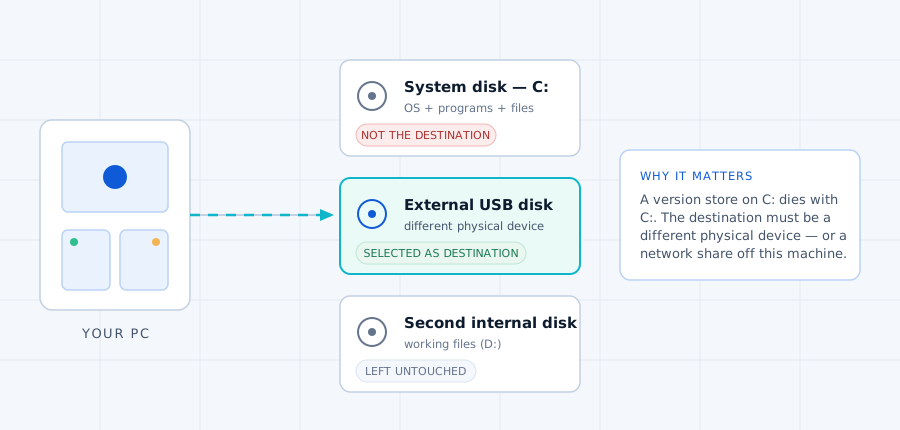
Two configuration decisions do most of the work. First, the destination: an external USB drive or a network folder (a NAS share works; the same internal disk does not — a version store on C: is destroyed along with everything else when C: fails). Second, retention, which controls how far back the version timeline reaches: the options run from one month up to keeping versions forever. "Forever" sounds safe but it is a storage decision as much as a safety one — an hour of snapshots every day for a year on a drive that holds video projects will fill any consumer disk, and when the destination fills, File History stops saving new versions rather than warning you loudly. The practical default for most people is a fixed window (six months to two years) sized so the drive cannot silently run out.
One version-sensitive detail trips up many setups: where you find the settings changed between Windows 10 and recent Windows 11 builds. On Windows 10 the entry point is Settings → Update & Security → Backup (or Control Panel → System and Security → File History). On newer Windows 11 releases, Settings → System → Backup opens a newer "Windows Backup" page centered on OneDrive, and the classic File History configuration lives in Control Panel under File History — or you can just search "File History" from the Start menu. Both paths configure the same underlying feature; the point is not to conclude the feature is missing because the familiar Settings page looks different.
-
Connect the destination drive and choose it. Plug in the external drive (or confirm the network share is reachable), then open File History settings. In the "Add a drive" list, select the drive you want to hold versions — not your system disk. If the drive you see listed is C:, stop: that is the one disk this feature must never be pointed at.
![Schematic of three drives in a Windows drive list: the system disk C, an external backup disk selected as the File History destination, and a second internal disk left untouched]()
Choosing the destination: the version store goes on a different physical disk — images/fh-destination-choice.svg - Confirm what is being watched. Review the included folders and add any location that holds irreplaceable files outside the libraries. Check the exclusions list too — a folder you added by mistake to "never back up" will run green while missing exactly the data you wanted covered.
- Set retention deliberately. Choose how long versions are kept so the window matches your real undo horizon (how far back you might need to go) and the drive's capacity. Note the choice in your backup record — it is a decision, not a default to forget.
- Verify it actually ran. After the first hour (or by triggering "Back up now"), open File History and confirm recent files appear with timestamps. A green status line is the job's claim; the visible version entries are its proof. If nothing appears, the destination was not connected when the schedule ran — the most common "failure" of all.
File History is not a sync service, and do not let it become one.
It copies files into its own store; it never writes back over your current files unless you explicitly restore. That asymmetry is the feature. If you pair it with a cloud sync folder (OneDrive, Dropbox), remember the sync side still propagates deletions — the version history is what catches what the sync lets through.
macOS layer — files and whole system in one backup
macOS Time Machine, in depth
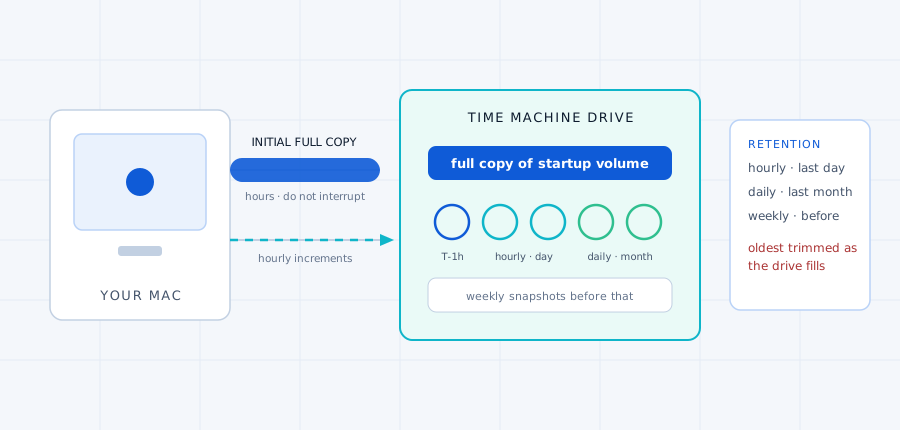
Time Machine is where the "version history" idea and the "full backup" idea meet: it keeps hourly snapshots of the startup volume, so you get both a rolling timeline of file versions and a complete copy of the disk from which the whole system can be rebuilt. The first run against an empty destination is a full copy of the startup volume — for a large disk this takes hours and should not be interrupted; subsequent runs are incremental, copying only what changed since the last snapshot. The retention pattern is fixed rather than configured: hourly snapshots for the last 24 hours, daily snapshots for the previous month, and weekly snapshots before that, with the oldest data trimmed automatically as the drive fills. That schedule gives a Mac user a long undo horizon by default — something File History only offers if you deliberately set its retention high.
Two macOS specifics shape how Time Machine behaves in practice. First, the destination must be formatted for macOS (APFS on modern systems) and connected while the Mac is powered on; a disconnected drive means no backups, full stop — there is no "it will catch up later" state. Second, local snapshots: when no external drive is attached, APFS keeps local snapshots of the startup volume between backup runs. These are useful for rolling back recent changes and for Time Machine's incremental mechanism, but they live on the same disk as the data — they are not a substitute for the external backup, because a failed startup disk takes its local snapshots with it. The macOS library on this site covers those local snapshots in depth from a storage angle.
Scope matters too: Time Machine backs up the startup volume by default, plus any volumes you explicitly add under "Back Up Other Disks." An internal second drive, or an external drive used for working files, is not included unless you tell it to — a common gap on machines that keep project data on a separate volume. When reviewing a Mac's backup, the question is not "is Time Machine on?" but "which volumes are in scope, and does the scope match where the irreplaceable files actually live?"
-
Prepare the destination. Connect an external drive with at least as much capacity as your startup disk (more is better — version history grows). If it holds other data, note that Time Machine will use a dedicated container on it; a fresh or wiped drive is the cleanest start.
![Conceptual diagram of a Mac connected to an external Time Machine drive: an initial full copy flows across, then hourly incremental snapshots stack up as version rings on the drive]()
How a Time Machine backup builds: one full copy, then hourly increments — images/tm-backup-flow.svg - Enable it and let the first run finish. In System Settings (or System Preferences on older macOS) under General → Time Machine, add the drive. The initial backup runs in the background — leave the Mac powered and connected until it completes, and check the Time Machine menu-bar icon afterward to confirm the latest backup timestamp is recent.
- Add any extra volumes deliberately. If important data lives on a second internal or external volume, add it with "Back Up Other Disks" — otherwise that volume is invisible to Time Machine and its files are unprotected by this layer.
- Do one test restore in the first week. Open Time Machine from the menu bar, find a file you know changed recently, and restore it. This proves the whole chain — destination readable, snapshots present, restore path working — while the backup is still fresh and the stakes are low.
Where a full Mac restore comes from. When the startup disk fails or macOS itself is broken, the supported route is to boot into macOS Recovery (hold the power button through startup on Apple Silicon Macs; Command-R works on many Intel models), reinstall macOS, and choose "Restore from Time Machine Backup" during setup. That is a full-system operation — it replaces the contents of the startup volume — so it belongs in section 09's restore procedures, not in casual use.
The outer layer — whole-machine recovery
Full system images: what they capture, and when to use them
A system image captures an entire disk — every sector that makes up the operating system, installed programs, user settings and files — into a single archive. Restoring it does not copy files back one by one; it rewrites the target disk so the machine boots into exactly the state the image recorded. That makes it the only layer in this guide that answers "the OS will not start at all": after a failed update, corrupted system files, a dead boot drive, or a ransomware event where you choose to rebuild rather than negotiate, an image (plus the recovery media that applies it) is what puts a working machine back together without reinstalling and reconfiguring everything by hand.
On Windows, the situation deserves an honest status note. The operating system still ships with image creation and restore capability — in Windows 10 and 11 you can create a system image through the legacy "Backup and Restore (Windows 7)" Control Panel applet, and the same generation of tooling restores it from Windows Recovery Environment ("System Image Recovery"). Microsoft no longer promotes that path in its current backup guidance, and the tooling has not changed much in years, so before relying on any specific built-in or third-party imaging route, check that it is present and supported on your exact Windows version. Many users therefore create images with a third-party imager instead; whichever path you pick, the requirements are the same: a destination with enough free space, recovery media that actually boots your machine, and a verification step before you trust the image in an emergency.
On macOS, Time Machine already fills this role — its backup is complete enough to rebuild the startup volume, so most Mac users do not run a separate imaging tool. A niche alternative exists (Disk Utility can write disk images of volumes), but it is aimed at different jobs and does not replace the Recovery-based restore flow described in section 04. The practical consequence: "do I need a system image?" has a different answer per OS — on Windows it is usually yes as a scheduled task; on a Mac it is already covered, provided the Time Machine backup is current and its scope is right.
Three limitations apply to every image, on every platform. First, an image is a point in time: files created after the image was taken are not in it, which is why an image strategy keeps several images over time (a monthly cadence is a common starting point) rather than one. Second, images age against hardware: restoring onto a very different disk or machine can fail where a file-by-file migration would succeed — plan the image for the machine it protects. Third, restoring an image overwrites its target completely, which is why section 09's restore procedure starts with verifying the destination disk and ends with confirming nothing of value was on it.
Decision 4 — where the copies live
Where backups should live: drives, network and cloud
The destination choice is a reliability decision before it is a convenience one. An external USB drive is the natural first destination for version history and images: fast, cheap per terabyte, fully under your control — and exactly as vulnerable as the room it sits in. A drive on the same desk as the PC shares its fire, theft, flood and power-surge fate, so a desk-bound drive is layer one of protection, not the last word. Network storage (a NAS at home or a server) adds availability — backups can run while you are away, and several machines can share the destination — but it introduces its own failure modes: the box needs power, maintenance and its own updates, and a network-attached drive is reachable by anything on that network, which matters in a malware scenario. Cloud services move the copy off-site entirely (the strongest single property a destination can have) at the cost of capacity limits, upload bandwidth for large first backups, and a dependence on the service's retention rules and account security.
The organizing principle is that no two copies should share a single point of failure. Three copies on one desk are statistically one copy. A workable minimum for irreplaceable data is therefore: daily versions on a local drive (fast undo), plus at least one copy that cannot be reached by the same event — a NAS in another part of the house, a cloud service, or a second drive you physically disconnect after its weekly refresh. That last option, the disconnected drive, is the cheapest isolation there is: a threat that moves over a network cannot touch a disk that is not connected, which is why it earns a place in the ransomware discussion in section 11.
Capacity deserves a real estimate rather than a guess, because versioned backups grow quietly for months before they fail. The rough model: the destination must hold the full size of what you back up (first copy), plus the accumulation of changes across your retention window. A working example for a typical creative workstation:
Source data to protect:        480 GB  (libraries + project folders)
First full copy:                480 GB
Change rate:                    ~6 GB/day of new/changed files
Retention window:               90 days of versions
Version accumulation:           6 GB x 90 = 540 GB  (before deduplication)
System image allowance:         ~350 GB per image, keep 2  = 700 GB
---------------------------------------------------------------
Raw total:                      ~1.7 TB
Headroom for growth (25%):      +425 GB
Choose a destination of:        2 TB minimum  (3–4 TB if video-heavy)
Version stores compress and deduplicate to some degree, so real usage often lands below the raw total — but plan for the raw number. A destination that fills up stops accepting new versions; a full backup drive is a silent gap in your protection.
Decision 3 — the strategy itself
Building your backup plan, data class by data class
A backup plan is not a product choice; it is a set of decisions made per class of data. Sort what you have into three classes: active work (documents, projects and photos you edit daily — these need frequent versions because the cost of losing an hour of work is high), stable archives (finished projects, old tax years, photo libraries that rarely change — these need a copy more than they need versions), and the machine itself (OS, programs, settings — this needs the image or full-backup layer). Each class then gets its own answer to four questions: which method covers it, where the copy lives, how often it refreshes, and what proof exists that it restores. The table below is a template with realistic defaults filled in; adjust the frequency column to match your change rate, not the other way around.
| Data class | Protection method | Destination | Refresh | Restoration check |
|---|---|---|---|---|
| Active work — documents, projects, current photos | Version history (File History / Time Machine) | External drive, different from system disk | Hourly, automatic while connected | Restore one recent file to a test folder; confirm it opens and matches |
| Stable archives — finished projects, old records, photo library | Independent copy (second drive, NAS or cloud) | Off-site or offline copy in addition to local | Weekly refresh is usually enough | Spot-check a few archived files from the copy; confirm sizes and that they open |
| The machine itself — OS, programs, settings | System image (Windows) / full Time Machine backup (macOS) | External drive with recovery media stored separately | Monthly image; continuous for Time Machine | Boot the recovery media; confirm the image is listed and readable — a full apply only when needed |
| Credentials & recovery info — passwords, 2FA backup codes, license keys, BitLocker/FileVault key | Written or offline-digital copy (not just "in the cloud account") | Password manager export stored offline, plus a paper copy for the most critical items | After any change to accounts or encryption | Confirm you can actually locate each item — a key you cannot find is a data-loss event waiting to happen |
Frequency follows from how fast the class changes, expressed as the amount of work you can accept losing: if you edit documents all day, hourly versions cap your loss at an hour; if a project folder changes weekly, a weekly copy caps it at a week. Retention follows from how far back mistakes and corruption get discovered — version windows of months cover "I overwrote the good file last month," while keeping several monthly images covers "the update that broke Windows happened six weeks ago." The two settings are independent: short retention with frequent refreshes loses less recent work but reaches further into the past only if you keep more generations, and long retention with rare refreshes is the worst of both. For a Windows-specific deep dive into planning data classes, destinations and the 3-2-1 organizing principle, the Windows backup and recovery plan tutorial in this site's Windows library goes further.
The planner below applies these decisions to your situation. Answer the three questions and it returns a starting configuration — which layer leads, what to add, and where in this guide to go next.
Which backup approach fits your situation?
Three questions; the recommendation updates as you answer. Click an active choice again to clear it.
Hands-on — the three setup jobs
Representative tasks: backing up on Windows and macOS
The sections above explain what each method does; this section is the work itself, condensed to the steps that matter. The procedures are representative — menu names shift between OS versions, so treat the described locations as starting points and follow your own screen where it differs slightly. What must not shift is the order: destination before scope, scope before retention, and verification before you walk away.
Task A — Turn on File History (Windows)
- Open File History settings — search "File History" from the Start menu, or go via Control Panel → System and Security → File History (on Windows 10 also: Settings → Update & Security → Backup).
- Turn it on and select the destination drive — an external USB drive or a network share. Never the system disk.
- Add folders beyond the libraries that hold irreplaceable data, and review the exclusion list for anything you did not mean to exclude.
- Set the retention window under "More options" so it matches your undo horizon and the drive's capacity.
- Run "Back up now" and confirm recent files appear in the version history with timestamps. That visible confirmation — not the status line — is the acceptance test.
Task B — Set up Time Machine (macOS)
- Connect a destination drive sized for your startup disk plus growth; format it for macOS if the system asks.
- Add the drive in System Settings → General → Time Machine (System Preferences on older macOS) and let the initial full backup complete without interruption.
- Add any extra volumes that hold important data, using "Back Up Other Disks" — they are not included by default.
- Check the menu-bar icon after the first day: the latest backup timestamp should advance hourly while the drive is connected.
- Restore one test file in the first week to prove the restore path works while everything is fresh (section 09, procedure B).
Task C — Create a system image (Windows)
Before starting: confirm your chosen imaging route exists on your exact Windows version (the built-in legacy applet described in section 05, or a third-party imager you have verified). The steps below follow the built-in path; a third-party tool differs in menus but not in the safety rules.
- Prepare the destination — an external drive with free space exceeding the used size of the disk(s) being imaged. Note exactly which disk it is, by model and capacity, before anything else.
- Select the disks to include — typically the system partition plus any recovery partitions your vendor created. Excluding a required partition produces an image that will not boot, which you would only discover when you need it most.
- Create the image and record its details — where the file lives, which disks it covers, and the date. Write these into your backup record; "the image is on the big drive" is not a location.
- Create or verify recovery media — a USB drive that boots Windows Recovery Environment, so the image can be applied even when Windows itself will not start. Test that the media actually boots (a reboot into it is enough; you do not need to restore anything yet).
Image creation is safe; image restore is not — know the difference before you proceed.
Creating an image only reads your disks and writes to the destination, so it cannot damage the source. Restoring an image does the opposite: it replaces the entire contents of its target disk, erasing everything currently on it — files, system and all. Every restore procedure in section 09 therefore begins by naming the target drive out loud (model, capacity, contents) and confirming nothing of value is on it. If you are restoring to a replacement drive, verify that replacement is the one selected, not the disk holding your last good data.
The other half of the word "backup"
Restoring in practice: files, versions and whole systems
A backup is a promise, and restoring is where the promise is either kept or broken. The three restore operations differ in scale and risk: pulling one file back from version history is routine and safe (it writes to a test location of your choosing); pulling an older version over a current file is still safe if you let the tool ask what to do about conflicts; restoring a whole system is destructive by design and deserves the full caution it gets below. The scenario table maps common failures to their correct starting point — several popular "fixes" for these scenarios start from the wrong layer, and working from the table keeps you on the right one.
| Scenario | Layer that answers it | First step |
|---|---|---|
| You deleted a file or overwrote a good version (last hours to weeks) | Version history — File History / Time Machine | Open the version browser for that folder and pick the last known-good timestamp; restore to a test location first if the current version is also needed |
| A file was corrupted by a bad save or app glitch (older than the version window) | Independent copy — NAS, cloud or second drive | Check whether the archive copy predates the corruption; if not, the file may be gone unless another older source exists |
| The startup disk failed and files are still needed (OS irrelevant) | Any readable copy — version store, archive copy, or the dead disk itself via a reader enclosure | Extract the specific files you need first; do not attempt to "fix" the failing disk before its data is out |
| Windows will not boot (failed update, corruption, ransomware) | System image + recovery media (Windows); full Time Machine restore via macOS Recovery (macOS) | Boot the recovery environment, confirm the image/backup is visible and readable, then follow the restore procedure with target-disk verification |
| You are replacing the computer entirely | File migration from copies + fresh install (usually) rather than an image | Inventory what must move (files, settings, account credentials), transfer from verified backups, and reinstall software from its original sources |
| Ransomware encrypted the machine's files | Isolated or pre-infection copies — never a drive that was connected during the incident without checking it first | Disconnect the affected machine and any backup drives from the network; determine which copies predate the infection; restore only from confirmed-clean sources (section 11) |
Procedure A — Restore a file or an older version (Windows, File History)
- Open the File History restore view — from File History settings ("Restore personal files") or by right-clicking a file/folder in Explorer and choosing "Restore previous versions" for shadow-copy-based recovery.
- Navigate to the folder and use the timeline to step back to before the loss. You are looking at read-only snapshots: nothing is changed until you press restore.
- Choose where the restored copy goes. Restoring "to original location" overwrites the current file — fine when the current one is exactly what you want replaced, dangerous when it is not. When in doubt, restore to a separate folder, compare, and move things deliberately.
- Verify the restored file opens and contains what you expect before deleting anything or closing the tool. A restored file that will not open has not been restored — it has only been copied.
Procedure B — Restore from Time Machine (macOS)
- For a single file: open the folder in Finder, enter Time Machine from the menu bar, and step back through snapshots until the version you want appears. The "Back" button restores that item to its original location (or an alternative if the current one is still there); a plain drag out of the browser also works for individual items.
- For the whole Mac: this is a Recovery operation, not a Finder operation — boot into macOS Recovery, reinstall macOS, and choose "Restore from Time Machine Backup" during setup. Select the backup disk and the snapshot to restore. This replaces the startup volume's contents; confirm you have selected the intended destination before committing.
- Verify after either path: open the restored file (or, for a full restore, boot into the restored system and check that accounts, apps and files are present) before declaring the recovery complete.
Procedure C — Restore a Windows system image
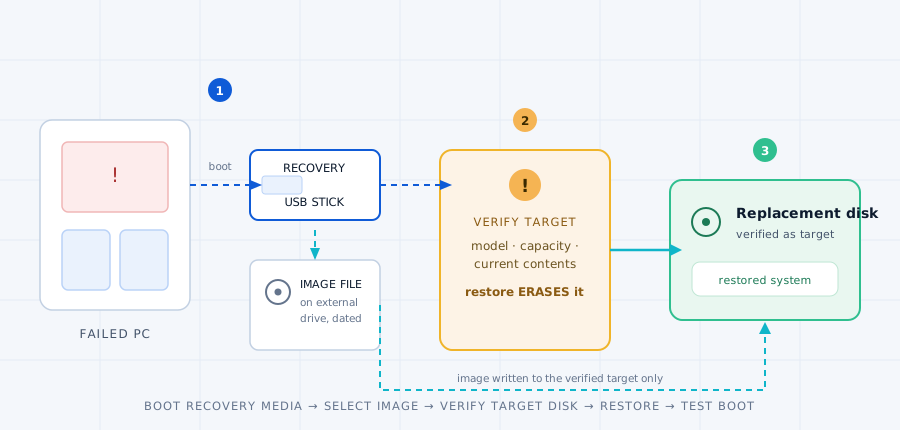
- Boot from recovery media (the USB created in Task C) into Windows Recovery Environment, then choose the system image restore option. If the machine's own drive is still readable and you are restoring to a replacement disk, connect the replacement and confirm both disks are visible before proceeding.
- Select the image by its recorded details (date, source disk) — not by "the one that looks right" if several exist. An older image is sometimes deliberately the correct choice (pre-update state); knowing which is which is why Task C step 3 exists.
- Verify the target disk before confirming. The restore will erase and reformat whatever disk it targets. Name it out loud: model, capacity, current contents. If there is any chance the selected target holds data you still need, stop and move that data first — this is the step that separates a recovery from a second disaster.
![Recovery path diagram: a failed computer boots from a USB recovery stick, reads a system image file stored on an external drive, and writes it to a verified replacement disk; a warning marker sits at the target-selection step]()
The restore path — and where the target-disk check happens — images/image-restore-path.svg - Let the restore finish, then test boot. The machine reboots into the restored system; confirm it reaches a normal desktop, that your accounts work, and that recent files (anything newer than the image) are still reachable from their other copies — the image is a point in time, not a guarantee about what happened since.
The step that separates "I have backups" from "my backups work"
Proving a backup works: verification and restore tests
The most dangerous state a backup can be in is quietly wrong. A backup job that reports success has proven only that it copied bytes to a destination — not that the copies are complete (scope drift: your folder list no longer matches where your data actually lives), not that they are readable (silent write errors and degrading drives produce "successful" backups that fail at restore time), and not that the recovery path works end to end. The failure mode is asymmetric: every one of these problems stays invisible until the day you need the backup, which is exactly the day when discovering it costs the most. Verification exists to move that discovery forward, while the stakes are still low.
The practical test for file-level backups is a sample restore, and it should be deliberately unglamorous: pick three files of different ages from different locations — a recent document, a photo from months ago, and a file from an app-specific folder you added to the scope — and restore each to a test location, not over the originals. Confirm they open correctly and match what you expect (size for a quick check; content for anything important). This five-minute exercise exercises the whole chain: destination readable, snapshots present, scope correct, restore path working. Repeat it on a schedule (quarterly is a sensible default), and always immediately after any backup failure is fixed — a fix is not real until a restore proves it.
System images need a different proof, because their whole value is the boot path. The minimum viable image test has two parts: boot the recovery media on your machine (a restart into it is enough) to confirm the environment starts and can see the destination drive, and confirm the image is listed and readable from within that environment — you do not need to apply a full restore just to verify, and applying one casually would be the destructive operation this guide has spent two sections warning about. If your imaging tool offers an image verification or integrity check, run it on schedule as well; it catches silent corruption without touching any disk. Document every test — date, what was tested, result — so that "the backup was verified" is a statement with evidence behind it, not a feeling.
BACKUP RESTORE TEST
Date:                    Machine / backup ID:
Backup layer tested:     [ version history | archive copy | system image ]
Files sampled (name, age, location):
  1.
  2.
  3.
Restored to test location:    Opened correctly (yes/no each):
Image check (if applicable):  recovery media boots: yes/no · image visible & readable: yes/no
Result:                    [ PASS | FAIL — what failed ]
Next scheduled test:
Keep the log with your backup record. A failed test is not a scare — it is the test doing its job, months before you needed it.
When the scenario finally happens
Recovering from real incidents, safely
Accidental deletion or a bad overwrite is the everyday case, and the version window is your friend: the faster you act, the more options remain. Restore to a test location first whenever the current version might also matter — comparing side by side takes seconds and prevents the classic double-loss of overwriting the only remaining copy while trying to recover it. If the loss is older than the version window, go straight to the archive copies (section 09's table) and stop looking in places that cannot possibly hold it.
A failing or dead drive changes the rules: the disk's remaining readability is a shrinking asset, so the first move is always extraction, not repair. If the drive still reads — even slowly or intermittently — copy what matters, in order of importance, to a different drive before doing anything else. If it shows physical symptoms (clicking, not spinning, disappearing under load), power it down and stop: repeated power cycles and write-based "repair" tools shrink the window of what is recoverable, and at that point the decision is between preservation as-is and professional recovery, which the hard drive detection guide on this site covers in depth. Whatever you decide, do not run any tool that starts by formatting or initializing a disk that still holds data you need.
Operating-system corruption — a failed update, boot loops, system files that no longer load — is the scenario the outer layer exists for. The order is fixed: confirm you have a current image (Windows) or complete Time Machine backup (macOS), boot the recovery environment, verify the target disk as described in section 09, and restore. What this scenario punishes most is the gap between "I made an image in March" and "the update that broke Windows happened in September" — files created in between are not in the image, which is exactly why the plan keeps file-level copies current alongside the monthly image.
Malware and ransomware deserve their own discipline because the threat model is different: the attacker has already been inside your machine and may have reached anything it could touch. Three rules follow from that. First, isolate before you investigate — disconnect the affected machine from the network, and leave backup drives disconnected while you assess. Second, treat every connected backup as suspect until checked: a drive that was attached during the infection window may be encrypted or deleted just like your files; verify which copies predate the incident before restoring from any of them, and prefer the oldest confirmed-clean copy over the newest one. Third, restore into a clean state — rebuild or reinstall where possible rather than "restoring over" an infected system, change credentials from a known-clean device, and only then reconnect backups. Paying a ransom is not a recovery strategy this guide will endorse: it does not guarantee the files come back, and it guarantees the payment leaves.
Do not reconnect a backup drive to an unclean machine "just to check."
Checking is exactly the moment a still-active threat reaches the copy. Inspect from a clean environment (another machine, or the affected one after it has been rebuilt), and make the connection decision deliberately: which copies predate the incident, what state they are in, and whether restoring from them is safe. The isolated, disconnected copy exists precisely so that this decision can be made with at least one option that no network-based threat could have touched.
Prevention — the failures that look like protection
Common mistakes that make backups worthless
The mistakes below share a trait: each one feels like protection while it is actually a gap. Mistaking sync for backup is the most expensive — a cloud folder that mirrors your files (including deletions) is one bad click from "lost everywhere," and the version windows those services keep are short by design. Never testing a restore converts every backup into an assumption; silent corruption, scope drift and degrading drives all announce themselves only at restore time. Keeping every copy reachable at once — one desk-bound drive, one always-on NAS share — means one fire, theft or ransomware event can take the original and every "backup" in a single stroke.
The remaining patterns are quieter. Incomplete coverage: backing up Documents while the irreplaceable data actually lives in Downloads, camera exports and app folders — the backup runs green and misses the files you created this year. Retention set to the wrong horizon: a one-month window when last month's overwrite is the thing you need, or "keep forever" on a drive that fills up and silently stops saving. Recovery media that has never booted: an image is only as good as the stick that applies it, and sticks fail, get reformatted, or turn out to be incompatible with the machine in the moment that matters. None of these requires carelessness to create; all of them require a periodic check to catch, which is what the monthly routine (and the checklist below) is for.
| Observed symptom | Most likely cause area | Safe first step |
|---|---|---|
| Backup has not run in days, no error shown | Destination was not connected when the schedule ran (the most common "failure" of all) | Check the tool's own history log for last-run status; confirm the drive is connected and recognized before re-running |
| "Backup complete" but a specific file is missing from versions | Scope drift — the folder list no longer matches where the data lives, or the file is excluded | Compare the configured folders/exclusions against where that file actually is; add the location and re-run |
| Backup drive filling up faster than expected | Version accumulation — retention window × change rate exceeds the estimate | Review retention settings and the capacity estimate from section 06; trim the window or add capacity rather than deleting individual versions by hand |
| Restore fails with a read error on one file | Corruption in the copy (silent write error) or drive degradation on the backup disk itself | Check the backup drive's health (vendor utility / event log); restore the same file from another copy if one exists; do not keep using a degrading backup drive for new backups |
| Time Machine shows an old last-backup time | Drive disconnected, Mac asleep, or destination full | Check the Time Machine activity log in settings for the specific interruption reason; confirm drive connection and free space before expecting catch-up |
| System image restore cannot find the image | Recovery media booted but destination not visible — wrong USB port, unpowered hub, or image on a volume the recovery environment does not read | From the recovery environment, list connected disks and confirm the destination is present; try a different port/cable before concluding the image is lost |
| Restored files are older than expected | Wrong snapshot selected — the timeline was stepped too far back, or an old image was chosen over a newer one | Re-check the timestamp of the selected version/image against your record of when the problem started; select the latest snapshot that predates it |
The full learning path
The backup collection: 25 tutorials, from concepts to incidents
This pillar is tutorial 1 of a planned 25-tutorial collection. Tutorials 2–25 expand each layer and scenario above into its own guide — one per method, failure pattern or recovery procedure. Search the index below or filter by category and difficulty; entries marked "Planned" will be published with their individual pages and are listed here so the full path is visible from day one.
No tutorials match that search. Try a shorter term — or .
Work through it
Your backup-and-recovery checklist
The whole strategy as tickable items — the checks that separate a working plan from a hopeful one. Ticks are saved in this browser only; nothing about your machine is sent anywhere.