Server · Storage
RAID controllers: HBA vs RAID card, hardware RAID, software RAID, and which to choose
Every server storage decision eventually comes down to one question: who is responsible for the disks — a dedicated controller card, the operating system, or both? The answer determines what the OS can see, where RAID processing happens, how cache and protection behave, what a rebuild looks like, and how much freedom you keep when you need to move or recover data. This tutorial walks through the whole decision: the components, the RAID levels, the performance and capacity math, the installation and configuration paths, and the failure scenarios — ending with a framework you can apply to your own workload.
Two rules frame everything below. First, "HBA" and "RAID card" describe what a controller presents to the operating system, not a fixed hardware type — the same physical card can often run in either role, and some cards can only do one. Second, no RAID configuration is a backup: every level on this page protects against specific hardware failures only, and the decision guide treats independent backups as a separate, non-negotiable layer. Where behavior depends on a specific controller model, firmware, or operating system, the tutorial says so explicitly instead of pretending there is one universal answer.
What this tutorial covers
Showing 30 of 30 tutorials
No tutorials match. Try a shorter search term, or clear the search and category filter to see all 30 tutorials.
Storage fundamentals
What the pieces are, and where the work happens
Understanding RAID controllers
A RAID controller is the component that sits between the operating system and the physical disks. Physically it is a PCIe card (or, on many servers, a chip on the motherboard) that provides storage ports — SAS, SATA, or NVMe — and exposes them to the host. But the card alone is only plumbing. What makes it a "RAID controller" is the firmware on the card: the code that decides whether the OS sees four separate disks or one assembled volume, where parity or mirror copies get written, and what happens when a member fails. When people argue "RAID card or HBA," they are almost always arguing about what that firmware is allowed to do, not about the plastic and the ports.
That split — connectivity versus storage management — is the lens for the entire tutorial. The same physical card can frequently be flashed or configured to behave two different ways: pass every disk straight through to the OS, or assemble disks into logical volumes itself. The consequences run through everything downstream: monitoring tools, rebuild behavior, what happens when the card dies, and how much freedom the OS has over the disks. If you keep "who is managing these disks?" as the question, every later section becomes a specific answer to it.
One more distinction prevents a common category error: "RAID controller" describes a role, not a product family. A card in pass-through mode, a motherboard SATA port with the OS's own RAID driver, and a dedicated card with a cache module are all "storage controllers" in the broad sense — they differ in where the intelligence lives and how much of it the OS can see. The next two tutorials define the two endpoints of that spectrum precisely.
The storage stack — host, controller, and drives
Layered diagram showing host OS, PCIe, controller firmware, storage bus, and physical drives, with each layer's responsibilities labeled. Set data-src on the <img> to replace this panel.
What is an HBA?
An HBA — Host Bus Adapter — is a storage controller that presents each physical disk to the operating system individually, one-to-one. In the OS disk inventory you see four disks; the HBA has added four ports and a path, and has made no other decisions. It does not build volumes, calculate parity, or hide failed members. All storage organization — mirroring, striping, parity, anything — is the operating system's job, done by its own software: mdadm on Linux, Storage Spaces on Windows, ZFS or UFS on the others. The HBA is, in storage terms, a very well-behaved bridge.
Why prefer that direct visibility? Because the OS becomes the source of truth. Tools that want to read SMART data, manage spare drives, or rebuild an array can do so with full information, because they can see the members. This is why ZFS-based systems, software-defined storage platforms, and most serious home-lab NAS builds start by buying an HBA (or an HBA-mode card): those systems are designed to manage disks themselves, and a controller that hides them in a logical volume works against them. It is also why a failed HBA is dramatically less catastrophic than a failed RAID card — swap in any compatible HBA and the OS simply sees the same disks again, because the OS was always holding the configuration.
Two caveats keep this from being a free lunch. First, "HBA" describes a mode as much as a product: some cards are HBA-only, some are RAID-only, and many are both — the correct statement about any specific card is which mode it ships in and which modes its vendor supports. Second, not all HBAs are equal for server work: a cheap SATA port multiplier is not the same as a SAS HBA with expander support for a 12-drive backplane. Tutorial 11 covers that selection in detail; for now, the working definition is: an HBA exposes disks; a RAID card exposes volumes.
An HBA exposing four physical disks to the operating system
Diagram or photo: HBA installed in a server, with the OS disk-management view beside it showing four individual disks — not a volume. Set data-src on the <img> to replace this panel.
What is a hardware RAID card?
A hardware RAID card is a storage controller whose firmware assembles physical disks into virtual disks (volumes) before the operating system ever sees them. The OS sees one device — "RAID 5, 24 TB, optimal" — and has no direct view of the member disks: it cannot read their SMART data, cannot see a degraded member by name, and cannot rebuild anything itself. All of that is inside the card: its firmware tracks which disks are members of which volume, computes and places parity or mirror writes, queues I/O through its cache, and executes rebuilds when a member fails. Management happens through the card's own tools — a BIOS/UEFI configuration screen, vendor management software, or a command-line utility — not through the OS.
The cache is the feature that distinguishes a hardware RAID card from an HBA in performance terms, and it needs its own careful treatment. A hardware card typically offers read cache and, more importantly, write-back cache: writes are acknowledged to the OS as soon as they land in the card's memory, then flushed to the disks in the background. That can transform random-write performance — but it is only safe if the cache is protected (battery, capacitor bank, or flash) against power loss, and the protection behavior varies by model and by configuration. Tutorial 16 covers that in full; the key point here is that cache is a capability of the hardware path, with real risk attached to its configuration.
The trade-off is symmetry: everything the card does for you, it also does to you. The OS's blindness to the members is a convenience in normal operation and a constraint in failure — recovery from a dead or dying RAID card is a controller-specific procedure (importing a "foreign configuration" onto a replacement), not a generic one. Supported RAID levels, cache modes, and rebuild behavior all depend on the specific card and firmware. That dependency is the core of the hardware-versus-software comparison in the next two tutorials.
Hardware RAID controller with cache module in a server slot
Photo of a hardware RAID controller with its cache/battery (BBU or flash) module installed, PCIe bracket visible. Set data-src on the <img> to replace this panel.
HBA vs RAID card: the core differences
The two cards differ on exactly one axis — who organizes storage — and every practical difference follows from that axis. An HBA exposes physical disks; a RAID card exposes logical volumes. Therefore: monitoring is an OS job with an HBA and a card job with a RAID card; configuration lives in the OS with an HBA and in the card's firmware (plus its management tools) with a RAID card; and when the card itself fails, an HBA's replacement is nearly trivial while a RAID card's replacement is a recovery procedure. Cost and complexity track the same way: the HBA shifts work onto the OS (which you then operate), and the RAID card shifts work onto the card (which you then depend on).
They are not automatically interchangeable, and that is the sentence most short answers get wrong. A hardware RAID card configured to IT mode is, for most purposes, an HBA — which is why "buy a RAID card and flash it to IT mode" is a standard ZFS recipe. The reverse does not hold: an HBA has no RAID firmware to enable, no cache to configure, and no ability to build volumes. So the safe purchase is the card that can do both roles (if your platform supports the mode switch — verify per model, tutorial 13), or the specific card your intended architecture actually needs. Buying a RAID-only card for a ZFS box, or an HBA-only card for a workflow that expects boot-from-RAID, are both dead ends.
| Dimension | HBA (IT mode) | Hardware RAID card | Software RAID (no special card) |
|---|---|---|---|
| Storage management happens in | Operating system | Controller firmware | Operating system |
| What the OS sees | Each physical disk | Logical volumes only | Each physical disk + assembled array |
| Controller dependency | Low — any compatible HBA works | High — model/firmware-specific | None beyond the host's I/O ports |
| Write-back cache | No (disk/OS-level only) | Yes — if equipped & protected | No (OS writeback cache only) |
| Configuration lives in | OS (ZFS pool, mdadm, Spaces…) | Card firmware + vendor tools | OS (mdadm.conf, Spaces, ZFS…) |
| Moving disks to another machine | Easy — config travels with OS/filesystem | Hard — needs same/similar controller + import | Easy — config is in the OS |
| Per-disk monitoring (SMART, spares) | Full, from the OS | Only via vendor tools | Full, from the OS |
| Typical cost | Low–medium | Medium–high | Lowest (uses existing ports) |
| Typical use | ZFS, software-defined, OS-managed RAID, VM disk passthrough | Enterprise servers, boot volumes, iSCSI, platforms expecting hardware RAID | Small servers, VMs, budget builds |
Read Table A as a set of consequences, not a ranking: each column is a good match for a different operating model. The next tutorial takes the middle two columns apart in detail, because "hardware RAID" and "software RAID" get compared more often than "HBA" vs "RAID card" — and the comparison is subtly different, since an HBA + OS RAID is software RAID running on nicer plumbing.
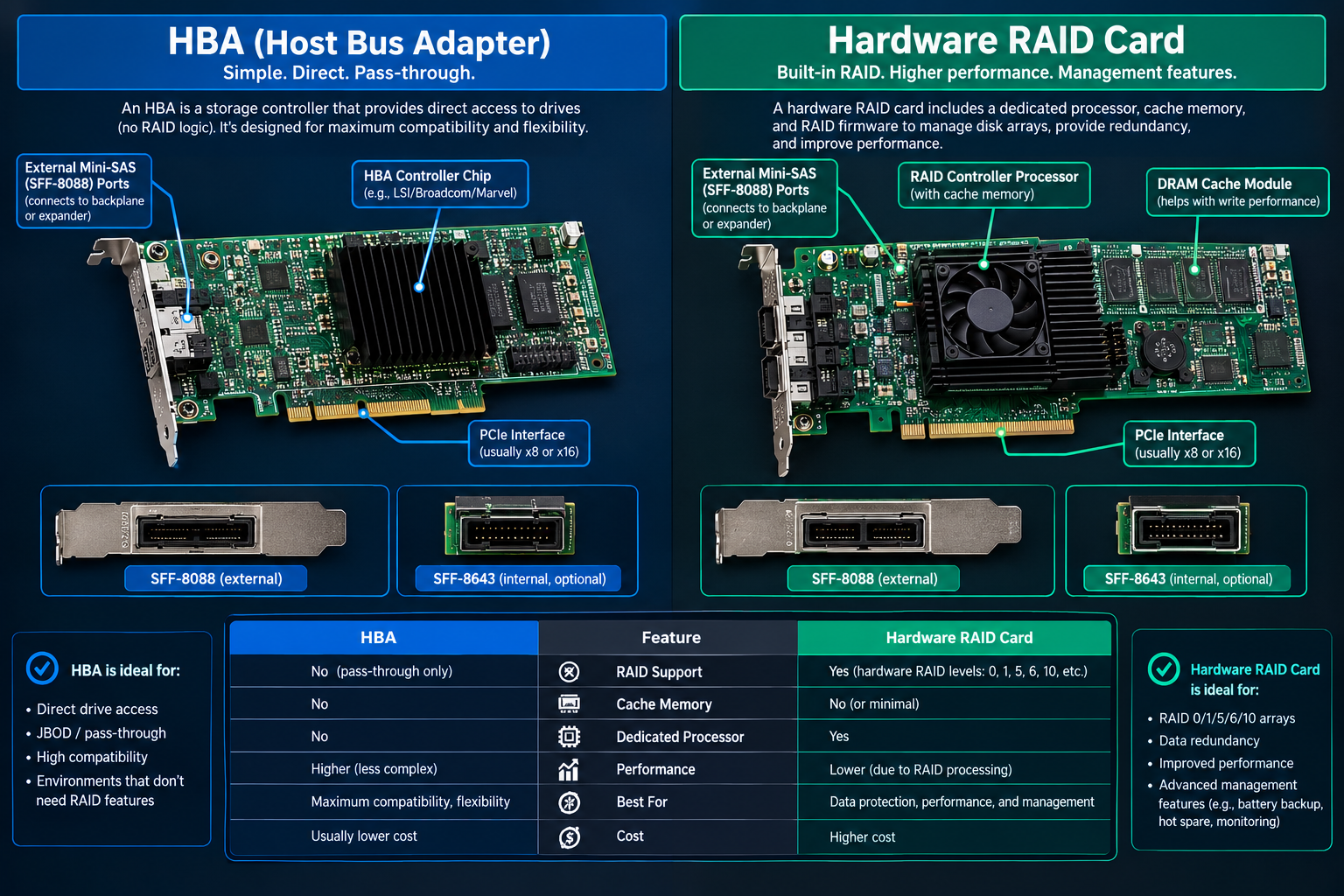
HBA vs hardware RAID card — physical controller comparison
Side-by-side photo of an IT-mode HBA and a hardware RAID controller with write-back cache module, differences circled (cache module, ports, brackets). Set data-src on the <img> to replace this panel.
Hardware RAID vs software RAID
Strip the marketing away and the difference is one sentence: hardware RAID performs striping, parity, and rebuilding in the controller's firmware and CPU; software RAID performs the same mathematics on the host CPU, using whatever disks the OS can see. The rest is consequences. Software RAID's configuration lives in the OS (mdadm metadata on Linux, Storage Spaces metadata on Windows, pool metadata in ZFS), so the array survives controller replacement trivially — any working storage port can see the disks and the OS reassembles the array from its own records. Hardware RAID's configuration lives in the card, so the array's fate is tied to that card and its vendor's tooling when things go wrong.
On CPU usage, the old argument is mostly settled in the software RAID's favor for normal work: parity math is cheap on a modern multi-core CPU, and the OS can schedule it sensibly. Where hardware RAID still earns its place is not raw parity speed but protected write-back cache, offloading of specific server I/O patterns, and integration with platforms that expect controller-managed volumes — hypervisors that present a single boot volume, iSCSI targets, legacy applications. Conversely, software RAID has no lock-in: the same array can move to another machine with the same OS and the same disks, which hardware RAID generally cannot match without an identical (or vendor-blessed equivalent) controller.
So the honest framing is: hardware RAID buys convenience, cache, and platform integration at the price of dependency; software RAID buys transparency, portability, and freedom at the price of doing the operating yourself. Table C summarizes the trade-offs, and the selection tutorials (11–12) map them onto real environments — because the right answer is an operating-model question, not a performance one.
| Dimension | Hardware RAID | Software RAID |
|---|---|---|
| CPU involvement | Minimal — firmware handles striping/parity | Host CPU does the work (usually negligible on modern CPUs) |
| Cache handling | Dedicated cache, write-back possible if protected by BBU/capacitor/flash | OS page cache only; no dedicated protected write cache |
| Management | Vendor BIOS/UEFI, GUI, and CLI — separate from the OS | OS tools (mdadm, Storage Spaces, ZFS) — one toolset for everything |
| Migrating to another machine | Usually requires the same controller model/family + configuration import | Move the disks and the OS metadata; any working ports suffice |
| Controller/card failure | Foreign-configuration import; vendor-specific; battery/flash may matter | Not applicable — no dedicated card to fail (motherboard ports only) |
| OS dependency | Low for the array, but recovery tooling is vendor-specific | The array is an OS feature; same OS (or compatible tools) required |
| Per-disk visibility | Through vendor tools only | Full — SMART, spares, per-member state in the OS |
| Maintenance skill | Vendor tooling; less OS storage knowledge needed | OS storage knowledge (mdadm/ZFS/Spaces); more flexibility in return |
Hardware RAID vs software RAID — where the processing happens
Two-panel diagram: RAID engine on the controller card (left) vs RAID engine in the OS on the host CPU (right), with the same four drives on both sides. Set data-src on the <img> to replace this panel.
RAID levels & storage behavior
How the data is actually laid out
RAID 0, 1, 5, 6, and 10 explained
Every RAID level is a choice about how many copies and how much redundancy-math to keep per piece of data. Striping (RAID 0) splits data across disks for speed and keeps no redundancy. Mirroring (RAID 1) keeps a complete second copy and survives any single disk. Parity levels (RAID 5, 6) keep distributed mathematical checksums — one disk's worth in RAID 5, two in RAID 6 — that let the array reconstruct the contents of a failed member. RAID 10 composes the two ideas: mirrors first, then stripes across the mirrors, buying mirror-level safety with stripe-level speed. The minimum disk counts follow directly: 2 (RAID 0 and 1), 3 (RAID 5), 4 (RAID 6 and 10).
Usable capacity is the second axis, and it is always arithmetic before it is opinion: RAID 0 gives N × disk size; RAID 1 gives one member's worth per mirror pair; RAID 5 gives (N−1) × disk size; RAID 6 gives (N−2) × disk size; RAID 10 gives (N/2) × disk size — before filesystem overhead, which Tutorial 20 quantifies. Fault tolerance is the third axis, and it is where the levels separate most cleanly: RAID 0 survives no failure; RAID 1 and 10 survive one disk per mirror; RAID 5 survives exactly one; RAID 6 survives two. Table B puts the three axes together; the following four tutorials examine each level's behavior in the situations that matter.
| Level | Minimum disks | Usable capacity | Fault tolerance | Rebuild exposure | Representative workloads |
|---|---|---|---|---|---|
| RAID 0 | 2 | N × size | None — any single disk loss destroys the array | N/A — there is nothing to rebuild onto | Scratch space, render caches, temp, throwaway VMs |
| RAID 1 | 2 | 1 × size per mirror pair | Any one disk per mirror | Low — rebuild is a straight copy of the survivor | Boot volumes, small critical datasets (plus backups) |
| RAID 5 | 3 | (N − 1) × size | Exactly one disk | Medium–high — long rebuild on large disks, single point of failure during it | General file servers, mixed workloads |
| RAID 6 | 4 | (N − 2) × size | Any two disks | Lower risk — tolerates a second failure during rebuild | Larger-disk NAS, archives, long-rebuild environments |
| RAID 10 | 4 | (N / 2) × size | One per mirror pair (two total, if in different pairs) | Low — each mirror rebuilds from its pair-mate | Databases, virtualization, random-I/O workloads |
One rule applies across the whole table and cannot be over-stated: no RAID level is a backup. Every level protects against disk failure only. Accidental deletion, ransomware, filesystem corruption, a controller-plus-drive event, or a fire are all outside the table's scope. The "fault tolerance" column tells you how many disks you can lose; it says nothing about how many errors you can survive. The selection and backup tutorials (29–30) treat that layer separately.
RAID levels at a glance — layout diagrams for 0, 1, 5, 6, and 10
Grid of five block diagrams: striped, mirrored, single-parity, dual-parity, and mirror-then-stripe patterns, each labeled with its level. Set data-src on the <img> to replace this panel.
RAID 0: performance without redundancy
RAID 0 writes each stripe chunk to a different disk in parallel, so sequential throughput scales roughly with the number of members — a four-disk RAID 0 of comparable drives moves data at close to four times a single drive's sequential rate, and random access benefits from the extra heads and queues. Usable capacity is 100% of the raw total, which no other level matches. The price is total: the array's data is interleaved across every member, so any single disk failure destroys the entire array, and there is no rebuild — there is nothing to rebuild, only to recreate from a backup, if one exists.
That makes RAID 0 a workload decision, not a safety decision. It is reasonable for data that is disposable or regenerable: video render caches, compile output, scratch disks for virtual machines that get rebuilt, temporary analysis datasets. It is unsuitable for anything unique — photos, databases, source files — precisely because the failure mode is "all of it, at once." A common practical pattern is to pair RAID 0 with a fast backup or regeneration path for the same data, so the "any disk, total loss" property applies to a cache rather than to the master copy.
One behavioral note: RAID 0's write path is clean (full-stripe writes go straight out), but a single small write still touches one stripe unit on one disk, so it is not automatically "fast for everything" — its advantage is bandwidth and parallelism, which only workloads that can parallelize will actually see. And because every member carries a quarter of the array's data, the array's annual failure probability is meaningfully higher than any single disk's — more disks in the array, more ways it can die. Choose it for speed you can measure and data you can afford to lose; never the reverse.
RAID 0 — striped write across three disks
Block diagram: one file split into striped chunks across three disks, no redundancy blocks, with a "any disk fails = all data lost" annotation. Set data-src on the <img> to replace this panel.
RAID 1 and mirroring
RAID 1 keeps an exact copy of the array on two (or more) disks: every write goes to both members, and either member can serve the entire array alone. Usable capacity is one member's worth — 50% of a two-disk pair's raw total — the highest per-disk overhead of the common levels, paid for the simplest possible safety property: the loss of any single member loses nothing, and the "rebuild" is just a disk-to-disk copy of the survivor into the replacement, which is fast and puts no parity math load on the array during it.
Read and write behavior are worth stating precisely rather than glossing. Writes must complete on both members, so write throughput is roughly that of a single disk (the slower one, in practice). Reads can be served by either member; whether the implementation interleaves reads across both for extra bandwidth or pins the array to one member depends on the controller or OS implementation — so "RAID 1 reads are twice as fast" is a claim that varies by platform, not a law. For boot volumes and small critical datasets, that trade is usually a fair price: the simplest configuration with real redundancy and the calmest failure behavior of any level.
The limit of mirroring is the same as every other level's, and it is worth saying once, concretely, because it is the most common RAID misconception: a mirror is a redundancy mechanism, not a recovery mechanism. Delete a file, and both members delete it. Corrupt a database with a bad driver, and both members store the corruption. Encrypt the volume with ransomware, and the mirror faithfully preserves the encryption. Mirroring answers "what if a disk dies?"; it does not answer "what if the data itself is wrong?" — that question belongs to backups, with their independent copies, retention, and restore tests (tutorial 29).
RAID 1 — mirrored writes and rebuild
Diagram: the same block written to both mirror members, plus a rebuild arrow from the surviving disk to the replacement. Set data-src on the <img> to replace this panel.
RAID 5 vs RAID 6
RAID 5 spreads data and a single parity block across all members, so it tolerates exactly one failed disk and pays one disk's worth of overhead. RAID 6 does the same with two independent parity blocks, tolerating any two failures and paying two disks' overhead — which is why its minimum is four disks instead of three. On a 4 × 8 TB set, the difference is concrete: RAID 5 yields 24 TB and survives one disk; RAID 6 yields 16 TB and survives two. The choice is therefore a purchase of one disk's capacity in exchange for surviving the scenario that scares large-disk users most.
That scenario is the rebuild window. When a member fails, the array runs degraded and rebuilds the replacement from the remaining members — reading every surviving block, which on a 16–20 TB drive can take many hours to a day or more depending on the controller, the workload running over the array, and the drives. During that window, a RAID 5 array has zero redundancy left: a second disk failure, a bad sector storm, or a power event can take the whole array down. RAID 6 enters the same window with one disk of redundancy still in hand. The bigger the drives and the longer the rebuild, the more that second disk of tolerance is worth — which is why RAID 6 is the default recommendation for large-disk NAS boxes, while RAID 5 remains reasonable for smaller drives where rebuilds are short.
Two implementation notes keep the comparison honest. First, parity math has a real cost on the write path — a sub-stripe write to a parity level requires reading the old data and old parity before writing new data and new parity (read-modify-write) — and how well a given controller or software stack handles that varies; RAID 6 does the work for two parity blocks, so its write penalty is correspondingly higher on small random writes. Second, both levels' behavior is only as good as the monitoring behind them: a degraded array that nobody notices is a degraded array that stays degraded until the second failure. Whichever level you choose, the alerting from tutorial 25 is part of the configuration, not an afterthought.
RAID 5 vs RAID 6 — parity layout comparison
Two block diagrams: RAID 5 with one parity block per stripe and RAID 6 with two, with failed-disk scenarios annotated for each. Set data-src on the <img> to replace this panel.
RAID 10: when mirroring and striping make sense
RAID 10 (read it as "1 + 0": mirrors first, then striped across the mirrors) takes pairs of mirrored disks and stripes data across the pairs. With four equal disks you get two mirrors and half the raw capacity — the same 50% as a plain mirror, but with write and random-I/O behavior closer to RAID 0. Each write lands on one disk of each pair (one real write plus its mirror copy), so there is no parity read-modify-write penalty, and random I/O distributes across all members. That combination — mirror safety without parity write cost — is why RAID 10 is the standard recommendation for databases, virtual-machine hosts, and other random-I/O-heavy workloads, and why it rebuilds calmly: a failed member's replacement is rebuilt from its mirror partner, a straight copy, not a parity reconstruction.
Failure behavior is the part people get subtly wrong, so state it exactly. In a four-disk RAID 10 (mirrors A1/A2 and B1/B2), the array survives any one failure, and it also survives two failures as long as they are in different mirrors (A1 and B1 both dying leaves A2 and B2 still complete). The fatal combinations are two failures within the same mirror — A1 and A2 — or any third failure overall. So RAID 10's tolerance is not "two disks" in the RAID 6 sense; it is "one per mirror pair." A controller's RAID 10 layout (which disks form which pairs) matters when you replace a failed drive: the replacement rebuilds against its specific pair-mate, and the pairing is defined at array creation.
Two honest caveats round out the picture. First, "RAID 01" — striping first, then mirroring the stripes — is a different (and usually worse) arrangement: any single disk failure breaks one of the striped mirrors, collapsing the whole array, which is why you should verify the level is genuinely 1+0 and not the reverse composition. Second, no universal performance claim survives contact with a specific workload: RAID 10's advantage over RAID 6 is real for random I/O and rebuild speed, but on large sequential streams the gap narrows, and the extra capacity RAID 6 gives you for the same disk count is sometimes worth more than the I/O difference. Choose RAID 10 when random I/O and rebuild calmness dominate; choose RAID 6 when capacity per disk and double-failure tolerance dominate.
RAID 10 — mirroring and striping layout
Block diagram: four disks as two mirrored pairs with striping across the pairs; annotations showing a safe failure (one per mirror) versus a fatal one (both disks of a mirror). Set data-src on the <img> to replace this panel.
Hardware & selection
Choosing the controller, the mode, and the interface
When to choose an HBA instead of a RAID card
The clearest signal that you want an HBA is an operating model in which the OS must manage the disks itself. ZFS is the canonical case: it wants to see every member disk directly — for its own pool management, SMART awareness, spares, and rebuilds — and a RAID card that hides the disks in virtual disks simply does not work with it, which is why ZFS builders buy HBAs (or RAID cards flashed to IT mode) as a matter of course. The same logic applies to software-defined storage platforms, to OS-managed RAID (mdadm, Storage Spaces) where you want the OS holding the configuration, and to virtualization setups that pass raw disks through to guests. In all of these, the HBA's "I manage nothing" property is exactly the point.
There are two verification steps before you buy, because both directions of failure are common. First, confirm the mode: the card you want must actually run in IT/pass-through mode on your platform — some cards ship in it, some require a firmware flash, some support it only with vendor-acknowledged drivers, and some cannot do it at all (tutorial 13 covers the mode distinction and its risks). Second, confirm the connectivity: how many ports you need, SAS or SATA, whether the drives hang off a backplane that needs an expander, and whether the OS has drivers for that specific controller (tutorial 14 covers the interface side). A cheap HBA that cannot talk to your backplane is not an HBA for your server — it is a paperweight with LEDs.
| Checklist item | What to verify | Why it matters |
|---|---|---|
| Port count | Enough physical ports for every drive (plus spares you plan to hot-add) | Short one port and the "extra" drive has nowhere to live |
| Interface | SAS vs SATA ports; 12 Gb/s vs 6 Gb/s; NVMe if applicable | SAS ports can take SATA drives; SATA ports cannot take SAS drives (T14) |
| Expander support | Internal SAS expander support if drives hang off a backplane | Port-multiplier-only cards cannot drive expander-based backplanes |
| Firmware mode | IT/pass-through mode supported and (if needed) flashable on your model | The whole HBA argument rests on the card actually running in that mode |
| OS drivers | Supported driver for your exact OS and version (vendor compatibility list) | An unsupported card degrades to "works, no guarantees, no updates" |
| Drive compatibility | Drive types (SAS/SATA/SSD) and form factors supported by the card | Some cards list supported drives explicitly; mixed types may be unsupported |
| Backplane/cable | Matching cabling (SFF-8087/8643/8654 family) and backplane connector | Wrong cable type = no drives, or a partially working backplane |
| Intended architecture | ZFS / mdadm / Spaces / VM passthrough — and that architecture's controller requirements | The storage stack dictates the controller more than the hardware does |
SAS HBA connected to a server backplane
Photo of a server with a SAS HBA cabled to a drive backplane, cabling and bracket visible. Set data-src on the <img> to replace this panel.
When a hardware RAID card is the better choice
The matching argument for a hardware RAID card is an operating model that expects the controller to own the storage. Enterprise servers frequently boot from a controller-managed volume, and the platform's lifecycle tooling — provisioning, imaging, support diagnostics — is often built around "the OS sees a virtual disk." If your workflow already includes the vendor's management stack (the BIOS config screen, the web GUI, the CLI with its alerting and SNMP traps), a RAID card slots into that workflow rather than fighting it: you get a single pane for array state, rebuild progress, and cache mode, and you get it consistently across a fleet of identical machines. For teams without deep OS storage expertise, that consistency is a real operational feature, not a luxury.
Protected write-back cache is the second, performance-side argument. On workloads with many small random writes — databases, transactional systems — a well-provisioned hardware card with a protected write-back cache can deliver meaningfully better latency than the same disks under software RAID, because the acknowledgment path is short and the flush is managed by the controller. (The protection requirement is the asterisk that makes or breaks this: unprotected write-back trades data safety for speed, which Tutorial 16 treats as a configuration error in most server contexts.) And for specific roles — iSCSI targets, certain hypervisor configurations, storage presented to legacy applications — a hardware card may simply be what the platform expects or supports best.
The trade-offs to accept knowingly are the dependency ones. Controller replacement becomes a vendor-specific recovery exercise (matching model or family, importing the foreign configuration, sometimes a matching battery/flash module) rather than a "plug in any card" event — so budget for a spare controller of the same family in any deployment where that matters. You give up per-disk visibility in the OS, which means your monitoring strategy is built around the vendor tooling. And the card is a permanent, priced part of the architecture: more expensive up front than an HBA, with a recovery path that is only as strong as the vendor's support for that specific model. Choose it when the workflow, the cache, and the fleet consistency are worth the dependency — and know which of those three you are actually buying.
Hardware RAID management utility showing a virtual disk
Screenshot-style diagram of vendor RAID management UI: virtual disk, member physical disks, cache mode, and rebuild status. Set data-src on the <img> to replace this panel.
IT mode vs RAID mode
Many modern controllers are one card with two firmware personalities. In RAID mode the firmware is the storage manager: it builds virtual disks, owns the cache, and exposes volumes. In IT mode (sometimes called "HBA mode" or "pass-through" mode) the firmware steps back: each physical disk is presented to the OS directly, no volumes, no cache, no hidden state — the card behaves like an HBA. The same ports, the same bracket, two different contracts with the operating system. Some cards ship in one mode and can be switched; some ship in a fixed mode; and a minority of cards are single-purpose in either direction. The mode a specific card supports — and whether the vendor officially supports switching on your exact model and platform — is a fact to verify before purchase, not an assumption.
The switching itself carries real risk, which is why this tutorial insists on per-model verification. A firmware flash can fail mid-write and leave the card unusable (a "brick"), some mode switches require a specific driver stack in the OS to work correctly, and a card flashed to a mode the vendor does not support for your platform may lose warranty coverage or future firmware updates. The safe procedure is: confirm the model is listed as supporting the target mode by its vendor, use the vendor's own flashing tool and documented procedure, flash with clean power (a UPS in a server room, at minimum a stable outlet), and only then wire the drives. Never treat "this card probably supports IT mode" as a basis for flashing a card that is your only path to a working server.
One more asymmetry worth internalizing: going from RAID mode to IT mode on a card that has live virtual disks is destructive to those virtual disks' controller-side configuration — the disks still hold data, but the volume definitions live in the card's firmware state, and the mode change does not preserve them for casual reuse. In practice, a card that has been running RAID volumes and is being re-purposed to IT mode for a new storage stack should be treated as a fresh card: verify what the vendor documents about configuration state across the mode change, and back up anything that matters before touching the firmware. The mode is a property of the card's firmware contract — change it deliberately, or not at all.
The same controller card in IT mode and RAID mode
Diagram of one PCIe card in two modes: individual disks to the OS (IT) versus a single virtual disk (RAID), with a caution annotation about firmware flashing. Set data-src on the <img> to replace this panel.
SAS vs SATA controllers
SAS and SATA are related but not interchangeable at the port. Physically, a SAS port can accept a SATA drive (the connectors are compatible in that direction, and the protocol handles it), but a SATA port cannot accept a SAS drive — the extra pins and signaling a SAS drive uses are not there. Electrically and topologically the gap is bigger: SAS is designed for the server environment, with dual-ported drives (a drive reachable over two independent paths for redundancy), point-to-point links at 12 Gb/s and 24 Gb/s, and — most importantly for this tutorial — expanders. A SAS expander lets one controller port fan out to many drive ports through a backplane, which is how a 12- or 24-bay server gets all its drives from one or two controller ports. SATA has no equivalent internal expander topology in typical servers; SATA drives connect through direct ports or eSATA-style external chains.
That topology difference is what makes "SAS vs SATA controller" a server-storage question rather than a speed question. In a chassis with an expander backplane, you need a SAS controller with expander support — a SATA-only card simply cannot see those drives, no matter how many ports it has. In a small box with direct SATA cabling, a SATA controller or the motherboard's SATA ports are the natural fit, and buying SAS for its speed would buy nothing the topology doesn't already exclude. The practical rule: the backplane and the cabling decide the interface; the controller must match them. Identify what the chassis actually is (expander-based SAS backplane, direct SATA cabling, or mixed) before choosing the card, because that identification constrains the card far more than performance preferences do.
Compatibility, finally, is a five-part check, not a one-part one — controller, backplane, cabling, drive type, and firmware all have to agree. A SAS HBA with expander support, the correct SFF cable for the backplane's connector, SAS (or SATA) drives the card lists as supported, and a firmware revision the platform documents as stable: all five, or the chain is only as strong as its weakest link. Vendor compatibility documents exist precisely because this five-way match is where "the drives don't show up" problems live — and it is the same check an HBA buyer and a RAID-card buyer must both do, regardless of which mode they intend to run.
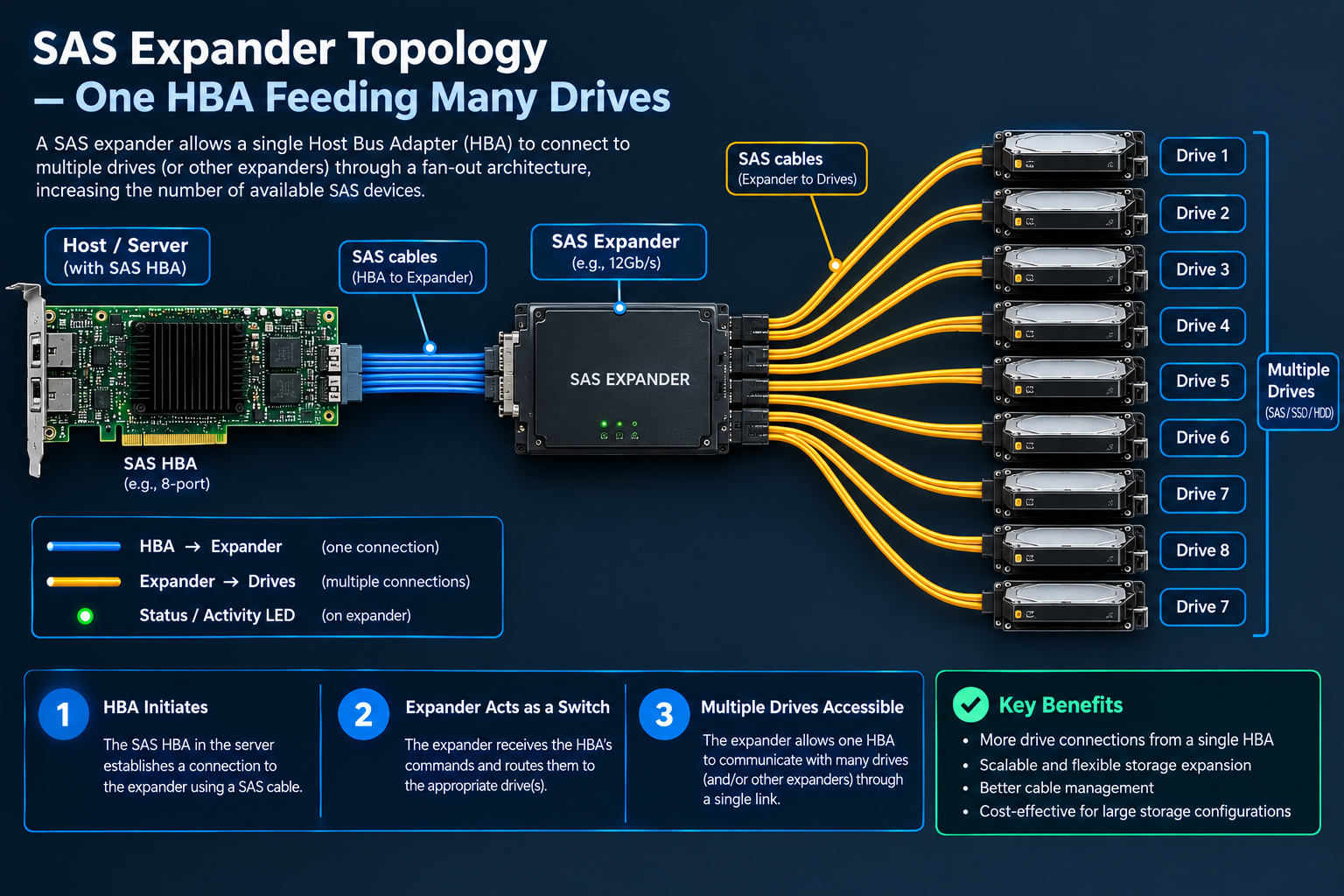
SAS expander topology — one HBA feeding many drives
Diagram: HBA → SAS expander → many drive ports (server backplane), contrasted with a simple direct SATA connection. Set data-src on the <img> to replace this panel.
PCIe lanes, bandwidth, and controller compatibility
A controller is only as fast as its connection to the host. PCIe links are defined by generation and lane count: each lane of PCIe 3.0 moves roughly 1 GB/s in one direction (about 3.9 GB/s on ×4, about 7.9 GB/s on ×8), and PCIe 4.0 roughly doubles those figures per lane (about 7.8 GB/s on ×4). Slots are backward and forward compatible in practice — a ×4 card in a ×8 slot negotiates to ×4, and a PCIe 4.0 card in a 3.0 slot negotiates down — but the negotiated link is what you get, so a controller that is ×8-capable but installed in a ×4 slot has permanently half the link it was designed for. Check the card's lane count, the slot's lane count, and the platform's generation, and the negotiated result is deterministic.
The second skill is reading a link against actual drives, because "theoretical link bandwidth" and "workload performance" are different animals. A 7,200 RPM SATA HDD sustains roughly 200 MB/s — a ×4 PCIe 3.0 link can feed roughly nineteen of them at full sequential rate, so the link is never the bottleneck for a disk array of that kind. A 12 Gb/s SAS drive (about 1.2 GB/s per port) changes the arithmetic — a handful of them can approach a ×4 link's ceiling. And a handful of NVMe drives, each capable of several GB/s, will saturate a ×4 link quickly and make a ×8 or ×16 connection matter for real. So the lane question is a workload question: count the aggregate draw of the fastest drives you will actually run, and size the link with headroom above it.
Two cautions keep this from becoming over-engineering. First, link bandwidth is a ceiling, not a promise: controller cache, drive behavior, queue depth, and the workload's access pattern all sit between the theoretical link and the number you will actually measure — treat the link as "no worse than this," and verify with the workload itself (tutorial 18 covers the measurement vocabulary). Second, compatibility is still the vendor's compatibility list: the correct statement is never "a ×8 PCIe 4.0 card works in this server" but "this specific card, in this specific slot of this specific platform, is listed as supported and negotiates the link I need." The lane math tells you what is possible; the compatibility document tells you what is real on your hardware.
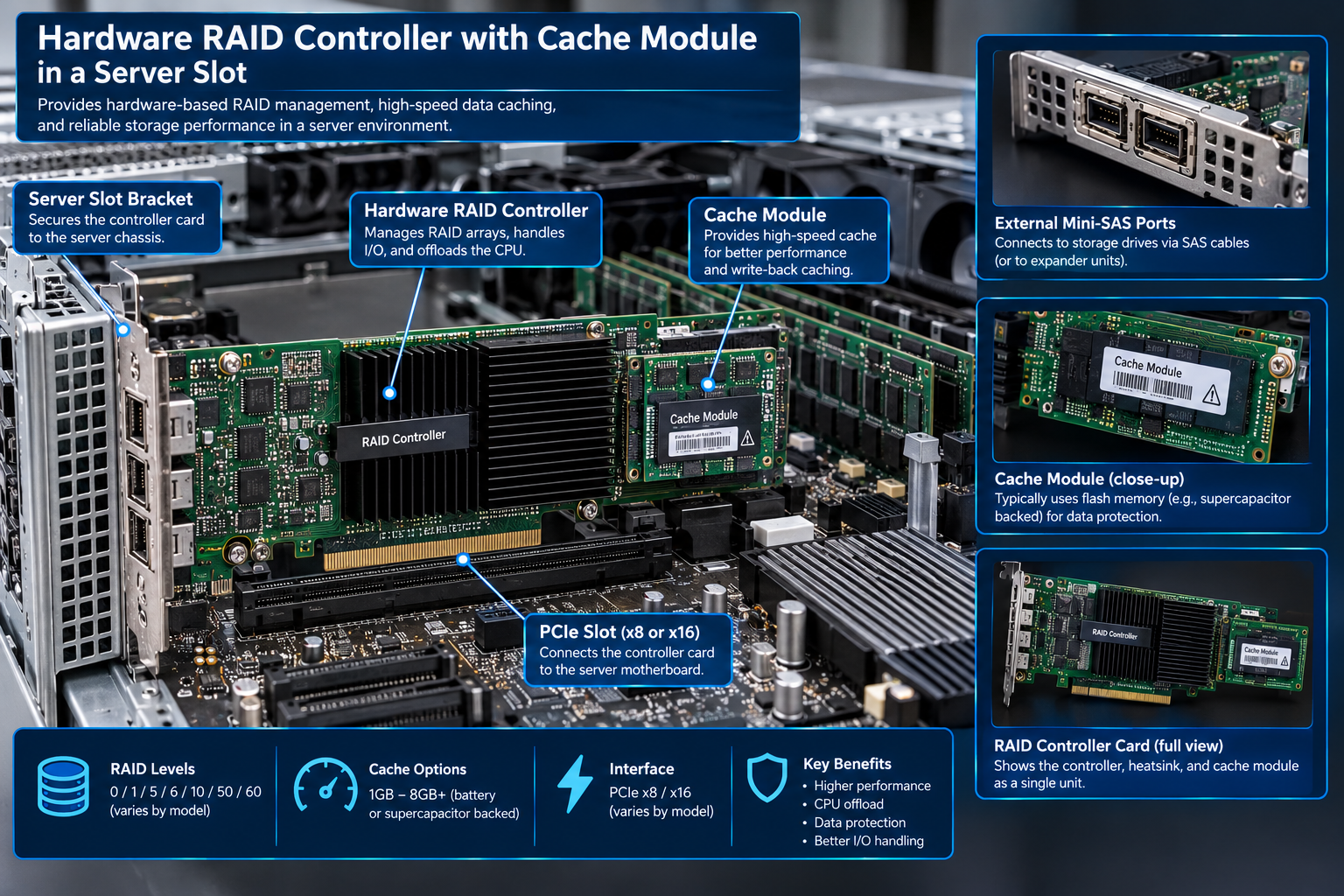
PCIe generations and lane widths on a controller
Labeled photo/diagram of a PCIe ×8 card in a server slot with annotations for generation, lane width, and negotiated link speed. Set data-src on the <img> to replace this panel.
Cache, performance, capacity
What the numbers actually mean
RAID controller cache and battery/flash protection
Controller cache is where a hardware RAID card's write performance comes from, and where its risk lives. In write-through mode, a write is not acknowledged to the OS until it has reached the disks: safe, but slow, because the acknowledgment path includes the drive. In write-back mode, the write is acknowledged as soon as it sits in the card's cache, with the flush to disks happening in the background: fast, but the data now exists in a volatile buffer that a power loss will destroy. The question write-back forces is what stands between that buffer and the wall — and that is the protection module: a battery-backed unit (BBU), a capacitor bank, or a flash-backed unit (FBU) that holds the cache contents long enough for a clean flush when power drops. Modern units trend toward flash/capacitor designs over batteries, which have their own lifespan and replacement schedule.
The failure mode this exists to prevent deserves a precise statement, because it is the most dangerous misconfiguration in server storage: unprotected write-back turns acknowledged writes into possibly-lost writes. The OS believes the data is safe — the controller told it so — and if power fails before the flush, that data is gone with no error in any log, because from the OS's perspective the write succeeded. For a database or file server, that is a silent data-integrity event. So the working rule is: write-back is acceptable only with a healthy, installed, and correctly configured protection module; without one, write-through (or the card's safe default) is the correct setting. And "healthy" has a date on it — protection modules age, batteries degrade, and a card with a dead BBU reporting "cache OK" in a stale status field is a configuration error waiting to happen, which is part of the monitoring routine in tutorial 25.
Two refinements keep the topic honest. First, behavior varies by model and by setting: some cards default to write-through, some to write-back, some decide per-virtual-disk, and the protection module's state (optimal, degraded, failed) can change what the card will actually do — so the correct question about any given deployment is not "does it have write-back?" but "what is this card, with this module, in this state, actually configured to do right now?" The vendor management UI or CLI shows it; the box it ships in does not. Second, with SSD members the read-cache argument weakens (the drives are already fast at random reads) while the write-back argument gets subtler (SSDs have their own volatile cache and power-loss behavior) — worth a deliberate configuration decision rather than a default. Cache is a feature with a settings panel; treat it as one.
Protected RAID controller cache — battery and flash modules
Close-up photo of a controller's cache area with the BBU/capacitor/flash module, connector, and status LED labeled. Set data-src on the <img> to replace this panel.
SSDs, HDDs, and RAID controller compatibility
Disks are not a single species, and the controller has opinions about each one. HDDs are characterized by their sustained sequential rate, their rotational latency, and a write endurance that is effectively unlimited for normal service; SSDs by their queue depth (they can accept thousands of outstanding operations where a disk accepts a handful), their random-read speed, and — the one property HDDs don't have — a write budget, usually expressed as terabytes written (TBW) or drive writes per day (DWPD) over a rated lifetime. A controller's job is to move I/O to and from all of them without stepping on what each one needs: SSDs benefit from queue depth and from TRIM/UNMAP reaching them so garbage collection stays healthy, HDDs benefit from large aligned writes and from not being subjected to write patterns that thrash them. Neither benefit is automatic — some controllers expose TRIM pass-through and queue settings, some don't, and the vendor's supported-drives list is where this gets concrete.
Mixed-drive arrays are the configuration to be most careful about, and the caution is well-founded. Mixing SSDs and HDDs in one array couples a fast, write-budgeted device to a slow, endurance-fine one: the array's speed is gated by its slowest member on most access paths, rebuild behavior becomes asymmetric, and a workload that writes heavily can wear the SSD member toward its TBW while the HDD members are nowhere near end of life. Mixing capacities within one array is rarer and usually worse — most controllers either refuse it or silently cap the larger drives to the smallest member's size. The defensible patterns are homogeneous arrays (all-HDD, all-SSD, same or similar models and capacities), or deliberately separate arrays per drive class with the storage stack deciding what lives where. Where a vendor documents a specific mixed configuration as supported, that documentation is the exception that proves the rule — verify it for your exact card and drive models rather than assuming it.
The practical verification checklist is short: (1) the drives are on the controller's supported list (or are the same model class that is); (2) the array's workload sits inside each member's endurance envelope — for SSDs, estimate annual writes against the TBW rating with margin; (3) the settings the drives need (TRIM/UNMAP, queue depth, cache interaction) are actually available and enabled in this controller/firmware; and (4) the replacement strategy uses compatible drives, because a "spare" that the controller doesn't list is not a spare for this array. Drive compatibility is, like SAS/SATA, a five-way match — drive, controller, firmware, workload, and replacement plan — and it is checked the same way whether the array is hardware- or software-managed.
SSD and HDD side by side in a server backplane
Photo of a backplane mixing 2.5" SSDs and 3.5" HDDs, form factor and interface differences highlighted. Set data-src on the <img> to replace this panel.
RAID performance: IOPS, throughput, and latency
Three numbers describe storage performance, and they answer three different questions. Throughput (MB/s or GB/s) answers "how much data can move?" — it is the number that matters for video, backups, large file transfers, and anything sequential. IOPS (I/O operations per second) answers "how many separate requests can be handled?" — it is the number that matters for databases, virtual-machine disks, and anything doing small random operations. Latency (microseconds to milliseconds) answers "how long does one request take?" — it is the number that matters for interactive systems and for the tail of a response-time distribution. A configuration can be excellent on one and mediocre on another; a spec sheet that quotes only one is answering only one question, and "fast storage" without a specified dimension is not a specification.
How a RAID configuration moves those numbers is mostly arithmetic plus a few traps. Throughput scales with the number of members on sequential work (striping's whole reason to exist), up to the limit of the slowest link in the chain — the drives, the controller, or the PCIe link (tutorial 15). IOPS scales with members on random work, but each member contributes what it can: a 7,200 RPM disk's random IOPS are fixed by physics, so RAID 10 of eight such disks gives roughly eight times one disk's random IOPS — useful, and bounded. Caching changes the measured numbers dramatically: a read cache serves repeated reads from memory, and a write-back cache serves all acknowledged writes from memory until flush, so a cached benchmark and an uncached benchmark of the same array are different measurements of different things — always check the cache state before comparing numbers (and before believing any of them). Queue depth is the other hidden variable: SSDs get faster (up to a point) as the queue deepens, HDDs do not, and a benchmark at queue depth 1 measures a different machine than one at depth 32.
The applied conclusion: define the workload first — sequential or random, read or write ratio, the I/O size, the acceptable latency — and only then evaluate a configuration against those dimensions. A database server needs random-write IOPS and low latency, a media server needs sequential throughput, a virtualization host needs a mix that leans on per-VM random I/O, and a backup target needs sustained sequential writes. Stripe size and cache settings (next tutorial, and tutorial 16) are where you tune within a chosen level; the level and the drive class are where you choose the envelope. And because every one of these numbers depends on the specific drives, controller, and firmware, the honest claim any configuration can support is relative — "faster than X for this workload, measured with this tool, cache in this state" — not an absolute performance number.
IOPS, throughput, and latency — three ways to measure storage
Three simple charts side by side: random I/O rate, sequential bandwidth, and a latency distribution, each labeled with the workload it represents. Set data-src on the <img> to replace this panel.
RAID stripe size and workload tuning
The stripe unit is the chunk size into which data is divided before being spread across members — 64 KB, 128 KB, and 256 KB are common defaults, and the full stripe is one unit from every member (so a 4-disk RAID 5 with 256 KB units has a 1 MB full stripe). The size choice trades two behaviors against each other. Large stripe units favor sequential throughput: a large read or write can pull or push several units in parallel before it wraps around the stripe. Small units favor small random I/O, because a small request is less likely to spill across a unit boundary — and on parity levels, a write that spills across the full stripe triggers a read-modify-write: the controller must read the whole stripe's old data and old parity, compute the new parity, and write the whole stripe back. A 4 KB write that fits inside one stripe unit costs one unit of work; the same 4 KB write straddling a boundary can cost the entire full stripe. That asymmetry is the entire reason stripe size is a tuning knob at all.
The alignment story is the second half, and it is the half people skip. The benefit of a chosen stripe size only materializes if the filesystem's blocks, the partition's starting offset, and the drive's native sector size line up with it — an unaligned partition turns every "clean" small write into a straddling one, and no stripe size can fix a misaligned layout. Modern OS installers and array tools align by default in most cases, but it is a property to verify (the partition start offset and block size, against the stripe geometry) rather than assume, particularly on arrays built manually or migrated between systems. And the drive's own geometry matters: 4 KB sector ("Advanced Format") drives make 512-byte-granular misalignment more expensive, which is another reason the default modern stack — 4 KB-aligned partitions, 4 KB filesystem blocks — is a sane baseline to check against rather than to fiddle with.
There is no universally optimal stripe size, and any claim of one is a claim about a workload nobody specified. The practical method is: match the stripe unit to the dominant I/O size of the actual workload (video work with large sequential I/O leans toward 256 KB and up; database work with 8 KB random I/O does not need it and may prefer less), keep alignment clean, and measure the real workload before and after a change — because a stripe-size change requires recreating the array (it is a creation-time property, not a live setting), which makes "try a different stripe size" a migration, not a slider. Treat it as one of two or three creation-time decisions (level, drive class, stripe unit) that are expensive to revisit, choose deliberately with the workload in front of you, and document the choice so the next person knows what was decided and why.
Stripe size — how a small write hits the full stripe
Diagram: a small write inside one stripe unit versus the same write straddling a boundary, triggering a read-modify-write across the full stripe. Set data-src on the <img> to replace this panel.
RAID capacity calculations and overhead
Capacity math is arithmetic with one recurring trap: drive capacity labels are decimal (an "8 TB" drive is 8,000 GB = 8 × 10¹² bytes), while operating systems frequently report in binary (the same drive reads as about 7.28 TiB). Do the array math in the drive's advertised units, then apply the level's formula, and only at the end convert to whatever unit you are quoting — mixing the two mid-calculation is how "my 4 × 8 TB RAID 5 should be 24 TB but the OS says 21.8 TiB" confusion gets produced. The formulas, stated plainly: RAID 0 → N × size; RAID 1 → one member per mirror pair; RAID 5 → (N−1) × size; RAID 6 → (N−2) × size; RAID 10 → (N/2) × size. Table E works them out on real numbers.
| Configuration | Raw total | Calculation | Usable (decimal) | Approximate in TiB |
|---|---|---|---|---|
| 2 × 8 TB — RAID 1 | 16 TB | 1 × 8 TB | 8 TB | ≈ 7.28 TiB |
| 4 × 8 TB — RAID 0 | 32 TB | 4 × 8 TB | 32 TB | ≈ 29.1 TiB |
| 4 × 8 TB — RAID 5 | 32 TB | (4 − 1) × 8 TB | 24 TB | ≈ 21.8 TiB |
| 4 × 8 TB — RAID 6 | 32 TB | (4 − 2) × 8 TB | 16 TB | ≈ 14.6 TiB |
| 4 × 8 TB — RAID 10 | 32 TB | (4 / 2) × 8 TB | 16 TB | ≈ 14.6 TiB |
| 6 × 8 TB — RAID 5 | 48 TB | (6 − 1) × 8 TB | 40 TB | ≈ 36.4 TiB |
Below the level's arithmetic sits a second, smaller layer of overhead that the formulas don't show: the filesystem. Journaled and copy-on-write filesystems reserve space for metadata, journals, and (on COW filesystems like Btrfs and ZFS) for the copy-on-write machinery itself — typically a few percent of the volume, more on filesystems with many small files or heavy snapshot use. So the number a user can actually store is the Table E figure minus a few percent, and the honest planning figure is the usable capacity with that margin subtracted. The copyable cheat sheet below combines the formulas and the worked example for reuse in planning documents.
RAID usable capacity (decimal, before filesystem overhead)
RAID 0  → N × drive size          RAID 1  → 1 × size per mirror pair
RAID 5  → (N − 1) × drive size    RAID 6  → (N − 2) × drive size
RAID 10 → (N / 2) × drive size
Example 4 × 8 TB → R0 32 TB · R1(pair) 8 TB · R5 24 TB · R6 16 TB · R10 16 TB
Decimal 8 TB = 8,000 GB ≈ 7.28 TiB — convert only at the endAssumes equal-size drives and no hot spares in the calculation. Subtract a few percent for filesystem overhead when planning real capacity.
Usable capacity by RAID level — worked example
Bar chart: usable capacity of 4 × 8 TB disks in RAID 0, 1, 5, 6, and 10, with the calculation annotated on each bar. Set data-src on the <img> to replace this panel.
Installation & configuration
From box to monitored array
How to identify an existing RAID controller
Before you can choose, configure, or replace a controller, you have to know what is actually in the machine — and "what is in the machine" is a four-source question, because each source shows a different slice. The UEFI/BIOS setup environment usually names the storage controller on its main or storage screen (and the card's own configuration screen is reachable from there if it has one). The operating system shows the driver-level identity: on Linux, lspci lists the PCIe device and its vendor/device IDs; on Windows, Device Manager under "Storage controllers" and System Information give the model and driver version. The vendor management tools — the card's own CLI or GUI — show the identity plus everything the OS can't see: firmware revision, cache state, virtual disks, and the per-physical-disk details. And physical inspection (with the machine off and discharged) settles anything the software is ambiguous about: the card's label, the bracket, whether a battery/flash module is present, which slots and ports are used.
# Identify the storage controller (read-only — changes nothing)
lspci -nn | grep -iE 'raid|sata|sas'
cat /proc/scsi/scsi | grep HostWindows equivalent: Device Manager → Storage controllers, and System Information (msinfo32). Vendor CLIs (e.g. the controller manufacturer's command-line utility) show firmware, cache, and virtual-disk detail — the utility's name varies by vendor, so check the card's documentation for the exact command.
Two discipline notes. First, distinguish the controller from the ports it provides: a server often has both a platform (motherboard) storage controller and a dedicated card, and a drive's "home" is a specific port on a specific controller — knowing which is which before a rebuild or replacement is what prevents the "I moved the wrong disk" class of mistakes (tutorial 27). Second, record the firmware revision and the card's serial number when you identify it: those two strings are what vendor support, compatibility lists, and any future replacement procedure will ask for first. Identification is a five-minute job that pays for itself at the first failure — do it as part of setting up any server, not as part of troubleshooting one.
Identifying a RAID controller in the UEFI setup screen
Screenshot-style image of a UEFI/BIOS storage screen showing the controller model and firmware revision. Set data-src on the <img> to replace this panel.
Installing and connecting a RAID controller
The physical installation of a PCIe storage controller follows a strict order, and the order exists because each step's mistake is expensive to find later. Before touching anything: confirm compatibility (the card's lane count against the slot, the platform's supported list, the cabling the backplane needs — the checks from tutorials 14 and 15), power the server down completely, unplug it, and discharge — a server's capacitors hold charge, and the PSU's AC side is the hazard this whole site treats as never-to-be-opened territory; for the controller itself the rule is simple: machine off, machine unplugged, antistatic wrist strap to bare metal. Then: select the slot with the right lane count and with cooling that reaches the card (a full-height, full-length RAID card runs warm; an uncooled slot in a dense chassis is a thermal problem in six months), seat it until the latch clicks, connect any auxiliary power if the card has a power connector, and only then wire the storage — controller to backplane or drives, with the cable type the backplane actually requires.
Verification is the part that gets skipped, and it is the part that converts "installed" into "installed correctly." The ordered check after power-on: (1) the platform's UEFI/BIOS sees the controller as a PCIe device; (2) the OS enumerates it — lspci on Linux, Device Manager on Windows — with the correct vendor/device ID and a loaded driver; (3) the drives appear: in IT mode as individual disks, in RAID mode as the card's physical-disk inventory in its management screen; (4) the card's firmware and driver versions match what the platform documents as supported; and (5) the protection module, if present, reports a healthy state. Any step that fails is a stop: a card that enumerates but shows no drives is a cabling, backplane, or firmware problem, not a reason to start reseating things randomly, and the ordered diagnosis for exactly that state is tutorial 26.
Two cautions specific to storage controllers. First, if the machine is already running an array, a controller swap is a recovery procedure, not an installation — the sequence (matching card, same or documented-equivalent firmware, importing the foreign configuration) is tutorial 28, and doing it as a casual "install" is how arrays get orphaned. Second, note where the card lives for the future: which slot, which ports, which drives hang off which port, and what the firmware revision was — a photo of the cabling and a note of the serial numbers cost thirty seconds and remove most of the ambiguity from the next maintenance window. Installation done right is boring; the verification list is what makes it boring.
PCIe RAID controller installation in a server
Photo of a hand with an antistatic strap seating a PCIe controller into a server slot, latch visible. Set data-src on the <img> to replace this panel.
Configuring RAID in controller firmware
The firmware configuration workflow has a standard shape across vendors, and the shape matters more than any specific screen's labels. Inventory first: open the card's configuration (from UEFI, or from the OS via the vendor tooling) and confirm the physical disk list — count, capacity, and per-disk health — before touching anything, because a configuration built on a wrong disk inventory is a configuration built on sand. Select the drives deliberately: identify the exact members by enclosure location and serial, not by position alone — this is the moment the "wrong disk" mistakes from tutorial 27 are made or prevented. Choose the level and geometry (level, member count, stripe unit — the decisions from category B and D, now committed), create the virtual disk, and then watch the initialization state: a newly created array initializes (zero-fills or reads through its members), and "initializing" is not "ready for production data" — the vendor tooling shows the progress, and the array should be monitored (tutorial 25) from that moment, not after.
Before you create, delete, or reconfigure: confirm drive identity and backup status.
Creating a virtual disk over physical disks destroys whatever was on those disks, and most firmware screens make this one confirmation away from happening. Verify (1) the exact drives selected — serials, not positions, (2) that nothing on them is needed, or is backed up and verified restorable, and (3) that the level and member list are what you intend. "Initialize" is not a repair function — on most cards it overwrites, and it is never a routine fix for an unknown problem.
After creation, the configuration work has two loose ends that are easy to leave dangling. The first is cache mode: decide, deliberately, per the rules in tutorial 16, whether each virtual disk runs write-through or write-back, and confirm the protection module's state if write-back is chosen — leaving cache on an unexamined default is how a server ends up with an unsafe write path it never chose. The second is the record: write down the virtual disk's definition (level, members by serial, stripe unit, cache mode, firmware revision) where the next administrator will find it. A hardware RAID array's configuration lives in the card, which makes the human-readable record the only portable copy of the decision — and the document that a recovery procedure (tutorial 28) will thank you for, or curse you for, depending on which it is.
Creating a virtual disk in controller firmware
Screenshot-style image of a firmware config screen: drive selection, level choice, and virtual-disk creation. Set data-src on the <img> to replace this panel.
Configuring software RAID
Software RAID puts the same storage decisions in the OS's hands, and the workflow is: identify the devices stably, create the array, initialize it, mount it, and make the configuration persist across reboots. The first step is the one that causes the most damage when done casually: /dev/sda-style names are assigned at boot time and can reorder between reboots, hot-plugs, and drive failures, so an array definition written against positional names is a time bomb. The fix is to identify members by serial or by a stable path (by-id style naming on Linux, disk serials on other OSes) and to re-verify the mapping immediately before creation — the same "serials, not positions" discipline as firmware configuration, applied to the OS's own view of the disks.
# Create a RAID 5 array over four partitions, then inspect it
mdadm --create /dev/md0 --level=5 --raid-devices=4 \
  /dev/sdb1 /dev/sdc1 /dev/sdd1 /dev/sde1
mdadm --detail /dev/md0
cat /proc/mdstatExample for illustration — verify the exact partition identities (by serial) before running, because --create destroys the member contents. Windows (Storage Spaces) and ZFS use entirely different commands and concepts; this block is the Linux mdadm path only. Persist the array (e.g. in the mdadm configuration file) and the mount (in the filesystem table) so both survive a reboot.
Initialization and monitoring follow the same logic as the firmware path, with the OS as the tool: the array builds and initializes (watch its state — "clean" is the healthy steady state), the filesystem is created and mounted, and from then on the OS's own status views are the monitoring surface: array state, per-member state, and rebuild progress, all readable without leaving the OS — which is the transparency advantage of software RAID made concrete. The persistence step deserves its own sentence because forgetting it produces the classic "it was fine until I rebooted" failure: the array definition and the mount are two separate pieces of configuration, and both must be written to the OS's persistent configuration for the setup to survive a restart. Check by rebooting, in a maintenance window, with the data safe — a verified reboot is the difference between "configured" and "configured and known to work."
One scope note keeps the section honest: the commands above are the Linux mdadm path, given because it is the most common software-RAID implementation and because showing one concrete path makes the general workflow real. Windows Storage Spaces and ZFS follow the same workflow shape — stable identification, creation, initialization, persistence, monitoring — with entirely different commands, concepts (spaces/pools, vdevs), and failure behaviors, and this tutorial deliberately does not pretend the mdadm syntax transfers. For any of them, the safety rule is identical to the firmware one: verify member identity by serial before creation, back up before anything destructive, and treat "initializing" as a state to monitor, not a state to walk away from.
Linux mdadm creating a software RAID 5 array
Terminal screenshot: mdadm create command, the detail output, and /proc/mdstat showing the array state. Set data-src on the <img> to replace this panel.
Monitoring RAID health and predicting problems
Monitoring a storage array means watching four distinct layers, because a failure announces itself in a different one depending on what is failing. The array state — optimal, degraded, rebuilding, offline — tells you the redundancy is currently intact or not. The individual drive health (SMART data, with its real-time attributes and self-test results) tells you which specific member is aging or failing, often weeks before it actually does; predictive-failure indicators exist precisely so that "the drive that will die next month" is a drive you replace on your schedule rather than a drive you replace in a degraded-array panic. The controller's event log records the history — media errors, link resets, cache events, rebuild start/finish — which is the evidence base when a state change needs explaining. And rebuild progress is a live, time-critical state: a rebuild that has been running for six hours at 30% is information (the array is exposed for the remaining hours), not a status line to glance at once.
# Array and drive health (read-only)
cat /proc/mdstat
smartctl -H /dev/sda
smartctl -a /dev/sdaHardware-RAID deployments: the vendor's management CLI shows the same four layers (array state, per-disk health, event log, rebuild progress) — the command name varies by vendor. Wire the "degraded" and "drive failing" states into alerting (the vendor tooling's e-mail/SNMP, or the OS's monitoring) so a state change reaches a person instead of a log file.
Alerting is what converts monitoring from a dashboard into a practice: the two states that must page a human are array degraded (redundancy is gone — every hour now is exposure) and predictive failure on a member (a scheduled replacement is available). Everything else — rebuild progress, capacity trends, firmware notes — belongs in a daily or weekly review rather than an interrupt. The tooling differs by path (vendor management for hardware RAID, OS tools for software), but the state list is the same, and the schedule for checking the non-urgent states is a deliberate part of the setup, not an afterthought.
And the limit that makes this section worth ending on: a healthy array status is not evidence that your data is safe. "Optimal" means the redundancy is intact — it says nothing about whether the data is backed up, whether a corruption wrote itself to every member, whether the backup has ever been restored, or what happens if the controller, the building, or a bad update takes the whole array at once. Health monitoring answers "is the hardware doing its job?"; the backup strategy from tutorial 29 answers "can the data be recovered?" — and a storage operation that monitors the first and neglects the second is watching the one layer that is least likely to be the whole story.
Monitoring a degraded array and rebuild progress
Screenshot-style image: degraded array state, the failed member identified, and rebuild progress percentage. Set data-src on the <img> to replace this panel.
Troubleshooting & final decisions
When things go wrong — and what to do about it
RAID controller not detected
"The controller isn't there" has an ordered diagnosis, and the order matters because the cheap, safe checks catch the majority of cases while the invasive ones are last. Step 1 — the platform sees any PCIe device there: UEFI/BIOS device list, then the OS (lspci / Device Manager). If the slot shows nothing, the problem is physical: card seating, the slot itself (try a known-good slot and a known-good card — the two-swap isolates card from slot), auxiliary power if the card has a connector, and the platform's power state (some slots are disabled in BIOS). Step 2 — the device is present but unrecognized: the platform sees a PCIe device with no usable driver, or sees it but the storage stack doesn't. That is a firmware/driver problem: firmware revision against the platform's supported list, the correct OS driver installed, and the vendor's compatibility page consulted with the card's exact model and serial in hand.
Step 3 — the controller is detected but the drives aren't: this is the cabling-and-topology layer. The cable type against the backplane's connector, the backplane's power, the expander (in SAS topologies — the expander sits between the controller and the drives, and a dead or unsupported expander looks exactly like "controller present, no drives"), and the drive-side power. Step 4 — the controller's own logs: every serious controller keeps an event log, and a card that enumerates but misbehaves usually recorded why — link errors, firmware faults, cache events — in it. Reading the log before reseating a third time is what separates diagnosis from superstition. At no point in this sequence is "reinstall the OS" or "re-flash randomly" a step: the log, the compatibility list, and the two-swap test cover the real cause space, and destructive actions burn the evidence they would be meant to explain away.
| Symptom | Non-destructive first steps | Possible causes | Next action |
|---|---|---|---|
| Controller absent from platform | UEFI/OS device list; reseat; known-good slot + card swap | Bad seating, dead slot, missing aux power, disabled slot | Two-swap isolate (T26 step 1); check BIOS slot settings |
| Controller present, no drives | Cable type, backplane power, expander status, controller event log | Wrong/loose cable, dead expander, backplane power, firmware | Read the log; verify topology (T14); replace cable first |
| Array degraded, one member failed | Confirm failed member by serial; check SMART; verify array state | Genuine disk failure, cable/port fault, backplane port | Replace member, monitor rebuild (T27); if no disk fault, move the disk to a known-good port |
| Rebuild stuck or extremely slow | Rebuild progress rate; background workload; other I/O on array | Workload contention, failing replacement drive, media errors on survivors | Reduce load on array; check survivor SMART; check replacement drive health |
| Array offline after controller replacement | Foreign configuration prompt in vendor tooling; matching card/firmware | Un-imported config, mismatched card family, missing protection module | Import foreign config per vendor procedure (T28) — never initialize |
| Data missing but array "optimal" | Filesystem check, recent deletions/updates, backup comparison | Accidental deletion, corruption, ransomware, filesystem issue — not disk failure | Stop writes; restore from backup; RAID-optimal does not rule out data-layer causes (T29) |
Table F is the whole category in one view: symptom, safe first step, cause space, next action. Its consistent shape is the point — every row begins non-destructive, because in storage the first action is the one most likely to destroy the evidence or the data, and the discipline of "identify before you change" is what the rest of the tutorial has been building toward.
A controller that is not enumerated — checking the PCIe slot
Photo of an open server with the controller in its slot: latch, auxiliary power, and backplane cabling visible and being checked. Set data-src on the <img> to replace this panel.
Degraded RAID arrays and failed drives
A degraded array is a state with a clock on it: redundancy is gone, and every hour of degraded operation is an hour in which the next failure ends the array. The response sequence is therefore: identify the failed member exactly (the controller UI names it — enclosure, slot, serial; the OS shows it in the array state — and SMART confirms the disk's own account of why), confirm the failure is real and not connectivity (a "failed" disk that SMART reports healthy may be a cable, port, or backplane fault — the move that distinguishes them is relocating the disk to a known-good port, or reseating the cabling, before committing to a replacement), replace it with a compatible drive, and monitor the rebuild to completion (progress, rate, and the surviving members' health — a rebuild that reads media errors from survivors is telling you something about the rest of the array, not just the replacement). Replacement compatibility is concrete: same interface (SAS/SATA per the checks in tutorial 14), capacity at least the failed member's (smaller won't work; larger usually works but check the vendor's rules for the level), and a drive whose health is known before it goes in — a "spare" with a failing SMART record converts one failure into two.
The highest-stakes step is the one that is also the most mechanical: not removing the wrong disk. In a degraded array the surviving members are carrying the entire dataset, and pulling one of them — because it is in the slot you remember, because its LED is ambiguous, because the slot numbering shifted after last month's maintenance — is the difference between a rebuild and a data loss. The discipline is identical to the configuration one: serial and named identity from the management view, cross-checked against the physical location, before the hand moves. And the "is it really the disk?" check deserves its emphasis, because a degraded state caused by a bad cable or a dying backplane port will "resolve" when you replace a perfectly healthy drive — and will return, on schedule, when the cable does. State + SMART + one relocation test is the combination that tells a disk failure from a connectivity failure, and it takes minutes.
Two scenarios branch off the main sequence and deserve their own sentences. If two members have failed: in RAID 6 (or RAID 10 with the failures in different mirrors) the array may still be degraded-but-alive — replace the members, monitor, and treat the second replacement with the same care; in RAID 5 or a same-mirror RAID 10 failure the array is lost, and the correct next move is the backup and the recovery path from tutorial 28, not heroic measures. If the "failed" member is actually the controller's view being wrong (a port fault, an expander hiccup): the disk is healthy, the array is not actually degraded at the media level, and the fix is the connectivity layer — which is exactly why the identification steps come before the replacement, in that order, every time.
Degraded RAID array — failed drive identification
Photo/diagram: backplane with a failed-drive fault LED lit, plus the management view naming the member by enclosure slot and serial. Set data-src on the <img> to replace this panel.
RAID rebuilds, recovery, and controller failure
Rebuilds deserve their own mental model because they are the array's most exposed period and its most misread state. A rebuild is the array reconstructing a failed member from its surviving partners — reading every surviving block, computing what the replacement must hold, and writing it. Its properties follow: it is slow (bounded by the survivors' read rate and any other I/O sharing them — a production workload running over a rebuilding array slows the rebuild and extends the exposure window), it is demanding (the surviving drives are working harder than usual, which is the moment their own latent faults surface — watch their SMART during the rebuild, not just the progress bar), and it is not optional (a degraded array that is never rebuilt stays permanently exposed; "we'll replace the drive next month" is a decision to run without redundancy for a month). The healthy end state to watch for is the array returning to its full-redundancy state with all members clean — and the note that a completed rebuild is a good moment for a backup, because the data has just been read in full and verified against parity or mirror.
Controller failure is the hardware-RAID-specific event, and its procedure is the one to know before it happens, because in the moment everyone reaches for the wrong verb. The array's configuration lives in the failed card's firmware, so the disks in the chassis are, to any other controller, a set of unexplained disks with a "foreign configuration" attached. The recovery path is: install a matching or vendor-blessed-equivalent controller (same family; firmware at or above the original where the vendor documents it), boot into its management, and import the foreign configuration — the card recognizes the array it does not own and re-adopts it, after which the array reassembles, rebuilds if a member was lost, and resumes. The protection module may need attention too (a dead BBU means the cache runs in its safe mode until replaced — check the state, don't ignore the warning). The verb to avoid is initialize: on the vast majority of controllers, initializing a foreign or unknown array overwrites the metadata that the import procedure exists to recover, converting a recoverable event into a lost one. "Import, don't initialize" is the entire safety rule of this scenario, and it is the one that distinguishes a controller-replacement procedure from a data-destruction event.
The planning sentence that makes the rest of this tutorial pay off: the recovery procedure is only as good as the documentation that existed before the failure. Card model and serial, firmware revision, the virtual-disk definition (level, members, stripe, cache), the vendor's import procedure for that specific model, a compatible spare controller (in environments where downtime matters), and a current backup — that list, written down during the calm of tutorials 21–23, is what turns a controller failure into a known procedure instead of a research project conducted under pressure. And when the documentation is absent, or the controller is unobtainable, or the import fails: stop, preserve the disks as-is (powered-down, labeled, in order), and treat the situation as a data-recovery engagement with the backup as the primary path and professional recovery as the secondary one — not as a problem that a creative configuration attempt will solve. Recovery is where "no guarantee" is the honest word, and the backup is the layer that removes the need for guarantees.
Foreign configuration — importing an array after controller replacement
Screenshot-style image of the management utility's "foreign configuration detected — import or clear" prompt, with the import path annotated. Set data-src on the <img> to replace this panel.
RAID is not a backup: protecting server data
The distinction is one word pair: availability versus recoverability. RAID is an availability technology — it keeps the service running through disk failures, which is genuinely valuable and genuinely worth the hardware. It is not a recoverability technology: it cannot undo an accidental deletion (both members receive the delete), a corruption event (both members store the corruption), a ransomware encryption (both members hold the ciphertext), a controller-plus-drive event, or a site incident (the array and its "redundancy" are in the same burning building). Every one of those events is a data-layer or site-layer event, and the array — optimal, healthy, fully redundant — survives it the way a locked door survives a house fire: intact, and irrelevant. The backup is the layer that answers those questions, and it must be independent of the array in the ways that matter: a different machine or service, ideally a different site, with copies that the server's own software cannot modify or delete on its own.
The properties that make a backup real are checkable, not aspirational. Independent: the copy lives outside the array's failure domain — off-box, off-site, or in object storage with its own access control; a "backup" that is a second share on the same array protects against nothing the array doesn't already survive. Protected from the server's own reach: immutable or append-only copies (object-lock storage, write-once media, or access-controlled targets) are the answer to ransomware and to the administrator-with-a-bad-day, because the threat model includes the machine the backup is for. Versioned and retained: multiple generations, because the deletion or corruption may have been sitting in the "latest" copy for days before anyone noticed. And — the property that separates a backup from a hope — restored at least once: an untested restore is an assumption, and the test is cheap relative to the discovery cost, which is always the morning the data was actually needed. The schedule (what, how often, how long, where, who can restore it) is a written document, reviewed periodically, because backup strategies rot silently.
Put together with this tutorial, the storage story has two layers that do each other's jobs badly if confused: the array layer — level chosen for the workload (B), controller chosen for the operating model (C), cache and performance configured deliberately (D), installed and monitored properly (E) — buys uptime against hardware failure; the backup layer — independent, protected, versioned, tested — buys recovery against everything else, including the array's own total failure and the events no hardware choice can prevent. A server with a perfect RAID 10 and no real backup has solved half the problem and priced the other half at "total loss, eventually." A server with a modest RAID 1 and a tested, off-site, immutable backup has the more important half solved. The decision guide next treats the two layers as separate line items — because that is what they are.
RAID array plus independent backup — the protection layers
Diagram: the array (availability) on the left, separate offline/immutable backup copies (recoverability) on the right, with the failure modes each covers labeled. Set data-src on the <img> to replace this panel.
Which RAID solution should you choose?
Everything above compresses into a decision procedure, and the procedure's first move is the one that overrides the rest: name the operating model before the hardware. If the storage stack is ZFS or software-defined, the answer is HBA (or IT-mode) plus the OS's own RAID, full stop — a hardware RAID card is not a tuning option there, it is a wall. If the platform and workflow expect controller-managed volumes (enterprise server, boot-from-RAID, a fleet already running vendor tooling), the answer is a hardware RAID card with protected cache, chosen for its support list. If neither applies — small server, virtual machine, homelab NAS — the OS's software RAID on the platform's own ports, or on a modest HBA for more drive bays, is usually the best ratio of capability to dependency. The model picks the path; the rest of the procedure fills in the details.
Then the scenario mapping, which is the framework made concrete. Home server / NAS: HBA (or motherboard ports) + OS-managed storage (ZFS or mdadm) — direct disk visibility, cheap, portable; RAID 1 for small critical sets, RAID 6 for larger disk counts, and a real off-box backup because home environments are where "no one noticed the degraded array for a month" happens. Virtualization host: match the hypervisor's documented expectations — many platforms want a simple reliable volume for VM storage, where hardware RAID 10 (with protected cache) or an HBA + a well-chosen software level both work; the deciding factors are the platform's supported configuration and whether you will ever need to move the VMs to different hardware (which favors the portable path). Database server: RAID 10 — the random-write and rebuild-calmness case from tutorial 10 — on the path (hardware or software) the rest of the stack standardizes on, with the cache configured per tutorial 16's rules. File server: RAID 6 for capacity and rebuild tolerance on larger disks, monitored per tutorial 25, with the throughput expectations set by tutorial 18's vocabulary. Enterprise / fleet: whatever the platform vendor supports, deployed identically across the fleet, with spares of the controller, the monitoring wired to a pager, the recovery procedure documented per tutorial 28, and the backup layer per tutorial 29 — the enterprise case is where "the procedure exists before the failure" is a requirement rather than a recommendation.
The final framework, as five questions in order: (1) Workload — sequential or random, read or write, what does it actually do (sets the level and the performance expectations)? (2) Compatibility — what does the platform, OS, and storage stack require or support (sets the controller path — HBA, RAID card, or platform ports)? (3) Recovery — what must survive, and what is the documented procedure when the controller or a second disk fails (sets the spares, the documentation, the monitoring)? (4) Budget & skills — does the team operate OS storage comfortably, or does it need the vendor tooling's consistency (sets hardware vs software where the first two questions allow a choice)? (5) Backup — independent, protected, versioned, restored-at-least-once — asked last in the list but non-negotiable in the answer, because it is the layer every other choice is protecting toward, not replacing. Answer those five in order and the recommendation assembles itself; skip to the middle and you get a configuration that is defensible on paper and wrong in the one place the workload actually lives.
Technical takeaway. An HBA exposes disks; a RAID card exposes volumes — and the same card can often do either, which is a fact to verify per model, not a default. Hardware RAID buys cache and workflow consistency at the price of dependency; software RAID buys transparency and portability at the price of operating it yourself. RAID 0 for speed you can afford to lose, RAID 1 for simplicity, RAID 5/6 for capacity with parity (6 when disks are large and rebuilds are long), RAID 10 for random I/O and calm rebuilds. Write-back cache only with healthy protection. Identify drives by serial, never by position. Import, don't initialize. And no level, card, or configuration on this page is a backup — the independent, tested copy is a separate line item in every storage decision.
Choosing a storage architecture — decision framework
Flowchart: workload → compatibility → recovery → budget/skill, branching to HBA + software RAID, hardware RAID, or platform ports. Set data-src on the <img> to replace this panel.