Networking · Wi-Fi, Ethernet, DNS & the offline machine
Networking — Wi-Fi, Ethernet, DNS and the Mystery of the Offline Machine
When a computer is "offline," it isn't one broken thing. The failure could be in the cable, the radio, the adapter, the IP assignment, the gateway, the router's uplink, or the DNS that turns names into addresses — and each of those looks almost identical from the desktop: an icon that says no connection, or a browser that spins. That's why "just restart it" feels like the only option.
This guide takes the other route. It first explains how each layer actually works, then gives you the instruments to test each one, and finally a method for walking from your device outward until the first layer that fails reveals itself. By the end, a machine being offline stops being a mystery and becomes a list of checks in a known order.
The tools are primarily Windows (ipconfig, ping, nslookup, tracert) with Linux/macOS equivalents where they differ. It's written for the person who wants to understand what's happening, not just to cycle a power button until it works by luck.
The core rule: test one layer at a time, from your device outward.
A network is a chain — device → adapter → link → IP → gateway → Internet → DNS → application. A "yes" at a step lets you advance; a "no" tells you to fix that layer before moving on. Changing several things at once (restarting the router, the PC, and the modem all at once) "fixes" the symptom but hides the cause, so it comes back. Isolate first.
Interactive map
The network at a glance — tap any part
This is the whole chain you'll be diagnosing. Click or focus a component in the diagram — or use the cards below — to see what it does and how its failure shows up. Packets animate along the working paths.
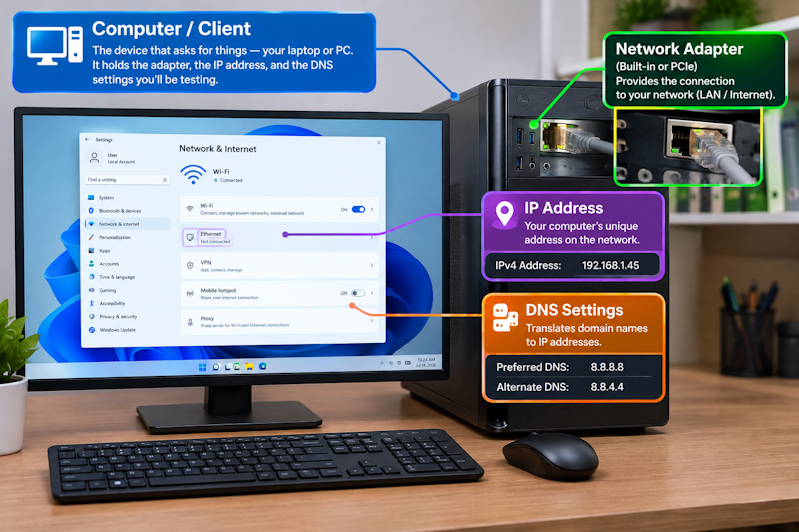
Computer / client
The device that asks for things — your laptop or PC. It holds the adapter, the IP address, and the DNS settings you'll be testing.
Router
Directs traffic between networks and connects your local network to the Internet. It's the default gateway and usually runs DHCP, NAT and the Wi-Fi.
Learn more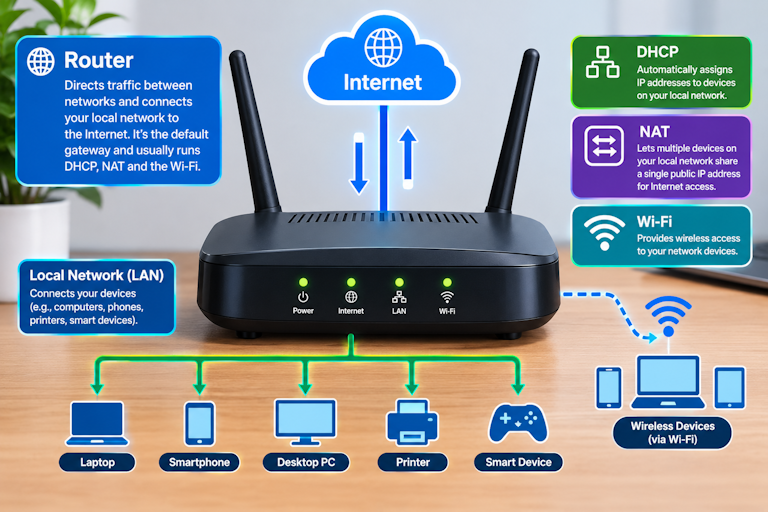
Network switch
A multi-port device that delivers Ethernet frames only to the destination port. Usually invisible when working; a dead port is its classic fault.
Learn more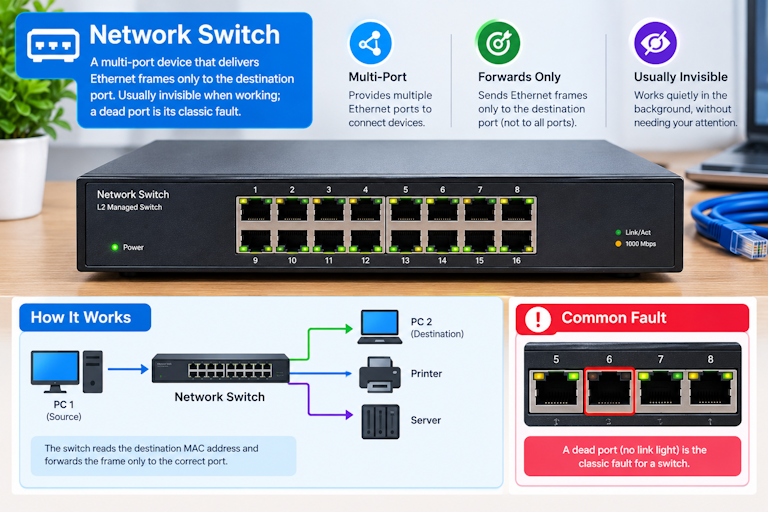
Modem / ONT
Translates your ISP's signal (cable, DSL, or fiber) into a form your router can use. Its link light is the fastest "my problem vs the ISP's" triage.
Learn more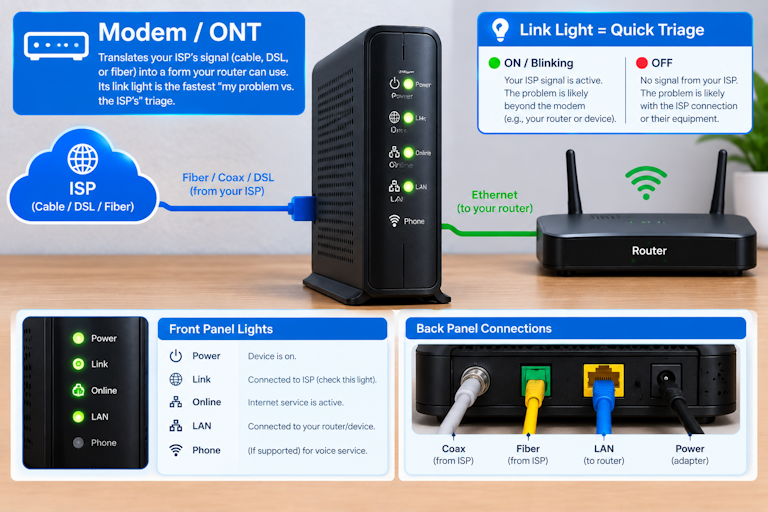
Foundations
What a computer network actually is
Before diagnosing anything, the vocabulary helps — most "it's offline" panic comes from not knowing which layer the problem is on.
A computer network is simply a group of devices that can exchange data. The network in your home is a LAN (local area network): the devices in the house that can talk to each other directly. Beyond your router is the WAN (wide area network) — your ISP and, ultimately, the Internet. Everything you troubleshoot is a question about where a message gets stuck between those two.
Devices fall into two roles. A client asks for something (your laptop opening a web page); a server answers (a web server, or your router acting as a tiny server that hands out addresses). Data doesn't travel as one big stream — it's chopped into small packets, each addressed and sent independently, then reassembled at the other end. That's why a single bad packet can corrupt one image on a page while the rest loads fine.
The interface is the part of a device that touches the network — the Wi-Fi radio, the Ethernet port, or the virtual adapter Windows shows you. When you "check the network," you're almost always checking one of these interfaces and the status it reports. Keeping that word in mind makes the later commands click, because ipconfig is literally listing your interfaces.
| Term | Plain meaning |
|---|---|
| LAN | The local network in your home — devices that reach each other directly. |
| WAN | The wide network beyond your router — your ISP and the Internet. |
| Client / server | The side that asks vs. the side that answers. |
| Packet | A small, independently addressed unit of data. |
| Interface | A device's network connection (Wi-Fi, Ethernet, virtual). |
| Node | Any device on the network. |
| Bandwidth | The capacity of a path — how much can flow at once. |
Wireless
How Wi-Fi actually works
Wi-Fi is radio, not magic — and treating it that way explains most of its quirks.
Your access point (usually built into the router) broadcasts a radio signal on a specific frequency and identifies itself by an SSID — the network name you see in the list. Your device's radio listens for that signal, authenticates with the password, and then the two exchange data as modulated radio waves: a very fast, very crowded walkie-talkie conversation.
Because it's radio, anything emitting on nearby frequencies is potential interference: other Wi-Fi networks on the same channel, microwaves, cordless phones, even thick walls. A Wi-Fi connection can be "connected" (authenticated) and still be so congested or interfered with that it's barely usable. That gap between "connected" and "actually working" is the heart of most Wi-Fi complaints.
The connection process has steps: discover (see the SSID), associate (link to the access point), authenticate (prove the password), then get an IP via DHCP. A failure at any step looks different — you might not see the network at all, see it but fail to join, join but get "no Internet," or get an IP but no browsing. Knowing which step failed points you straight at the fix.
Wired
Ethernet, explained
Ethernet is the same data over copper (or fiber) instead of air, which makes it more predictable and easier to reason about.
An Ethernet connection needs three things: a working cable, a working port on both ends (your PC's network port and the router or switch), and an adapter that negotiates a link. When they agree, the link "comes up" — you see the port light and Windows reports connected at a speed like 1 Gbps.
Link negotiation is where both ends agree on speed and duplex (whether data flows one way at a time or both at once). A flaky or mismatched negotiation can give you a link that's up but slow or dropping packets — a classic cause of "Ethernet is connected but performance is terrible."
Because the path is physical, Ethernet problems are often physical: a bent pin, a bad cable, a dead port. If Wi-Fi works but Ethernet doesn't (or vice versa), the physical path is usually the difference. Swap the cable, try another port, and you isolate the fault quickly.
Choosing
Wi-Fi vs Ethernet
Neither is "better" in the abstract — they fail in different ways, and knowing those differences tells you which one to trust when diagnosing.
| Factor | Wi-Fi | Ethernet |
|---|---|---|
| Latency | Varies with interference and distance | Nearly flat on a good link |
| Reliability | Prone to drops and congestion | Very stable once the link is up |
| Interference | High (radio, neighbors, appliances) | None (shielded copper/fiber) |
| Range | Limited; weakens through walls | As long as the cable run allows |
| Typical failure | "Connected, no Internet," slow, drops | No link, or link up but slow/lossy |
Wi-Fi wins on convenience; Ethernet wins on consistency. Wi-Fi latency varies with interference and distance, while a good Ethernet link is nearly flat. For anything sensitive to timing — video calls, gaming, remote work — that difference is real and measurable.
The diagnostic value is the bigger point: if a problem disappears over Ethernet, it was almost certainly Wi-Fi (radio, channel, distance). If it persists over both, it's higher up the chain (router, DNS, ISP). Swapping between the two is one of the fastest ways to split the problem in half.
Addressing
Understanding IP addresses
An IP address is how a device is addressed on a network. Without a valid one, nothing works — and a wrong or missing one is one of the most common "offline" causes.
IPv4 addresses look like 192.168.1.42 — four numbers from 0 to 255. Inside your home you use private addresses (192.168.x.x, 10.x.x.x, 172.16–31.x.x) that aren't valid on the public Internet. Your router hands these out and also has a public address (from your ISP) that the outside world sees.
A device needs more than its own IP — it needs a default gateway (usually the router's LAN IP) to reach anything outside the local network, and at least one DNS server to turn names into addresses. All three usually arrive together via DHCP. If you see 169.254.x.x, that's a sign DHCP failed and the OS made up a local-only address.
Subnets group a range of IPs that can talk to each other directly. You rarely manage subnets by hand, but the idea — "same subnet = direct talk, different subnet = ask the gateway" — is exactly the mental model that explains why a device can reach its neighbors but not the Internet.
Addressing
IPv4 and IPv6
Modern systems run both address families, and that can be a source of confusion when something "works in one and not the other."
IPv4 is running out of addresses, so IPv6 exists — it uses much longer addresses (groups of hexadecimal) and is now common on most ISPs. Many networks are dual-stack: a device holds both an IPv4 and an IPv6 address at the same time.
When troubleshooting, the two can behave differently. A site might resolve over IPv6 while that path is broken, so the connection stalls even though IPv4 would work fine. If you're getting inconsistent results, checking which address family a connection is using — and whether the problem changes — is a legitimate diagnostic step, not a fix to leave applied permanently.
You can see both in ipconfig /all. The practical takeaway: if a connection is flaky, don't assume the "main" address is the one in use. Both families are live, and the failure may be hiding in the one you didn't check.
Addressing
DHCP — how devices get their IP address
DHCP is how a device automatically gets its IP, gateway and DNS. When it fails, the device often still looks "connected" but can't reach anything.
The process: the device broadcasts "anyone have an address?" (discover), the DHCP server (usually the router) replies with an offer, the device accepts (request/acknowledgement) and receives an IP, a lease time, the gateway, and DNS servers. This takes seconds and happens on every connect and every lease renewal.
Common DHCP failures: the router's address pool is exhausted (too many devices), the router's DHCP service is stuck, or a firewall blocks the exchange. The signature is an APIPA address (169.254.x.x) or no address at all.
The safe first step is to release and renew (ipconfig /release then /renew, or toggle the adapter). If that fails, restarting the router's DHCP (a router reboot) often clears it. Assigning a static IP is a diagnostic option, not a first resort — it bypasses the problem rather than fixing it.
The Internet layer
DNS — the Internet's address book
DNS turns human names into the IP addresses that machines actually route to. It's the step you never see, which is why it's so easy to overlook when it breaks.
When you type example.com, your system asks a DNS server "what's the IP for example.com?" The server answers with one or more IP addresses, and your browser connects to that IP. None of this is visible, so a DNS failure looks exactly like "no Internet" even when the connection is perfect.
Crucially, DNS is separate from your Internet connection. You can have a flawless link to the router and to the outside world and still be unable to open any website by name, because the name-to-address lookup is failing. This is the most common reason for "I'm online but nothing loads."
DNS servers can be your ISP's, your router's, or a public one (like 1.1.1.1 or 8.8.8.8). If your configured DNS is slow or down, switching to a known-good public resolver is a fast, safe test of whether DNS is the problem.
The Internet layer
DNS cache and DNS problems
Your system (and your router) remember DNS answers for a while — and stale or wrong cached answers can make a working site appear broken.
To avoid looking up the same name repeatedly, resolved names are cached with a time-to-live. Most of the time this is invisible and useful. But if a site's address changes, or a lookup was wrong, the cache can keep serving the old answer and the site appears unreachable or loads the wrong content.
DNS problems show up in specific patterns: every site fails (usually a DNS server problem), one site fails (a stale or wrong record for that name), or sites are slow (a slow or overloaded DNS server). The pattern tells you whether to flush the cache, change the DNS server, or look elsewhere.
Flushing the local cache (ipconfig /flushdns) is a safe, low-risk step when a single name misbehaves. It doesn't fix a broken DNS server, but it rules out stale data. Always pair it with a test (nslookup) to confirm the lookup now returns the right address.
The Internet layer
The default gateway, explained
The default gateway is the door out of your local network. If your device can't reach it, it can't reach the Internet — full stop.
Everything on your home network (the same subnet) can talk directly. Anything beyond — the whole Internet — must go through the gateway, which is almost always your router's LAN address. The gateway forwards your traffic onward and returns responses.
This is why "can you reach the gateway?" is such an important test. If you can't ping the gateway, the problem is between your device and the router (adapter, local link, local firewall, wrong subnet). If you can, the problem is beyond the router (WAN, ISP, DNS). It cleanly splits the world in two.
A missing or wrong gateway (it says 0.0.0.0 or a nonexistent IP) usually means the DHCP response was incomplete or a manual config is wrong. Renewing DHCP or correcting the gateway value restores the path.
Addressing
Subnet masks, made simple
A subnet mask tells a device which other IPs are "local" (talk directly) and which are "remote" (send to the gateway). You don't need the binary math to use it — you need the idea.
A mask like 255.255.255.0 (written /24) says "the first three groups define the local network; the last group is the host." So 192.168.1.10 and 192.168.1.50 are local to each other; 192.168.2.5 is not, and reaching it means going through the gateway.
In practice, home networks are almost always /24, so you'll rarely touch the mask. But the concept explains a real failure mode: if your device is on the wrong subnet (wrong mask or wrong IP range), it can't reach its neighbors or the gateway directly, and everything looks "offline" even though the cable and Wi-Fi are fine.
The practical rule: your device's IP should be in the same subnet as the router's LAN IP and gateway. If your IP is 10.0.0.5 but the gateway is 192.168.1.1, that mismatch is the problem — and it's almost always a DHCP or manual-config error, not a hardware fault.
Addressing
MAC addresses
Every network interface has a hardware address (MAC) used for local delivery — and it's different in purpose from an IP.
A MAC address (like A4:5E:60:12:34:56) identifies a specific network interface, not a device or an account. It's used only within the local network to get a frame to the right port on a switch. IPs are logical and change with the network; MACs are physical and travel with the hardware (or a virtual interface).
This distinction matters for two reasons. First, some networks (captive portals, MAC filtering, "device limits" on a router) key off MAC addresses, so a new device or a changed MAC can be blocked even with a fine IP. Second, when you see "the network recognizes the device but it can't get online," MAC-based restrictions are a candidate.
You can see your MAC in the adapter details (ipconfig /all shows "Physical Address"). It's mostly informational, but knowing it lets you check MAC filters or understand why a device was allowed or blocked at the switch or router.
Addressing
ARP, explained
ARP is the local "who has this IP? what's your MAC?" lookup that makes direct delivery possible on your network.
To send a frame to a neighbor, your device needs the neighbor's MAC. It already knows the neighbor's IP (from routing), so it broadcasts an ARP request: "whoever has 192.168.1.1, tell me your MAC." The owner replies with its MAC, and the two can now talk directly. Results are cached for a while.
ARP failures are subtle. If ARP can't resolve the gateway's MAC, your device has an IP and a gateway listed but still can't reach it — "connected, has IP, no Internet." A stale or spoofed ARP entry can also cause odd failures. Clearing the ARP cache (arp -d) is a low-risk reset when local delivery misbehaves.
View the table with arp -a. Seeing your gateway's IP mapped to a MAC confirms local resolution is working. If the gateway is missing from the table or maps to something unexpected, local-layer communication is your problem area — not the Internet.
The devices
Routers, explained
The router is the hub of a home network — the boundary between your devices and the outside world — and the single most common point of failure.
A router does several jobs at once: it runs DHCP (hands out IPs), it's the default gateway (forwards traffic out), it runs NAT (lets many private devices share one public address), and it often hosts the Wi-Fi access point, a firewall, and DNS forwarding. When "the whole network goes down," the router is the first suspect because so much depends on it.
Routers have two sides: the LAN (facing your devices) and the WAN (facing the modem/ISP). Problems split along that line. If LAN devices can reach the router but not the Internet, the WAN side, the modem, or the ISP is implicated. If even the LAN is dead, the router itself (power, a crash, a bad config) is.
A router reboot is the classic fix, and it works because it clears stuck state: exhausted DHCP leases, a hung NAT table, a wedged WAN connection, accumulated memory pressure. But it's a reset, not a diagnosis — if the problem returns on a schedule, the reboot is masking a deeper cause (overheating, a failing unit, an ISP outage).
The devices
Network switches, explained
A switch is a multi-port hub that delivers Ethernet frames only to the destination port — and it's usually invisible when working.
Your router has a few Ethernet ports; a switch adds more. It learns which MAC is on which port and forwards frames directly, so it's fast and quiet. Most home switches are unmanaged — no settings to speak of. Managed switches add configuration (VLANs, port mirroring) for larger setups.
Because switches are mostly transparent, their failures are specific: a dead port (one cable works, another doesn't), a failing unit (multiple ports flake), or a power issue. If one wall port is dead but others work, it's often that port or the cabling run to it, not the whole switch.
A rare but real problem is a loop (two cables connecting the same two switches), which can flood the network and take everything down. If a network suddenly becomes catastrophically slow after adding a switch or cable, a loop is worth checking.
The devices
Modems and ONTs, explained
Between your router and the ISP sits a modem (or an ONT for fiber) — and it's the boundary of "your problem" versus "the ISP's problem."
| Device | What it does |
|---|---|
| Modem | Translates the ISP's cable/DSL signal into a usable data stream. |
| ONT | Does the same for fiber — converts light signals to electrical. |
| Router | Shares the connection with your devices; gateway, NAT, DHCP, Wi-Fi. |
| Access point | Adds Wi-Fi; bridges a wired connection to wireless. |
The lights on a modem/ONT are the fastest triage tool. A lit "online" or "PON" light means the ISP link is up; a missing or blinking link light means the problem is upstream (ISP side, line, or the unit). If the modem's Internet light is dark, no amount of router fixing will help — the connection isn't reaching your house.
Knowing which box you have matters: if it's a modem/router combo, a reboot resets both at once; if they're separate, you can reboot the router alone and leave the modem (and its ISP link) untouched — a cleaner test of whether the router is the problem.
The devices
Access points, explained
An access point (AP) is the part of a network that provides Wi-Fi. It's often built into a router, but it's a distinct function.
An AP takes a wired connection and creates a wireless one — it's a bridge between Ethernet and radio. A home "router" box usually combines a router (gateway/NAT) and an AP (Wi-Fi) in one case. A standalone AP connects by cable to your router and just adds Wi-Fi, which is how bigger homes get better coverage.
The distinction matters when Wi-Fi fails but Ethernet works (or a wired device works but Wi-Fi doesn't): that points at the AP/radio, not the router's routing. It also explains why "extending" Wi-Fi with a second AP or a mesh node can fix coverage without touching the router.
If you have a separate AP and only the Wi-Fi devices are affected, focus there: its placement, channel, firmware, and power. The router may be perfectly healthy.
Wireless
Wi-Fi signal strength vs Wi-Fi quality
A full bar of signal does not guarantee a good connection — and this is where most Wi-Fi troubleshooting goes wrong.
Signal strength (measured as RSSI, in dBm) tells you how loud the access point is at your device. But performance also depends on interference, channel congestion, and the quality of the return signal. You can have a strong signal on a crowded channel and a slow, lossy connection.
Think of it as a party: a strong signal is the host shouting clearly, but if fifty other parties are next door all shouting (congestion and interference), you still can't hear well. The quality of the connection is signal minus noise minus competition.
So don't stop at "the signal is fine." Check the channel (is it congested?), the band (2.4 GHz is more interference-prone), and the actual throughput (a speed test). A strong-but-slow Wi-Fi is usually a channel or congestion problem, not a strength problem.
Wireless
Wi-Fi channels and interference
Wi-Fi networks share the air with every other network nearby, and overlapping channels make them step on each other.
On 2.4 GHz there are effectively three non-overlapping channels (1, 6, 11). If your neighbor is on 6 and you're on 4, you overlap and both suffer. The fix is often just picking a less-crowded channel — something a router app or a simple Wi-Fi analyzer can reveal.
Interference isn't only other Wi-Fi. Microwaves, Bluetooth, and other 2.4 GHz devices add noise. This is one reason 5 GHz (more channels, less crowded) often feels better in dense areas despite shorter range.
The diagnostic: if Wi-Fi is slow but the signal is strong, especially at certain times (when neighbors are home), congestion is likely. Changing channels, moving to 5 GHz, or reducing the number of devices on 2.4 GHz are the standard responses. A speed test before and after confirms it helped.
Wireless
2.4 GHz vs 5 GHz vs 6 GHz
The three Wi-Fi bands trade range against capacity, and picking the right one is often the whole fix.
| Band | Range | Speed | Crowding |
|---|---|---|---|
| 2.4 GHz | Best; passes through walls | Lower | Most crowded + interference |
| 5 GHz | Moderate; weaker through obstacles | Higher | Less crowded |
| 6 GHz | Shortest; needs newer hardware | Highest | Cleanest (where available) |
2.4 GHz travels far and through walls best, but it's the most congested and interference-prone. 5 GHz is faster and less crowded but shorter-ranged and weaker through obstacles. 6 GHz (Wi-Fi 6E/7) offers the most clean, fast spectrum but the shortest range and needs newer hardware.
The practical guidance: use 5 GHz (or 6 GHz) for speed-sensitive, close-range tasks; fall back to 2.4 GHz for range and older devices. If a device "works but is slow" on 2.4 GHz and the router is nearby, moving it to 5 GHz is a high-value change.
A note on "band steering": many routers present one name for both bands and steer devices automatically. If steering is misbehaving, you can often split the bands into separate names to force a device onto the band you want.
Measuring
Network speed vs Internet speed
"My network is slow" is ambiguous, because there are two different speeds — and confusing them sends you down the wrong path.
Network (local) speed is how fast devices talk to each other across your LAN — governed by your Wi-Fi band, Ethernet link speed, and the switch. Internet speed is how fast you can get to the outside world — governed by your ISP plan, the modem, and the router's WAN.
These fail independently. You can have a blazing LAN (fast file shares) and a sluggish Internet (slow downloads), or a great Internet connection and a crippled LAN (slow Wi-Fi). A speed test measures the Internet path; a local transfer test measures the LAN. Knowing which one is slow tells you whether to look at Wi-Fi/Ethernet or at the router/WAN/ISP.
The trap: a slow speed test might be your Wi-Fi (the test client can't push more), not your ISP. Run the test over Ethernet to remove Wi-Fi from the equation. If it's fast on Ethernet but slow on Wi-Fi, the problem is wireless, not your service.
Measuring
Latency, ping, jitter and packet loss
Four numbers describe a connection's quality, and each hurts a different kind of activity.
| Metric | What it is | Hurts most |
|---|---|---|
| Latency (ping) | Round-trip time for a small packet | Gaming, video calls, remote desktop |
| Jitter | Variation in latency | Live calls (choppiness) |
| Packet loss | Packets that never arrive | Streaming, loads, real-time anything |
| Throughput | Raw volume ("speed") | Downloads, large transfers |
The mapping to symptoms: a video call that's clear but choppy is often jitter; a game that rubber-bands is latency or spikes; a stream that buffers is throughput or loss; a web page that's slow to start but fast once loaded is latency. Naming the metric narrows the cause.
You can measure these with ping (repeated pings show latency and loss; a traceroute shows where latency or loss appears). A little loss on Wi-Fi is normal-ish; significant loss on Ethernet is a red flag (cable, port, interference, or a saturated link).
The devices
The network adapter
The adapter is the component that actually speaks to the network — and a tired or misbehaving adapter can mimic every higher-level failure.
Every computer has at least a wired adapter and usually a Wi-Fi adapter (sometimes the same chip does both). Windows shows each as a network interface with a status: enabled/disabled, connected, and a link speed. "Disabled adapter," "no media," and "connected at 10 Mbps" are all distinct, actionable states.
Common adapter problems: it's disabled (easy to fix in settings), it lost its driver, it's power-managed and sleeping (Windows turning it off to save power), the hardware is failing, or it's stuck in a bad state. That last one is why "disable and re-enable the adapter" is a legitimate reset — it forces the adapter to re-initialize.
If Wi-Fi and Ethernet both fail at once, a shared cause (the OS network stack, a driver update, power settings) is more likely than two independent hardware failures. If only one fails, that adapter or its physical path is the prime suspect.
The devices
Network drivers
The driver is the software that lets the OS talk to the adapter. A bad driver can take a perfectly good adapter offline.
When a driver updates (often via Windows Update) and goes wrong, the symptoms can be total (no network) or partial (connected but slow, random drops, Wi-Fi that keeps reconnecting). Timing is the clue: if the problem started right after an update, the driver is a strong candidate.
The safe moves: check the adapter's status and the driver date in Device Manager; roll back the driver if a recent update coincides with the failure; or install the current driver from the hardware/vendor site. Avoid third-party "driver updater" tools — they're a common source of new problems.
A driver problem is distinct from a hardware problem: a failing adapter often shows errors in the event log or a warning icon, while a driver issue may show a perfectly healthy device that just won't connect. When in doubt, a clean driver reinstall (uninstall and let Windows reinstall, or install the vendor's) is a reasonable test.
The devices
The operating system's network stack
Between your app and the adapter sits the OS's network stack — the layers that handle addresses, routing, name resolution and firewalls.
The stack is where "everything looks connected but it still doesn't work" often lives: a corrupted TCP/IP configuration, a stuck routing table, a misbehaving Winsock catalog, an overzealous firewall, or a proxy setting still pointed at an old server. None of these show up as a physical problem.
Because the stack is software, its problems are resettable. Windows offers a "network reset" (and the underlying commands to flush DNS, reset Winsock, and restore TCP/IP) that rebuilds the software configuration to defaults. These are safe in the sense that they don't touch hardware, but they do discard custom network settings — so they're a later step, after you've checked the simpler causes.
The lesson: if the adapter, cable and router all look fine but one computer still can't get online while others can, the problem is likely in that computer's stack. Resetting it (after backing up any custom settings) is the appropriate tool.
Commands
Essential network troubleshooting commands
A handful of built-in commands cover most of what you need. They're safe to run — they read state; they don't change your network. (A couple of reset commands that do change things come later, and are flagged.)
| Command | Purpose | Example |
|---|---|---|
| ipconfig | Show your configuration (IP, gateway, DNS) | ipconfig /all |
| ping | Test reachability to an address | ping 1.1.1.1 |
| tracert | Show the path and where it breaks | tracert example.com |
| nslookup | Test name resolution (DNS) | nslookup example.com |
| netstat | Show active connections | netstat -an |
| arp | Show local IP→MAC table | arp -a |
| route | Show the routing table | route print |
These are your instruments. Run them in order, from your device outward: your config (ipconfig) → local (ping the gateway) → Internet (ping a public IP) → names (nslookup) → path (tracert). Each answer tells you where to look next.
ipconfig /allFull configuration: IP, subnet, gateway, DNS, and the physical (MAC) address.
ping 192.168.1.1Tests the local path to your default gateway (use your actual gateway).
ping 1.1.1.1Tests the Internet route without involving DNS.
nslookup example.comTests whether your DNS server can resolve a name.
nslookup example.com 8.8.8.8Forces a public DNS server — isolates "my DNS" from "the name."
tracert example.comShows each hop and where the path stops or slows.
arp -aShows local IP-to-MAC mappings, including your gateway.
route printShows the routing table (where traffic is sent).
netstat -anShows active connections and listening ports.
ipconfig /release && ipconfig /renewChanges configuration: drops and re-requests your IP. Safe, but it does change state.
ipconfig /flushdnsChanges configuration: clears the local DNS cache. Low risk.
Linux / macOS equivalents: ip a or ifconfig, ping, traceroute, dig or nslookup, ss or netstat, arp -a, and route -n. The concepts are identical across platforms — only the command names differ.
Commands
Ping — the first connectivity test
Ping sends a tiny test packet and waits for a reply. It's the first test you run — and it's important to know exactly what it does and doesn't prove.
Ping answers one narrow question: "can I get a packet to this address and back?" It proves basic reachability at the network layer. If you can ping the gateway, the local path works. If you can ping a public IP, the Internet route works.
Critically, ping does not prove the Internet is "working." Many networks block ping (ICMP) for security, so a website can be perfectly reachable while ping to it fails. And ping only tests one address — it says nothing about DNS, TLS, or the specific application. A successful ping to 1.1.1.1 means the route to the Internet is up; it does not mean every website will load.
So use ping to isolate layers, not to declare victory: ping your gateway (local OK?), ping a public IP like 1.1.1.1 (Internet route OK?), then test a name with nslookup (DNS OK?) and a site in a browser (application OK?). Each step covers what the last one can't.
Commands
Traceroute / tracert, explained
Traceroute sends packets with increasing "hops" so you can see the route your traffic takes — and where it stops or slows.
At each step, traceroute sends a packet allowed to expire one router further along, and that router reports back. The result is a list of every hop from you to the destination. Where the list stops, or where times jump, is where the problem likely is.
Reading it: if it fails at hop 1 (your gateway), the local path is broken. If it gets several hops then dies, the problem is mid-path (often your ISP or a transit). If most hops show high times or asterisks (no reply), there's congestion or loss on that segment. Note that some routers silently drop traceroute probes, so a few asterisks aren't always a fault.
Traceroute is a "where" tool, not a "why" tool. It points you at the segment; you still diagnose that segment (a local hop is yours, a far hop is the ISP's). It's especially useful for distinguishing "my network" from "beyond my router."
Commands
Nslookup and DNS testing
Nslookup asks a DNS server for a name's address. It's the direct test of whether name resolution is working.
Run nslookup example.com and you get the IP the DNS server returned — and which server answered. If it returns a valid IP, DNS is working for that name. If it times out or says "can't find," DNS is failing (the server is down, unreachable, or the record is missing).
The powerful test: compare nslookup example.com against nslookup example.com 8.8.8.8 (forcing a specific public DNS server). If the default fails but 8.8.8.8 succeeds, your configured DNS server is the problem — a very common, easily fixed cause. If both fail, the name/path is the issue, not your DNS choice.
On Linux/macOS, dig example.com gives the same information with more detail. The point of the test is to separate "DNS is broken" from "the Internet is broken" — because the fix for the first (change/flush DNS) is completely different from the second (router/ISP).
Failure scenarios
When the router works but the Internet does not
"I can open the router's admin page but nothing else loads" is a precise symptom, and it localizes the fault to the router's WAN side or beyond.
If you can reach the router's own interface (its LAN IP) but not the Internet, your local network and the router's LAN side are fine. The failure is on the path from the router outward: the WAN connection, the modem/ONT, or the ISP.
The checks, in order: look at the modem/ONT lights (is the ISP link up?); check the router's WAN status (does it have a public IP, or is it 0.0.0.0 / APIPA?); try a modem reboot if the router reboot didn't help; and if the WAN has no address, contact the ISP — the problem is upstream of your home equipment.
The key distinction: this scenario is not a DNS or a device problem (the router's LAN works, so devices are fine). It's a WAN/upstream problem. Don't waste time flushing DNS on your laptop — the router simply isn't reaching the Internet.
Failure scenarios
When the Internet works but websites do not
If pinging a public IP works but names don't load, you've isolated the problem to name resolution or the browser — not the connection.
This is the classic DNS signature. The Internet path is up (you can reach an IP), but turning names into IPs fails. The usual causes: a bad or down DNS server, a stale DNS cache, a router passing bad DNS to clients, or (less commonly) a browser-level issue.
Other candidates when "Internet works but sites don't": a proxy setting still pointing at an old server, a browser extension or corrupted cache, or a security tool intercepting HTTPS. If the problem is in one browser but not another, it's browser-level (profile, extensions, cache). If it's every browser and app, it's DNS or system-level.
The tests: nslookup a known name (DNS working?), try a public DNS server (does it fix it?), try another browser (isolate the app?), and check proxy settings. Whichever test changes the outcome has found your layer.
Failure scenarios
When Wi-Fi says "Connected, no Internet"
This status means the radio associated and authenticated (you're "connected") but the device can't reach anything beyond. It's one of the most common — and most fixable — states.
"Connected, no Internet" splits into a few sub-cases. The device might not have a valid IP (DHCP failed), might have an IP but no working gateway, might reach the gateway but not the Internet (router/WAN problem), or might reach the Internet but fail DNS. Each has a different fix, so you isolate rather than guess.
- Check the IP — is it valid, or 169.254.x.x? If the latter, release/renew DHCP.
- If valid, ping the gateway. If it replies, the local path is fine.
- Ping a public IP (1.1.1.1). If it replies, the Internet path is up.
- Test DNS (nslookup). If that fails, DNS is your layer.
- Check whether other devices on the same Wi-Fi are affected — all down means the router or beyond; only this device means the device.
Common culprits, in rough order of likelihood: the router lost its WAN connection (reboot the router), this device's DHCP is stuck (release/renew), DNS is broken (change DNS servers), or the Wi-Fi is associated but the access point's upstream is down. The isolation steps above tell you which.
Failure scenarios
When Ethernet says "Connected" but there is no Internet
A lit Ethernet link that can't reach the Internet means the physical layer is up but something above it is broken. The good news: a wired link narrows the possibilities a lot.
Since the physical link is confirmed, work upward: is there a valid IP (DHCP)? Can you reach the gateway? Can you reach a public IP? Does DNS resolve? It's the same ladder as Wi-Fi, but without the radio variables (no channel, no interference, no distance), so the answer is usually cleaner.
Ethernet-specific causes: a bad port or cable that gives a link but drops packets (test another port/cable), a duplex mismatch (link up but slow/lossy), a switch between you and the router that's failing, or a VLAN/config issue on a managed setup. If the link is up but performance is awful rather than totally dead, packet loss from a bad cable or port is the top suspect.
If Wi-Fi works but this Ethernet connection doesn't (same device, same router), the difference is the physical path and the wired adapter — so focus there: cable, port, switch, and the wired adapter's driver. The router and Internet are proven fine by the working Wi-Fi.
Failure scenarios
The computer has an IP address but still cannot browse
Having an IP is necessary but not sufficient. A device can hold a perfectly valid address and still be unable to browse for several distinct reasons.
The IP only proves the addressing layer worked (DHCP gave you an address). It says nothing about whether the gateway is reachable, whether DNS resolves, whether routing is correct, whether a proxy is intercepting, or whether a firewall is blocking. Each of those can independently produce "has IP, no browsing."
Walk the ladder: with an IP in hand, ping the gateway (local routing/firewall?), ping a public IP (Internet path?), nslookup a name (DNS?), then try a browser (application/proxy?). The first failing rung is your problem. A common surprise is a proxy setting left over from an old VPN or corporate config that quietly breaks all browsing.
Also check the subnet: if your IP and gateway are on different subnets (mismatched mask or wrong range), the device can't reach the gateway directly even with a valid IP. And check the firewall: an aggressive third-party firewall or a misconfigured Windows Firewall can block outbound traffic despite a perfect connection.
Scenario
The mystery of the offline machine
Let's put it all together with a realistic scenario, and diagnose it the way you would on a real machine — one layer at a time.
The situation. A laptop shows Wi-Fi "Connected, no Internet." The owner's phone, on the same Wi-Fi, works fine. The router's admin page loads. What's going on, and how do you find out without guessing?
The diagnosis. Start with the facts. Other devices work, so the router's Wi-Fi and the Internet are up — this is specific to this laptop. The router's page loads, so the laptop can reach the router (gateway) at all. Next, check the laptop's IP — it's a valid 192.168.1.x, so DHCP worked. Ping the gateway — it replies. Ping a public IP (1.1.1.1) — it replies, so the Internet path is fine. Nslookup a name — it fails. That's the layer: DNS.
The resolution. The laptop's DNS is broken while everything else is fine. The fix is to point the adapter at a working DNS server (or renew DHCP to get the router's DNS again), flush the local cache, and confirm with nslookup. The lesson: the machine was never truly "offline" — it had a full Internet connection and simply couldn't resolve names. Randomly rebooting the router would have "fixed" it only by accident (a fresh DHCP/DNS), and the same failure could return. Isolating the layer is what gives a durable fix.
Diagnosis
A complete network troubleshooting decision tree
This is the whole method as a decision tree. Click through it — each answer tells you what the result means and where to go next.
Step 1 of 7
Loading the decision tree…
The tree always moves from your device outward: physical link → adapter → IP → gateway → Internet → DNS → application. You stop at the first layer that fails, because that's where the problem is. Two rules keep you honest: test one layer at a time (a "yes" advances, a "no" fixes), and use a second device as a control — if another device is fine at a layer where yours fails, the problem is your device, not the network.
Network troubleshooting lab
Work the case: a simulated offline machine
A guided simulation — it teaches the method; it does not test your actual network. Run each test and watch how the evidence isolates the failing layer.
Simulated scenario
- Computer: connected to Wi-Fi
- Status: No Internet
- Router: online
- Other devices: working normally
Check the IP address
ipconfig /allIPv4 Address . . . . . . : 192.168.1.42 Subnet Prefix . . . . . . : 255.255.255.0
Result: A valid private IP (not 169.254.x.x) — DHCP worked. Addressing is fine.
Check the default gateway
ipconfig /allDefault Gateway . . . . . : 192.168.1.1
Result: A gateway is configured and on the same subnet as the IP. Good.
Ping the gateway
ping 192.168.1.1Reply from 192.168.1.1: bytes=32 time=1ms TTL=64
Result: The local network is reachable — adapter, link, and LAN are all fine.
Ping a public IP
ping 1.1.1.1Reply from 1.1.1.1: bytes=32 time=12ms TTL=57
Result: The Internet path is up — the router's WAN, the modem, and the ISP are all working.
Test DNS
nslookup example.com*** DNS request timed out.
server: 192.168.1.1
Result: Name resolution is failing. This is the first failing layer.
Test a website
Open example.com in the browserERR_NAME_NOT_RESOLVED
Result: Consistent with a DNS failure — the site can't be named, so it can't be reached.
Determine the layer
link ✓ · IP ✓ · gateway ✓ · Internet ✓ · DNS ✗Failure isolated to: DNS
Result: The machine has a full Internet connection but cannot resolve names.
Likely failure layer: DNS
The connection, router and Internet are all healthy — only name resolution is broken. Fix: point the adapter at a working DNS server (or renew DHCP to get the router's DNS again), flush the local DNS cache, and confirm with nslookup. Rebooting the router would have masked the cause; fixing DNS addresses it.
FAQ
Frequently asked questions
Why does Wi-Fi say connected but have no Internet?
"Connected" only means the radio associated and authenticated with the access point. It can still have no valid IP (DHCP failed), an unreachable gateway, a broken WAN path at the router, or failing DNS. Isolate it by checking the IP, then pinging the gateway, then a public IP, then testing DNS.
Why does Ethernet work locally but not reach the Internet?
A working local link only proves the physical layer. If the device can reach its neighbors or the router's LAN but not the outside, the failure is above the link: DHCP/IP, the gateway, a local firewall, or the router's WAN/ISP side. Ping the gateway to split the difference.
Can DNS make the Internet appear offline?
Yes. DNS is separate from your connection. You can have a perfectly healthy link to the router and to the outside world and still be unable to open any site by name because name-to-address lookup is failing. Pinging an IP works while websites fail is the classic DNS signature.
What does a default gateway do?
It's the door out of your local network — almost always your router's LAN address. Anything beyond your subnet must pass through it. If a device cannot reach its gateway, it cannot reach the Internet, which is why "can you ping the gateway?" is such a useful test.
Why can I ping an IP address but not a website?
Because reaching an IP and resolving a name are different steps. If pinging an IP works but the site doesn't load, the connection is up and the problem is name resolution (DNS) or the browser/app layer — not the network path.
How do I know whether the problem is my router or my ISP?
Check the modem/ONT link light and the router's WAN status. If the WAN has no public address or the modem's internet light is dark, the problem is upstream (ISP/line). If the router has a WAN address but no device can get online, test with a second device; if all devices fail, the router or beyond is implicated.
What does ipconfig tell me?
It shows your network configuration: your IP address, subnet, default gateway, DNS servers, and the physical (MAC) address. A 169.254.x.x address is the key warning that DHCP failed.
What does nslookup test?
It asks a DNS server for a name's IP address and shows which server answered. If it returns a valid IP, DNS is working for that name; if it times out or can't find the name, DNS is the failing layer.
Why does restarting the router sometimes fix the problem?
A reboot clears stuck state: exhausted DHCP leases, a hung NAT table, a wedged WAN connection, or memory pressure. It's a reset, not a diagnosis — if the problem returns on a schedule, the reboot is masking a deeper cause like overheating, a failing unit, or an ISP outage.
What should I check before resetting network settings?
Work outward first: physical link, adapter status, IP/DHCP, gateway, a public IP, then DNS. A full network reset discards custom configuration, so it belongs near the end — after the simpler, reversible checks have ruled out the common causes.
Take it with you
The final troubleshooting checklist
In order, from your device outward. Tick as you go — your progress is saved in this browser, and you can copy the list.
The bottom line
"Offline" is not a diagnosis — it's a chain to walk
The central lesson: a device being "offline" is not a single diagnosis. The failure could sit at any point in this chain:
device → adapter → Wi-Fi / Ethernet → router → gateway → DNS → Internet → application
Each layer has its own tests, and the method is always the same: confirm the layer below you works, then test the layer in front of you, and stop at the first one that fails. That's where the problem is — and that's where the fix belongs.
Walk the chain instead of resetting the whole house, and a machine that looked "dead" usually turns out to have a full connection with one quiet, fixable link missing. That's the skill this guide is trying to give you.